
Een gids over het downloaden en installeren van mods voor Stardew Valley op pc. We behandelen alle drie de gangbare methoden: mods handmatig installeren (de standaardmanier voor deze game), Vortex (de mod manager van Nexus Mods), en de CurseForge app.
Deze gids richt zich op Windows, maar Stardew Valley-mods werken ook op Linux en macOS, en we hebben de verschillen aangegeven waar ze ertoe doen.
Stardew Valley is een van de meest vriendelijke games om te modden. Er is geen load order om mee te worstelen, geen plugin-limiet, geen archive invalidation, en niets om te patchen. Bijna elke mod is een map die je op één plek neerzet, en de game vertelt je in een console-venster of hij geladen is.
Er is precies één ding dat je eerst goed moet doen, en dat is SMAPI. Dit is de loader die mods überhaupt mogelijk maakt, en vrijwel elke mod op Nexus is er afhankelijk van. We installeren SMAPI, en installeren daarna Tractor Mod van Pathoschild erbovenop als voorbeeldmod, via elk van de drie methoden.
Vereisten
- Een pc-exemplaar van Stardew Valley (deze gids gebruikt de Steam-versie).
- 7-Zip of andere software om archieven uit te pakken.
- Een gratis Nexus Mods-account (optioneel, maar je wilt er waarschijnlijk een).
- Een basisbegrip van het kopiëren en verplaatsen van mappen.
Opmerkingen Over De Gameversie
Stardew Valley staat op het moment van schrijven op versie 1.6.x, en de modcompatibiliteit is over het algemeen uitstekend. De versie doet er hier minder toe dan bij de meeste games, maar twee dingen zijn de moeite waard om te weten.
- SMAPI moet overeenkomen met je gameversie. Wanneer de game update, update SMAPI binnen een dag of twee en installeer je de nieuwe versie. Dit verloopt normaal gesproken pijnloos.
- Mods kunnen achterlopen. Individuele mods hebben soms een paar dagen nodig om bij te trekken na een grote update. De SMAPI mod compatibility list houdt bij welke mods momenteel werken, wat de snelste manier is om te controleren voordat je update.
Steam, GOG en de Xbox Game Pass-versies voor pc ondersteunen allemaal mods. De Microsoft Store / Game Pass-versie vereist een paar extra stappen die worden behandeld op smapi.io/install, vanwege de manier waarop Windows de installatiemap beschermt.
Mods Draaien Op Linux & macOS
Stardew Valley heeft de status Platinum op ProtonDB en er is een native Linux-build, dus dit is een van de gemakkelijkere games om buiten Windows te modden.
SMAPI levert installers voor alle drie de platformen in dezelfde download - install on Windows.bat, install on Linux.sh en install on macOS.command. Voer degene voor jouw systeem uit, en al het overige in deze gids werkt op dezelfde manier.
NOOT - Op Linux en macOS hernoemt de installer de launcher van de game in plaats van een apart uitvoerbaar bestand toe te voegen, dus je start de game gewoon normaal op en SMAPI wordt automatisch meegenomen. Geen startopties nodig.
Back-up Je Saves!
Mods in Stardew Valley kunnen en zullen in je savebestand schrijven. Een mod die items toevoegt, zet die items in je save, en het later verwijderen van die mod kan ervoor zorgen dat de save niet meer laadt.
Maak een back-up van deze map voordat je begint.
C:\Users\<user>\AppData\Roaming\StardewValley\Saves
Op Linux is dit ~/.config/StardewValley/Saves en op macOS eveneens ~/.config/StardewValley/Saves.
TIP - SMAPI installeert een meegeleverde mod genaamd Save Backup die automatisch één keer per dag een back-up maakt van al je saves. Dit is echt een van de betere redenen om SMAPI te gebruiken, zelfs als je verder niets installeert.
Wat Is SMAPI?
SMAPI (de Stardew Modding API) is een mod loader. Het zit tussen Stardew Valley en je mods in, geeft ze een manier om zich aan de game te haken, en handelt alle vervelende zaken af zoals load order, versiecontroles en foutafhandeling.
In de praktijk doet het drie dingen die je zult merken.
- Het maakt en leest een
Mods-map in je gamemap aan. Daar gaat elke mod naartoe. - Het opent een console-venster naast de game dat weergeeft wat is geladen en wat er misging.
- Het vangt modfouten op, zodat een kapotte mod een melding print in plaats van je game te laten crashen.
Bijna alles op Nexus Mods heeft het nodig. De uitzonderingen zijn content-replacement packs die de eigen bestanden van de game direct overschrijven, en die zijn tegenwoordig zeldzaam omdat Content Patcher (wat SMAPI nodig heeft) hetzelfde werk beter doet.
SMAPI Installeren
SMAPI Downloaden
Haal SMAPI van smapi.io of van de Nexus Mods-pagina. Beide zijn dezelfde download, onderhouden door Pathoschild.
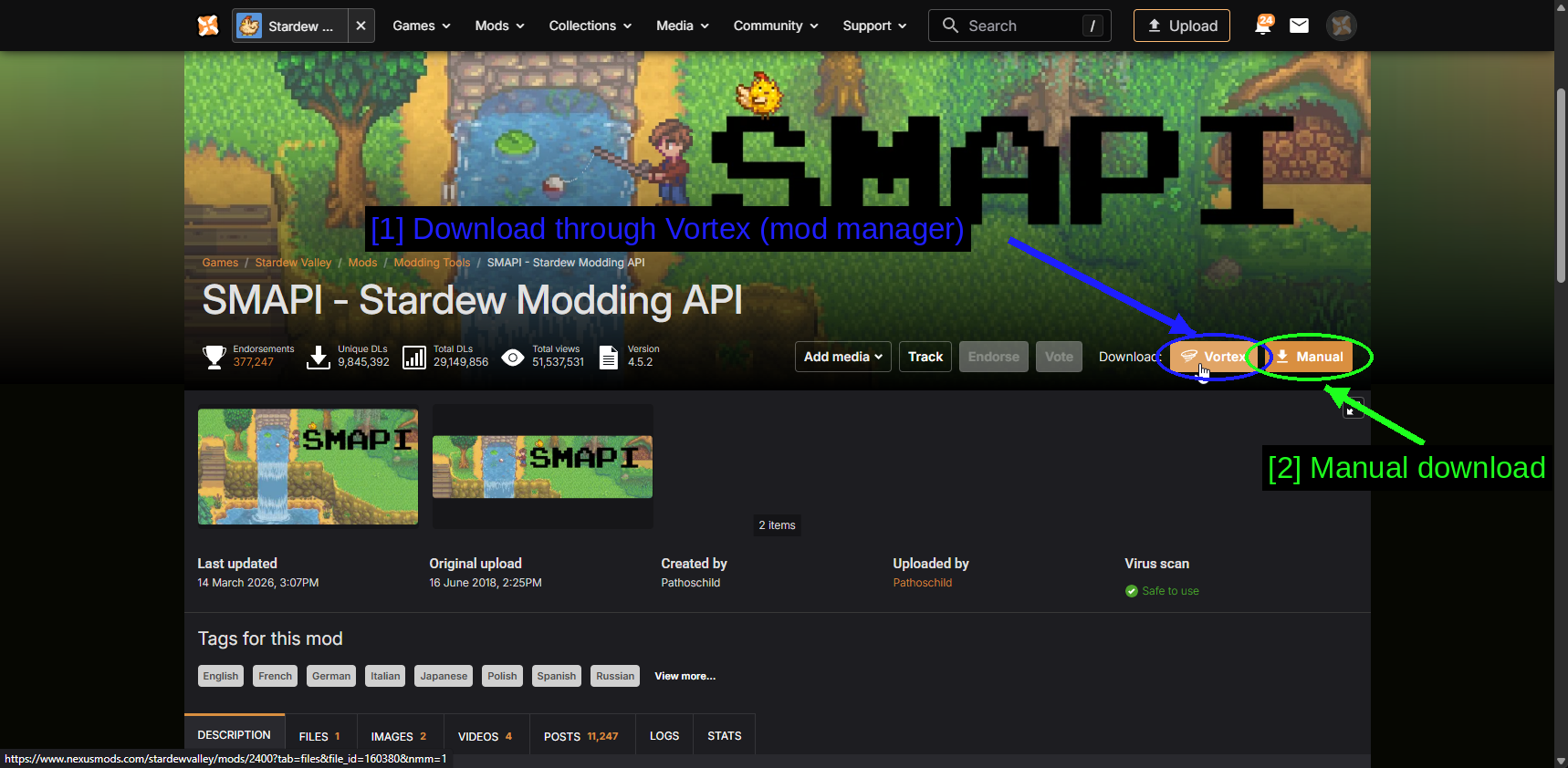
- Downloaden via Vortex (mod manager): De oranje Vortex-knop geeft het bestand door aan de mod manager.
- Handmatig downloaden: Manual downloadt het archief via je browser.
Voor dit gedeelte willen we de Manual-download, omdat SMAPI zijn eigen installer heeft.
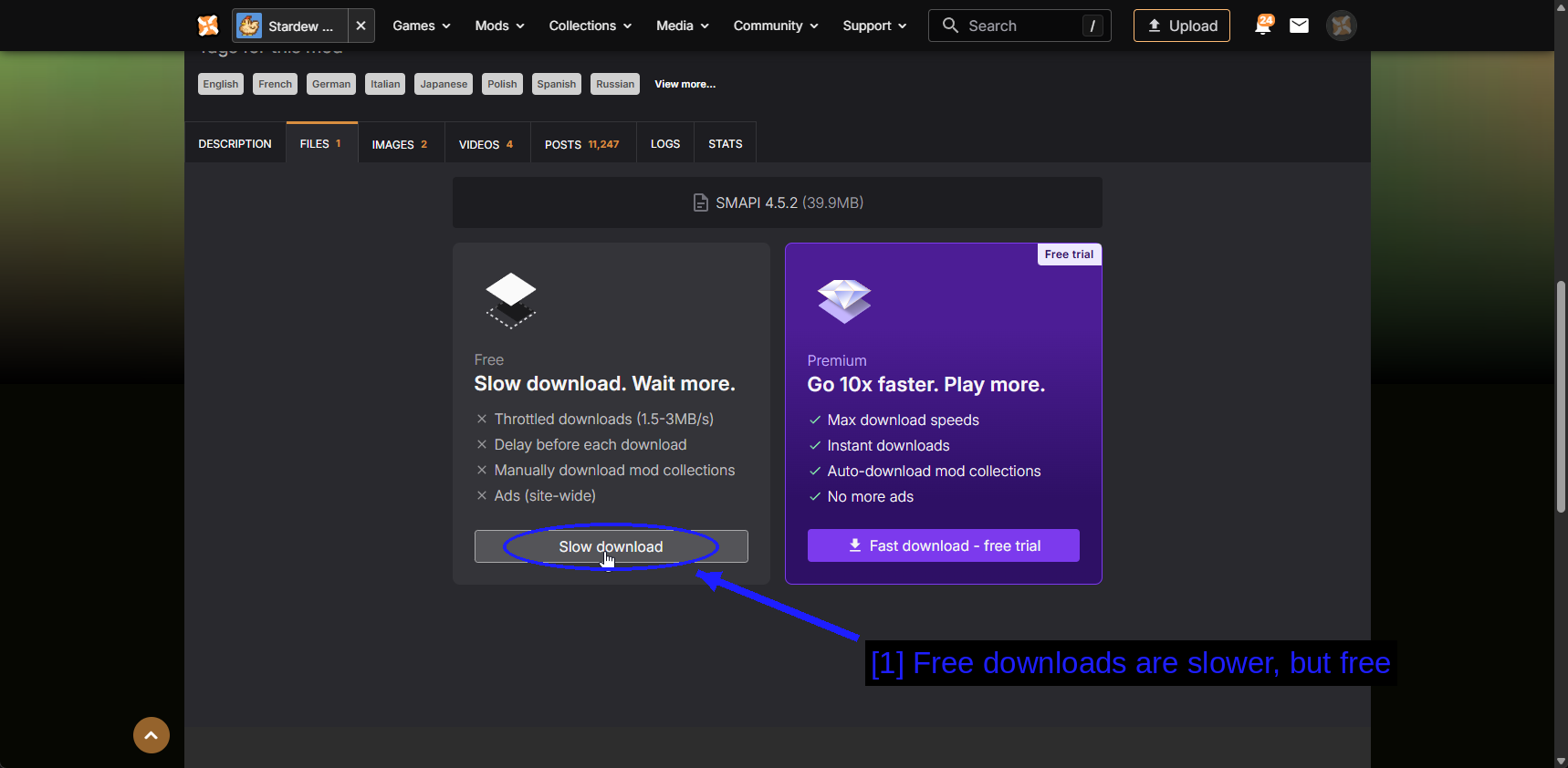
- Gratis downloads zijn langzamer, maar gratis: Slow download wordt beperkt tot ongeveer 1,5-3 MB/s met een korte vertraging voordat het start. SMAPI is ongeveer 40 MB, dus dit duurt hoe dan ook maar enkele seconden.
De Installer Uitvoeren
Pak het archief uit en open de map erin.
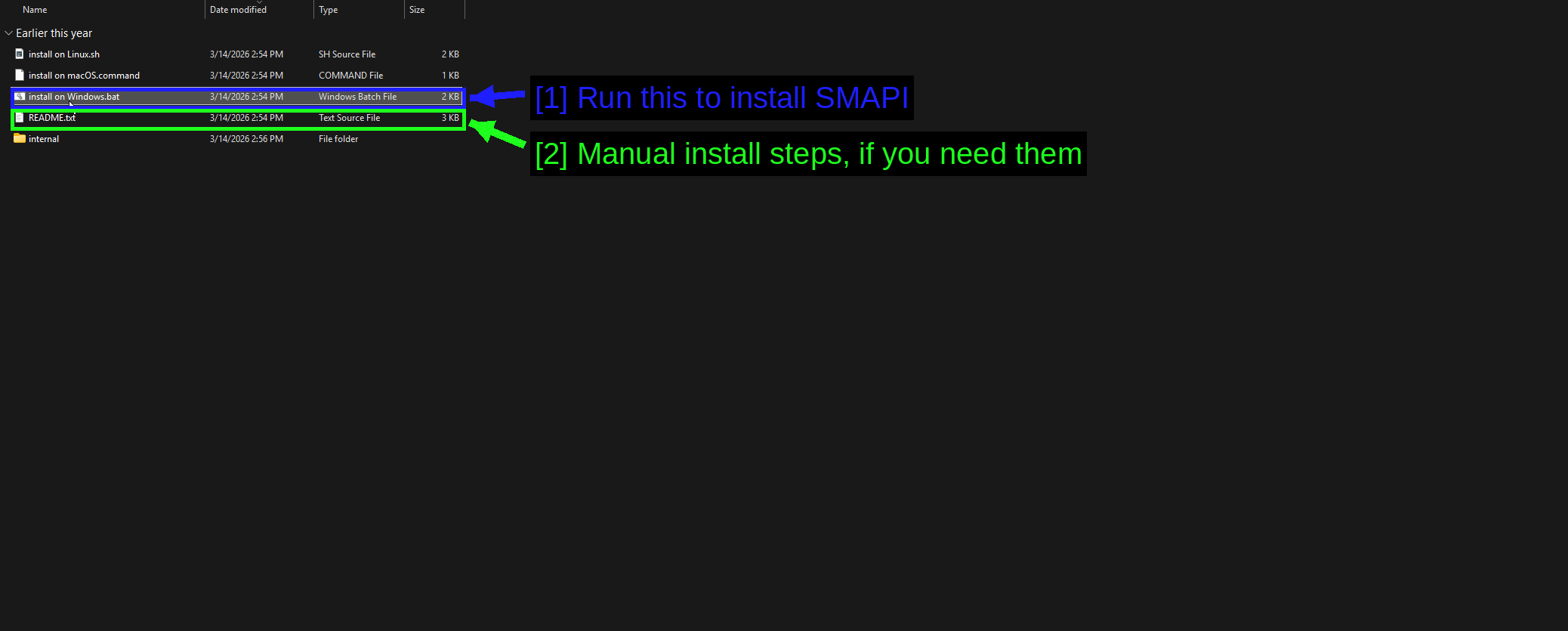
- Voer dit uit om SMAPI te installeren:
install on Windows.bat. Linux- en macOS-gebruikers krijgen hun eigen script in dezelfde map. - Handmatige installatiestappen, mocht je ze nodig hebben:
README.txtdocumenteert het handmatige proces. Je hebt dit vrijwel zeker niet nodig - de installer is de aanbevolen route en de README zegt dit zelf ook.
Dubbelklik op de installer en hij vraagt waar je game staat.
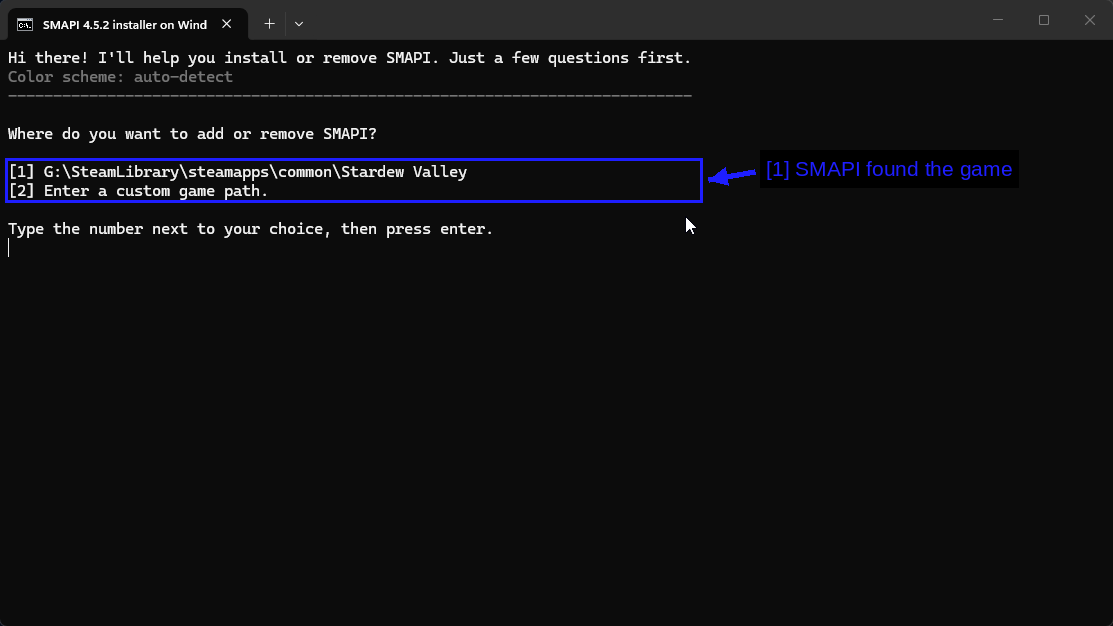
- SMAPI heeft het spel gevonden: Het scant je schijven en toont wat het heeft gevonden. Typ
1en druk op enter, of kies2als je zelf een andere locatie wilt opgeven.
Daarna vraagt het wat je wilt doen.
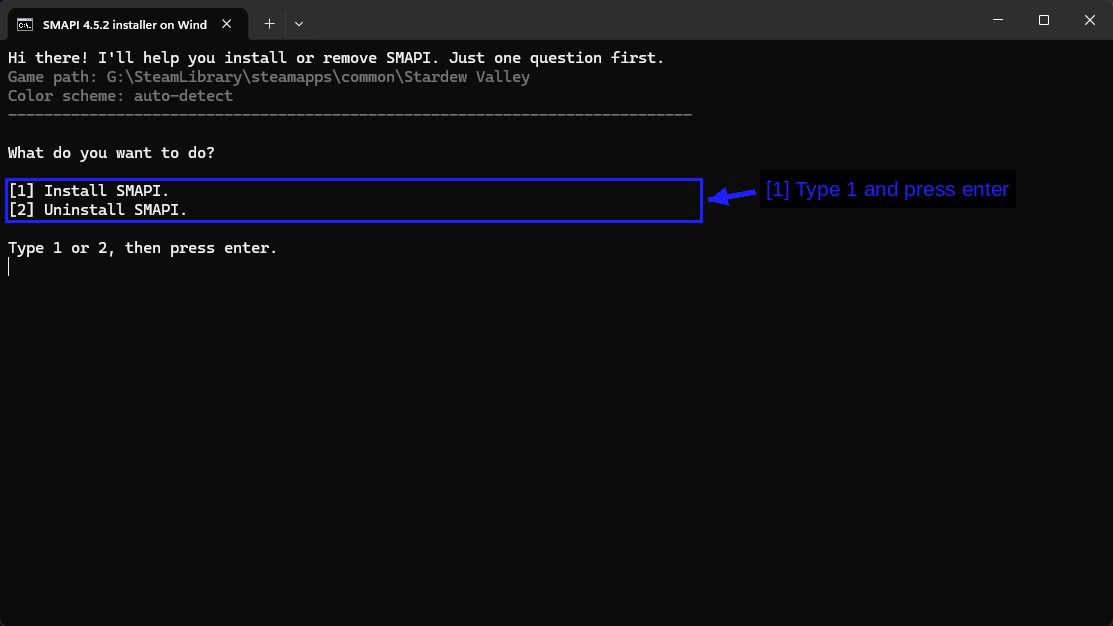
- Typ 1 en druk op enter: Install SMAPI. Optie 2 verwijdert het later netjes, mocht je je spel ooit weer vanilla willen hebben.
Het duurt maar een paar seconden, en daarna vertelt het je precies wat je vervolgens moet doen.
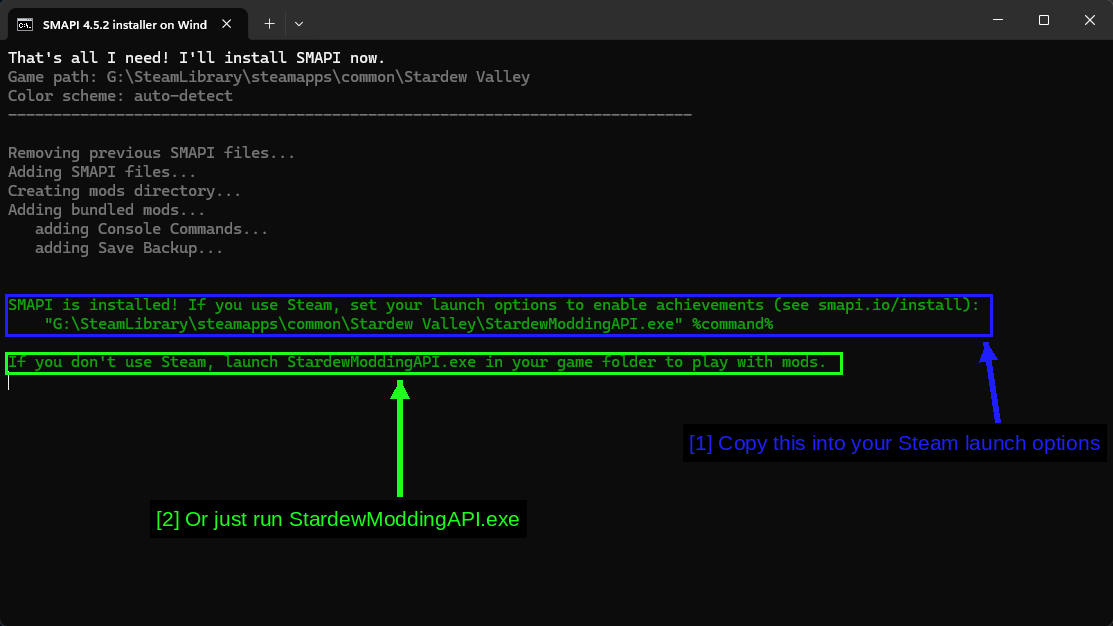
- Kopieer dit naar je Steam-opstartopties: Het volledige pad naar
StardewModdingAPI.exe, gevolgd door%command%. Kopieer deze regel precies zo - de volgende sectie behandelt waar die naartoe gaat. - Of voer gewoon StardewModdingAPI.exe uit: Als je geen Steam gebruikt, is dat alles wat je nodig hebt. Voer dat bestand uit in je spelmap in plaats van het spel zelf.
Let op wat het onderweg deed: Creating mods directory en Adding bundled mods - Console Commands en Save Backup. Die twee mappen die in Mods verschijnen zijn normaal, en je moet ze daar laten staan.
De Steam-opstartoptie Instellen
Op Steam zou je StardewModdingAPI.exe ook rechtstreeks vanuit de spelmap kunnen uitvoeren, maar dan weet Steam niet dat het spel draait, waardoor je achievements, speeltijdregistratie en de overlay kwijtraakt. De opstartoptie lost dit op.
Open je Steam-bibliotheek, klik met de rechtermuisknop op Stardew Valley en kies Properties.
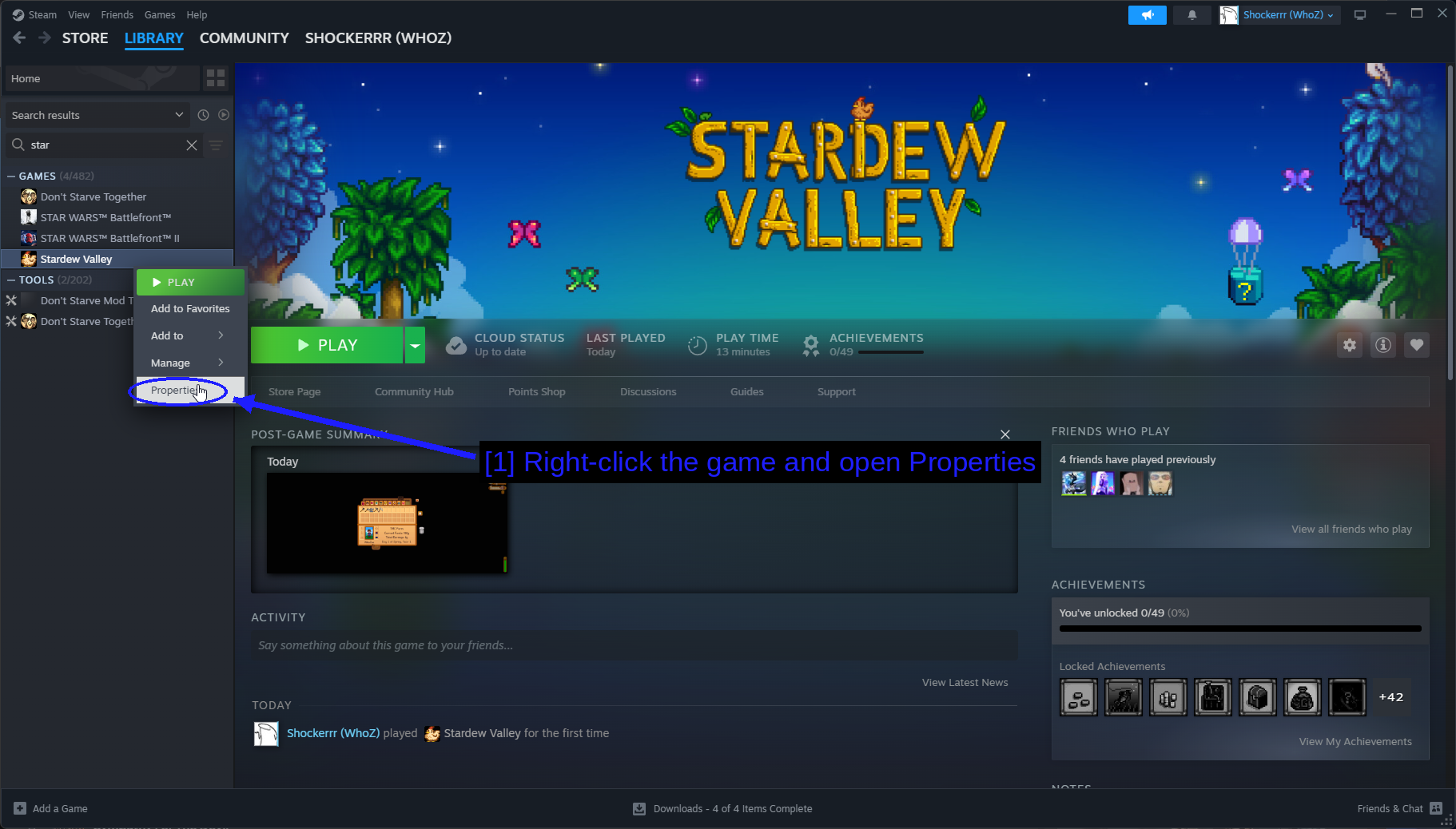
- Klik met de rechtermuisknop op het spel en open Properties: De optie Properties onderaan het contextmenu.
Zoek daarna naar Launch Options op het tabblad General.
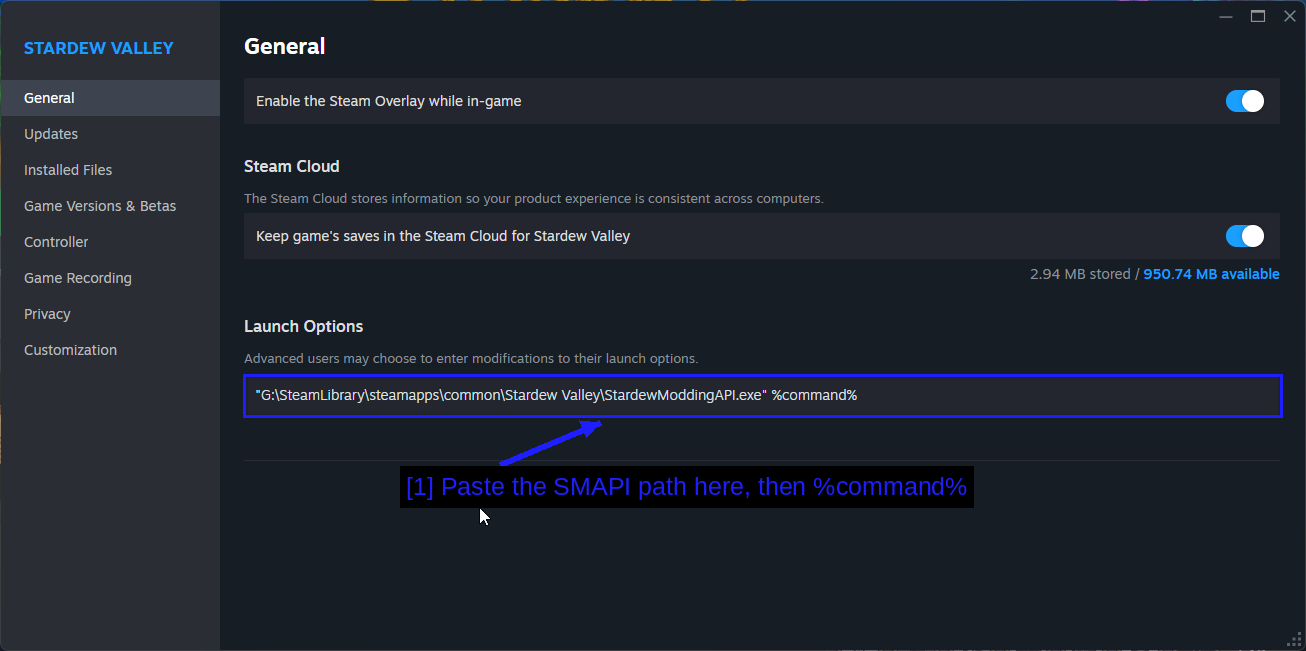
- Plak hier het SMAPI-pad, gevolgd door %command%: De regel die SMAPI's installer je gaf, aanhalingstekens en al.
Het zou er zo uit moeten zien, met je eigen pad.
"G:\SteamLibrary\steamapps\common\Stardew Valley\StardewModdingAPI.exe" %command%
WAARSCHUWING - De aanhalingstekens zijn belangrijk, en %command% ook. Zonder de aanhalingstekens breekt Steam het pad af bij de spatie in "Stardew Valley", en zonder %command% geeft Steam zijn eigen argumenten niet door.
TIP - Om een sessie zonder mods te spelen, wis je gewoon het vakje met opstartopties. Er wordt niets verwijderd, het spel start dan simpelweg zonder SMAPI.
Het Spel Starten
Druk op Play in Steam en er opent een consolevenster naast het spel.
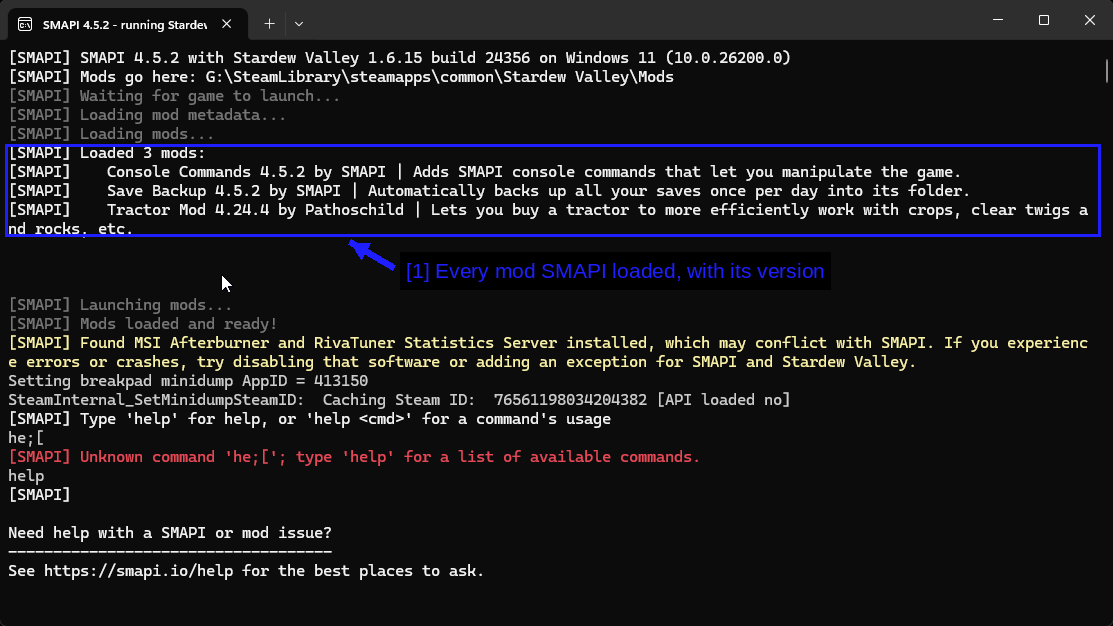
- Elke mod die SMAPI heeft geladen, met versie: Hier zijn dat Console Commands, Save Backup en Tractor Mod 4.24.4 by Pathoschild. Staat een mod niet in deze lijst, dan is die niet geladen, en SMAPI vertelt meestal een paar regels lager waarom.
Dat consolevenster is verreweg het nuttigste onderdeel bij het modden van dit spel. Laat het open staan - fouten, waarschuwingen en meldingen over mod-updates verschijnen daar allemaal, en het is de eerste plek om te kijken als er iets misgaat.
OPMERKING - SMAPI waarschuwt ook voor software waarvan bekend is dat die kan conflicteren, zoals overlays en monitoringtools. De melding in de screenshot over MSI Afterburner is precies dat, en het is een waarschuwing, geen fout.
Waar Je Mods Kunt Downloaden
De belangrijkste bron is Nexus Mods, met meer dan 30.000 Stardew Valley-mods.
Andere plekken die het waard zijn om te kennen staan hieronder.
- CurseForge - de tweede grootste, met een eigen desktopapp. Behandeld hieronder.
- ModDrop - kleiner, maar sommige mods zijn er exclusief.
- Stardew Valley Forums - het officiële forum's mod-board.
- TMC - wij! We zijn nog nieuw.
TIP - Controleer voordat je iets installeert eerst de SMAPI mod compatibility list. Die wordt door de community onderhouden, is doorzoekbaar, en vertelt je in één regel of een mod werkt met jouw spelversie - wat sneller is dan drie pagina's reacties doorlezen.
De Mod Die We Installeren
Tractor Mod van Pathoschild laat je een tractorgarage kopen bij Robin, en vervolgens met een tractor over je boerderij rijden om te oogsten, water te geven, te ploegen en puin te ruimen in een brede straal. Het is een enorme quality-of-life upgrade zodra je boerderij groot wordt.
Het is om drie redenen een goede voorbeeldmod: hij is populair, wordt actief onderhouden, en zijn Nexus-pagina laat een eigenaardigheid zien die veel mensen in verwarring brengt.
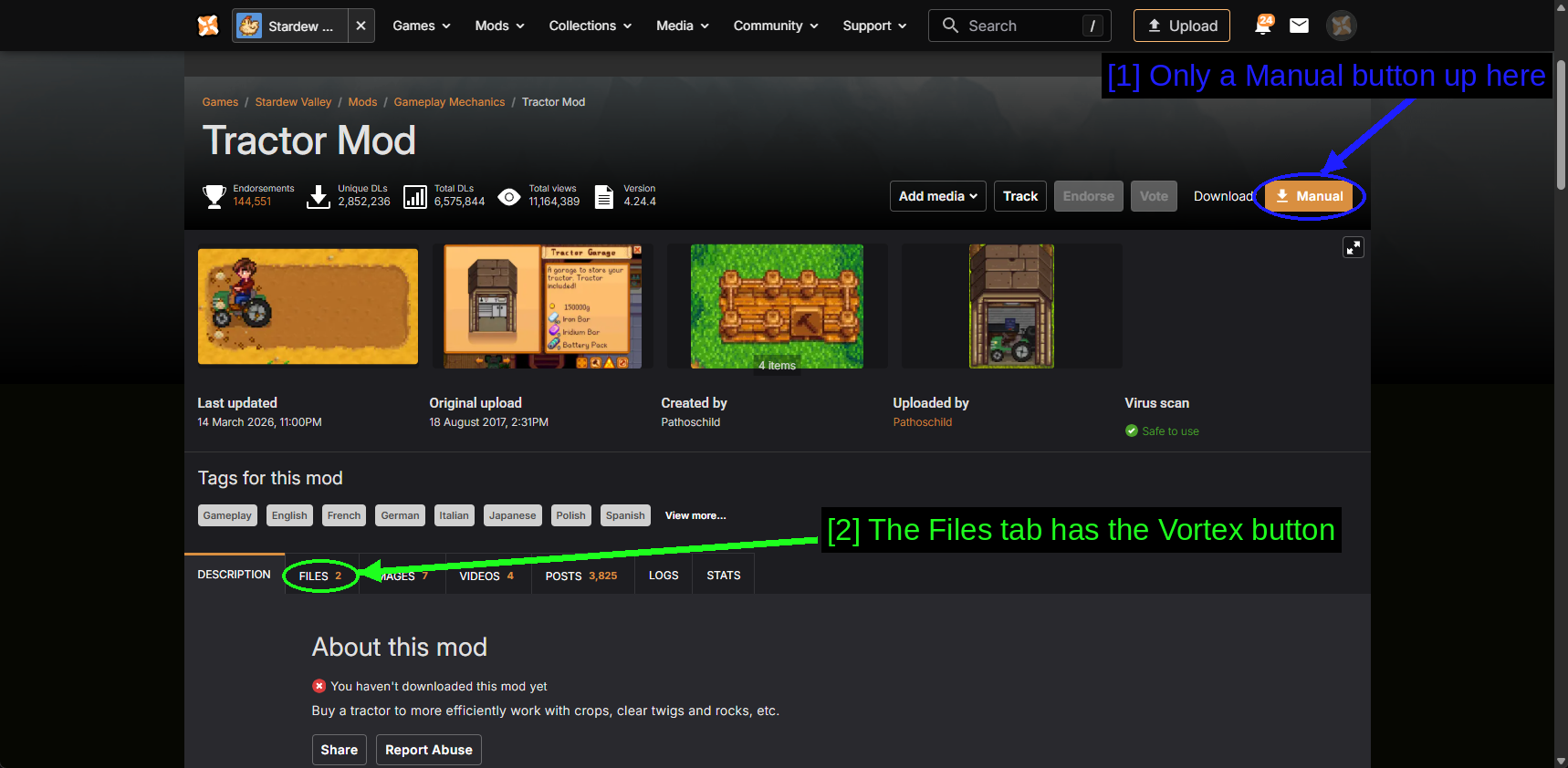
- Hier alleen een Manual-knop: Er is geen oranje Vortex-knop in de header. Dat betekent niet dat de mod alleen handmatig geïnstalleerd kan worden.
- Het tabblad Files heeft de Vortex-knop: Schakel over naar FILES en elk afzonderlijk bestand krijgt zijn eigen mod manager-knop.
Hier is het tabblad Files.
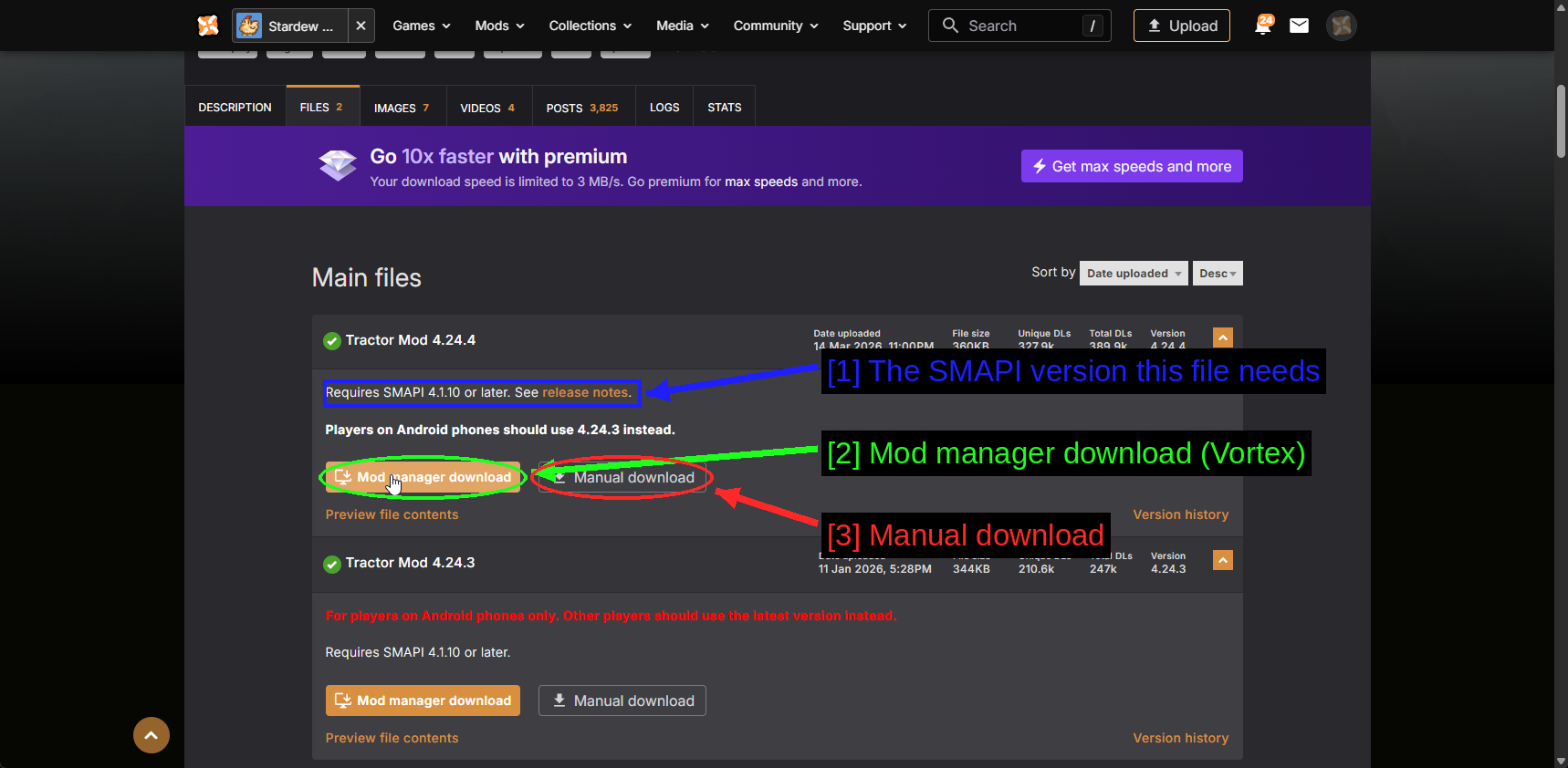
- De SMAPI-versie die dit bestand nodig heeft: "Requires SMAPI 4.1.10 or later." Altijd de moeite waard om even te checken - een mod die een nieuwere SMAPI vereist dan je hebt, is een van de twee of drie meest voorkomende redenen waarom een mod niet laadt.
- Mod manager download (Vortex): Geeft het bestand door aan Vortex.
- Manual download: Downloadt de
.zipvia je browser.
Let op het tweede bestand in de lijst, Tractor Mod 4.24.3, gemarkeerd als "For players on Android phones only". Per ongeluk een ouder bestand pakken omdat het hoger op de pagina stond, is een makkelijke fout om te maken. Lees de opmerkingen.
Mods Handmatig Installeren
Dit is de normale manier om Stardew Valley mods te installeren, en het is werkelijk een proces van twee stappen.
De Mod Downloaden
Gebruik de Manual download-knop op de Files-tab. Je krijgt een .zip.
Uitpakken En Kopiëren
Pak het archief uit met 7-Zip en bekijk wat eruit kwam.
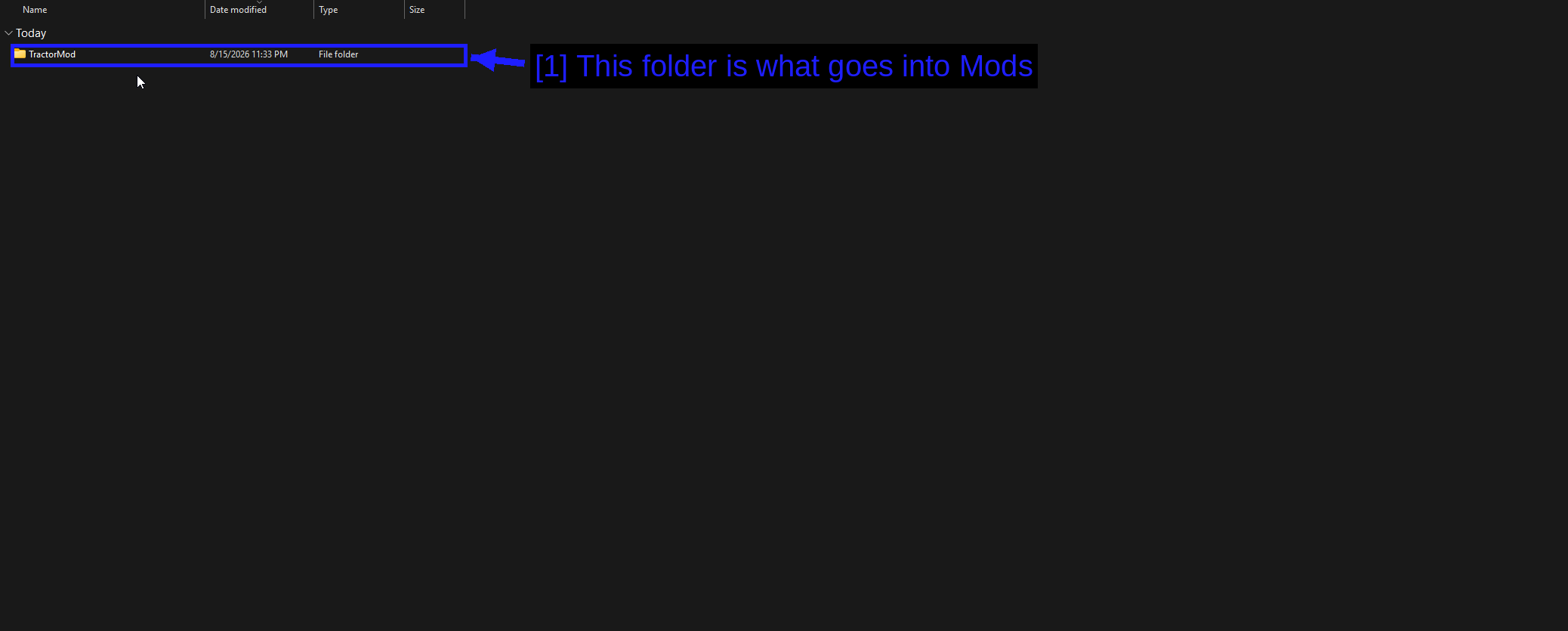
- Deze map gaat in Mods: Eén enkele map genaamd
TractorMod, met daarin hetmanifest.jsonvan de mod en de bijbehorende bestanden.
Kopieer die map naar de Mods-map van je spel.
C:\Program Files (x86)\Steam\steamapps\common\Stardew Valley\Mods
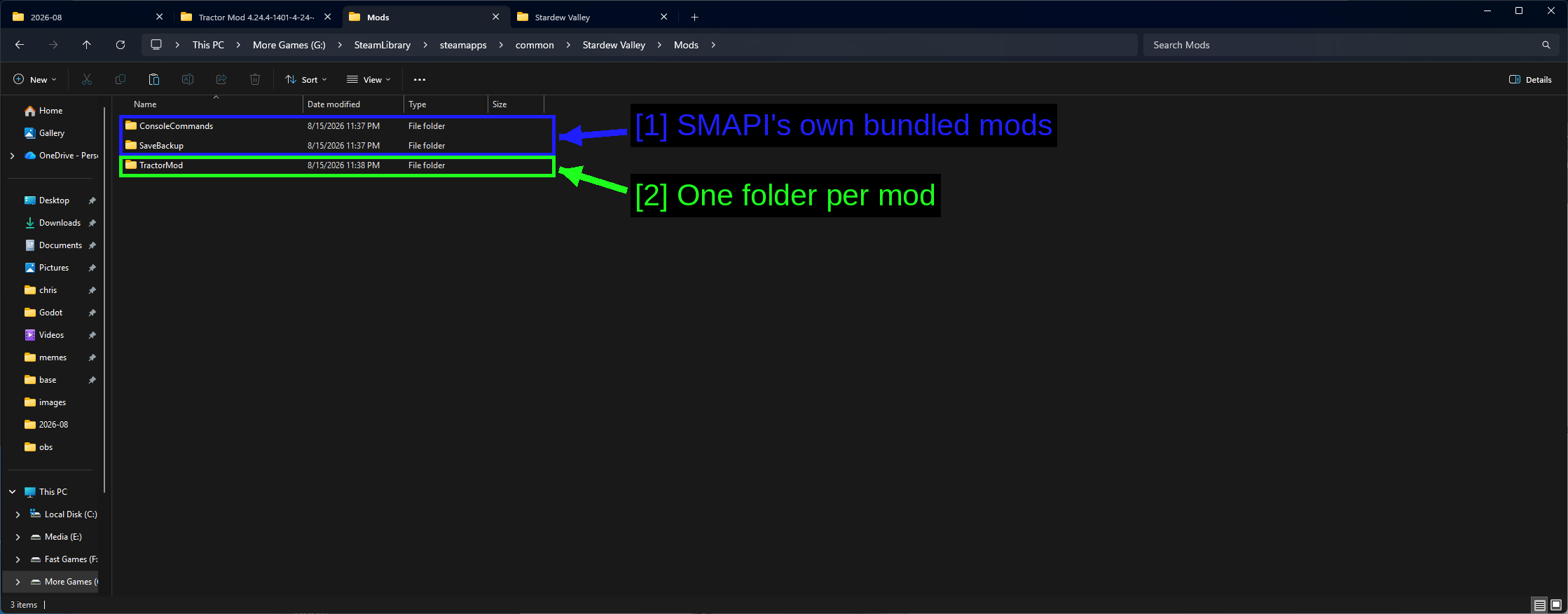
- SMAPI's eigen meegeleverde mods:
ConsoleCommandsenSaveBackup, geïnstalleerd door SMAPI. Laat ze met rust. - Eén map per mod:
TractorMod. Dat is de hele installatie.
De uiteindelijke structuur ziet er dus zo uit.
Stardew Valley\Mods\TractorMod\manifest.json
Stardew Valley\Mods\TractorMod\...
WAARSCHUWING - Nest de map niet. Mods\TractorMod\TractorMod\manifest.json zal niet laden, en dit is verreweg de meest voorkomende fout bij handmatige installatie. SMAPI zoekt naar manifest.json één of twee niveaus diep, en zal het je in de console laten weten als het er geen kan vinden - maar het is makkelijker om het meteen goed te doen.
TIP - Je kunt ook submappen aanmaken binnen Mods om dingen te ordenen - Mods\Farming\TractorMod werkt prima. SMAPI zoekt recursief.
Ter referentie, zo ziet je spelmap eruit nadat SMAPI is geïnstalleerd.
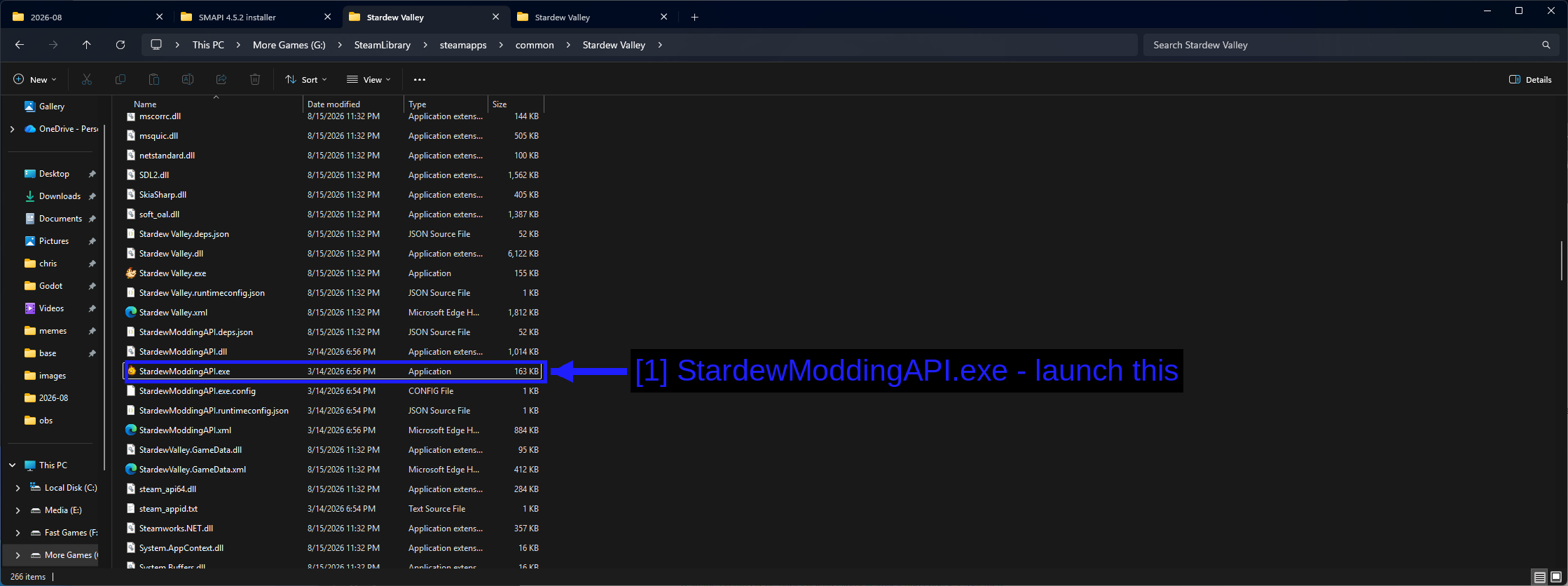
- StardewModdingAPI.exe - start dit: Staat direct naast
Stardew Valley.exe. Dit is waar je Steam-startoptie naar verwijst.
Mods Installeren Via Vortex
Vortex is de officiële mod manager van Nexus Mods. Het is meer machinerie dan Stardew Valley strikt nodig heeft, maar het is echt nuttig zodra je een twintigtal mods draait en updatechecks en één-klik installaties wilt.
Voor een volledige walkthrough van Vortex, zie onze speciale gids How to Use Vortex & The Basics. De onderstaande secties behandelen de Stardew Valley-specifieke onderdelen.
Stardew Valley Beheren In Vortex
Vortex raakt een spel niet aan totdat je het vertelt dat spel te beheren.
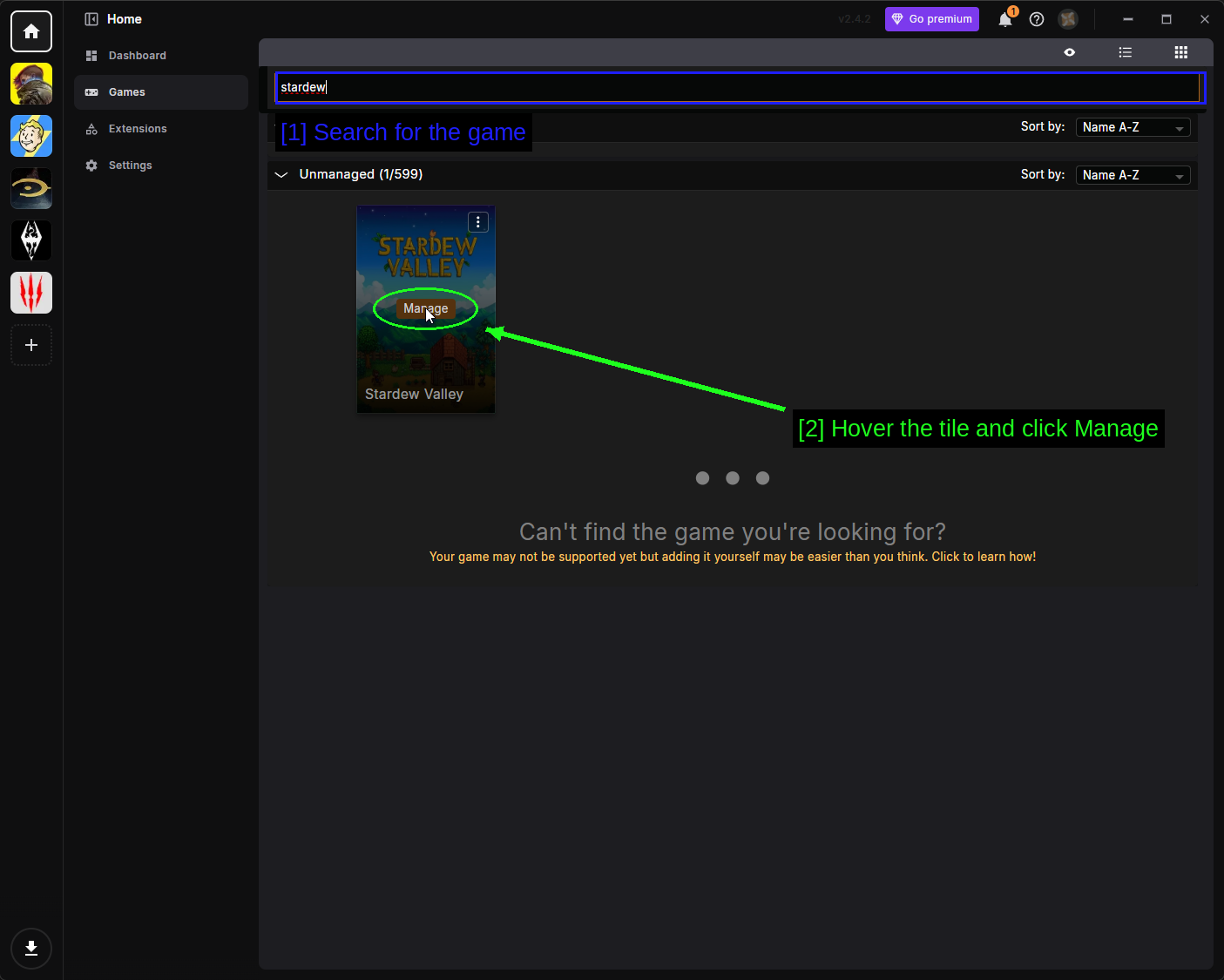
- Zoek naar het spel: Open Games in de linkerbalk en typ
stardewin de zoekbalk. - Beweeg over de tegel en klik op Manage: Vortex scant naar de installatie en voegt Stardew Valley toe aan de linkerbalk.
Als Vortex je installatie niet kan vinden, klik dan op de drie stippen (⋮) in de hoek van de tegel, kies Manually Set Location, en wijs het naar de map met Stardew Valley.exe.
Vortex SMAPI Laten Installeren
Vortex weet dat Stardew Valley SMAPI nodig heeft en laat het je weten als het er niet is.
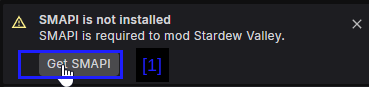
- Get SMAPI brengt je direct naar de download.
Als je SMAPI al hebt geïnstalleerd met de eigen installer, verschijnt deze melding gewoon niet. Als je liever wilt dat Vortex het afhandelt, klik je op de knop en laat je het SMAPI installeren als elke andere mod.
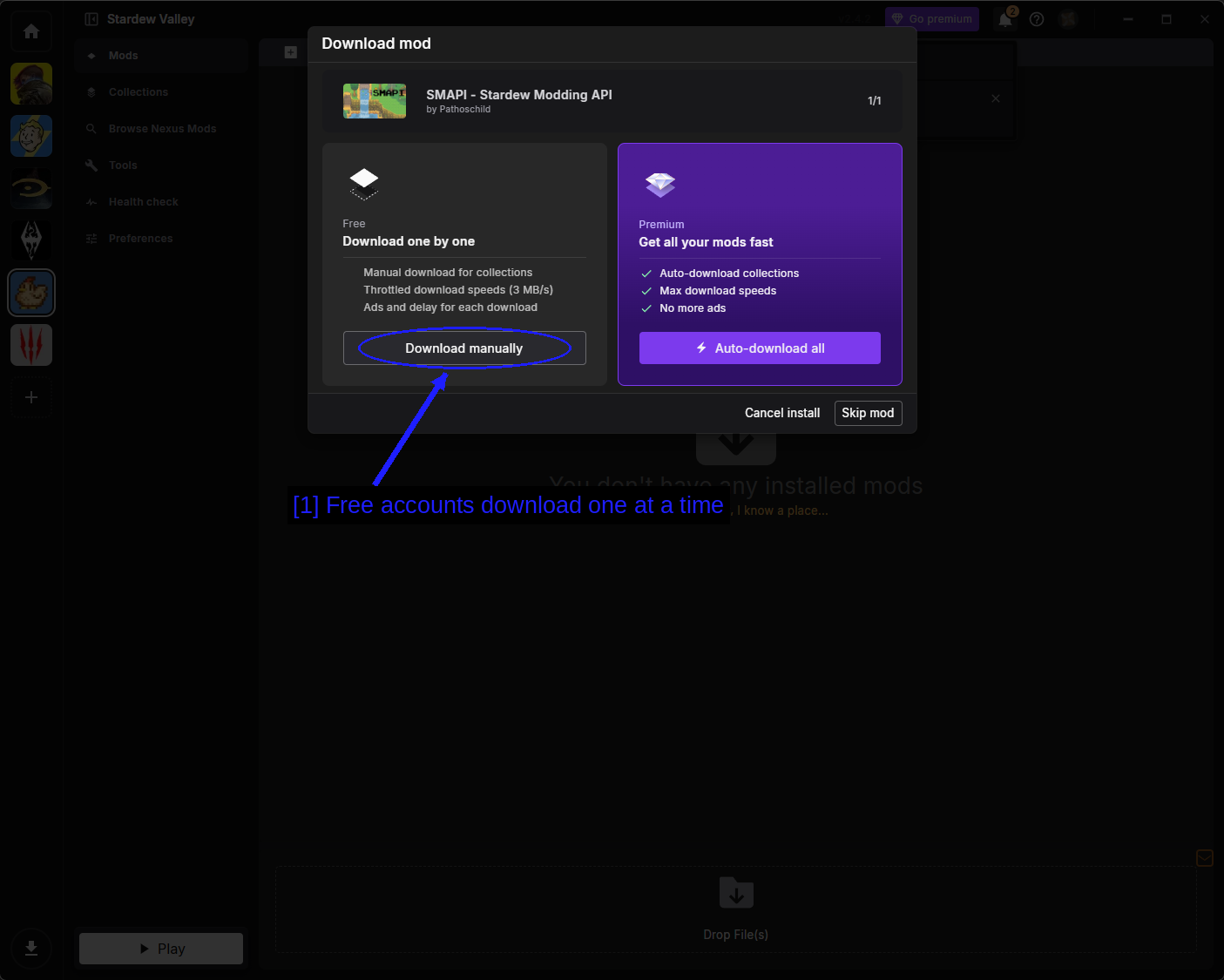
- Gratis accounts downloaden één voor één: Download manually opent de Nexus-pagina voor het bestand. Premium-accounts krijgen Auto-download all, wat alles ophaalt zonder de paginabezoeken.
Zodra het binnen is, verschijnt SMAPI op de Mods-pagina zoals al het andere.
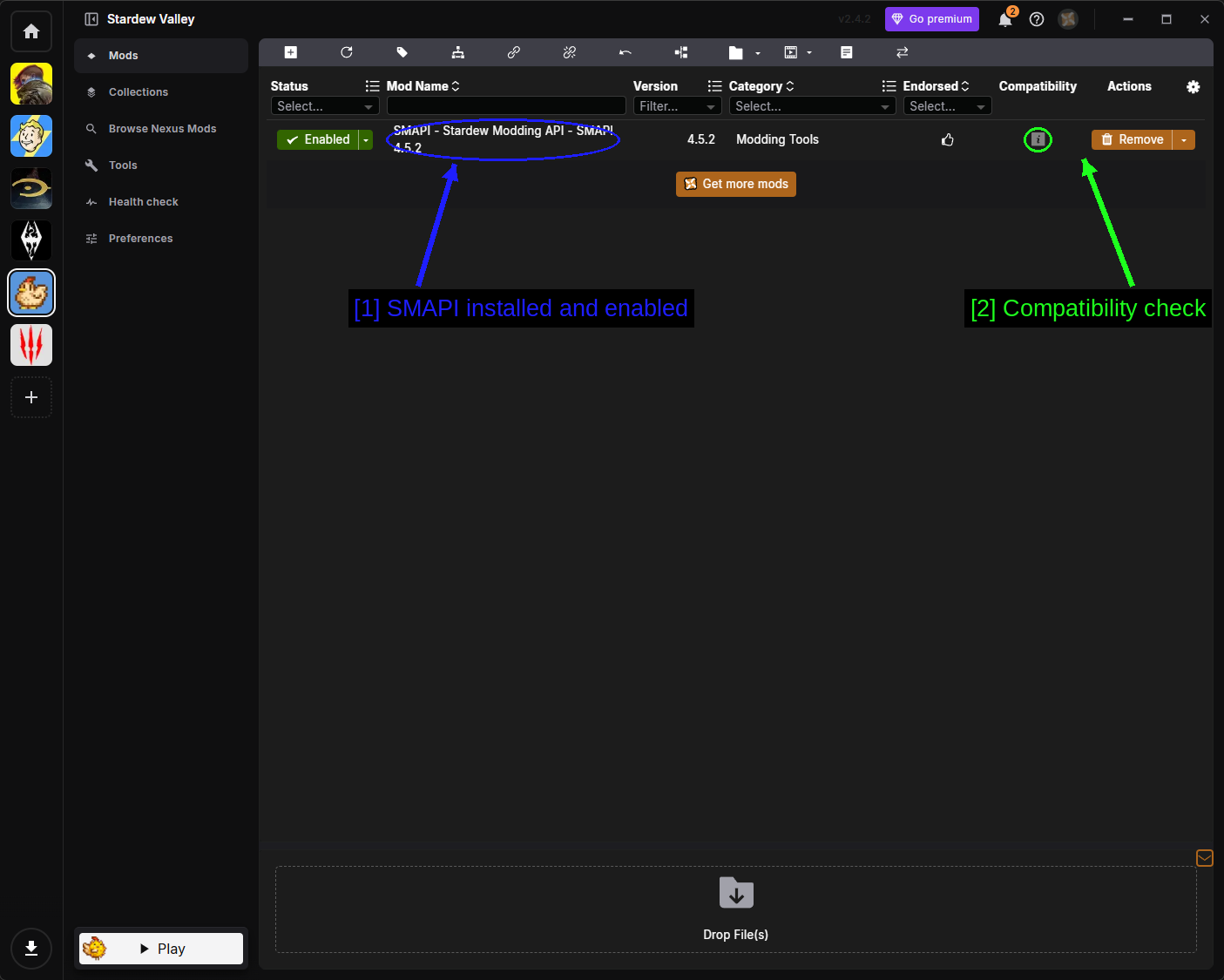
- SMAPI geïnstalleerd en ingeschakeld: Gecategoriseerd onder Modding Tools.
- Compatibiliteitscheck: Vortex controleert mods tegen een compatibiliteitsdatabase voor dit spel en markeert alles waarvan bekend is dat het kapot is. Een groen vinkje is goed, het info-icoontje betekent dat er iets te lezen valt.
LET OP - Het installeren van SMAPI via Vortex stelt niet de Steam-startoptie in. Dat deel is nog steeds aan jou, en wordt behandeld bij Setting Up The Steam Launch Option hierboven.
Een Mod Installeren
Ga naar de modpagina, open de FILES-tab, en gebruik Mod manager download. Je browser zal om toestemming vragen om Vortex te openen - accepteer dit, en vink Always allow aan als je liever niet steeds gevraagd wordt.
Vortex downloadt het, installeert het, en plaatst de map in je Mods-map voor je.
De Mods-Pagina
Alles wat je hebt geïnstalleerd staat hier.
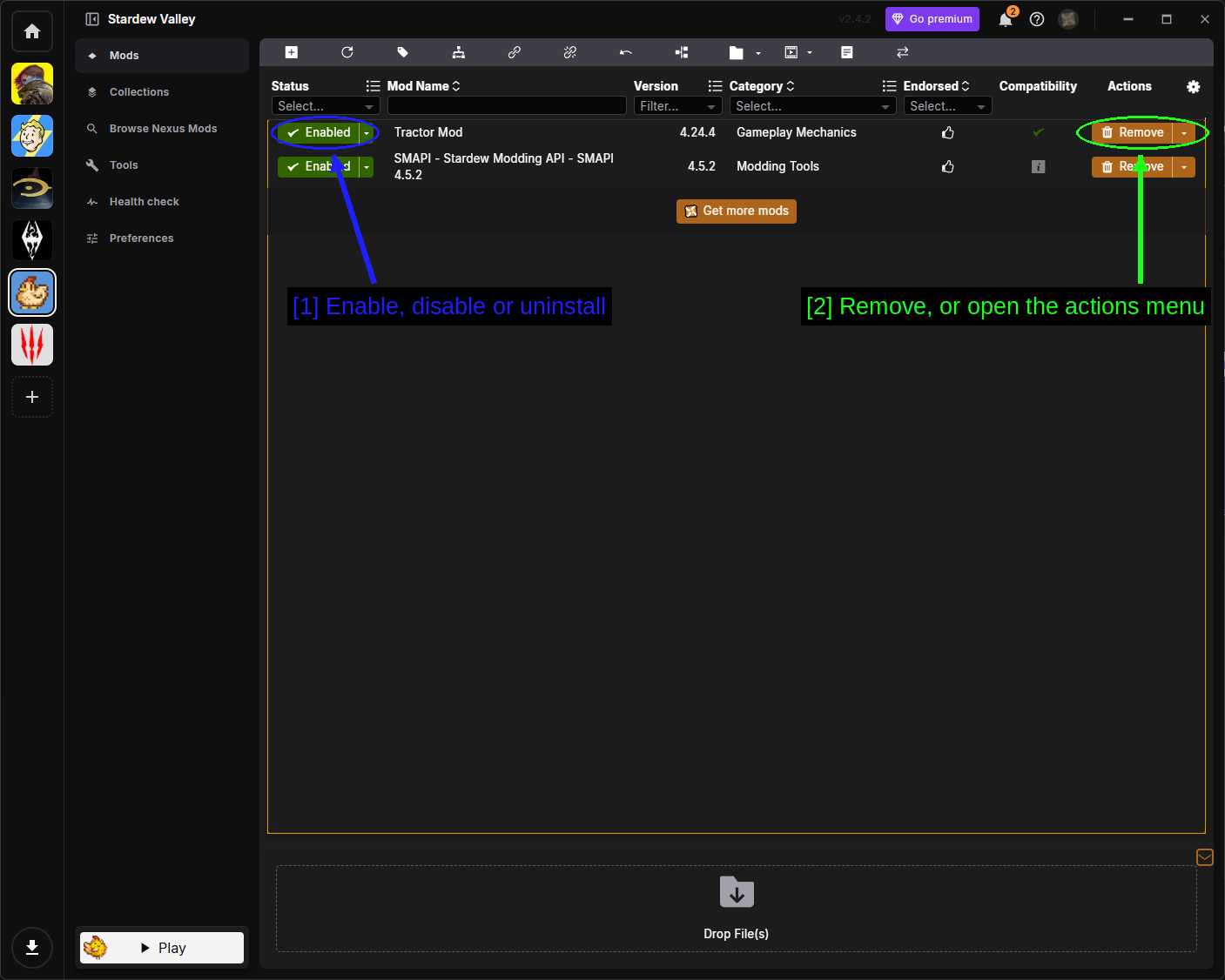
- Inschakelen, uitschakelen of verwijderen: De Status-dropdown voor elke mod.
- Remove, of open het actiemenu: Remove verwijdert de mod, en de pijl ernaast opent het volledige actiemenu.
De status-dropdown heeft drie opties.
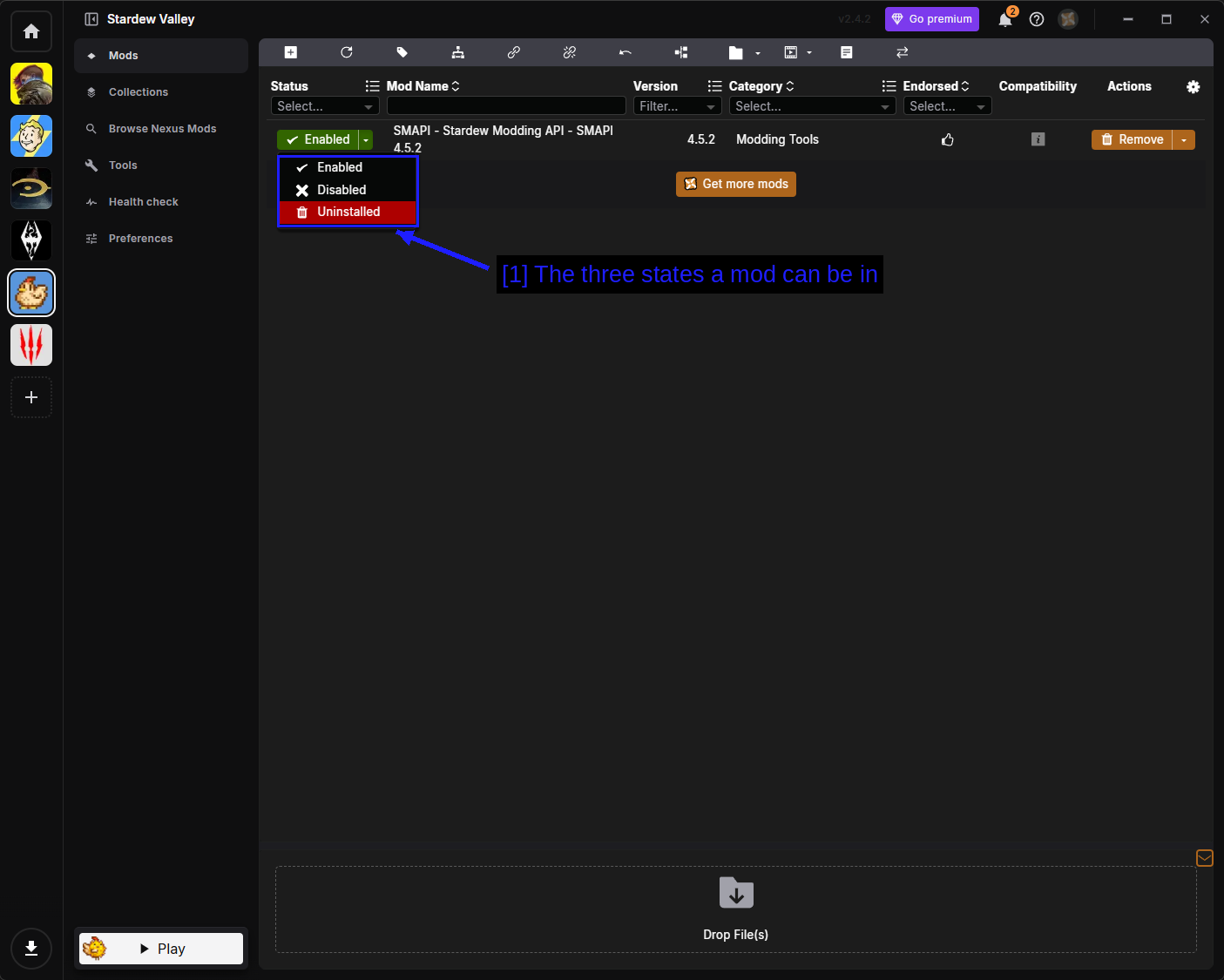
- De drie statussen die een mod kan hebben: Enabled betekent dat de modmap in je
Mods-map staat. Disabled houdt de mod in Vortex maar haalt de map er weer uit. Uninstalled verwijdert de bestanden maar behoudt het gedownloade archief zodat je opnieuw kunt installeren zonder opnieuw te downloaden.
Het actiemenu behandelt al het andere.
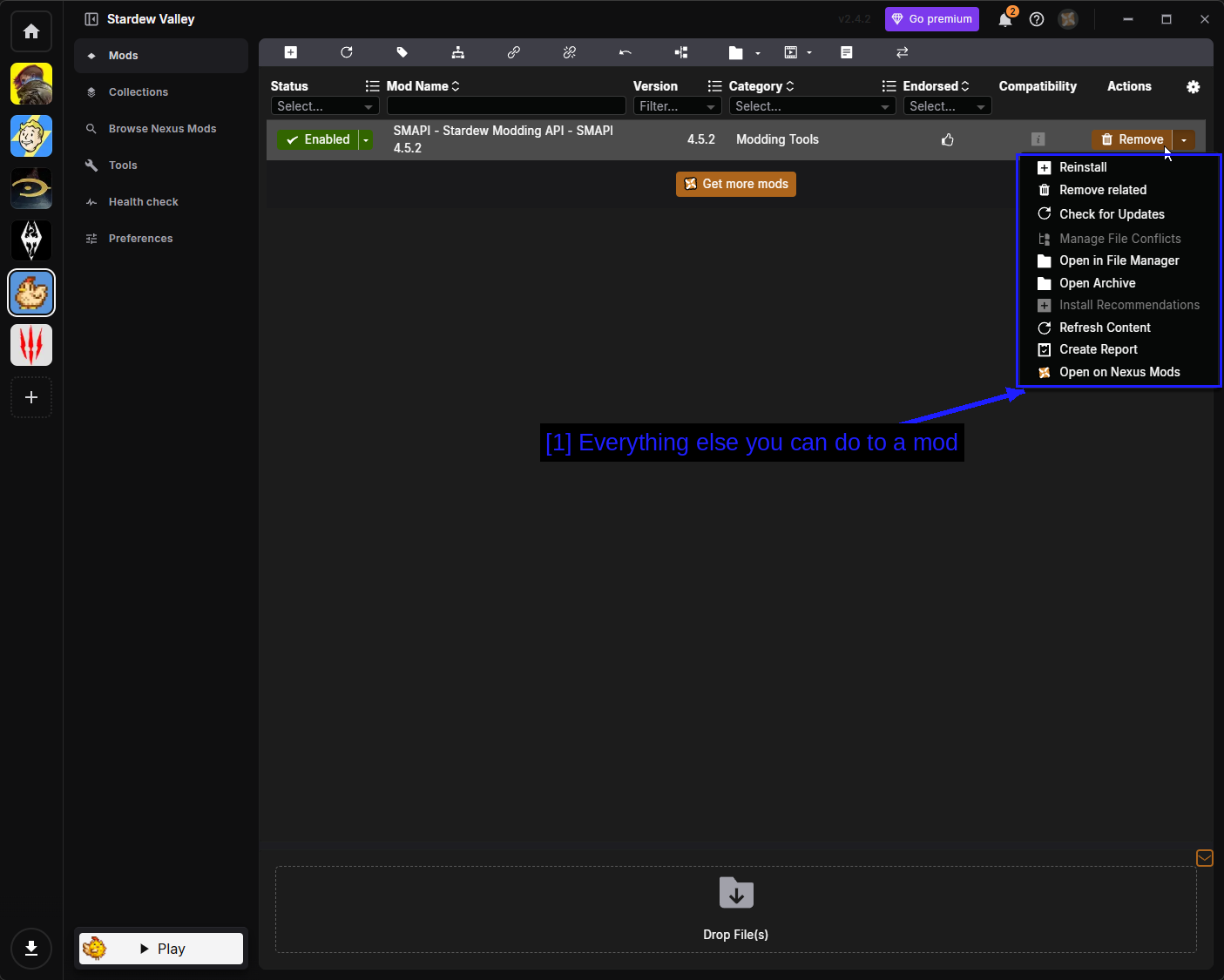
- Al het andere dat je met een mod kunt doen: De opties zijn als volgt.
- Reinstall - voert het installatieprogramma opnieuw uit.
- Remove related - verwijdert de mod en alles wat eraan gekoppeld is.
- Check for Updates - vraagt Nexus Mods om een nieuwere versie.
- Manage File Conflicts - bepaalt welke mod wint wanneer twee mods hetzelfde bestand beschrijven.
- Open in File Manager - opent de staging-map van de mod.
- Open Archive - opent het gedownloade archief.
- Install Recommendations - installeert mods die de auteur naast deze aanbeveelt.
- Refresh Content - leest de bestanden van de mod opnieuw in vanaf schijf.
- Create Report - genereert een rapport, handig als je om hulp vraagt.
- Open on Nexus Mods - opent de moddingpagina in je browser.
NOTE - Stardew Valley heeft geen plugins en geen load order, dus de zijbalk van Vortex is hier korter dan bij Bethesda-games. Er is geen Plugins-pagina, omdat er niets te ordenen valt.
Launching Through Vortex
De Play-knop van Vortex start het spel met SMAPI.
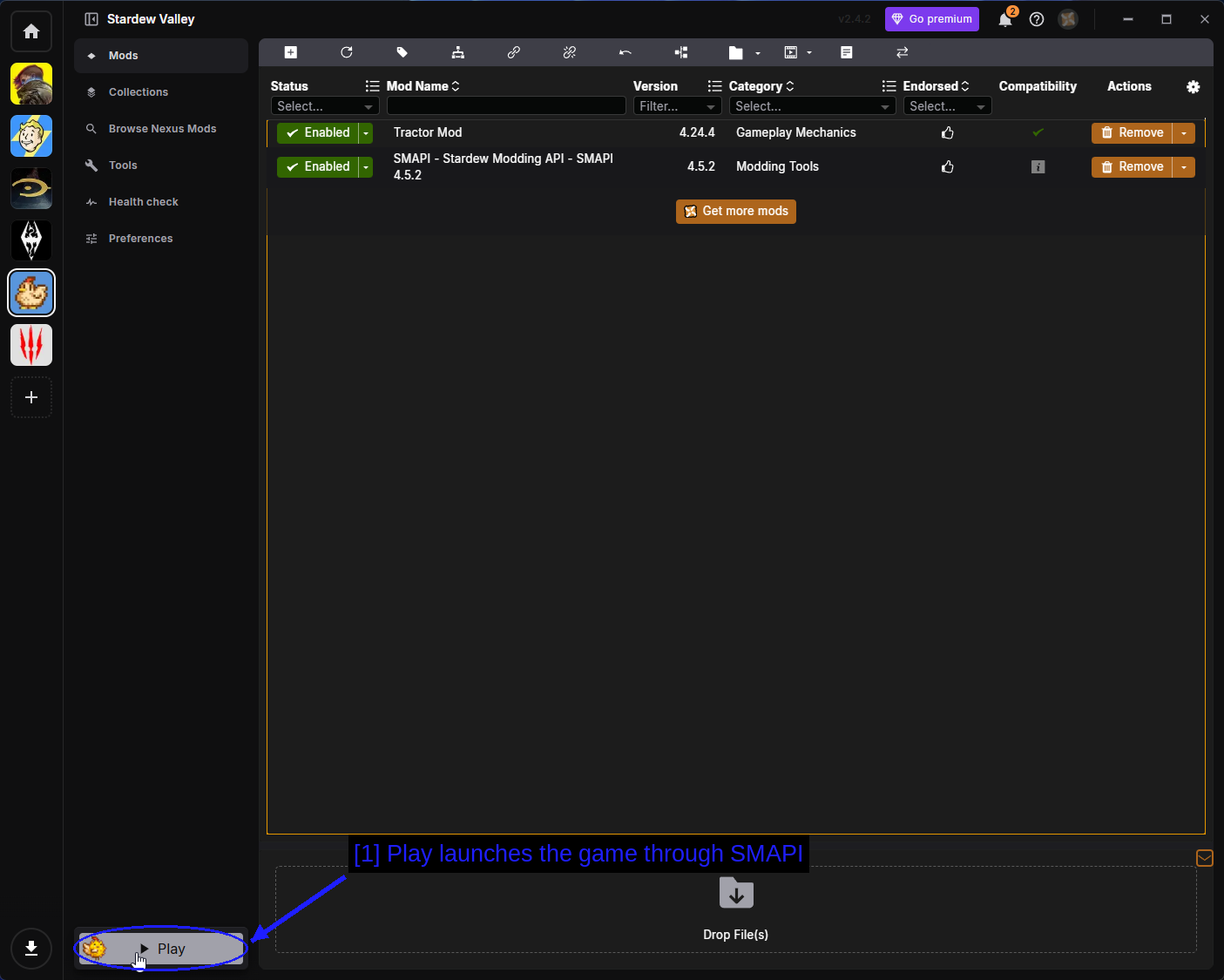
- Play start het spel via SMAPI: Vortex herkent
StardewModdingAPI.exeautomatisch zodra SMAPI is geïnstalleerd.
Installing Mods Through The CurseForge App
CurseForge is de andere grote modhost, en de desktopapp ondersteunt Stardew Valley. Als je het al gebruikt voor Minecraft, zal dit bekend aanvoelen.
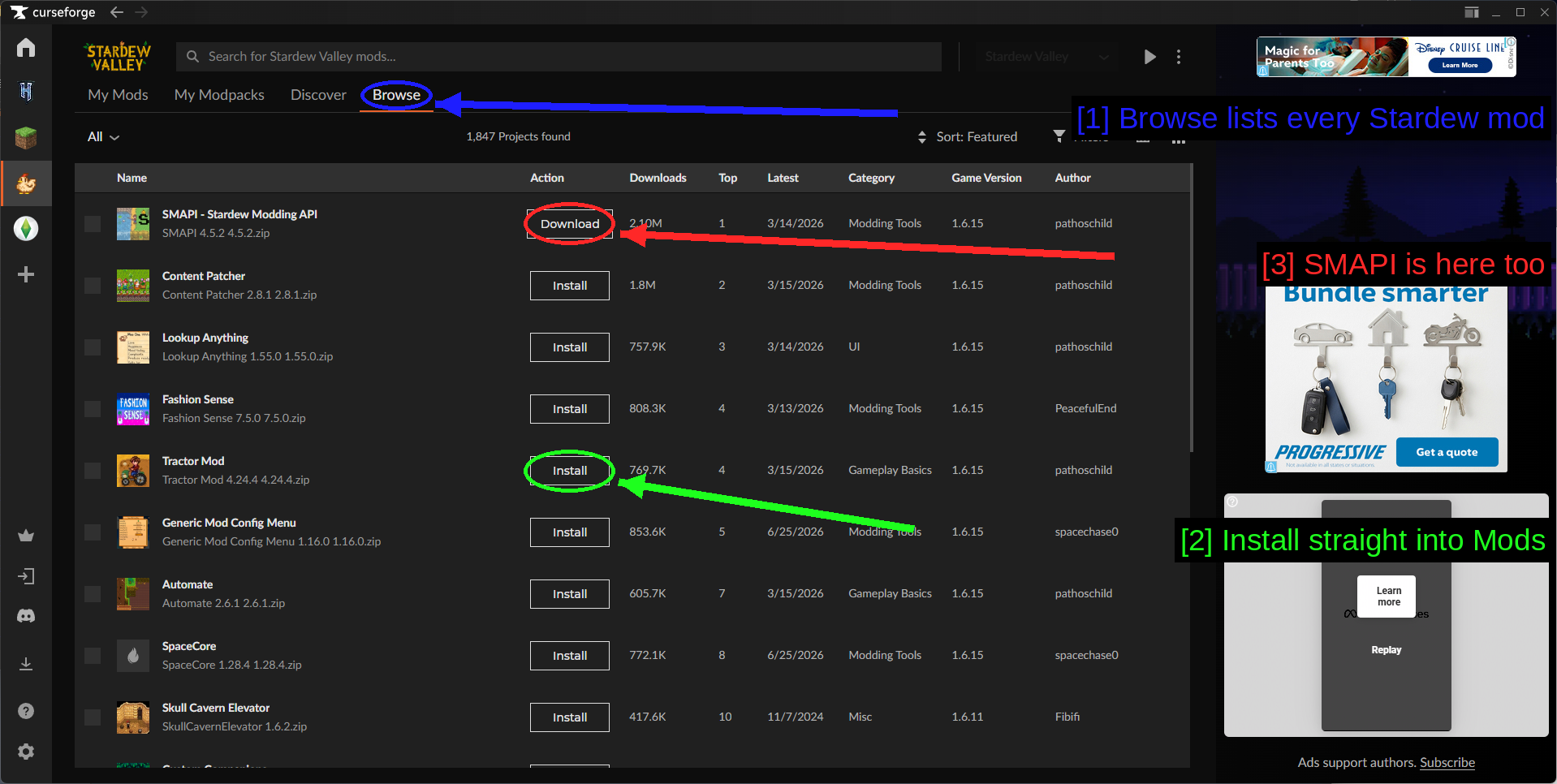
- Browse toont elke Stardew-mod: Ongeveer 1.800 projecten, sorteerbaar op downloads, categorie en spelversie.
- Rechtstreeks installeren in Mods: Eén klik. CurseForge downloadt de mod en pakt hem voor je uit in je
Mods-map. - SMAPI staat hier ook: SMAPI is het bovenste resultaat en kan ook vanaf hier worden geïnstalleerd.
Je geïnstalleerde mods staan onder My Mods.
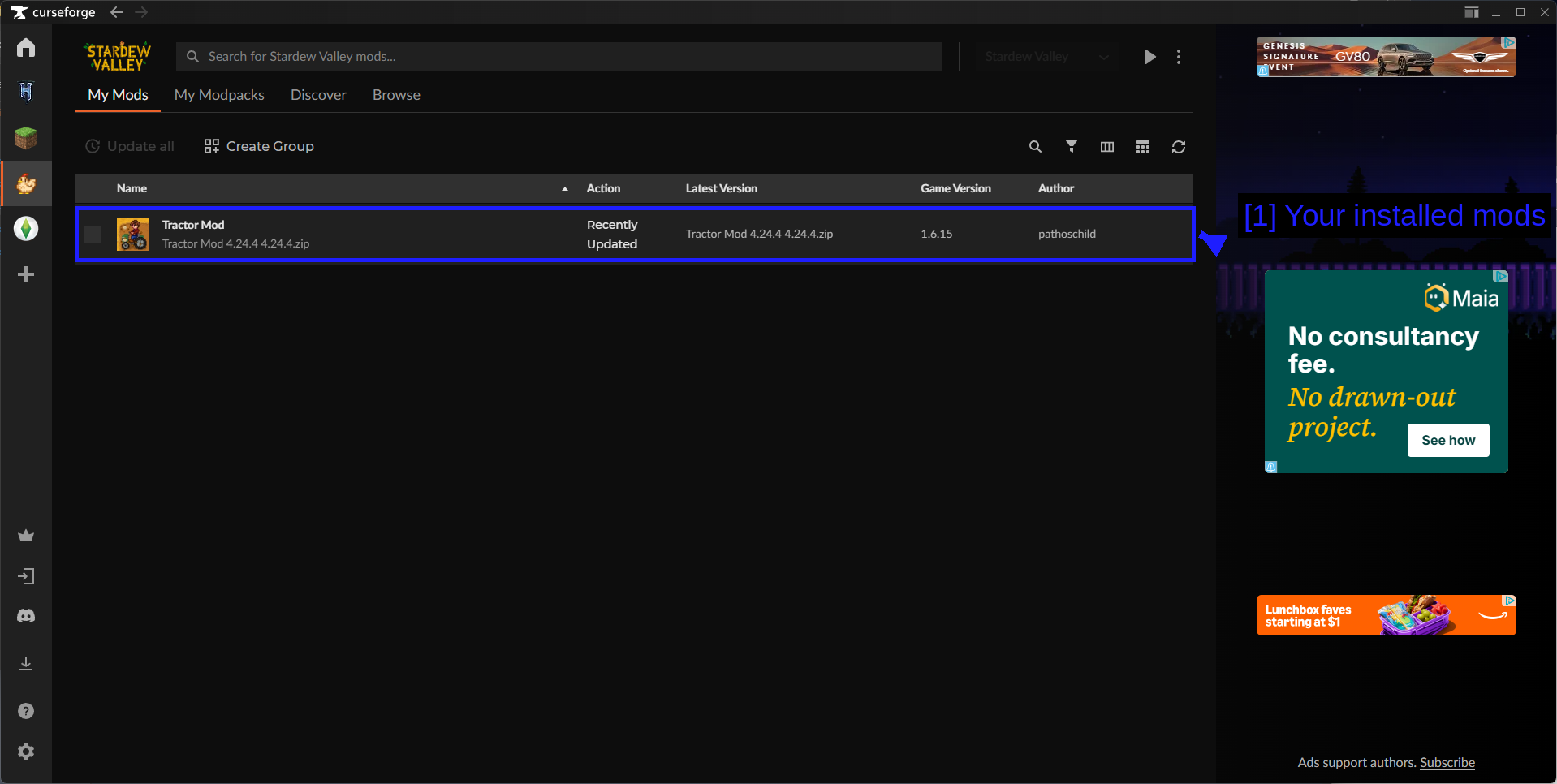
- Je geïnstalleerde mods: Met de geïnstalleerde versie, de spelversie waarop de mod is gericht en de auteur. Update all bovenaan werkt alles in één keer bij.
CurseForge is voor dit spel misschien wel de minst omslachtige van de drie methoden - het is één klik per mod en updates worden automatisch afgehandeld - maar de Stardew-bibliotheek is kleiner dan die van Nexus Mods, dus je zult waarschijnlijk methoden gaan combineren.
WARNING - Beheer dezelfde mod niet op twee plekken tegelijk. Als Vortex en CurseForge allebei denken Mods\TractorMod te beheren, krijg je duplicaten of een mod die terugkeert nadat je hem hebt verwijderd. Kies één manager per mod, of installeer handmatig.
TIP - Voor een volledige uitleg van de CurseForge-app, zie onze How to Use the CurseForge App & The Basics gids.
Checking If Your Mods Loaded
Start het spel en lees de SMAPI-console. Je mod hoort in de Loaded N mods-lijst te staan met naam, versie en auteur.
Voor Tractor Mod specifiek ga je naar Robin's timmerwerkplaats en vind je een nieuwe Tractor Garage te koop voor 150.000g (plus een IJzerstaaf, een Iridiumstaaf en een Batterijpakket). Bouw hem, en de tractor staat erin.
Als de mod niet in de lijst staat, loop het volgende na.
- Klopt de mapstructuur? Het moet
Mods\ModNaam\manifest.jsonzijn, nietMods\ModNaam\ModNaam\manifest.json. - Heeft de console een skipped mod-waarschuwing getoond? SMAPI noemt de mod en de reden.
- Is je SMAPI nieuw genoeg? De moddingpagina vermeldt de minimale versie.
- Heb je het spel via SMAPI gestart in plaats van rechtstreeks?
- Staat de mod als kapot vermeld op de compatibiliteitslijst?
Updating & Removing Mods
Bijwerken is hetzelfde proces als installeren - download de nieuwe versie en vervang de map.
- Maak een back-up van het
config.json-bestand van de mod als je het hebt aangepast. De meeste mods behouden je instellingen wanneer je de map overschrijft, maar niet allemaal. - Verwijder de oude map in plaats van erover te plakken. Achtergebleven bestanden van een oude versie zijn een echte bron van vreemd gedrag.
- Kopieer de nieuwe map erin.
Een mod verwijderen is simpelweg zijn map uit Mods verwijderen.
WARNING - Het verwijderen van een mod die items of gebouwen aan je save heeft toegevoegd, kan die save beschadigen. Als de pagina van een mod deïnstallatie-instructies bevat, volg ze op - meestal iets als alles verkopen wat de mod heeft toegevoegd voordat je hem verwijdert.
TIP - SMAPI controleert bij het opstarten op mod-updates en toont ze in de console, zodat je te horen krijgt wanneer iets verouderd is zonder handmatig te hoeven controleren.
Other Useful Mods
Een paar mods zijn het waard om al vroeg te installeren, omdat zoveel andere mods ervan afhankelijk zijn, of omdat ze al het andere makkelijker maken.
- Content Patcher - laat mods de afbeeldingen, kaarten en data van het spel wijzigen zonder de spelbestanden aan te raken. Een groot deel van de Stardew-mods zijn Content Patcher-pakketten, dus je krijgt hem sowieso, of je het van plan bent of niet.
- Generic Mod Config Menu - voegt een in-game instellingenmenu toe voor elke mod die het ondersteunt, wat de meeste zijn. Zonder deze mod betekent het configureren van mods het bewerken van
config.json-bestanden in Notepad. - Lookup Anything - druk op een toets boven iets in het spel om de details te zien. Geen vereiste, gewoon extreem nuttig.
- SpaceCore - een framework waarop veel grotere content-mods voortbouwen.
Probleemoplossing
- Er verschijnt geen consolevenster. Je hebt het spel gestart in plaats van SMAPI. Controleer je Steam-opstartopties, of start
StardewModdingAPI.exerechtstreeks. - SMAPI meldt dat een mod is overgeslagen. Lees de regel - hij noemt de reden, meestal een ontbrekende dependency of een verouderde mod.
- De mod staat helemaal niet in de lijst. De mapstructuur klopt niet, of je hebt hem ergens anders neergezet dan in
Mods. - SMAPI zegt dat het spel niet gevonden kan worden. Wijs de installer handmatig naar de map met optie 2.
- Het spel crasht bij het opstarten na een update. SMAPI is ouder dan je spelversie. Download de huidige SMAPI en voer de installer opnieuw uit.
- Een mod werkte gisteren wel en vandaag niet. Het spel heeft zichzelf geüpdatet. Zelfde oplossing - update SMAPI en controleer de mod vervolgens op de compatibiliteitslijst.
- Mijn save laadt niet. Een mod die naar de save schreef, is verwijderd. Zet hem terug, laad de save, en volg de deïnstallatie-instructies van de mod netjes op.
- Achievements werken niet meer. Je start SMAPI buiten Steam om. Gebruik in plaats daarvan de opstartoptie.
Opmerkingen
Multiplayer
Multiplayer werkt met mods, met één regel: iedereen heeft dezelfde mods nodig. SMAPI controleert dit wanneer je verbinding maakt en waarschuwt bij verschillen.
Sommige mods zijn alleen client-side (UI-aanpassingen, visuele wijzigingen) en hoeven niet overeen te komen. Alles wat gameplay, items of maps verandert wel. Modpagina's geven meestal aan wat het geval is, en SMAPI vertelt je in de console wanneer een verbindende speler iets mist.
Mod-configuratiebestanden
De meeste SMAPI-mods maken de eerste keer dat je ze uitvoert een config.json aan in hun eigen map. Daar staan de instellingen per mod - keybinds, toggles, balansgetallen.
Je kunt die bestanden bewerken in Notepad, maar Generic Mod Config Menu geeft je een instellingenscherm in het spel zelf voor dezelfde opties, wat een stuk minder foutgevoelig is dan JSON handmatig bewerken.
OPMERKING - Een config.json met een syntaxfout zorgt ervoor dat de mod niet laadt. Als je er zelf een bewerkt en de mod verdwijnt uit SMAPI's lijst, is dat vrijwel zeker de reden - verwijder het bestand en de mod genereert het opnieuw met standaardwaarden.
Zie Ook!
- SMAPI
- SMAPI mod compatibility list
- Nexus Mods - Stardew Valley
- Tractor Mod
- CurseForge - Stardew Valley
- Stardew Valley Modding Wiki
- How to Use Vortex & The Basics
- How to Use the CurseForge App & The Basics
- ProtonDB - Stardew Valley (voor Linux-gebruikers)
- r/SMAPI
Conclusie
Dat is alles! Stardew Valley moddenis zo pijnloos als het maar kan zodra SMAPI eenmaal staat, en daarna is een mod toevoegen echt gewoon een map kopiëren.
Kort samengevat - installeer eerst SMAPI, stel de Steam-opstartoptie in zodat je je achievements behoudt, zet elke mod als één map in Mods, en lees de SMAPI-console wanneer iets niet werkt, want die vertelt je meestal precies wat er mis is.
Gidsen die wij maken staan altijd open voor aanpassingen en verbeteringen, dus als je suggesties hebt of iets tegenkomt dat niet klopt, draag dan gerust bij door een pull request aan te maken op onze GitHub-repository!
Sluit je aan bij onze Discord-server als je vragen hebt of hulp nodig hebt met iets dat met modden of onze gidsen te maken heeft!