

A guide on how to download and install mods in Halo: The Master Chief Collection (MCC) on PC. We cover all three of the common methods: the Steam Workshop (the official, supported route), Vortex (the mod manager from Nexus Mods), and installing mods by hand.
This guide is focused on Windows, but MCC runs well through Steam Proton and most of this applies on Linux too.
MCC is six games in one launcher, which makes it a slightly odd thing to mod. A mod isn't for "MCC", it's for Halo CE, or Halo 3, or Reach, and it goes in that game's folder. Get that part straight and everything else follows.
There's one other thing you need to know before anything else works, and it's the reason most "my mod isn't loading" posts exist: mods only load when Easy Anti-Cheat is off, and turning it off is a deliberate choice you make at launch. We'll cover that first.
For the examples we'll install The Backrooms by MattDratt from the Steam Workshop, and Halo Campaign Massive Mod from Nexus Mods, through both Vortex and by hand.
Requirements
- A PC copy of Halo: The Master Chief Collection. Steam is strongly preferred - see below.
- Whichever games and DLC the mod needs. Mods are per-game and Steam will tell you which.
- 7-Zip or any other archive extraction software (for manual and Nexus installs).
- A free Nexus Mods account (only for Nexus mods).
- Quite a lot of free disk space. Campaign overhauls run to several gigabytes each.
Steam Or Microsoft Store?
This one matters, so it's worth settling up front.
- Steam is the version to mod. It has official Steam Workshop support, the anti-cheat-disabled launch option, and the free Mod Tools DLC.
- Microsoft Store / Xbox Game Pass has no Workshop, no supported modding path, and its install folder is protected by Windows in a way that makes manual edits genuinely awkward.
If you're on Game Pass and want to mod MCC, buy the Steam copy. Everything in this guide assumes you have.
Anti-Cheat - Read This First
MCC ships with Easy Anti-Cheat, and while it's running the game will not load a single mod. Not a Workshop mod, not a Nexus mod, not a file you copied in by hand.
Steam gives you two launch options for the game. Pick the second one.
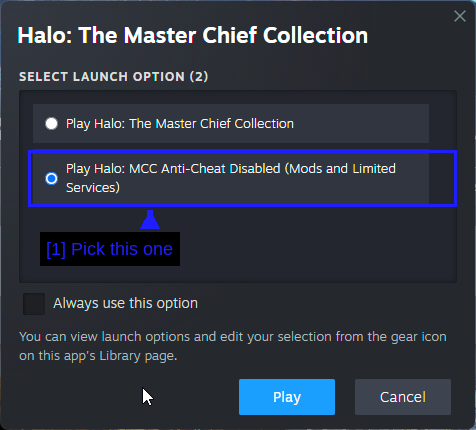
- Pick this one: Play Halo: MCC Anti-Cheat Disabled (Mods and Limited Services).
If this dialog doesn't appear when you hit Play, open the game's Properties in Steam and check the Selected Launch Option setting. Setting it to Ask when starting the game is the sensible default, since you'll want the anti-cheat back on for matchmaking.
NOTE - There's an Always use this option tickbox in that dialog. Only tick it if you never intend to play matchmaking.
What You Give Up
Running with anti-cheat off is officially supported and won't get you banned. It does disable some things.
- Public matchmaking is unavailable.
- The server browser is unavailable.
- Season points can't be earned or spent.
- The Exchange is unavailable.
What still works is campaign, Firefight, custom games with friends, and LAN. That covers essentially everything mods are for.
WARNING - Do not try to get mods running with anti-cheat on. That's the line between "supported modding" and "cheating", and it's the one thing here that will get your account actioned.
Back Up Your Game Files!
Workshop mods don't touch your game files at all, so if you're only using the Workshop you can skip this. For Nexus and manual installs, back up first - these overwrite the game's own map files.
The default install paths are below.
C:\Program Files (x86)\Steam\steamapps\common\Halo The Master Chief Collection
Saves and settings live here.
C:\Users\<user>\AppData\LocalLow\MCC
TIP - You don't need to copy the whole thing. Copy the folder for whichever game you're modding (halo1, halo3, and so on) and you've covered yourself for a fraction of the space. There's an example of exactly that below.
How MCC Is Laid Out
Open the install folder and the structure makes the whole thing click.
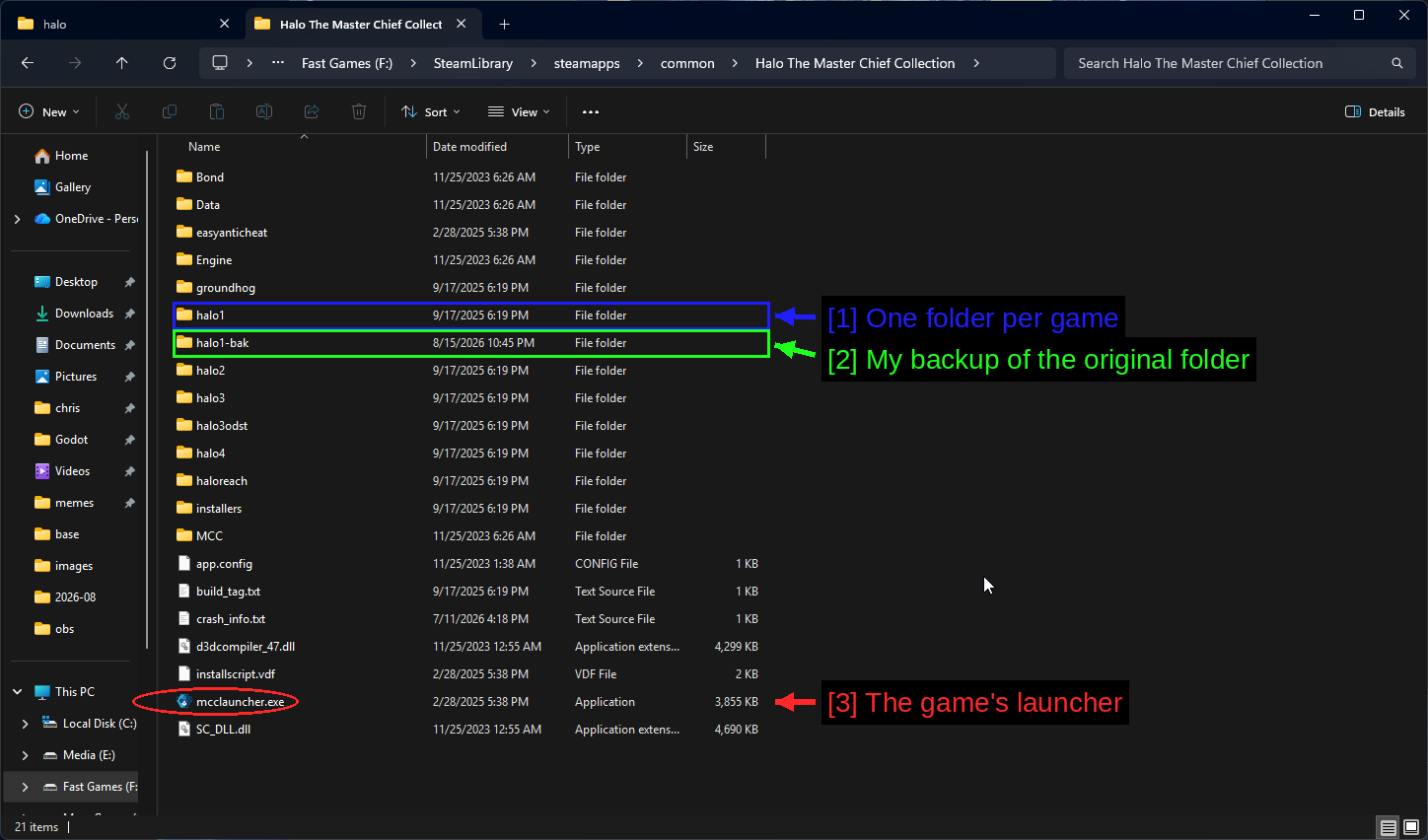
- One folder per game:
halo1,halo2,halo3,halo3odst,halo4,haloreachandgroundhog(Halo 2 Anniversary multiplayer). A mod goes in exactly one of these. - My backup of the original folder:
halo1-bak, a copy I made before installing anything. Do this. - The game's launcher:
mcclauncher.exe, pluseasyanticheatand the sharedMCCandEnginefolders.
Inside each game folder you'll typically find a maps folder, and that's where most of the interesting files are.
Where To Download Mods
There are two main hubs and they work completely differently.
- Steam Workshop - the official route. Mods install outside your game folder, load automatically, and update themselves. Most modern MCC mods are here.
- Nexus Mods - around 2,000 mods, including a lot of older work that predates Workshop support. These are archives you install into the game folder yourself, or through Vortex.
Others worth knowing about are below.
Here's the Nexus listing so you know what you're looking at.
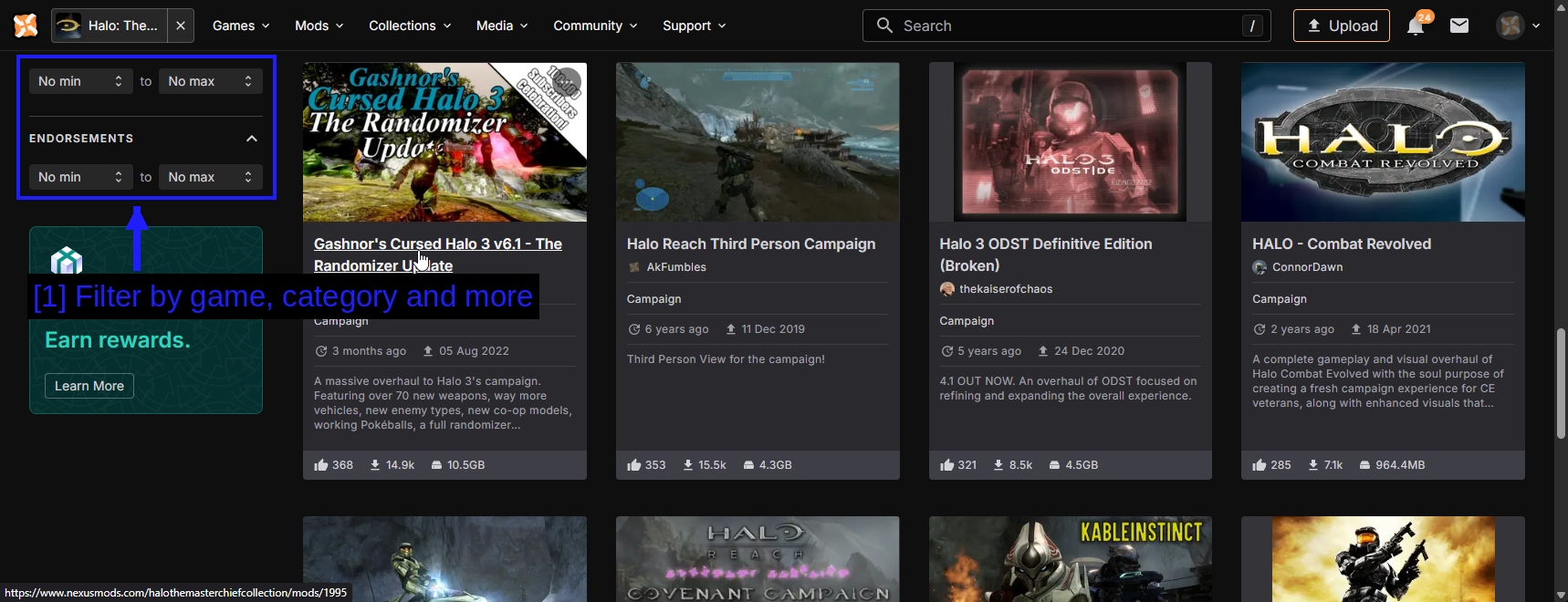
- Filter by game, category and more: The filters down the left narrow a couple of thousand mods down to the handful that apply to what you're actually playing. Sorting by Endorsements is a good way to find the ones people actually use.
TIP - Whichever source you use, the first thing to check is which game the mod is for. A Halo 3 mod in the halo1 folder does nothing at best.
Installing Mods Through The Steam Workshop
This is the easy one, and it's the method we'd recommend to anyone starting out.
Finding The Workshop
Open your Steam library and select Halo: The Master Chief Collection.
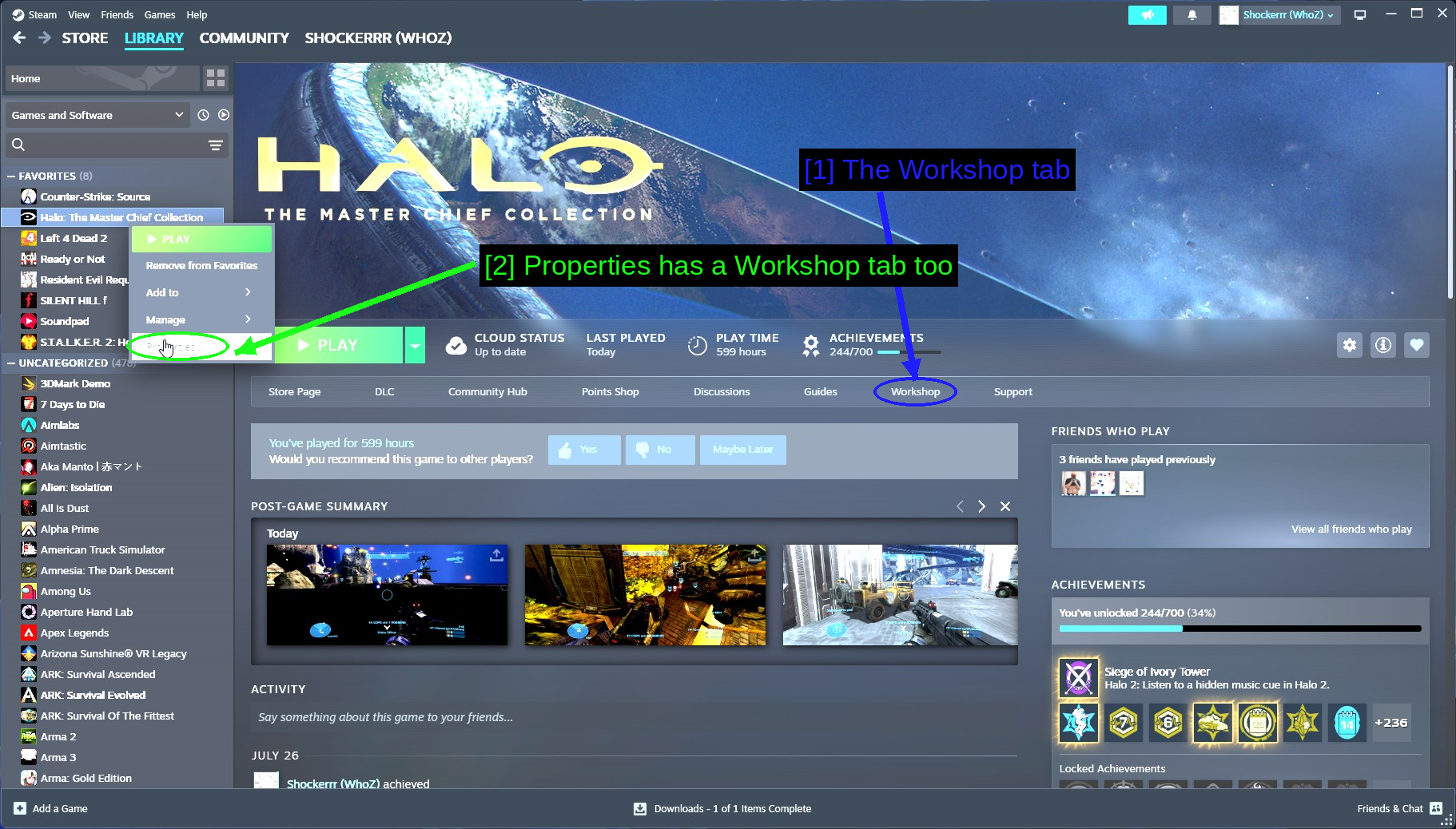
- The Workshop tab: In the row of tabs under the header art, alongside Store Page, DLC and the rest.
- Properties has a Workshop tab too: Right-clicking the game and opening Properties gets you a management view of everything you're subscribed to. More on that below.
The Workshop page lets you filter by Engine (which Halo game) and Game Content (Campaign, Multiplayer, Firefight, Spartan Ops), which is by far the fastest way to find something that will actually run.
Subscribing To A Mod
Open a mod page and read it properly before you click anything.
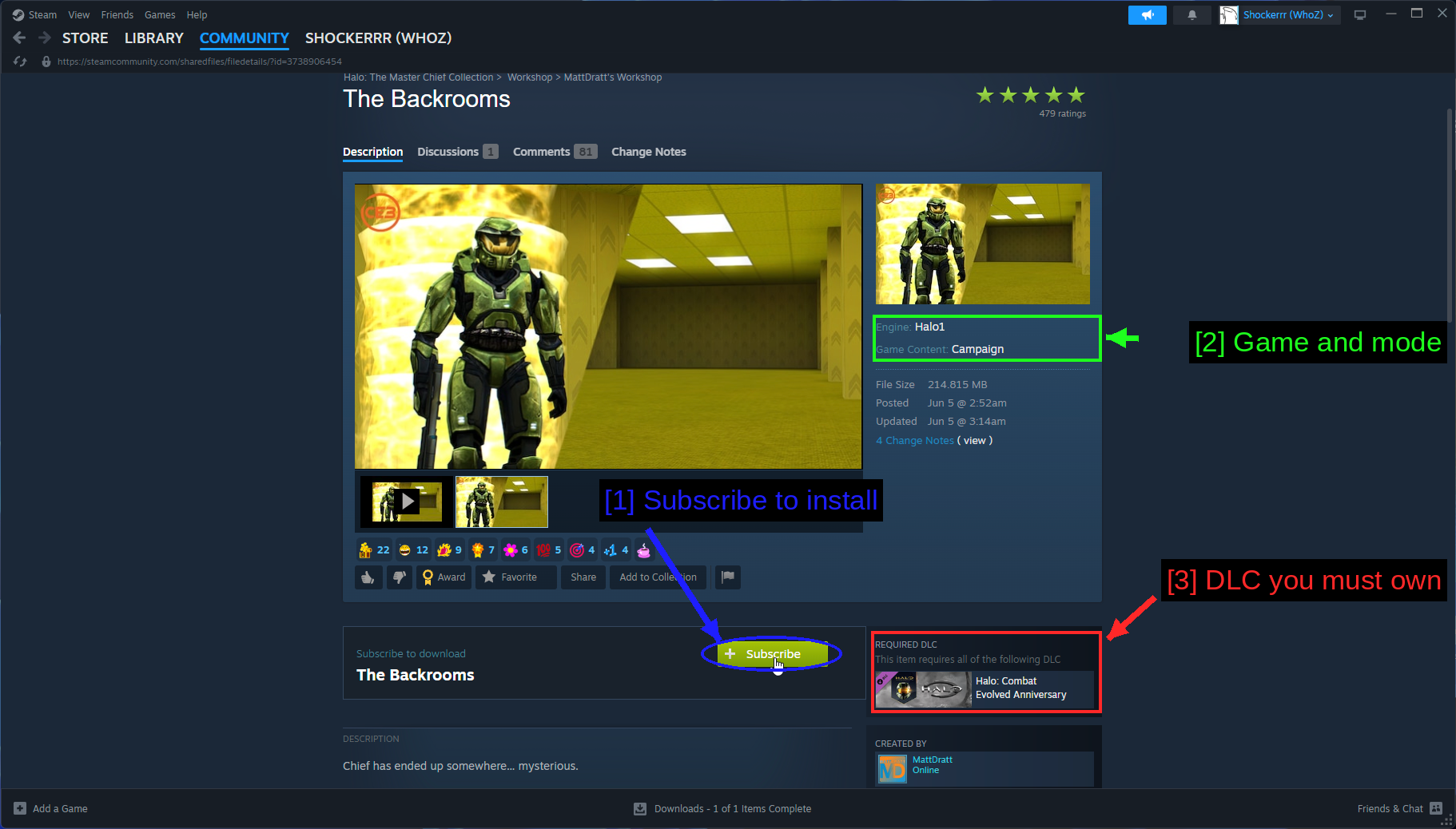
- Subscribe to install: The green Subscribe button. Steam downloads the mod in the background - you can watch progress at the bottom of the Steam window.
- Game and mode: Engine: Halo1 and Game Content: Campaign. This mod is a Halo CE campaign mod, so that's where you'll find it in-game.
- DLC you must own: Halo: Combat Evolved Anniversary. Workshop mods list their required DLC here and you genuinely need to own it.
NOTE - Subscribed mods download whether or not anti-cheat is disabled. It's only loading them that requires the anti-cheat-disabled launch option.
Finding The Mod In-Game
This is the part nobody explains, so here it is in full. Launch with anti-cheat disabled and you'll land on the main menu.
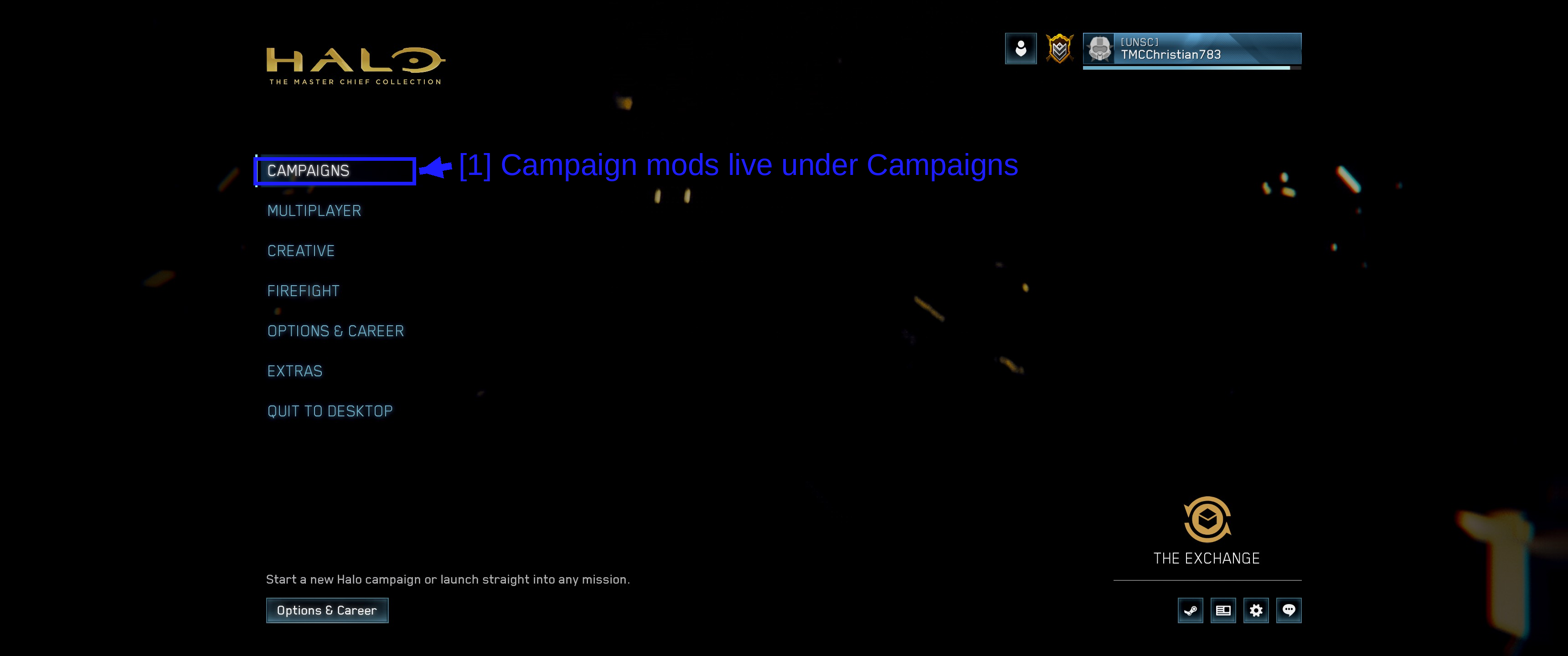
- Campaign mods live under Campaigns: Not under Extras, not in a separate mods menu. A campaign mod pretends to be a campaign, so that's where it turns up.
Pick the game the mod targets. Remember the Workshop page told us this one is Engine: Halo1, which is Halo: CE Anniversary.
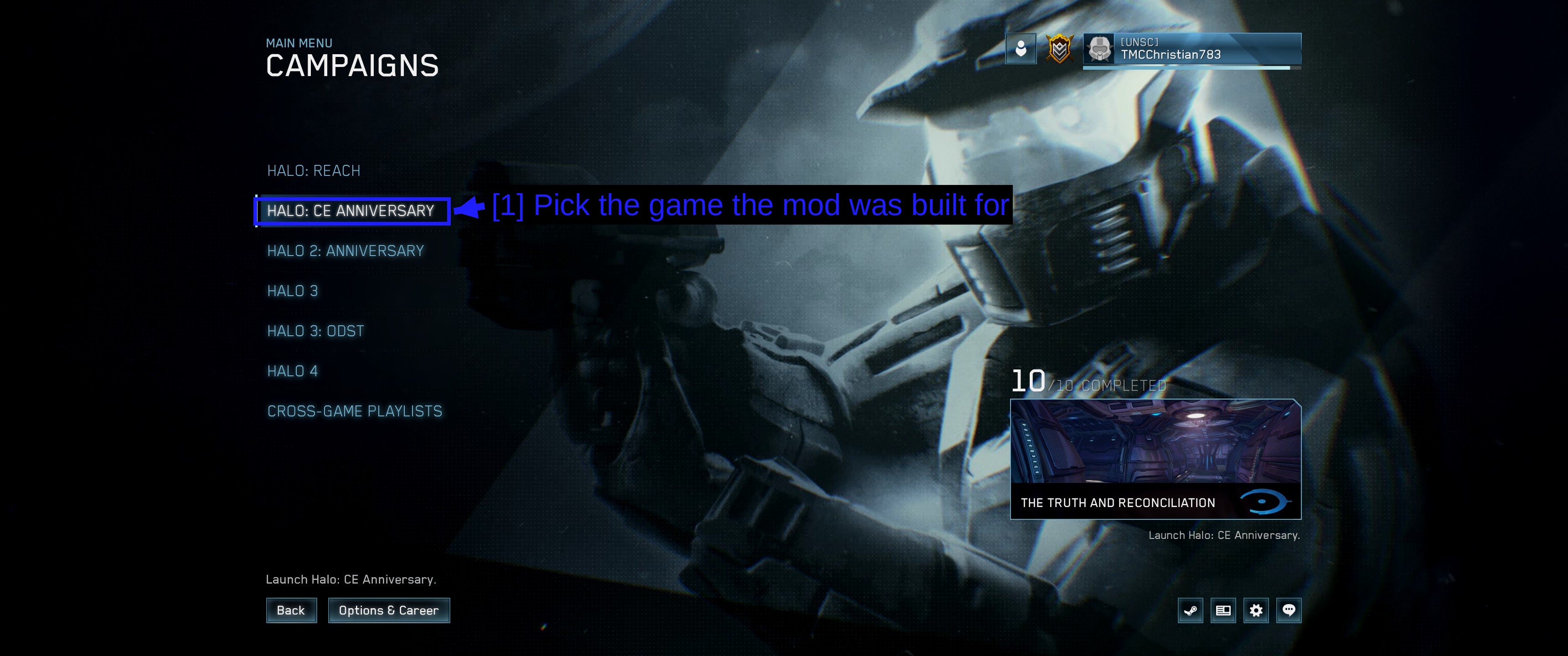
- Pick the game the mod was built for: HALO: CE ANNIVERSARY. If you pick the wrong game here, your mod simply won't be in the next list and it'll look like it never installed.
Here's the bit that makes it click.
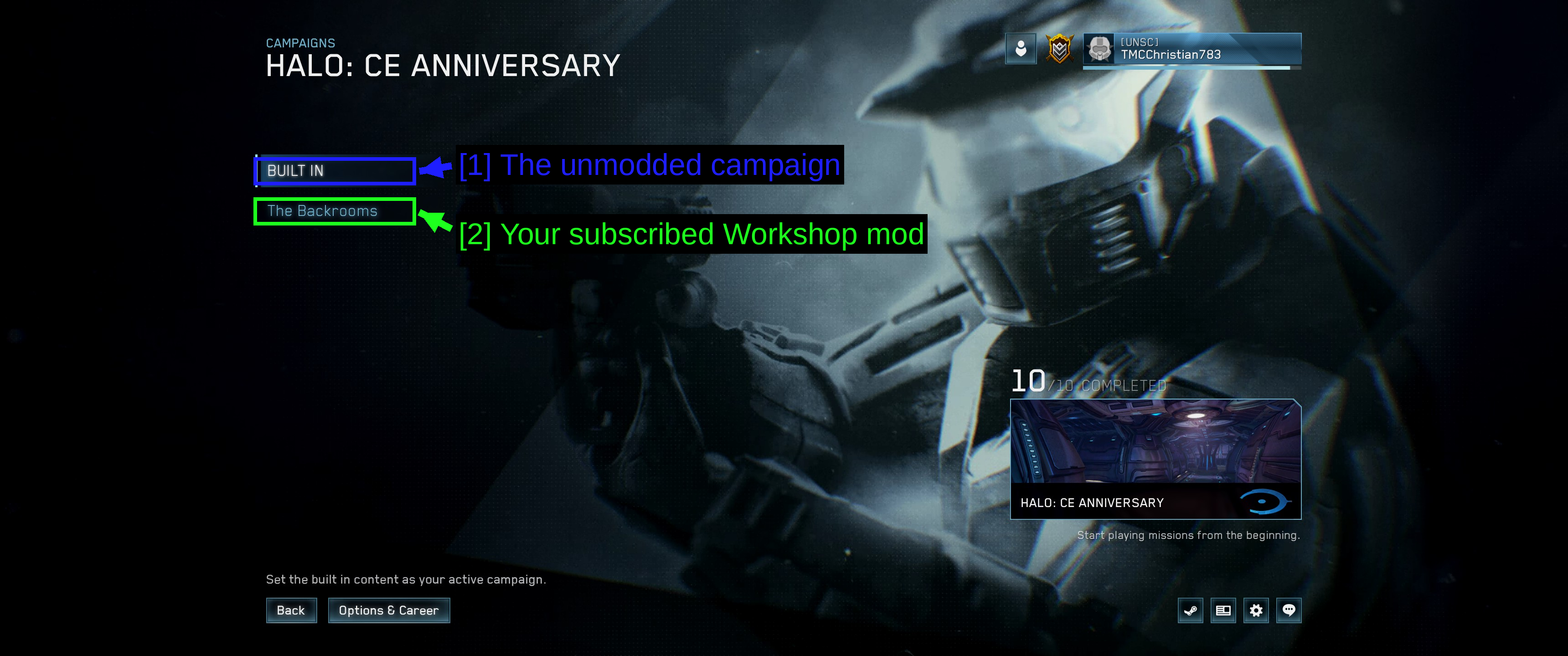
- The unmodded campaign: BUILT IN is the normal Halo: CE Anniversary campaign.
- Your subscribed Workshop mod: The Backrooms, sitting right underneath it as a separate campaign.
This list only appears when you have at least one campaign mod installed for that game. On a clean install you go straight past it, which is why it's easy to miss that it exists at all.
Select the mod and you get the same options you'd get for a real campaign.
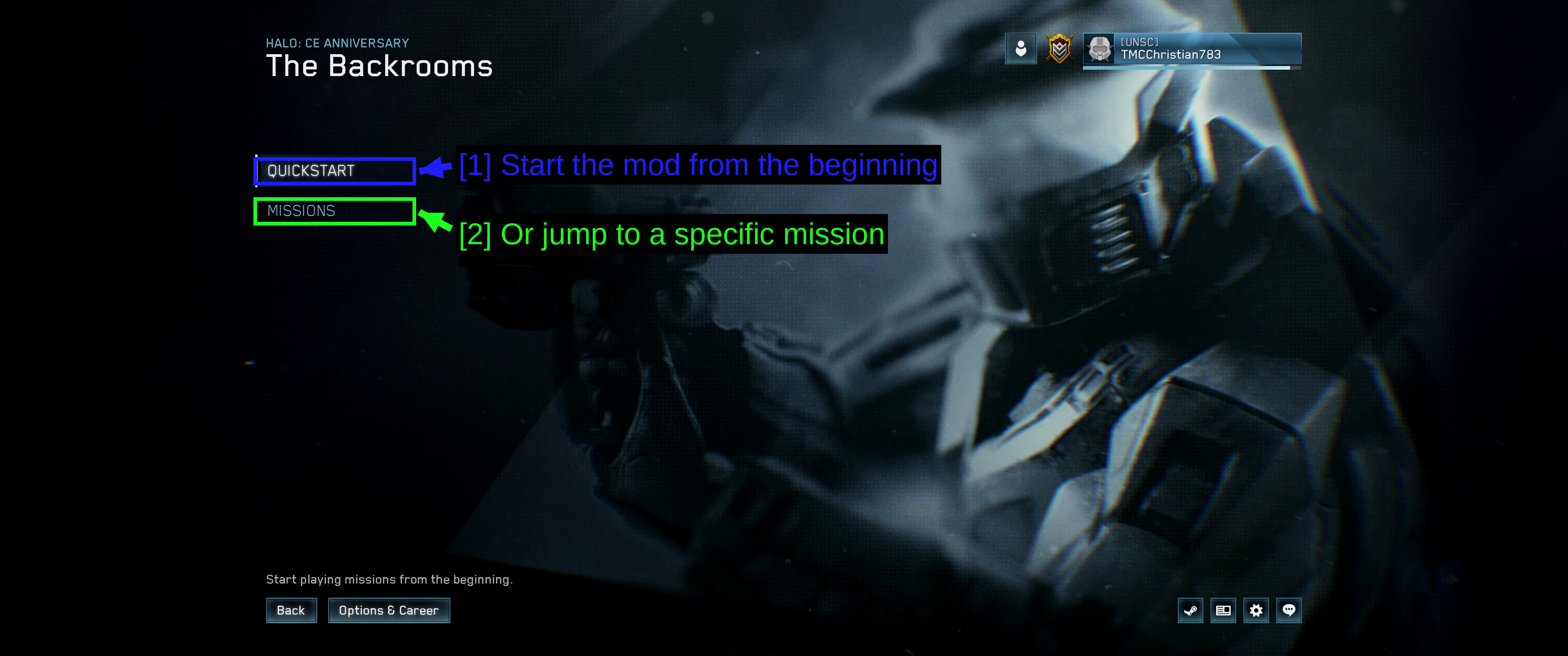
- Start the mod from the beginning: QUICKSTART.
- Or jump to a specific mission: MISSIONS, for mods with more than one.
And that's it - the mod loads like any other campaign.
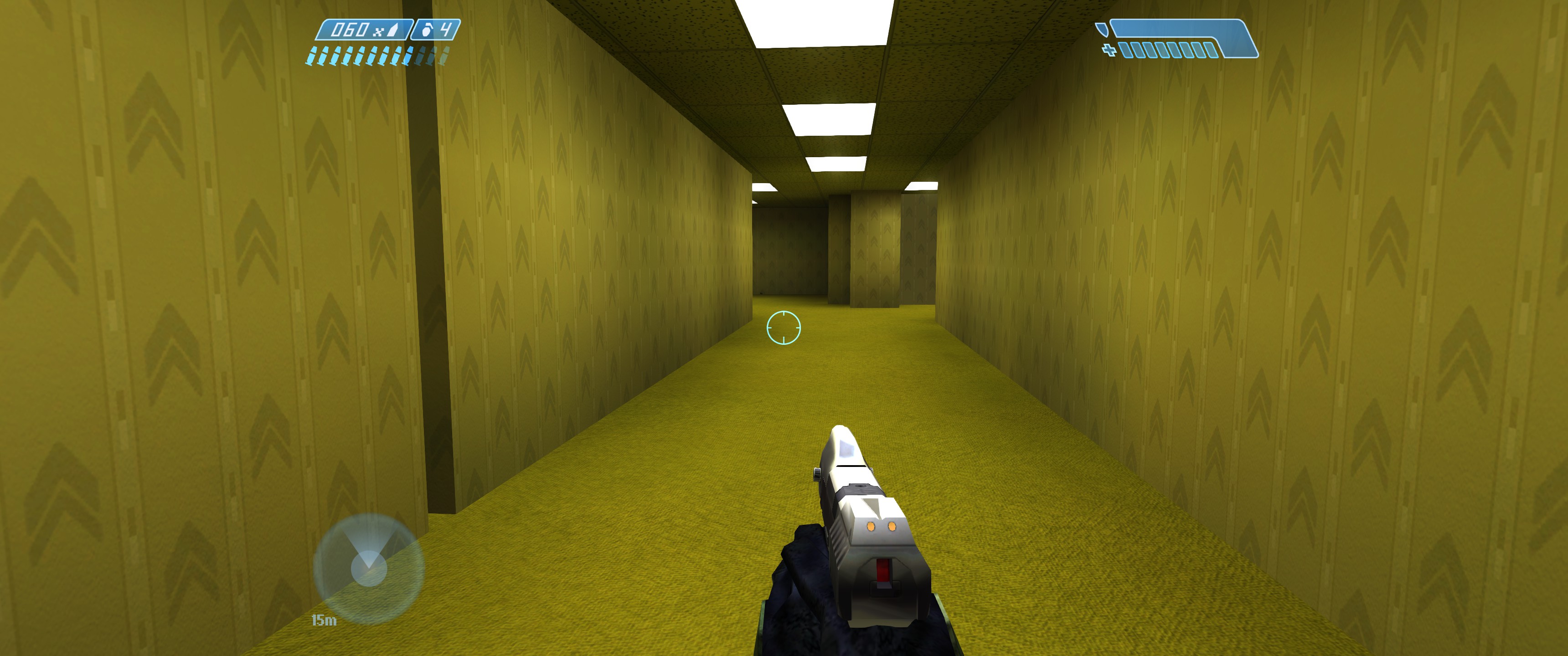
TIP - Multiplayer and Firefight mods work the same way but appear elsewhere: you'll find them in the map list when you host a Custom Game rather than in the campaign menu.
Managing Your Workshop Mods
Right-click the game in Steam, open Properties, and pick Workshop in the sidebar.
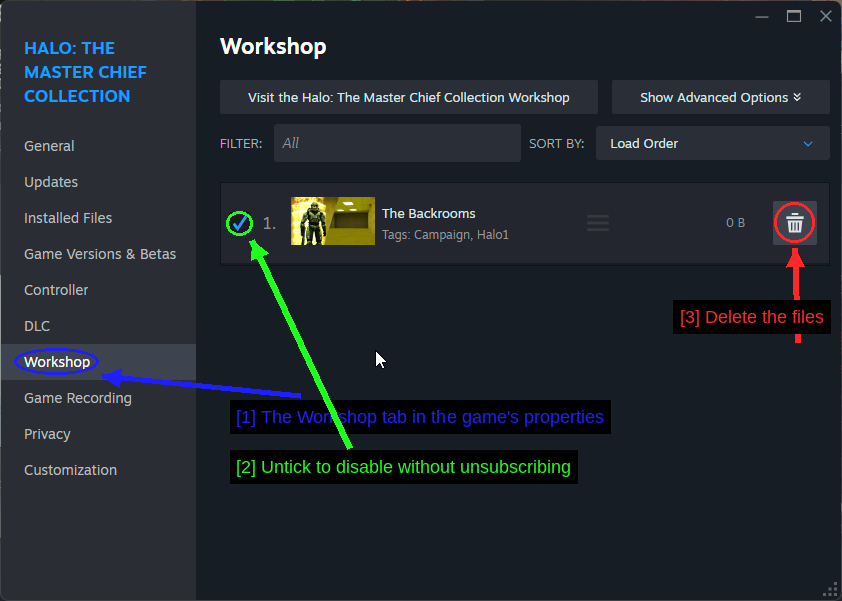
- The Workshop tab in the game's properties: Everything you're subscribed to, in one list.
- Untick to disable without unsubscribing: Handy for narrowing down which of your mods is causing a problem, without having to re-download anything afterwards.
- Delete the files: Clears the downloaded data while keeping the subscription.
There's also a Load Order sort and a drag handle on each row, which matters when two mods touch the same thing, plus Show Advanced Options for per-mod settings.
To unsubscribe properly, go back to the Workshop page, hover Browse, pick Subscribed Items, find the mod and click the Subscribed button to toggle it off.
Installing Mods Through Vortex
Vortex handles the Nexus Mods side. MCC support is less mature here than it is for Bethesda games, but it works, and it's much nicer than copying .map files around by hand.
For a full walkthrough of Vortex, see our dedicated How to Use Vortex & The Basics guide. The sections below cover the MCC specific parts.
Managing MCC In Vortex
Vortex won't touch a game until you tell it to manage that game.
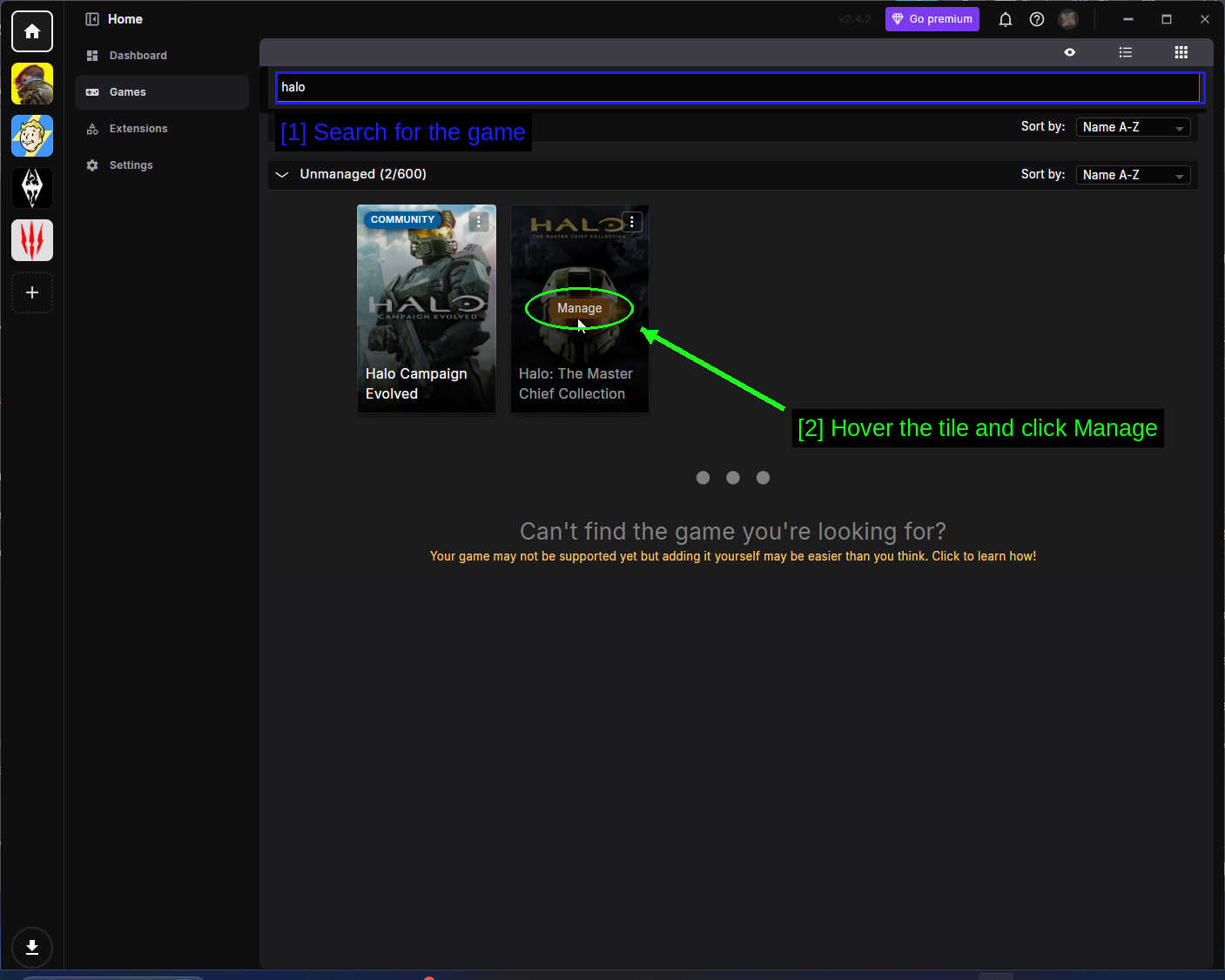
- Search for the game: Open Games in the left sidebar and type
halointo the search bar. - Hover the tile and click Manage: Pick Halo: The Master Chief Collection. The other tile, Halo Campaign Evolved, is a separate game entirely.
If Vortex can't find your install, click the three dots (⋮) in the corner of the tile, choose Manually Set Location, and point it at the folder containing mcclauncher.exe.
Downloading A Mod Through Vortex
Head to the mod page and use the orange Vortex button. Your browser will ask for permission to open Vortex - accept it, and tick Always allow if you'd rather not be asked every time.
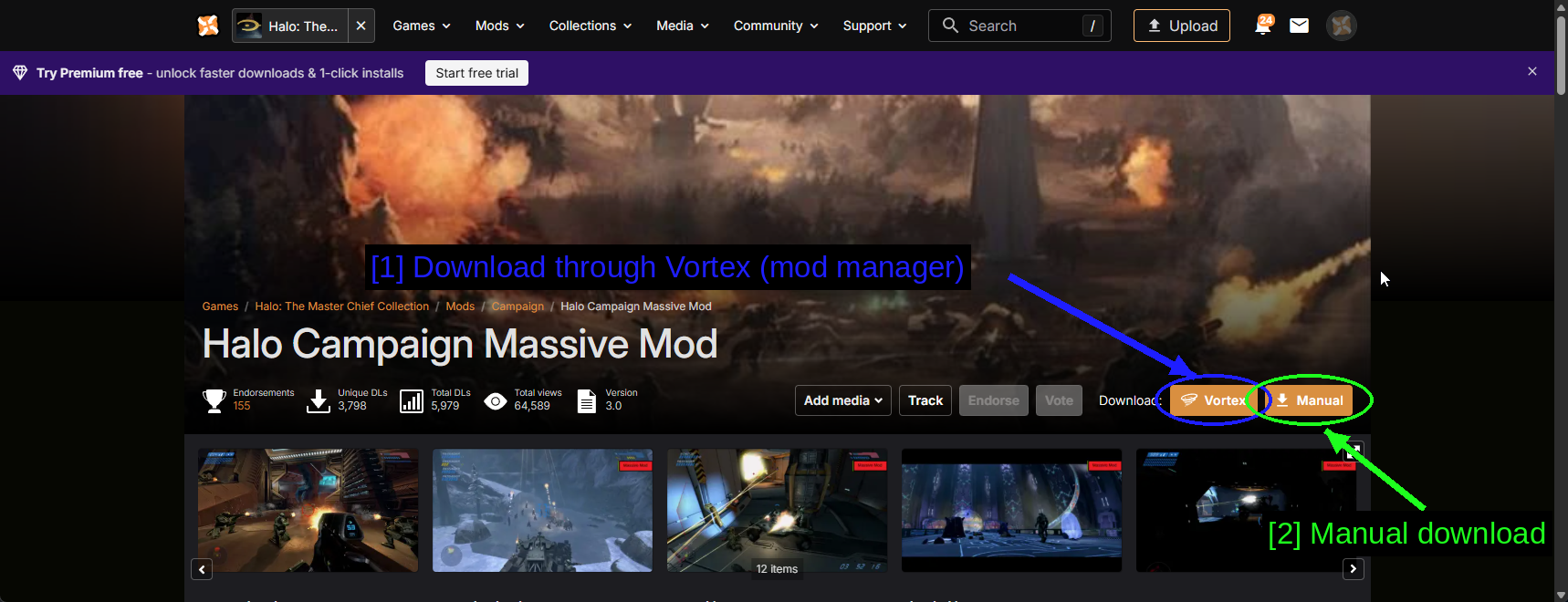
- Download through Vortex (mod manager): The orange Vortex button.
- Manual download: Manual downloads the archive through your browser instead.
Nexus shows the same DLC requirements dialog the Workshop does.
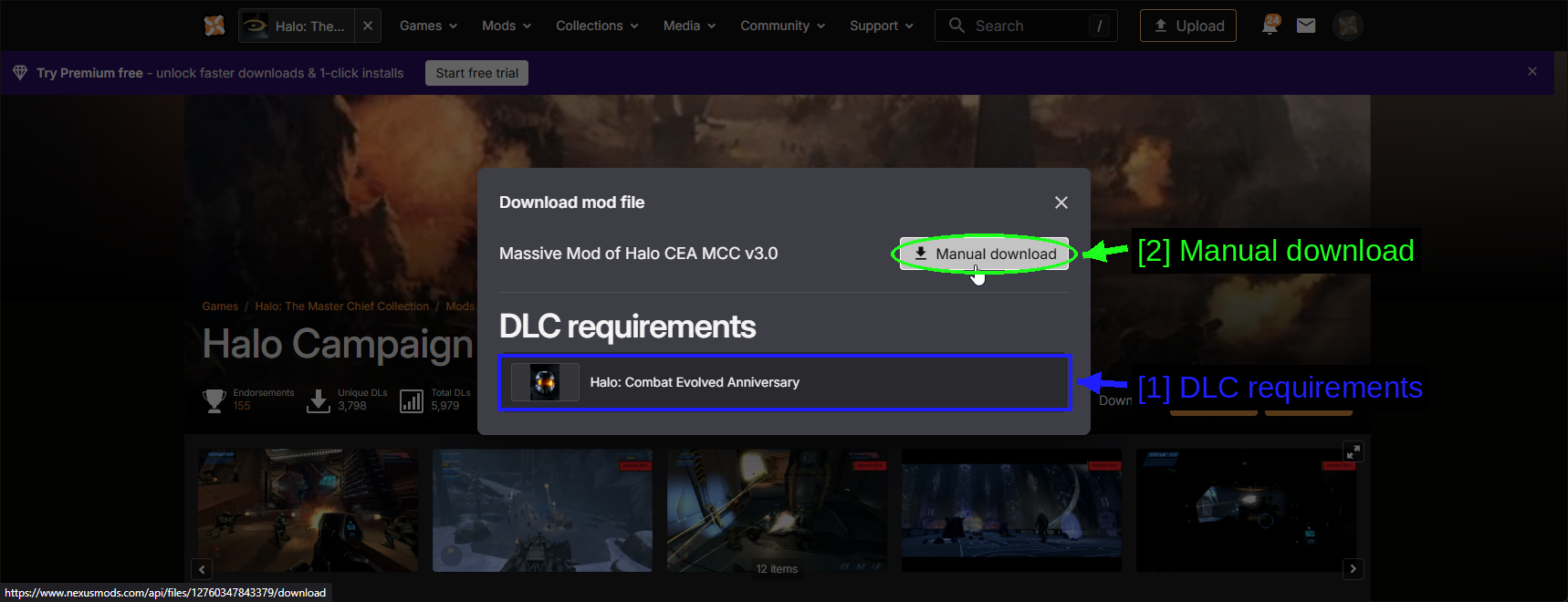
- DLC requirements: Halo: Combat Evolved Anniversary again, for the same reason - this is a Halo CE campaign mod.
- Manual download: The download button for the file itself.
Free Nexus Mods accounts get a short wait and a capped speed.
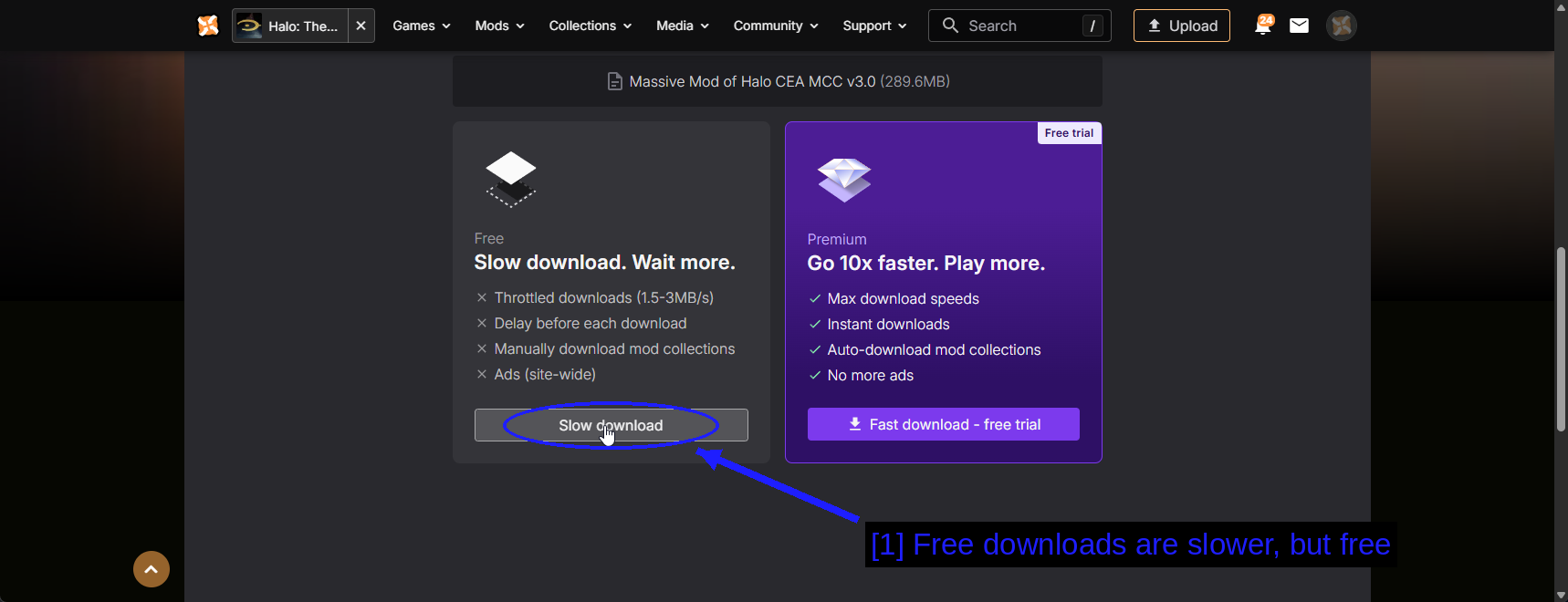
- Free downloads are slower, but free: This mod is 289.6 MB, so expect a couple of minutes on a free account.
Vortex shows the progress on its Downloads page.
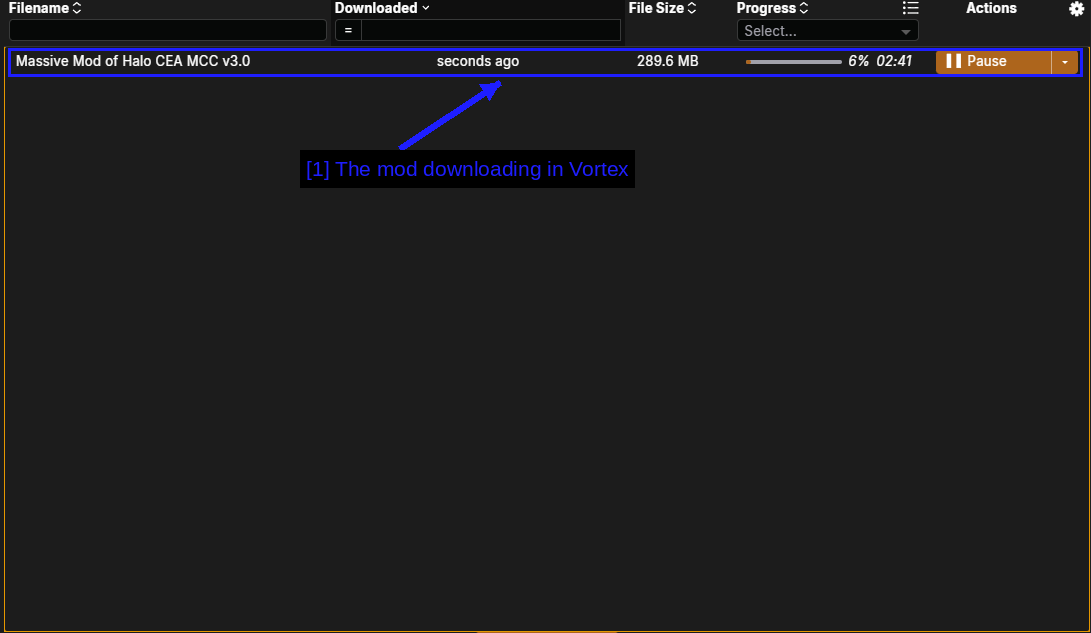
- The mod downloading in Vortex: With file size, progress and time remaining.
The Mods Page
Once installed, mods appear on the Mods page.
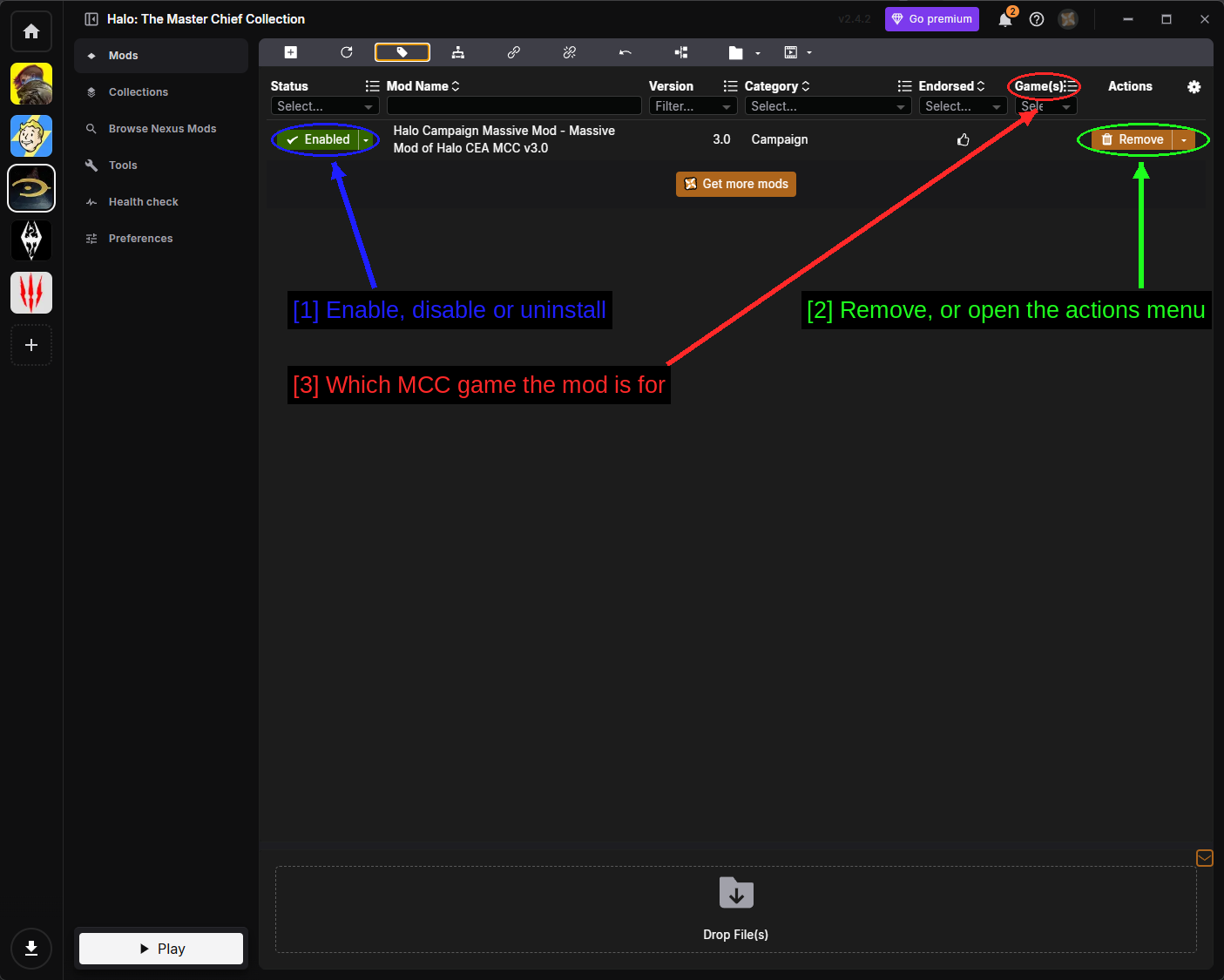
- Enable, disable or uninstall: The Status drop-down for each mod.
- Remove, or open the actions menu: Remove uninstalls the mod, and the arrow beside it opens the full actions menu.
- Which MCC game the mod is for: The Game(s) column. This one is specific to MCC and it's genuinely useful - it's how you tell at a glance that a mod is going into
halo1rather thanhalo3.
The status drop-down has three options.
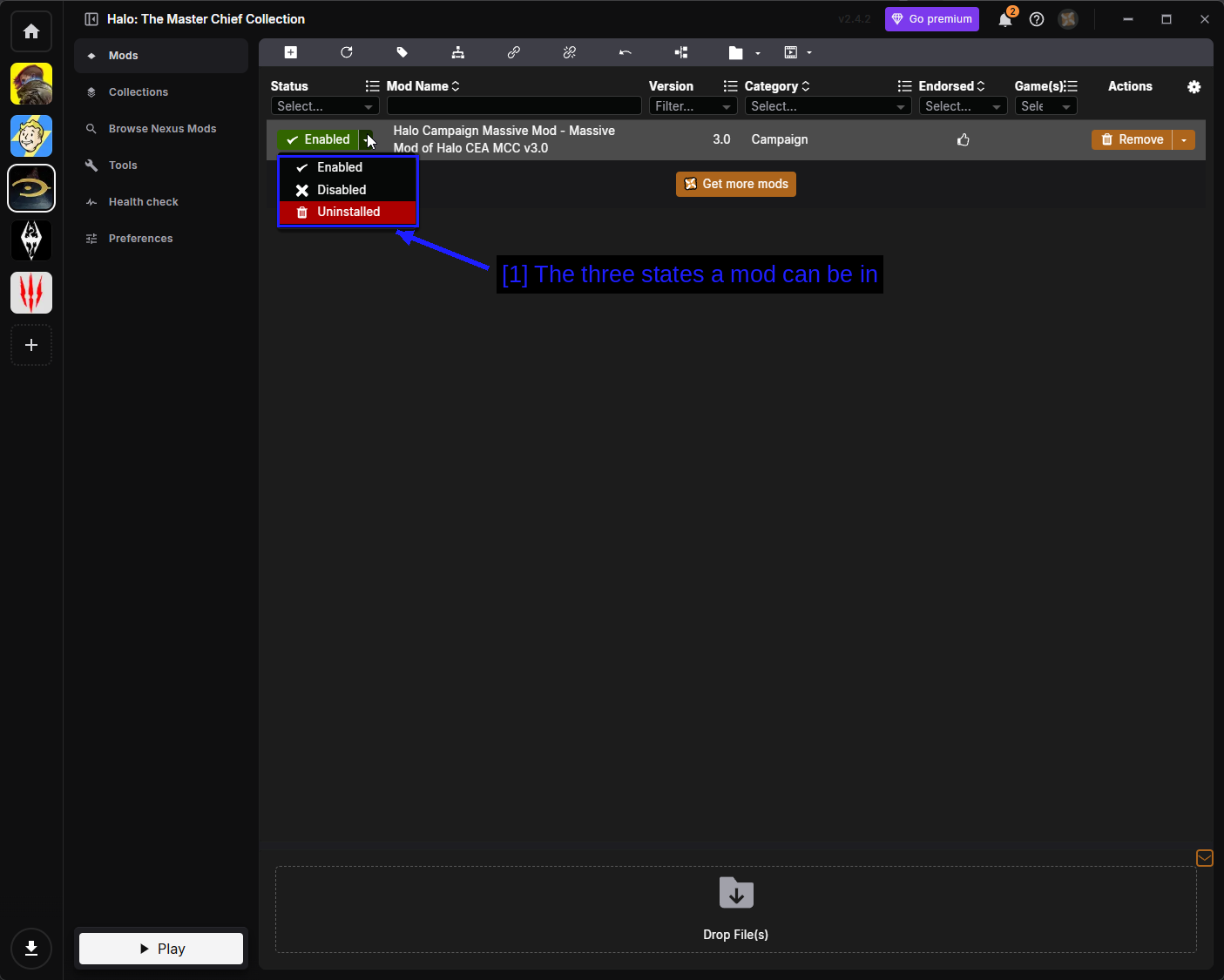
- The three states a mod can be in: Enabled means deployed to your game folder. Disabled keeps the mod in Vortex but pulls its files back out. Uninstalled removes the files but keeps the downloaded archive.
The actions menu covers everything else.
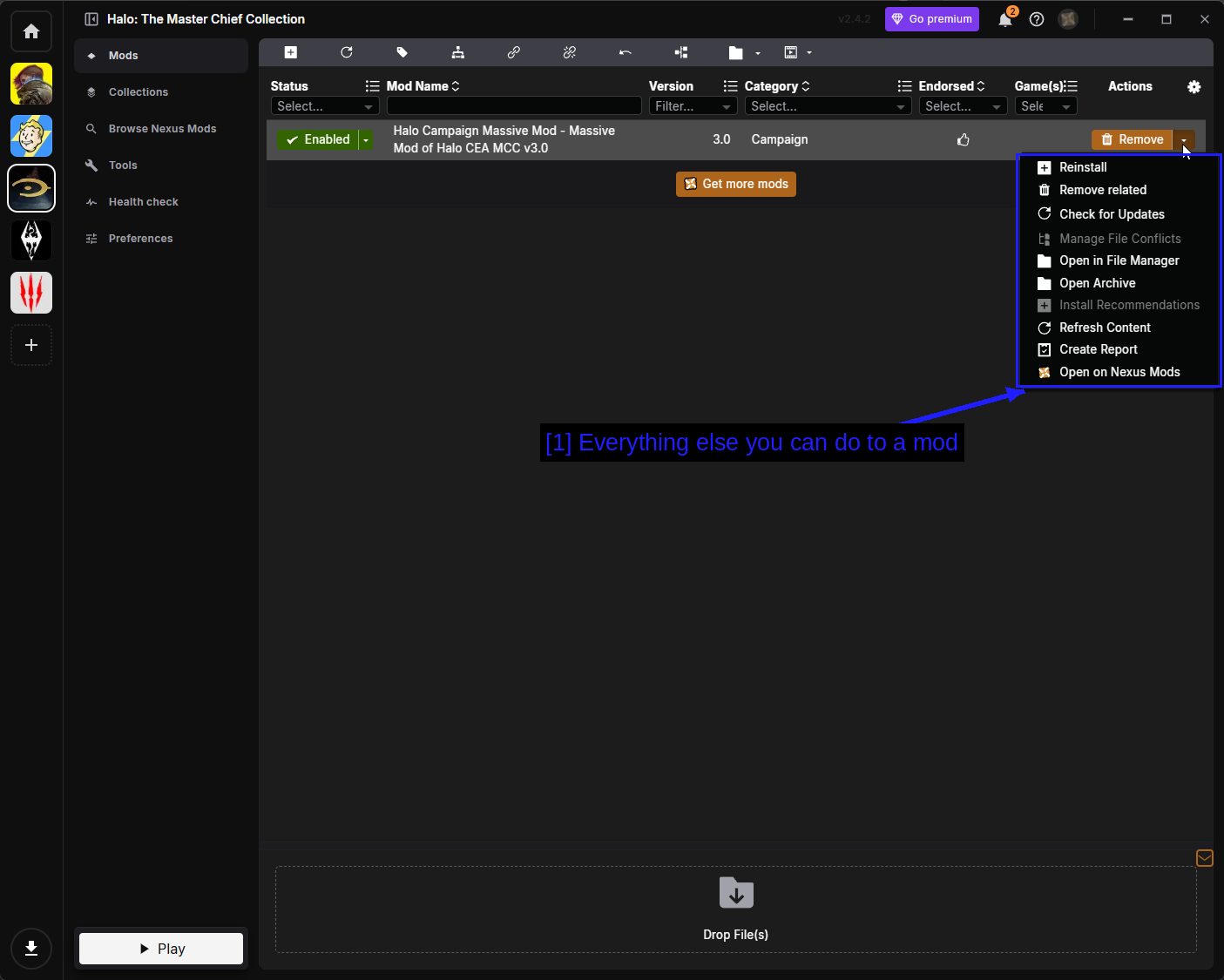
- Everything else you can do to a mod: The options are as follows.
- Reinstall - runs the installer again.
- Remove related - removes the mod and anything tied to it.
- Check for Updates - asks Nexus Mods for a newer version.
- Manage File Conflicts - decides which mod wins when two write the same file.
- Open in File Manager - opens the mod's staging folder.
- Open Archive - opens the downloaded archive.
- Install Recommendations - installs mods the author recommends alongside this one.
- Refresh Content - re-reads the mod's files from disk.
- Create Report - generates a report, useful when asking for help.
- Open on Nexus Mods - opens the mod page in your browser.
WARNING - Vortex deploys MCC mods by replacing the game's own .map files. It tracks what it replaced and can put it back, but this is a genuinely destructive operation compared to the Workshop, which is why the backup advice above matters.
Browse Nexus Mods & Collections
You can search Nexus Mods from inside Vortex.
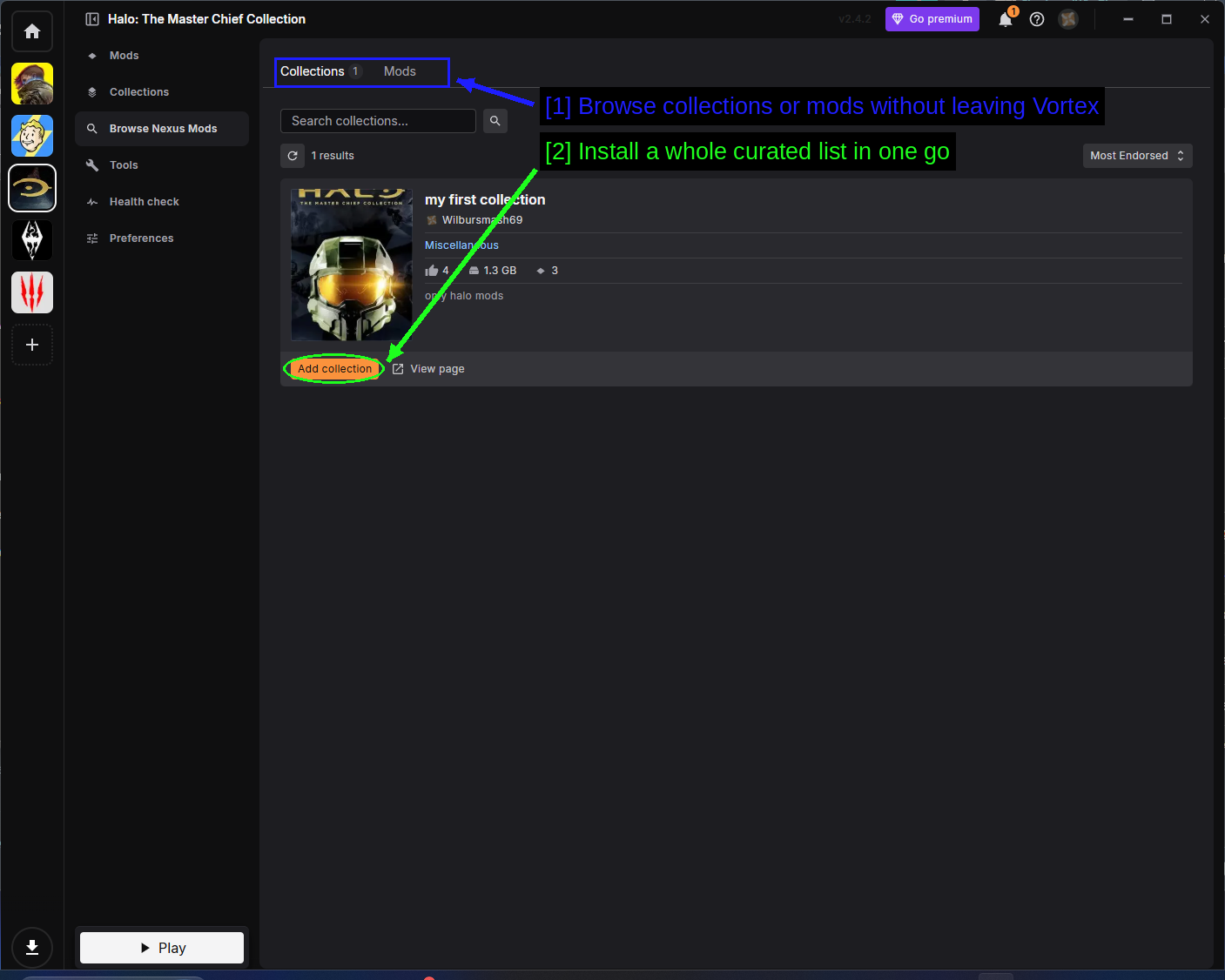
- Browse collections or mods without leaving Vortex: Two tabs, Collections and Mods.
- Install a whole curated list in one go: Add collection installs every mod in that collection.
MCC's collection scene is tiny compared to other games - there's very little here, because the Workshop covers the same ground. The Collections page manages what you've added.
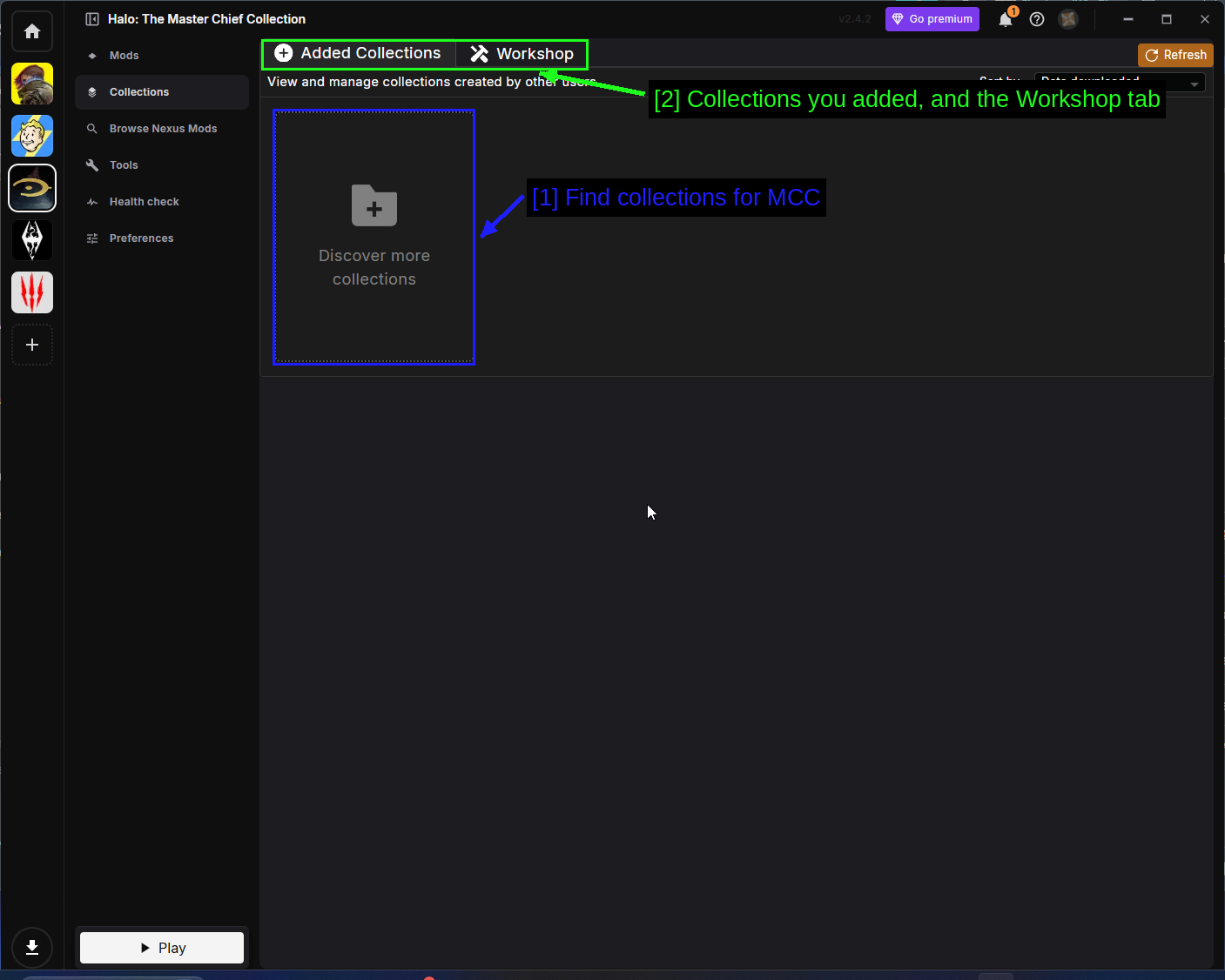
- Find collections for MCC: Discover more collections.
- Collections you added, and the Workshop tab: The Workshop tab here is Vortex's collection builder, not the Steam Workshop. Confusing, but unrelated.
Tools
The Tools page lists external programs Vortex can launch alongside the game.
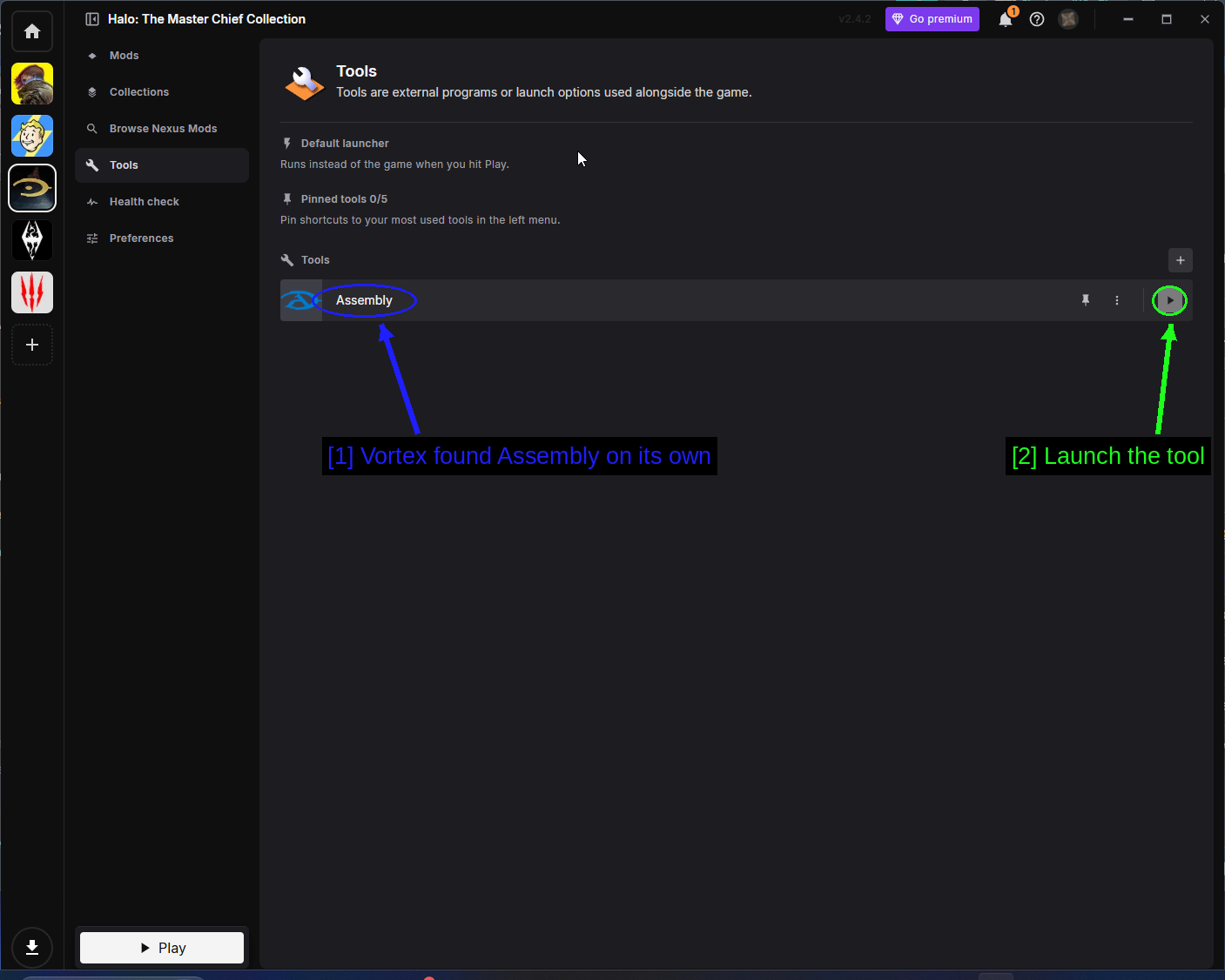
- Vortex found Assembly on its own: Assembly is the community tag and map editor for MCC. Vortex picks it up automatically if you have it installed.
- Launch the tool: The play button runs it.
Health Check
Health Check reviews your setup and flags anything obviously wrong.
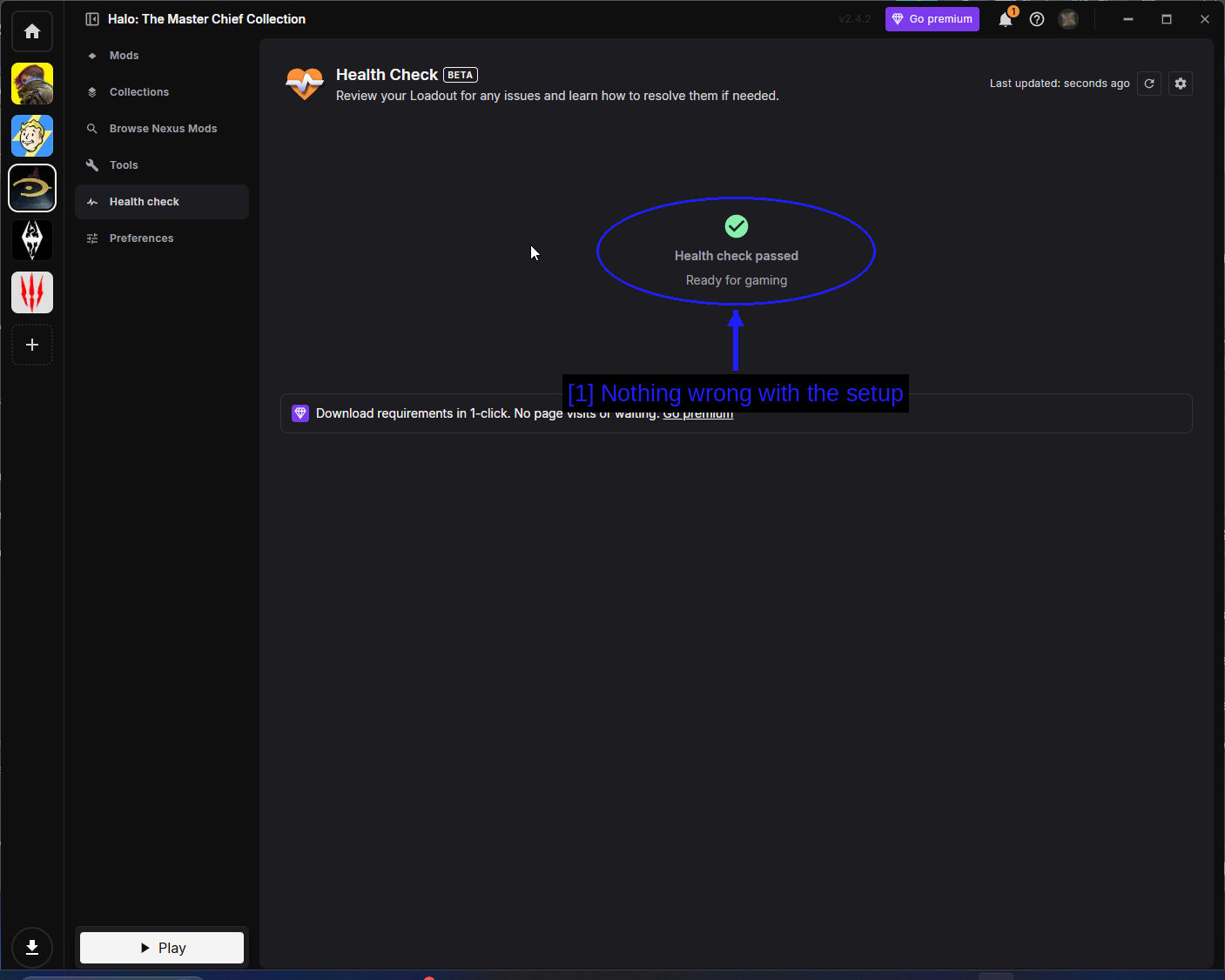
- Nothing wrong with the setup: A green Health check passed means Vortex is happy.
Preferences
Preferences holds the MCC specific Vortex settings.
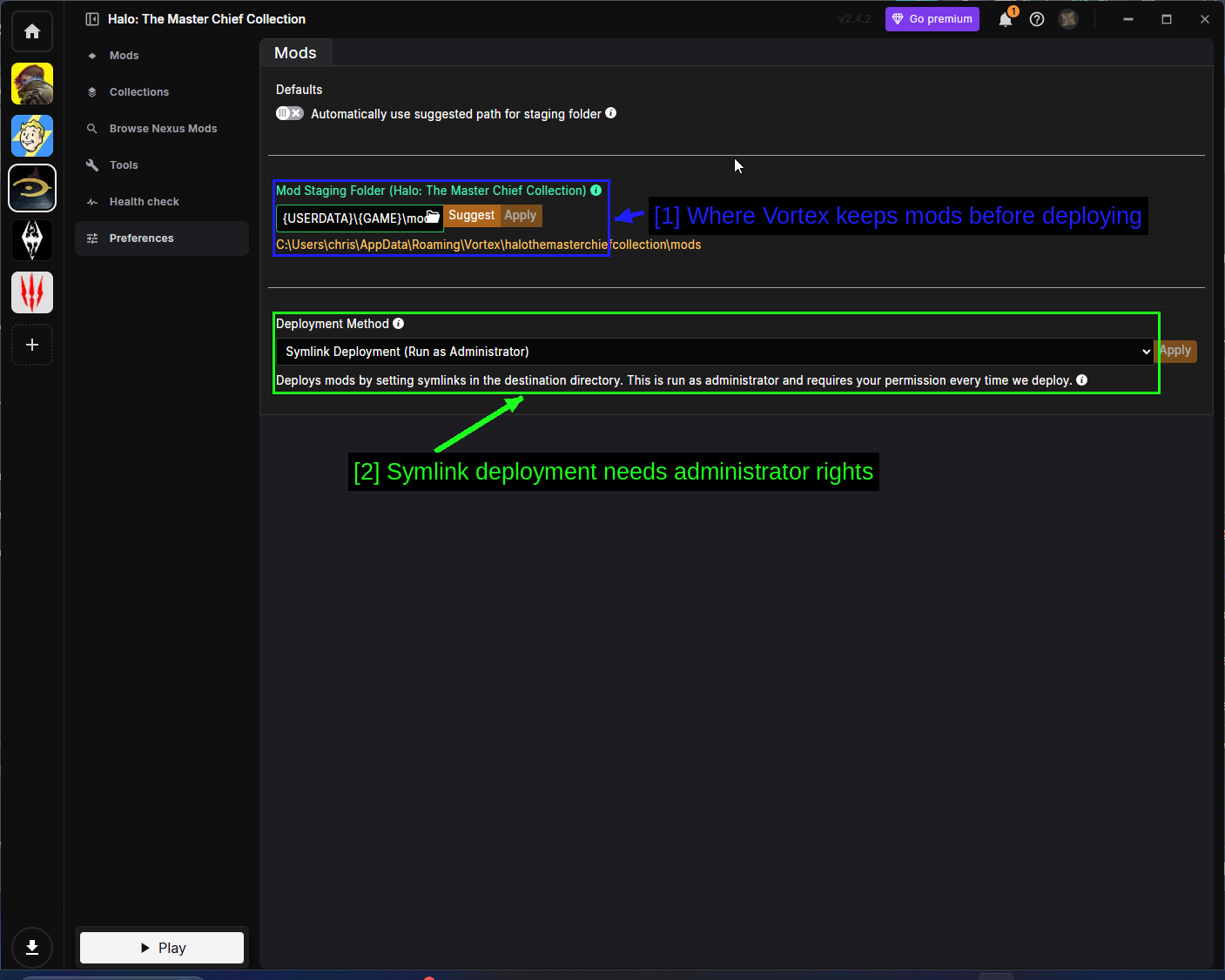
- Where Vortex keeps mods before deploying: The Mod Staging Folder. This must be on the same drive as your game install.
- Symlink deployment needs administrator rights: MCC uses Symlink Deployment, which creates links in the game folder instead of copying files. It runs as administrator and will ask permission every time it deploys. That's expected, not a bug.
Installing Mods Manually (Advanced)
Plenty of MCC mods are just a folder of .map files with a readme, and installing those by hand is genuinely simple once you know where they go.
Working Out Where Files Go
Download with the Manual button, extract with 7-Zip, and look at what you got.
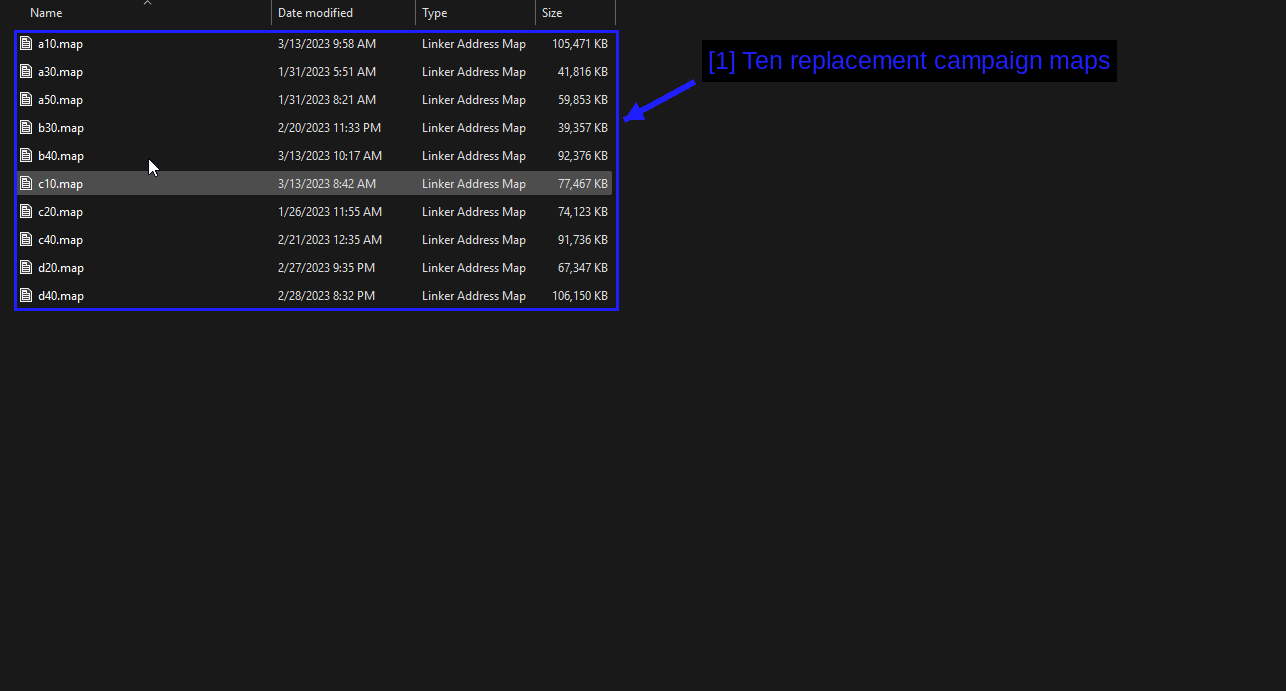
- Ten replacement campaign maps:
a10.map,a30.map,a50.map,b30.map,b40.map,c10.map,c20.map,c40.map,d20.map,d40.map.
Those cryptic names are Halo CE's original internal mission names, and there are ten of them because Halo CE has ten campaign missions. a10 is The Pillar of Autumn, b30 is Silent Cartographer, and so on.
That tells you everything you need: these are Halo CE campaign maps, so they go in halo1\maps.
Here's that folder before the copy.
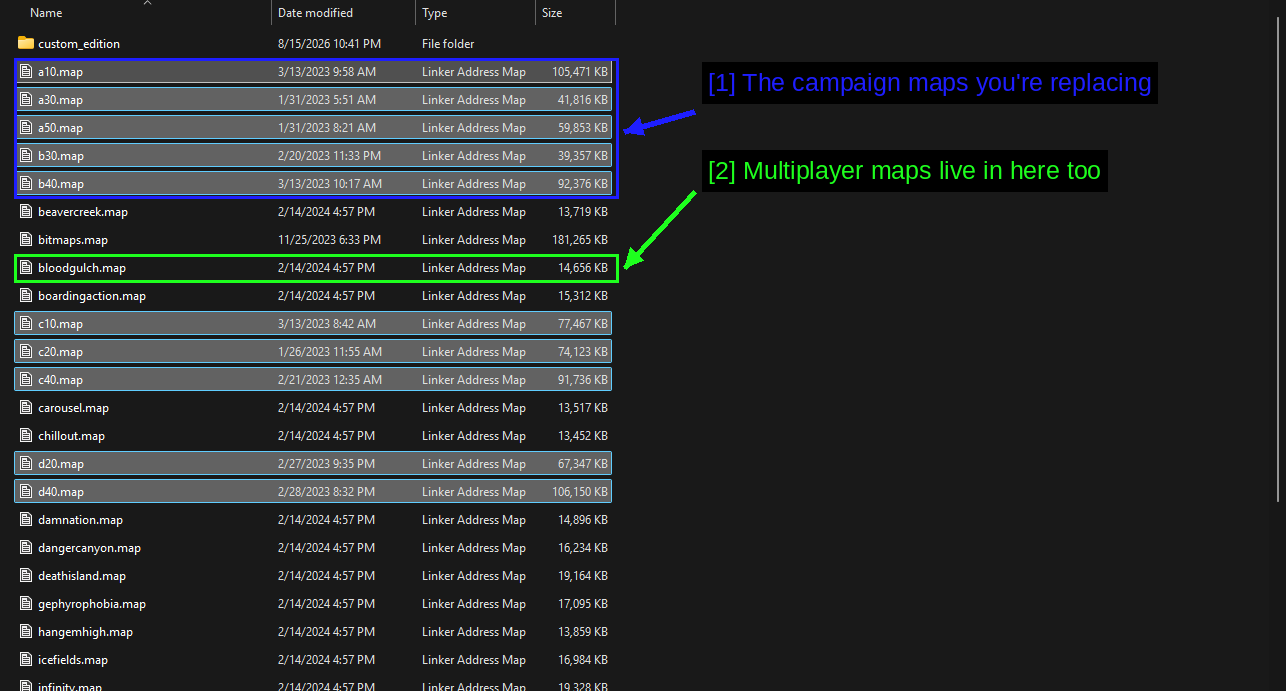
- The campaign maps you're replacing: The same
a10,a30,a50,b30,b40names, sitting among everything else. - Multiplayer maps live in here too:
bloodgulch.map,beavercreek.map,damnation.mapand the rest. A campaign mod shouldn't be touching any of these - if your mod wants to overwritebloodgulch.map, it's a multiplayer mod and you should know that going in.
Backing Up The Game Folder
Before you overwrite anything, copy the game's folder and rename the copy.
That's what halo1-bak in the game folder screenshot above is. It costs you a few GB of disk space and it means undoing the mod is a rename rather than a 100 GB Steam verification.
Copying The Files In
Paste the mod's .map files into halo1\maps. Windows will warn you, which is exactly what you want to see.
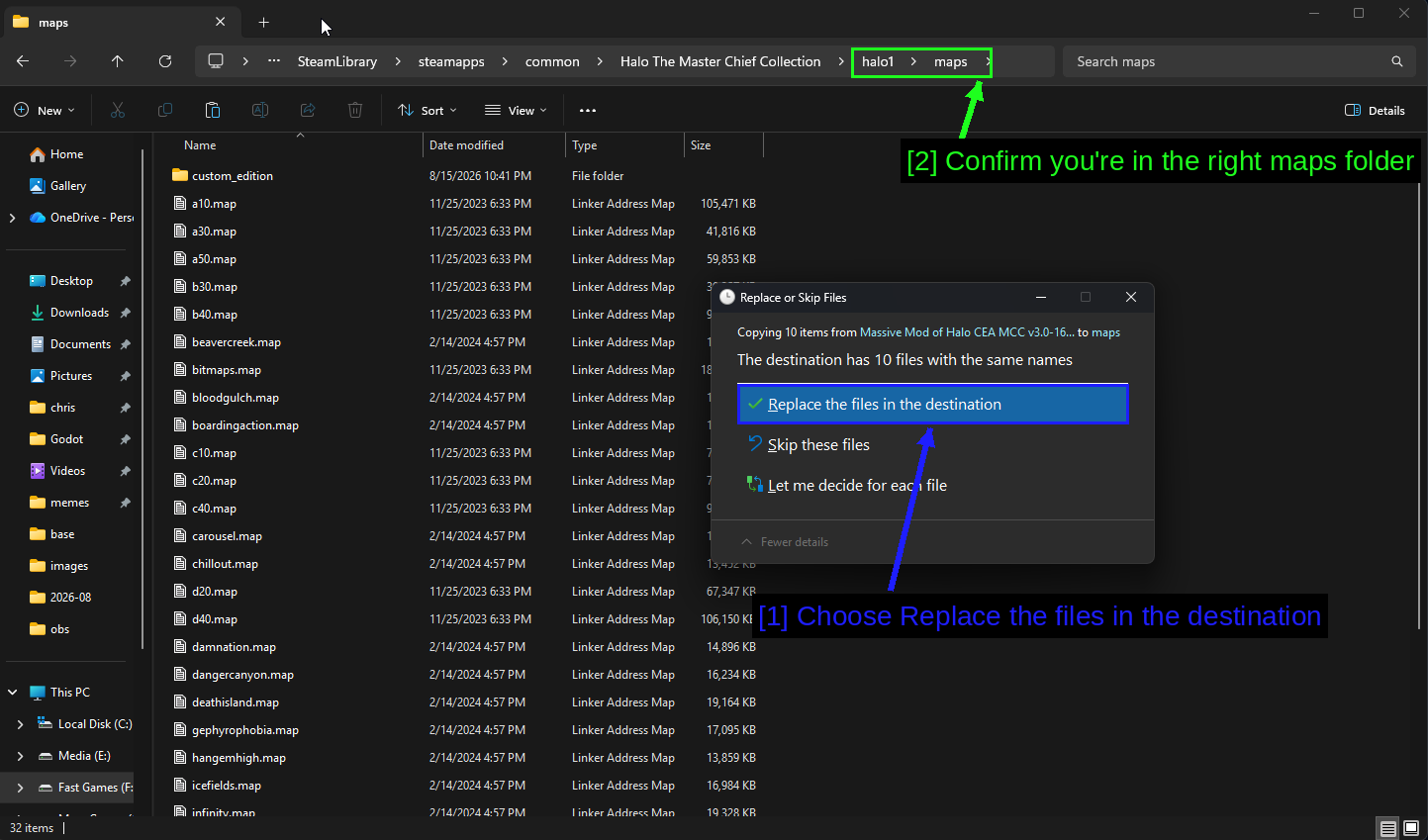
- Choose Replace the files in the destination: "The destination has 10 files with the same names" - 10 files in, 10 files replaced. If that number doesn't match what the mod shipped, you're in the wrong folder.
- Confirm you're in the right maps folder: The breadcrumb should read
...\Halo The Master Chief Collection\halo1\maps.
Then launch with anti-cheat disabled and load the campaign.
TIP - Match the file count. If the mod has 10 maps and Windows says the destination has 3 files with the same names, you've either got the wrong game's folder or the mod expects a different install path. Cancel and re-read the mod's instructions.
Turning On Campaign Customisation
One more in-game setting catches people out with campaign mods.
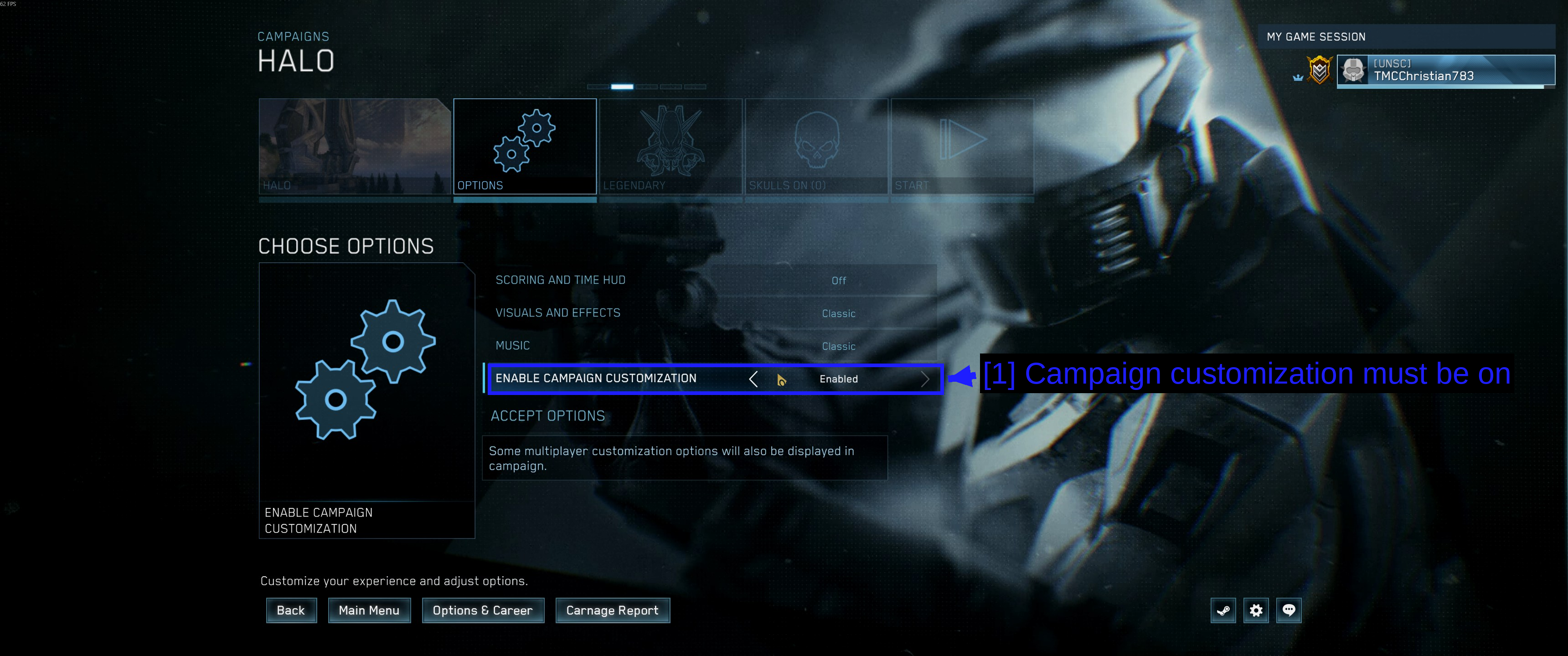
- Campaign customization must be on: ENABLE CAMPAIGN CUSTOMIZATION on the campaign Options screen, set to Enabled.
You'll find it under Campaign → pick a game → Options. With it off, some mods that change loadouts, skulls or mission setup either won't apply or won't show their options.
NOTE - This is on the per-mission options screen, so check it when you start a modded campaign rather than assuming it carried over.
Checking If Your Mods Loaded
Launch with anti-cheat disabled, then look in the place the mod's description tells you to.
- Workshop campaign mods usually appear in the campaign mission list for the game they target.
- Workshop multiplayer/Firefight maps appear in the map list when you host a custom game.
- Manual and Nexus campaign mods replace the existing missions, so you launch the normal campaign and the content is different.
For our two examples, the behaviour is completely different, and that difference is worth understanding.
The Backrooms is a Workshop mod, so it appears as its own campaign entry alongside the built-in one - see Finding The Mod In-Game above.
Halo Campaign Massive Mod replaces the Halo CE campaign files in place, so there's no new menu entry at all. You launch the normal campaign and the missions themselves are different.
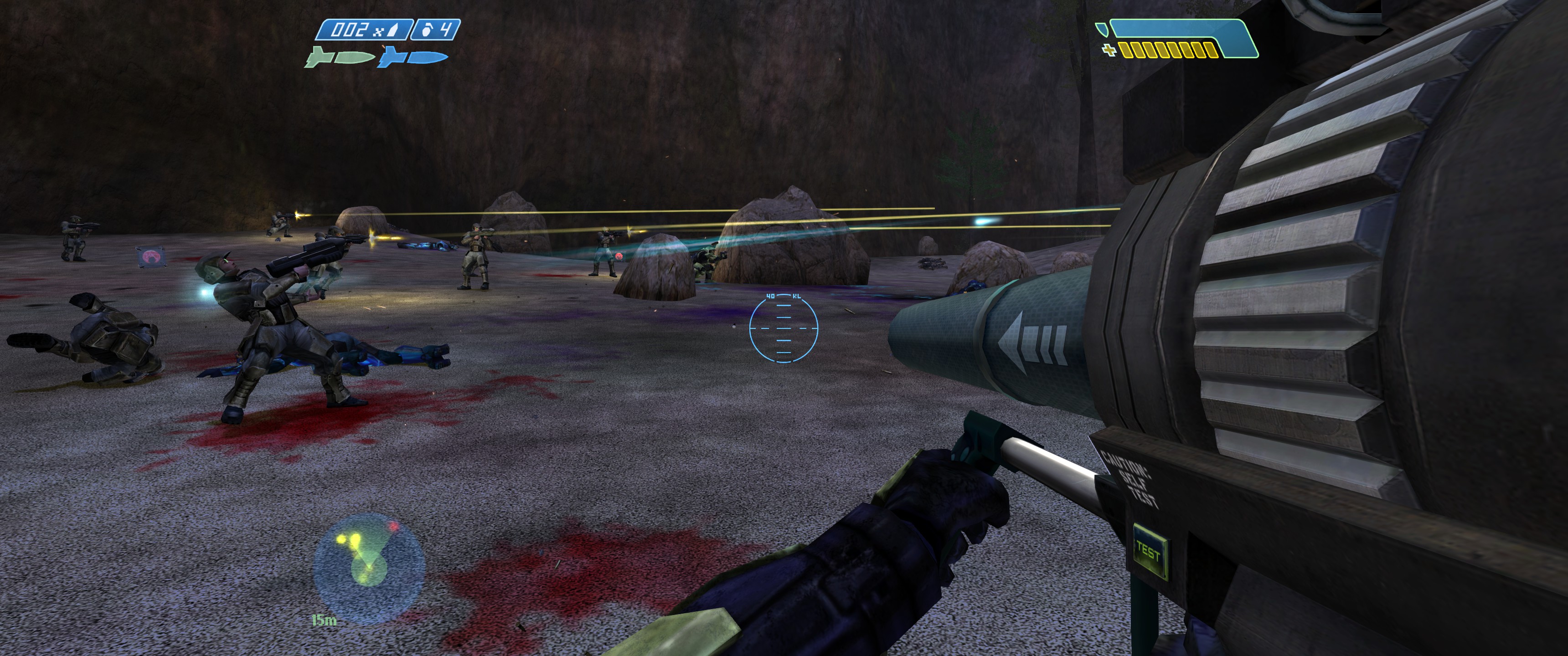
That's The Silent Cartographer with the mod installed. The beach landing is an actual island-wide invasion with a rocket launcher in your hands and a dozen marines fighting alongside you, where vanilla gives you a handful.
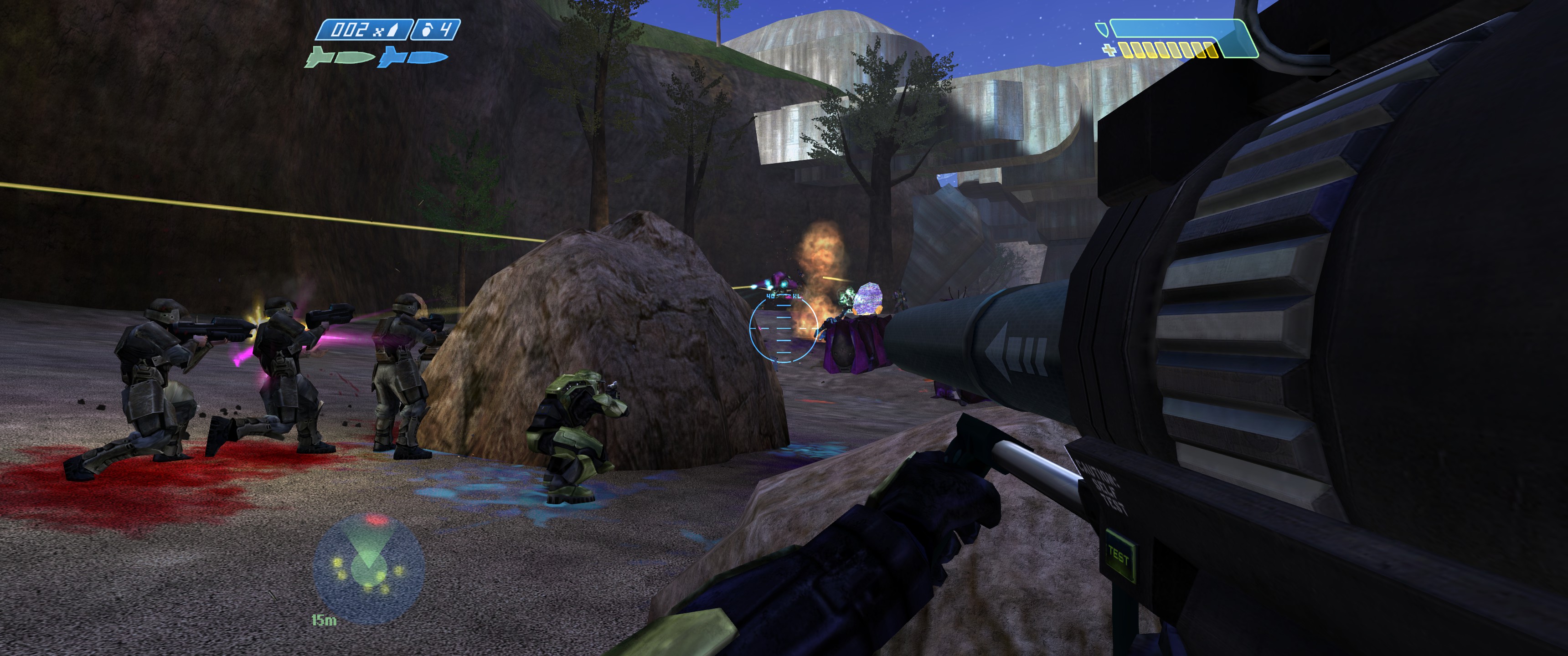
If a replacement mod like this one is working, you'll know within about thirty seconds of starting a mission. If the missions look normal, it isn't loaded.
If nothing changed, work through the following.
- Did you launch with anti-cheat disabled? This is the answer about eight times out of ten.
- Do you own the DLC the mod requires?
- Is the mod for the game you're actually playing?
- For manual installs, did the file count match when Windows asked to replace?
- For Vortex, is the mod Enabled and have you deployed?
- For Workshop mods, is the mod ticked in the Workshop tab of the game's properties?
Mod Tools
343 Industries publish free Mod Tools for MCC as DLC on Steam, one package per game. You'll find them in the DLC tab of MCC's Steam page.
These are for making mods rather than installing them - they include the map editor, the tag editor and the compiler for each title. You don't need them for anything in this guide.
The community tool worth knowing about is Assembly, an open-source tag editor that a lot of MCC mods were built with. It's what Vortex detected on the Tools page above.
Troubleshooting
- Mods don't load at all. You launched with anti-cheat enabled. This is by far the most common cause.
- The launch option dialog never appears. Open the game's Properties in Steam and set Selected Launch Option back to Ask when starting the game.
- A Workshop mod downloaded but isn't in-game. Check it's ticked in the Workshop tab of the game's properties, and check the mod's description for where it actually appears.
- The game crashes on launch after a manual install. You copied maps for the wrong game, or a mod built for an older MCC build. Restore your backup folder.
- Windows said fewer files matched than the mod shipped. Wrong folder. Cancel and check the breadcrumb.
- Everything broke after a game update. MCC updates rebuild the map files. See Game Updates.
- Matchmaking is greyed out. That's anti-cheat-disabled mode working as designed. Relaunch with anti-cheat enabled.
- Vortex asks for administrator rights every time it deploys. That's symlink deployment. Normal.
Notes
Undoing A Manual Install
Delete the modded game folder (halo1, for example) and rename your backup (halo1-bak) back to the original name. Done in seconds.
If you didn't make a backup, right-click MCC in Steam, go to Installed Files, and choose Verify integrity of game files. Steam re-downloads whatever you overwrote. It's slower but it works.
For Vortex, set the mod to Uninstalled and Vortex restores the files it replaced.
Game Updates
MCC still gets updates, and they will happily overwrite modded map files. When a patch lands, expect manual mods to be gone and to need reinstalling.
Workshop mods handle this much better - they're stored separately and the mod author can push an update. It's the strongest practical argument for using the Workshop where you can.
TIP - If you're mid-playthrough on a heavily modded setup, set MCC to Only update this game when I launch it in its Steam properties so a patch doesn't land unannounced.
See Also!
- Steam Workshop - Halo: MCC
- Halo Support - Playing Workshop mods
- Halo Support - Launching with EAC disabled
- Nexus Mods - Halo: MCC
- Halo Campaign Massive Mod
- The Backrooms (Steam Workshop)
- Assembly
- MCC Modding sub-forum on Steam
- How to Use Vortex & The Basics
- ModDB - MCC
Conclusion
That's it! You should now be able to install MCC mods from the Steam Workshop, through Vortex, or by hand, and know why a mod that looks installed sometimes does nothing.
The short version - always launch with anti-cheat disabled, prefer the Steam Workshop because it doesn't touch your game files, work out which Halo a mod is for before you install it, and back up the game folder before any manual install.
Guides we create are always open to edits and improvements, so if you have any suggestions or notice any issues, feel free to contribute by creating a pull request on our GitHub repository!
Please join our Discord server if you have any questions or need help with anything related to modding or our guides!