

A guide on how to download and install mods in The Witcher 3 (Wild Hunt) on PC.
We've included instructions on installing mods using mod managers such as Vortex, the recommended mod manager by Nexus Mods. We also cover manual installation for those who prefer it which is typically more advanced.
This guide is focused on Windows, but users using Linux and running The Witcher 3 through Steam Proton and/or Wine should be able to use many of the steps listed below without any issues!
Requirements
- The Witcher 3 installed via Steam, GOG, or Epic Games
- A free Nexus Mods account (optional, but recommended)
- 7-Zip or equivalent archive manager (for manually installing mods mostly)
- A basic understanding of copying and moving folders around on Windows
Game Version Notes
The Witcher 3 has several versions, including the Next-Gen update (v4.0+). Mods made for older versions (v1.32) may not be compatible with Next-Gen without patches.
- Steam and GOG versions are the most mod-friendly from what I've seen.
- Epic Games version generally works, but I have seen one report of a user strongly against using Vortex with this version due to issues.
If you're on Steam, you can switch between the Classic and current version (Default Public Version) by right-clicking the game in your library, selecting the Properties button, and then selecting what version on the Game Versions & Betas tab.
This is the single biggest gotcha when modding The Witcher 3. A mod written for 1.32 will often either do nothing or crash the game on 4.0+, and plenty of older mods were never updated because their authors moved on years ago.
NOTE - Next-Gen also added a DirectX 12 mode alongside the original DirectX 11 one. Some mods (particularly graphics mods and anything hooking the renderer) only behave properly on one or the other. You can switch between them in the REDLauncher.
Running Mods On Linux (Proton/Lutris)
The Witcher 3 is rated Gold on ProtonDB. Mods work fine in most cases, but Script Merger may require Protontricks or Wine Mono.
Backup Your Game Files!
We strongly recommend backing up your game folder and saves before installing mods. This gives you a fallback in the case a mod causes game crashes or corrupts your installation altogether.
Here are some common paths to the game files.
- Steam:
C:\Program Files (x86)\Steam\steamapps\common\The Witcher 3 - Epic Games:
C:\Program Files\Epic Games\The Witcher 3
The most common save files location is:
C:\Users\<user>\Documents\The Witcher 3\gamesaves
WARNING - Keep note of the folder locations mentioned above as you will need them later on in the guide!
TIP - It's worth backing up Documents\The Witcher 3\user.settings and input.settings too. Some mods edit these directly, and having the originals makes it trivial to undo the change later.
Where To Download Mods
The best place for Witcher 3 mods is Nexus Mods.
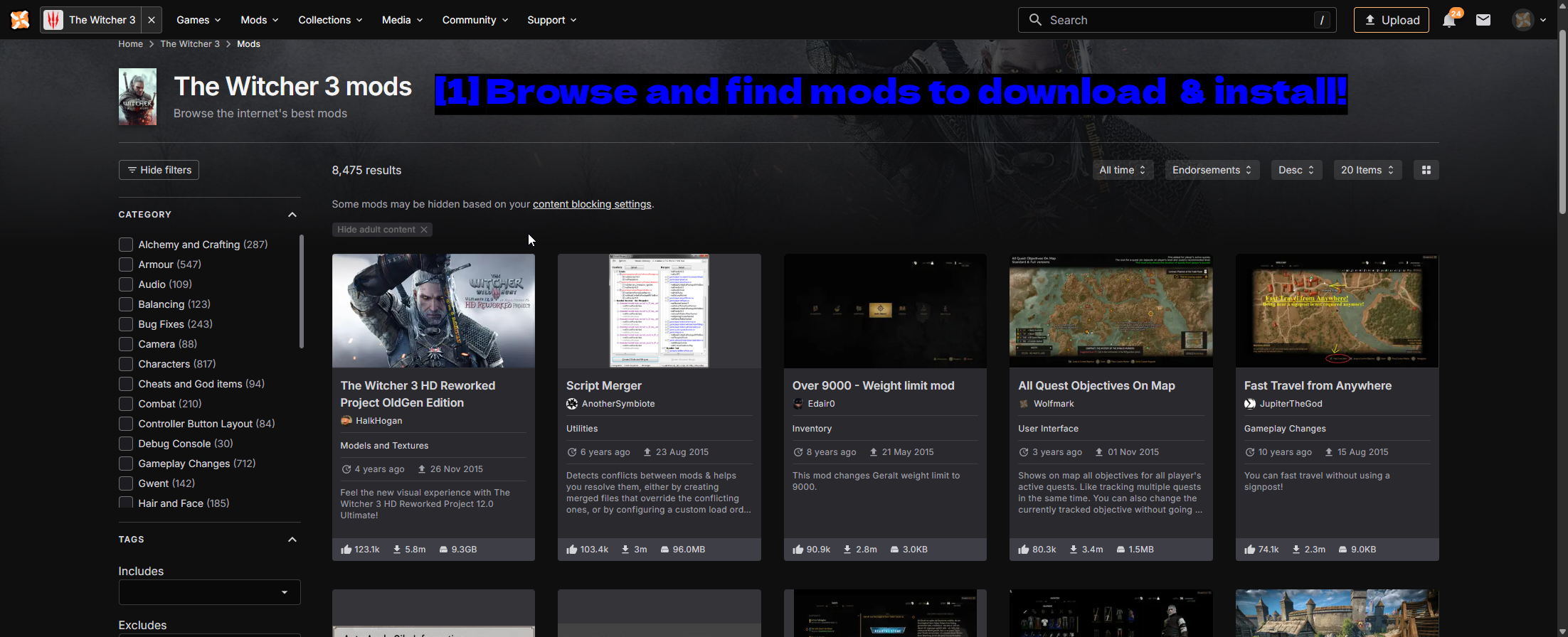
- Browse and find mods to download & install!: At the time of writing there are over 8,000 mods for the game. The category list down the left is the fastest way to narrow things down, and sorting by Endorsements is a good way to find the mods people actually use.
Additional websites that provide mods in The Witcher 3 include the following.
TIP - We recommend checking the requirements, description, and user posts before installing a mod.
How to Install Mods
There are two ways to install mods in The Witcher 3.
- Using a mod manager such as Vortex.
- Installing manually by copying folders into the game directory (typically more advanced).
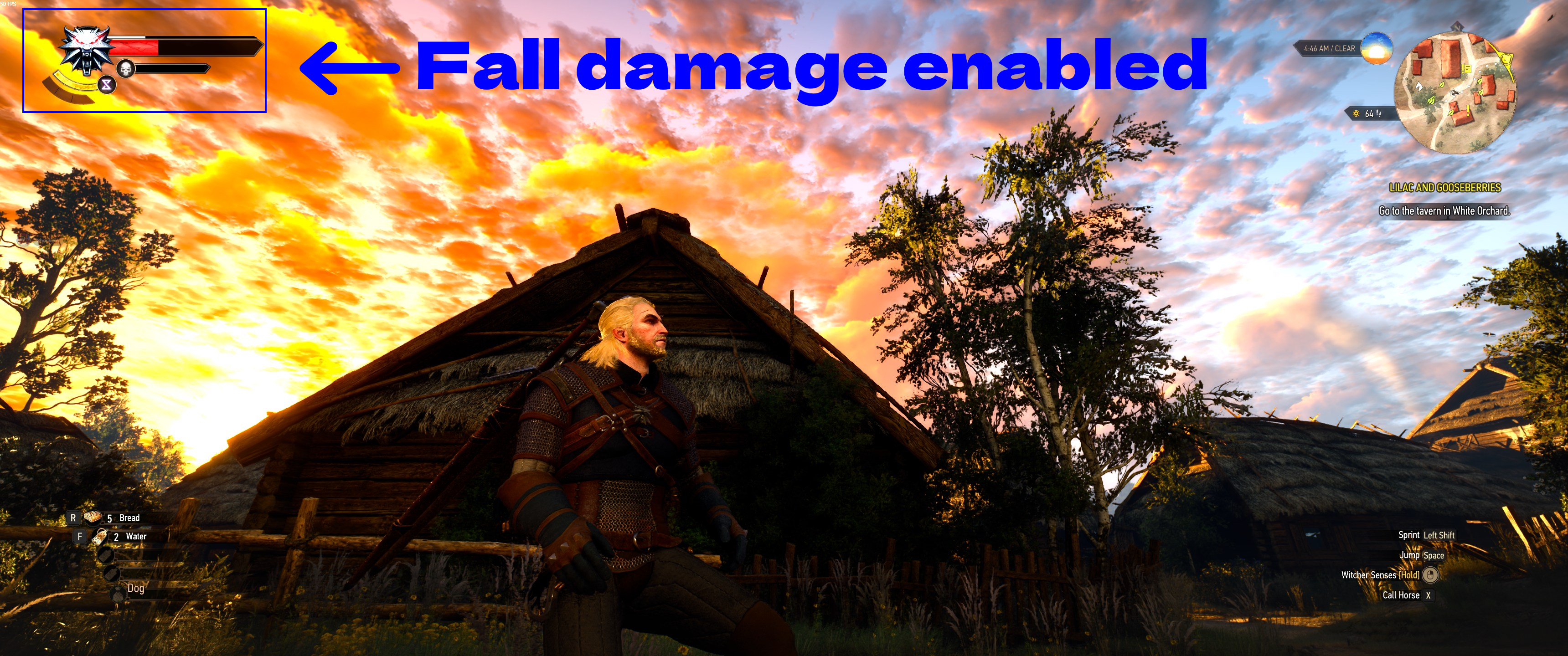
For our demonstration we'll be installing No Fall Damage, a small mod that does exactly what the name suggests. It's a good example because it's obvious when it's working, and it also shows you what a normal Witcher 3 mod looks like once it's unpacked.
Here's a demonstration of the vanilla behavior before installing the mod: Geralt jumps off something tall and loses a chunk of health.
Using Vortex (Mod Manager)
Vortex (mod manager) is considered the easier and safest way to manage mods in The Witcher 3. It handles downloading, deployment, load order, and it can install Script Merger for you.
For a full walkthrough of Vortex - including downloading, installing, and a breakdown of every setting and feature - check out our dedicated How to Use Vortex & The Basics guide.
Managing The Witcher 3 In Vortex
Before Vortex will install anything, you need to tell it to manage the game.
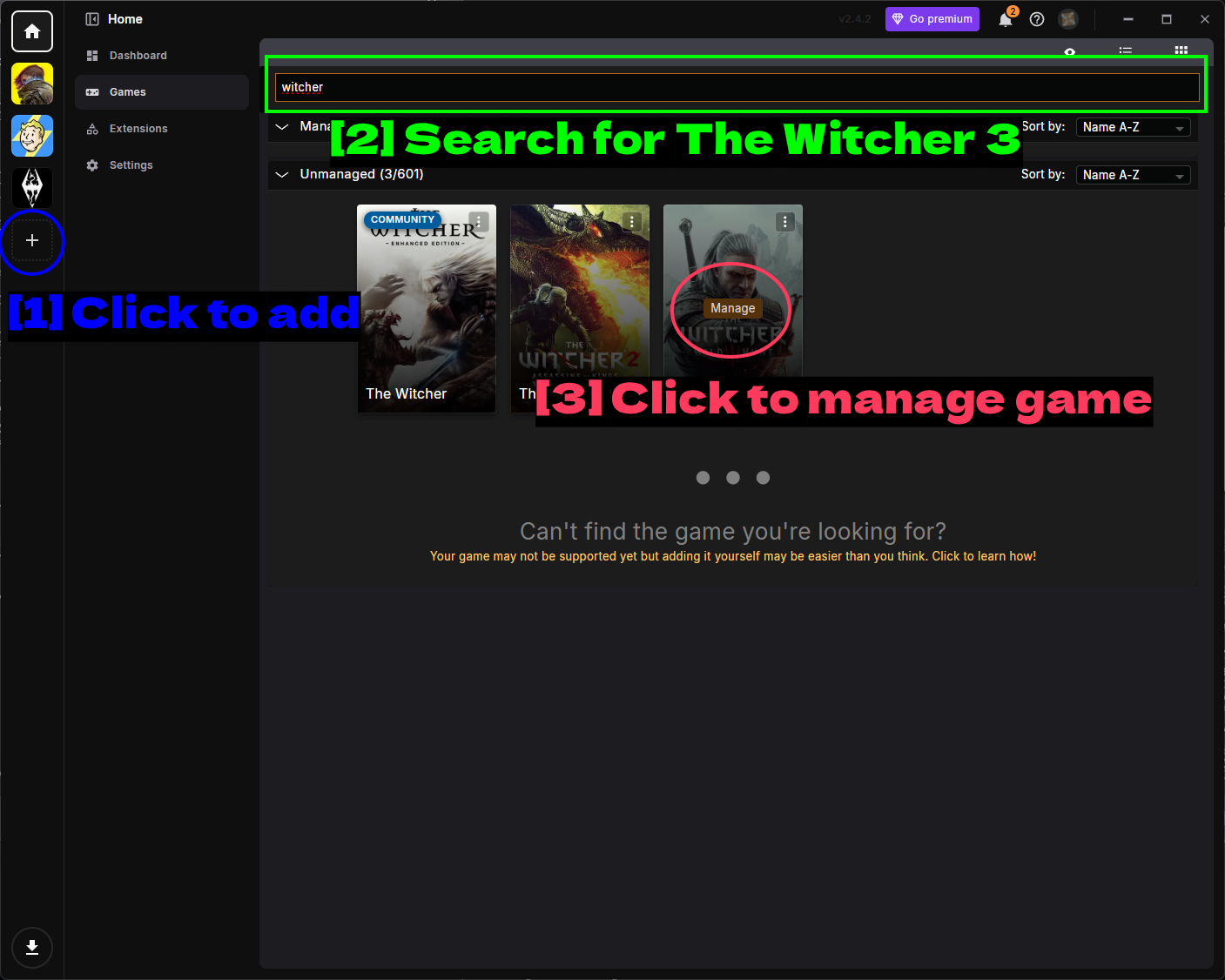
- Click to add: The + button in the left sidebar adds a new game to manage.
- Search for The Witcher 3: Type
witcherinto the search bar at the top. You'll see several Witcher games listed - make sure you pick the right one. - Click to manage game: Hover over The Witcher 3 tile and click Manage.
If Vortex can't detect your install, click the three dots (⋮) on the game card, choose Manually Set Location, and point it to witcher3.exe, then click Activate so The Witcher 3 shows up in the left sidebar.
Installing Script Merger
As soon as Vortex starts managing the game, it'll offer to set up Script Merger for you.
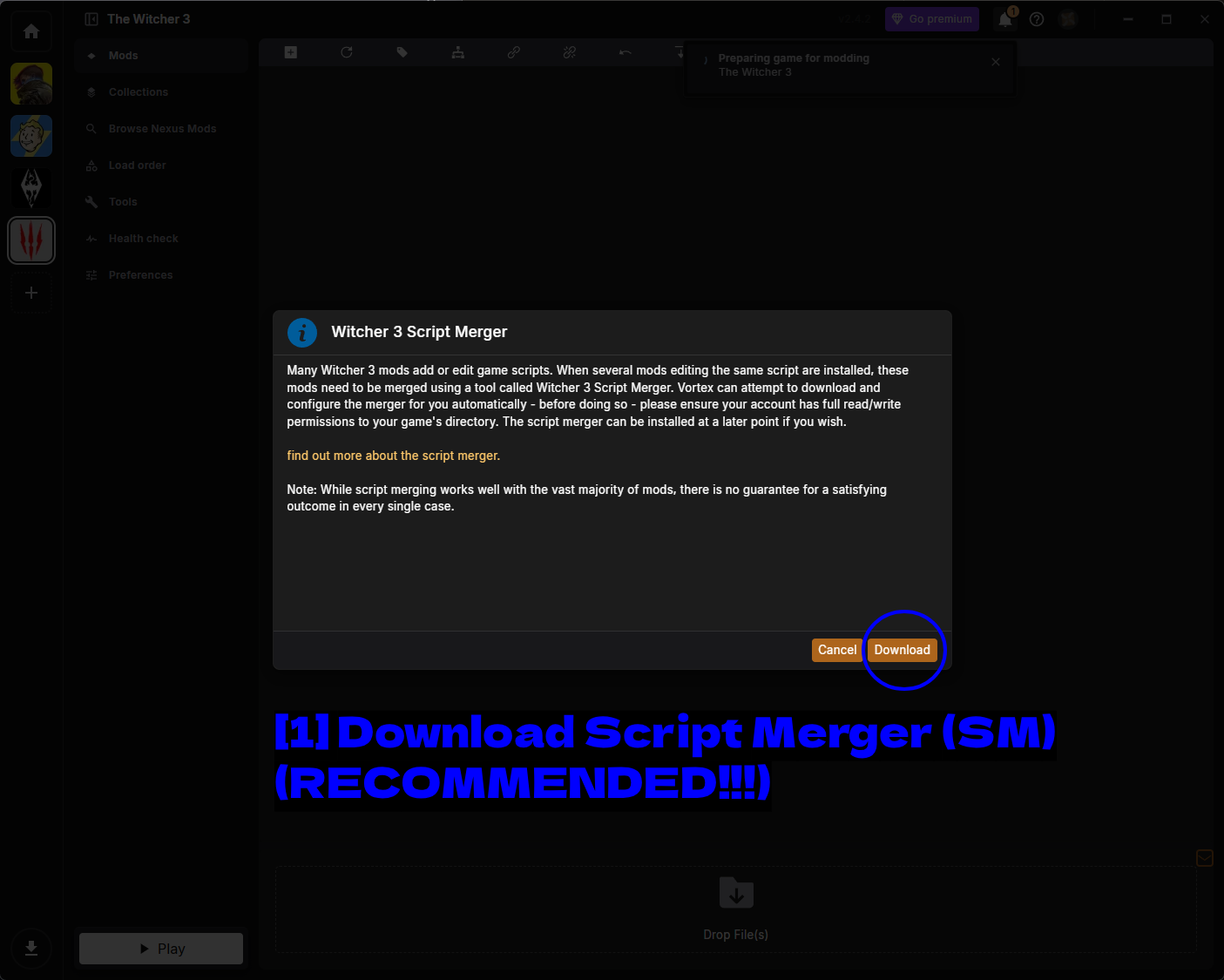
- Download Script Merger: Click Download. Vortex will download and install Script Merger automatically.
It is strongly recommended you have Script Merger installed. Witcher 3 mods conflict with each other constantly and Script Merger is often used to resolve these conflicts. There's more on how to actually use it in the Script Merger section below.
NOTE - Vortex warns that your account needs full read/write permissions to the game directory for this to work. If the game is installed under C:\Program Files, you may need to run Vortex as administrator. You can always install the merger later if you skip it now.
Downloading A Mod Through Vortex
With the game being managed, head to the No Fall Damage mod page in your browser.
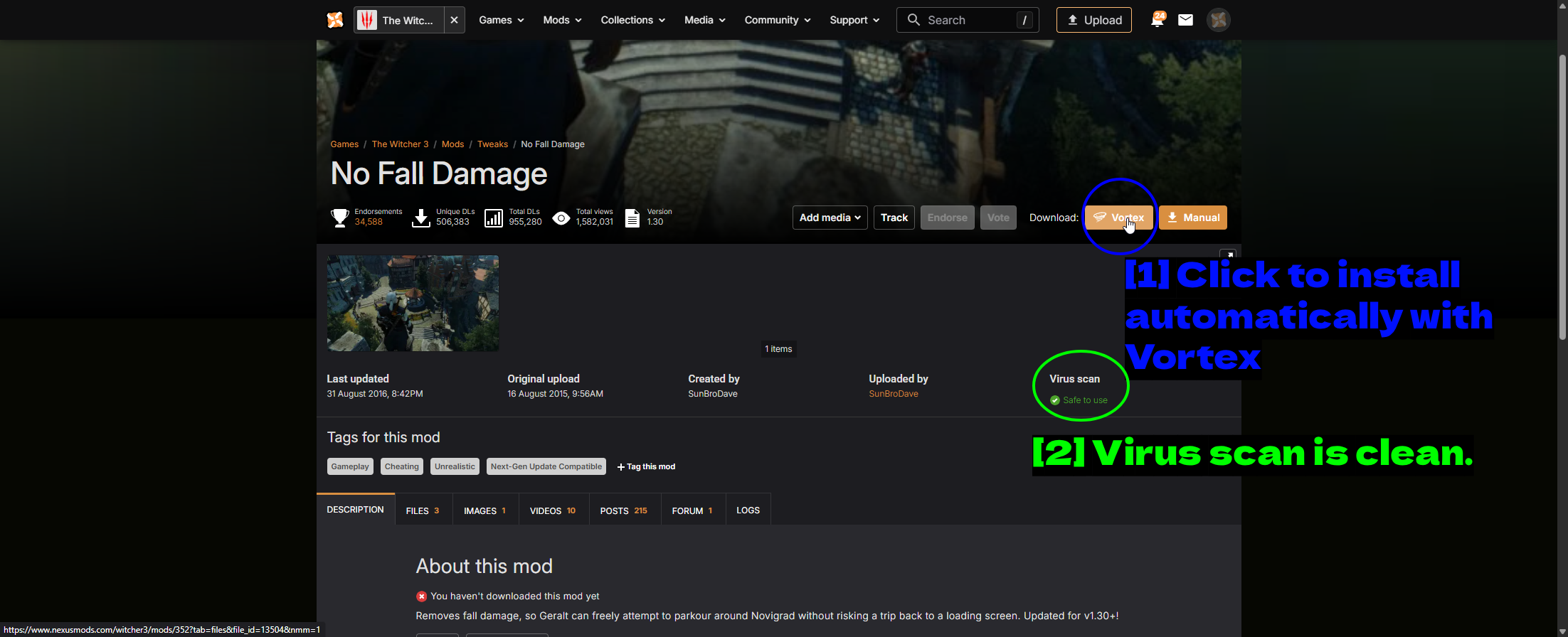
- Click to install automatically with Vortex: The orange Vortex button next to Download hands the file straight to the app. If a mod page doesn't have this button, that mod has to be installed manually.
- Virus scan is clean.: Nexus Mods scans uploaded files and shows the result here. Safe to use is what you want to see - it's worth glancing at before you install anything.
Your browser will ask for permission to open Vortex. Accept it (and tick Always allow if you'd rather not be asked every time), and Vortex will download and install the mod.
The Mods Page
Once installed, the mod appears on the Mods page. This page is also your jumping-off point to everything else Vortex offers for the game.
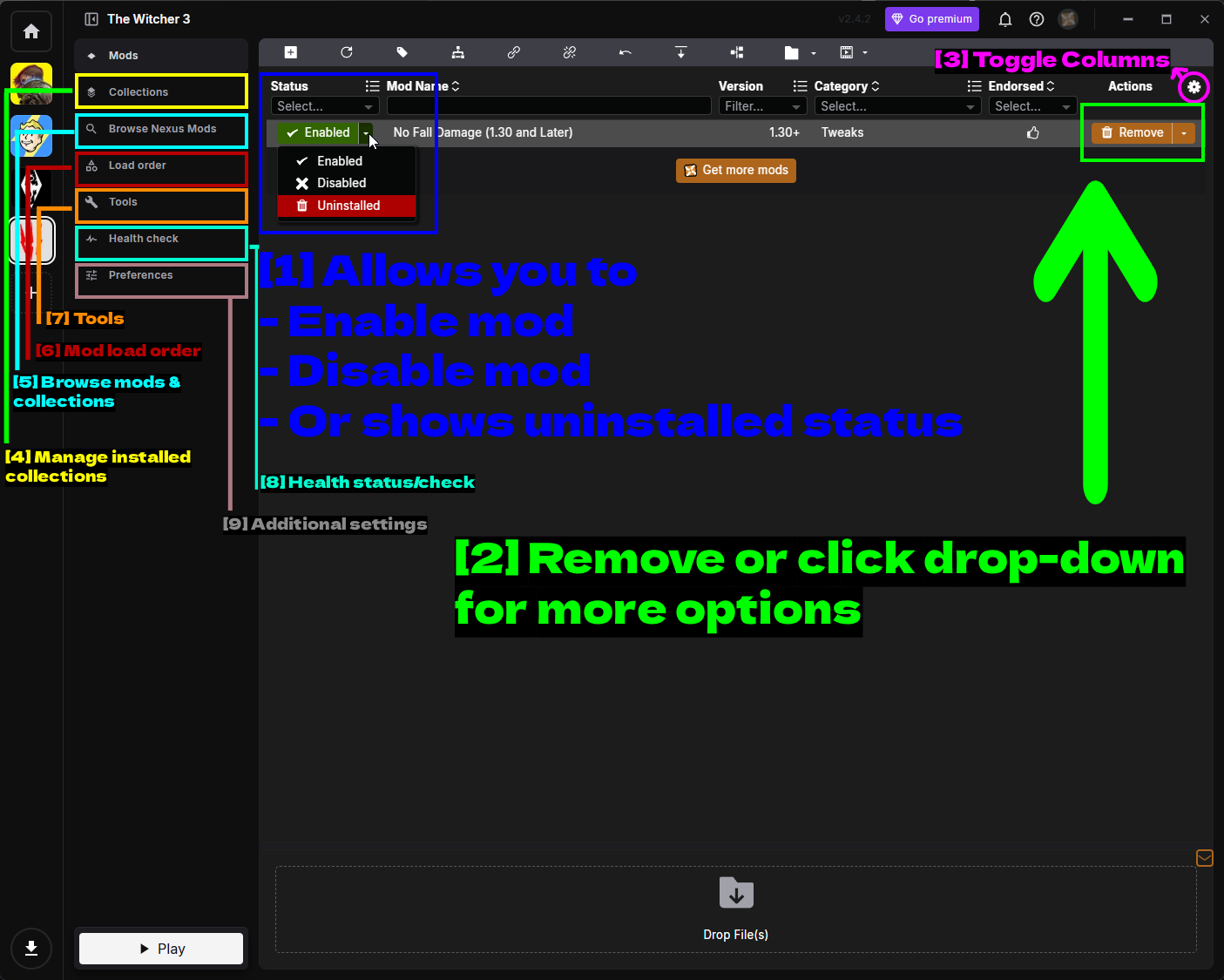
- Allows you to enable, disable, or shows uninstalled status: The Status drop-down. Enabled means the mod is deployed to your game, Disabled keeps it installed in Vortex without deploying it, and Uninstalled removes the files but keeps the downloaded archive. Disabling is the quickest way to work out which mod is breaking your game.
- Remove or click drop-down for more options: Remove uninstalls the mod, and the arrow next to it opens the full actions menu.
- Toggle Columns: The gear icon chooses which columns are visible.
- Manage installed collections: The Collections page.
- Browse mods & collections: Browse Nexus Mods for finding new mods.
- Mod load order: The Load order page.
- Tools: External programs and launch options, including Script Merger.
- Health status/check: Vortex's checks for your setup.
- Additional settings: Witcher 3 specific Preferences.
The actions menu next to Remove covers everything else you'd want to do with a mod.
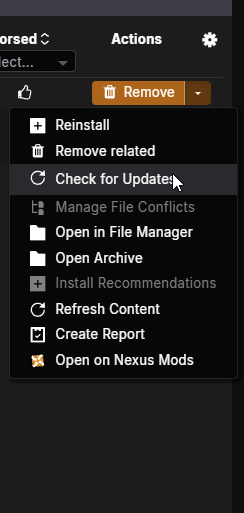
- Reinstall - runs the installer again.
- Remove related - removes the mod along with anything tied to it.
- Check for Updates - queries Nexus Mods for a newer version.
- Manage File Conflicts - resolve conflicts when two mods write the same file.
- Open in File Manager - opens the mod's staging folder.
- Open Archive - opens the downloaded archive.
- Install Recommendations - installs mods the author recommends alongside this one.
- Refresh Content - re-reads the mod's files.
- Create Report - generates a report about the mod, useful when asking for help.
- Open on Nexus Mods - opens the mod page in your browser.
The gear icon lets you add extra columns to the mod list.
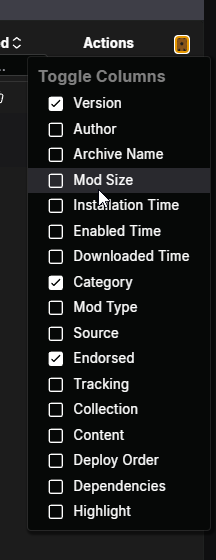
You can toggle Version, Author, Archive Name, Mod Size, Installation Time, Enabled Time, Downloaded Time, Category, Mod Type, Source, Endorsed, Tracking, Collection, Content, Deploy Order, Dependencies, and Highlight. Author and Mod Size are the two worth adding early once your list starts growing.
Collections
A collection is a curated list of mods bundled together and published by another user, which you can install in one go.
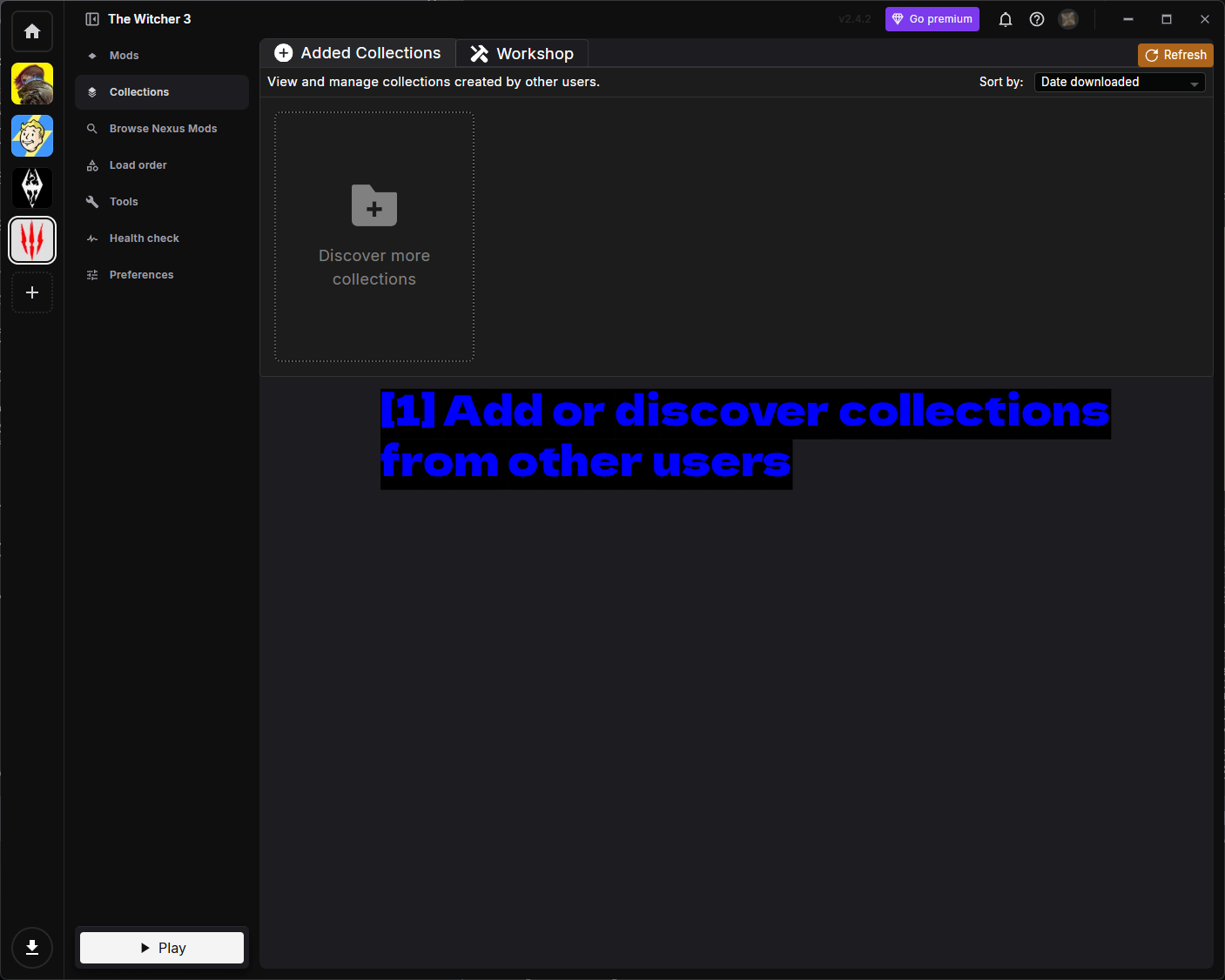
- Add or discover collections from other users: Discover more collections takes you to the collections listing for The Witcher 3.
Collections are a decent shortcut if you want a full graphics or gameplay overhaul without researching 40 individual mods. Just be aware you're trusting whoever built it to have tested the combination.
Load Order
The Load order page controls which mod wins when two of them change the same thing.
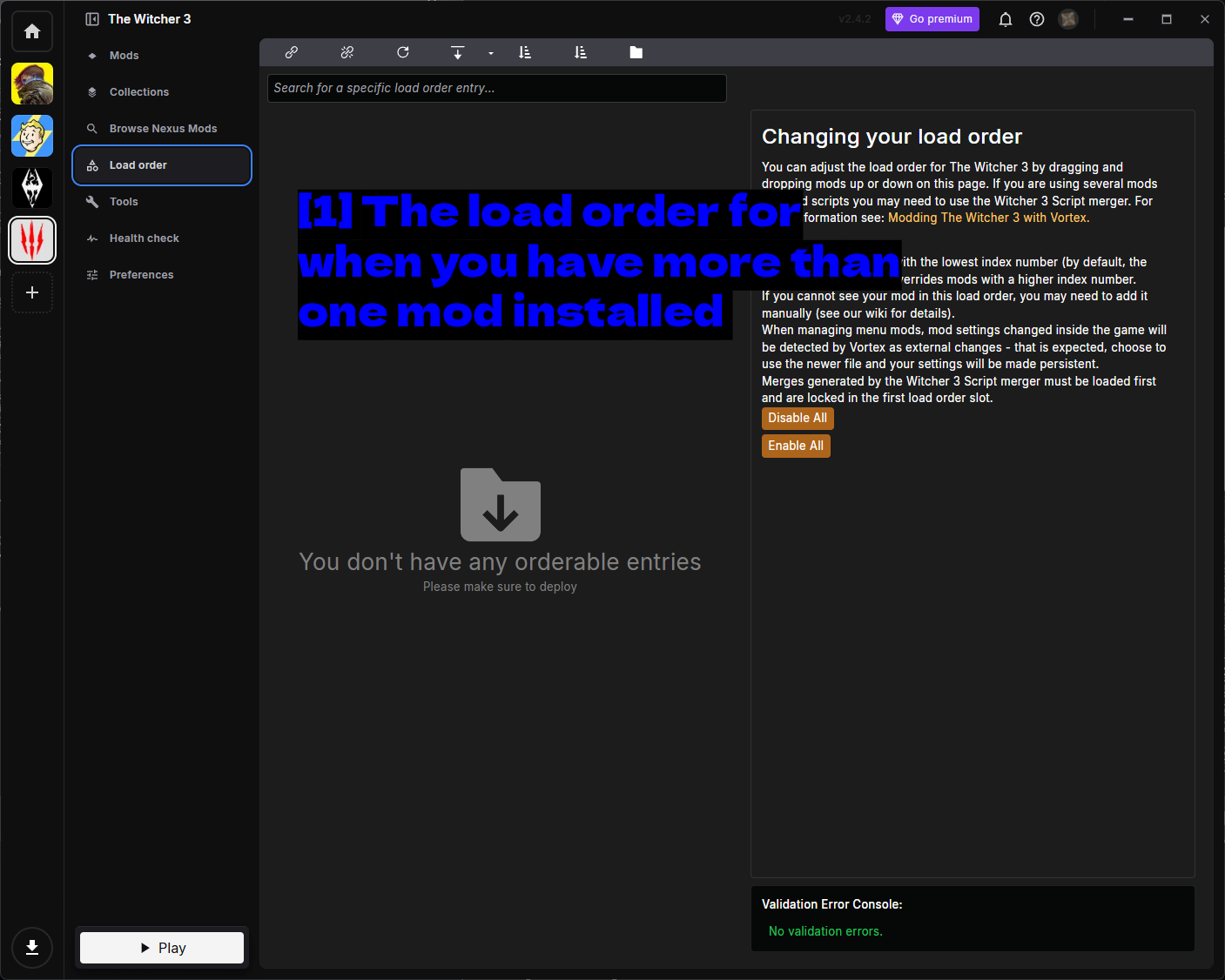
- The load order for when you have more than one mod installed: Drag mods up and down to reorder them. With a single mod installed there's nothing to order, which is why the list is empty here.
Vortex explains the rules on the right-hand side, and they're worth reading. The important ones are below.
- The mod with the lowest index number overrides mods with a higher index number.
- If a mod doesn't appear in the list, you may need to add it manually.
- Merges generated by Script Merger must be loaded first and are locked into the first load order slot.
- Mod settings changed inside the game get detected by Vortex as external changes - that's expected, choose to use the newer file and your settings stay.
There are Disable All and Enable All buttons on the right, plus a Validation Error Console at the bottom that flags problems with your current order.
Tools
The Tools page lists external programs and launch options that run alongside the game.
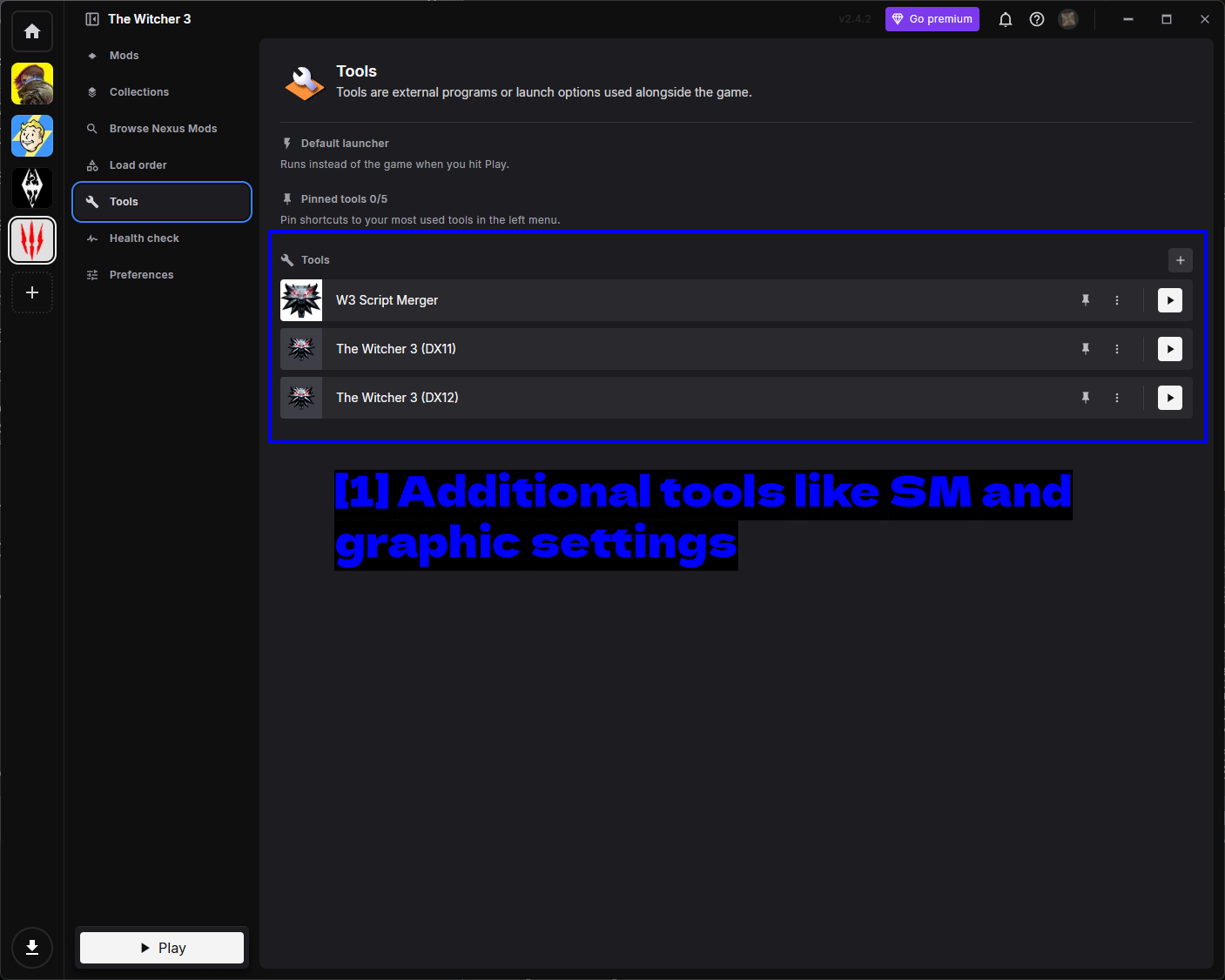
- Additional tools like SM and graphic settings: W3 Script Merger plus separate The Witcher 3 (DX11) and The Witcher 3 (DX12) launch entries. Being able to launch either renderer straight from Vortex is handy when a mod only works on one of them.
You can pin up to five tools to the left menu with the pin icon, and add your own with the + button in the top-right.
Health Check
The Health check page reviews your setup and flags anything that looks wrong.
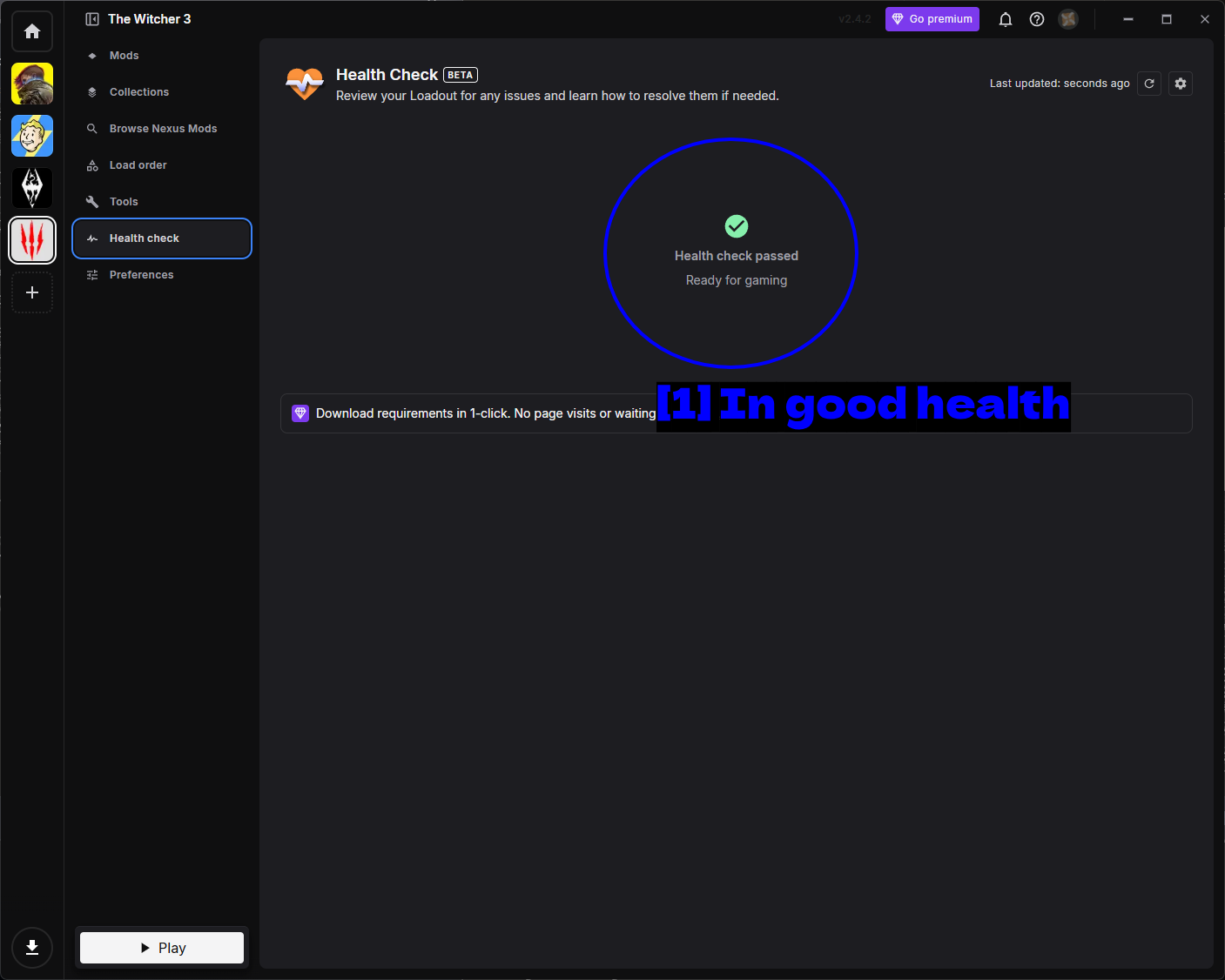
- In good health: A green Health check passed means Vortex is happy with your loadout. If something is wrong it explains the problem and how to fix it here, which is a good first stop before digging through logs.
Preferences
The Preferences page holds the Witcher 3 specific Vortex settings.
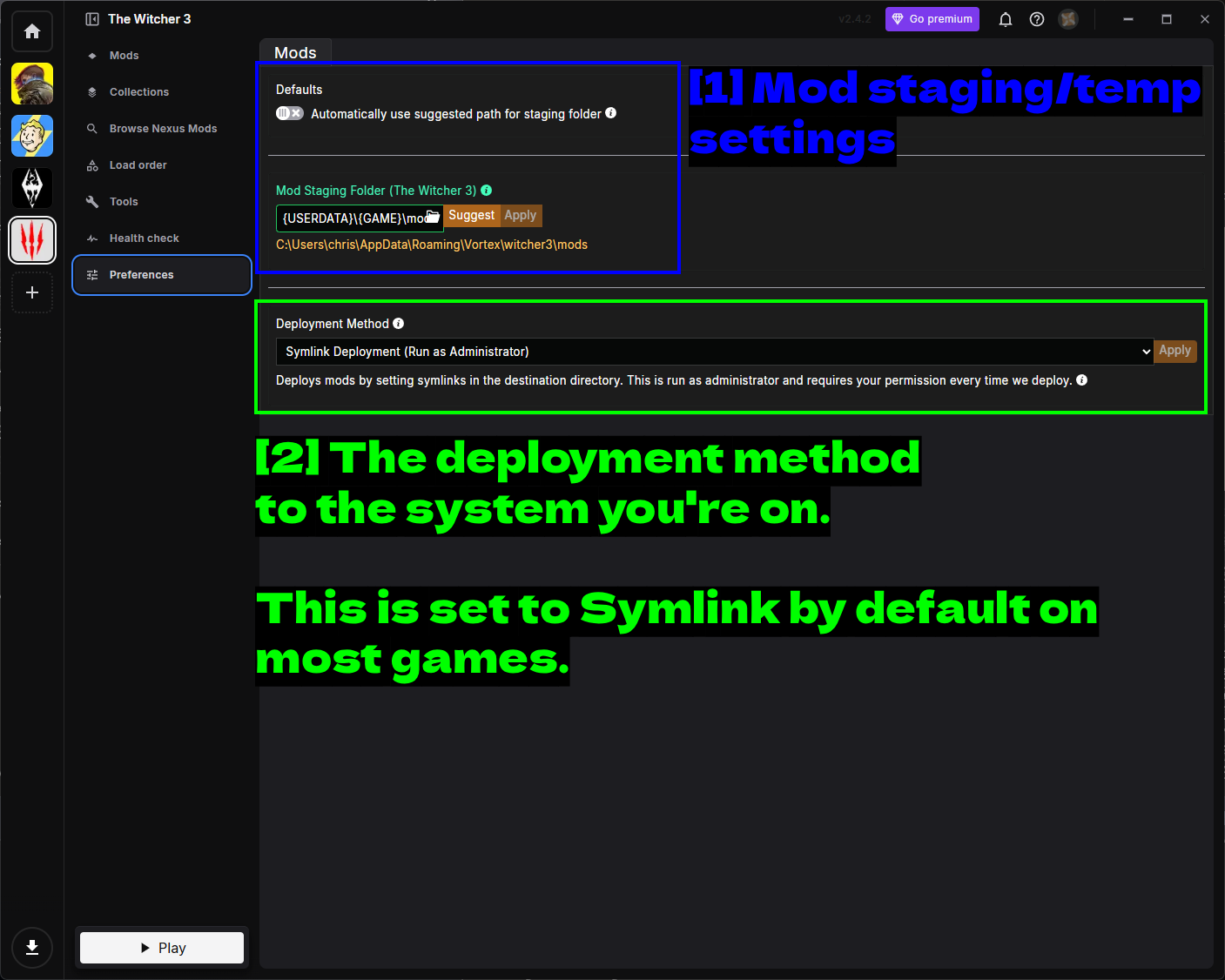
- Mod staging/temp settings: The Mod Staging Folder is where Vortex keeps mods before deploying them. This needs to be on the same drive as your game install, since that's how Vortex's deployment works. If you move it later, reinstall your mods rather than assuming the move was enough.
- The deployment method to the system you're on.: Symlink Deployment is the default for The Witcher 3. It creates symbolic links in the game directory rather than copying files, which is why it needs to run as administrator and asks permission each time it deploys.
NOTE - If Vortex shows a Deploy Mods notification after enabling a mod, click it. Nothing reaches your game folder until mods have been deployed.
Manual Mod Installation (Advanced)
Some users prefer manually installing mods or a mod may not be compatible with Vortex.
In either case, you may perform the following steps to download and install mods manually.
Start on the mod's Nexus Mods page and use the Manual button rather than the Vortex one.
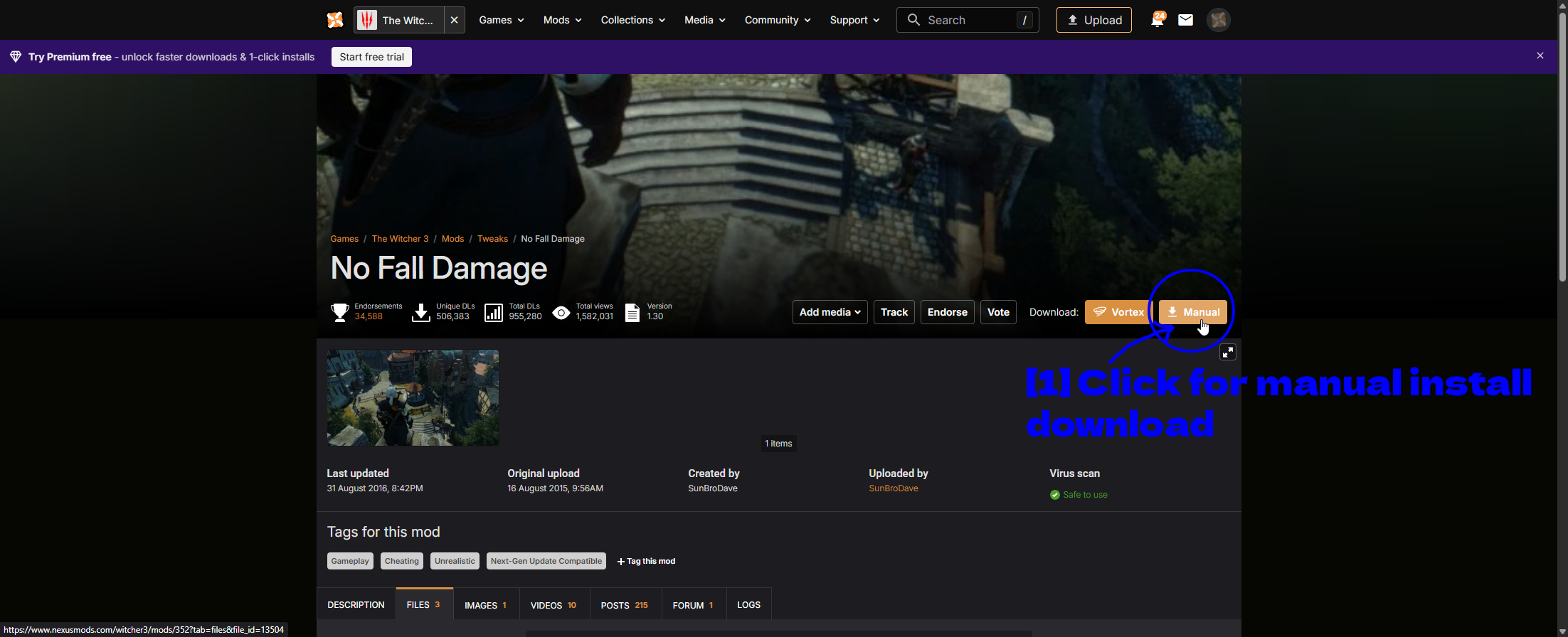
- Click for manual install download: Manual downloads the archive through your browser instead of handing it to Vortex.
NOTE - Free Nexus Mods accounts get a short wait before the download starts and a capped download speed. That's normal, not something going wrong.
Extract the archive with 7-Zip and look at what came out.
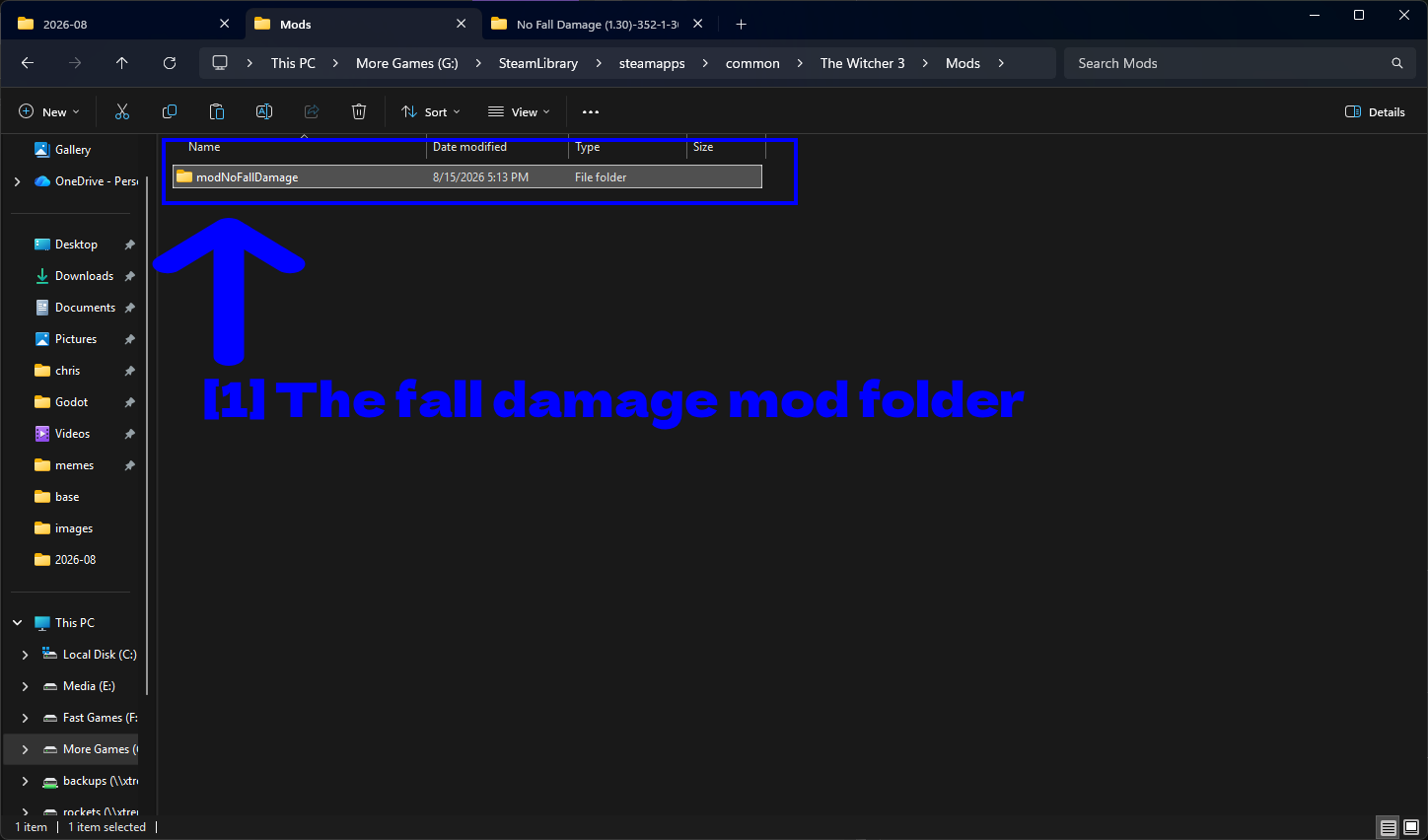
- The fall damage mod folder: A single folder named
modNoFallDamage.
That naming is not a coincidence. The Witcher 3 only loads mod folders whose names begin with mod, so modNoFallDamage works and NoFallDamage silently does nothing. If you extract an archive and the folder doesn't start with mod, check the mod's description before renaming it - occasionally the archive contains a wrapper folder and the real modXxx folder is one level down.
Now open your game directory.
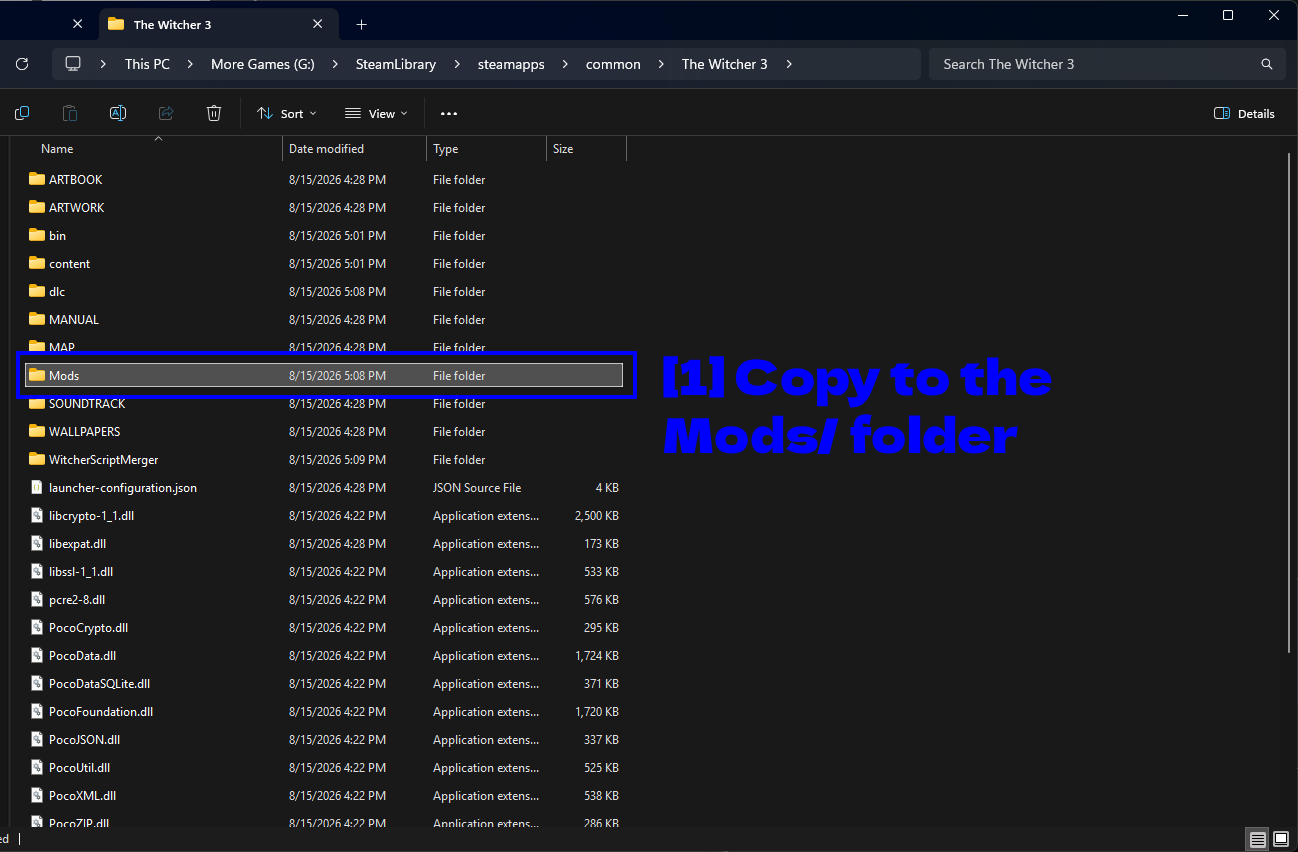
- Copy to the Mods/ folder: The
Modsfolder in the root of your Witcher 3 install. Create it if it doesn't exist - a fresh install won't have one.
Paste the mod folder inside.
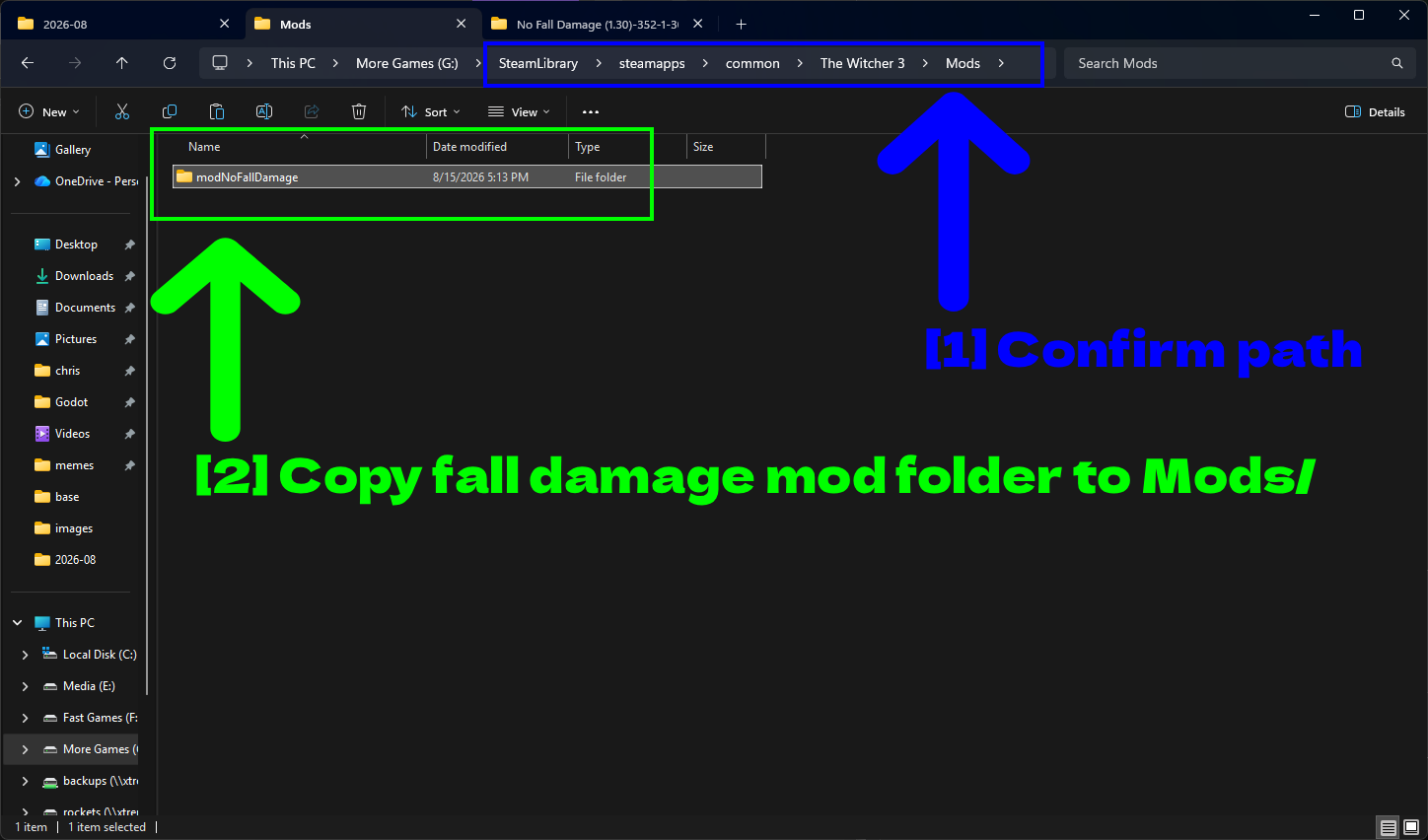
- Confirm path: Double-check the breadcrumb reads
...\The Witcher 3\Mods. This is the single most common mistake - dropping the folder into the game root instead ofMods. - Copy fall damage mod folder to Mods/: The
modNoFallDamagefolder sitting in place.
So the final structure should look like the following.
The Witcher 3\Mods\modNoFallDamage\
Lastly, a number of mods and tools expect the debug console to be turned on. To enable it, edit the following file using a text editor such as Notepad.
My Documents\The Witcher 3\user.settings
Testing Your Mods
Launch the game, find something tall, and jump off it.
I first tested without mods and found a house to jump off of. Here's the damage I took from it.
Now with the mod enabled, I jumped off the same house and took no fall damage!
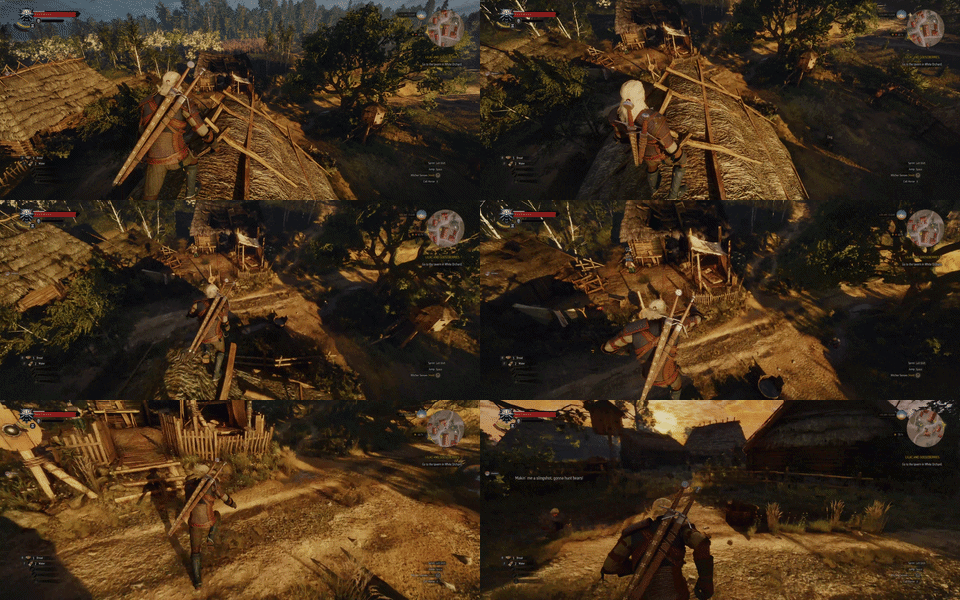
If nothing changed, work through the following.
- Is the mod folder named
modSomethingand sitting directly insideThe Witcher 3\Mods\? - If you used Vortex, is the mod Enabled and are there any errors reported in the mod manager?
- Does the mod actually support your game version? Check for the Next-Gen Update Compatible tag if you're on
4.0+. - Are you launching the same version (DX11 vs DX12) the mod expects?
- Is Enable mods turned on in the REDLauncher?
Useful Tools
Script Merger
Many mods in The Witcher 3 modify the same scripts and will conflict.
To resolve these issues, it is recommended you use a tool called Script Merger.
To download and use Script Merger, perform the following steps.
- Download Script Merger from here, or let Vortex install it for you as covered above.
- Launch it and select your Witcher 3 folder.
- Click Refresh to detect installed mods.
- Click Merge Scripts and resolve any conflicts.
- Auto-merge works most of the time.
- Manual merge may be required for complex mods.
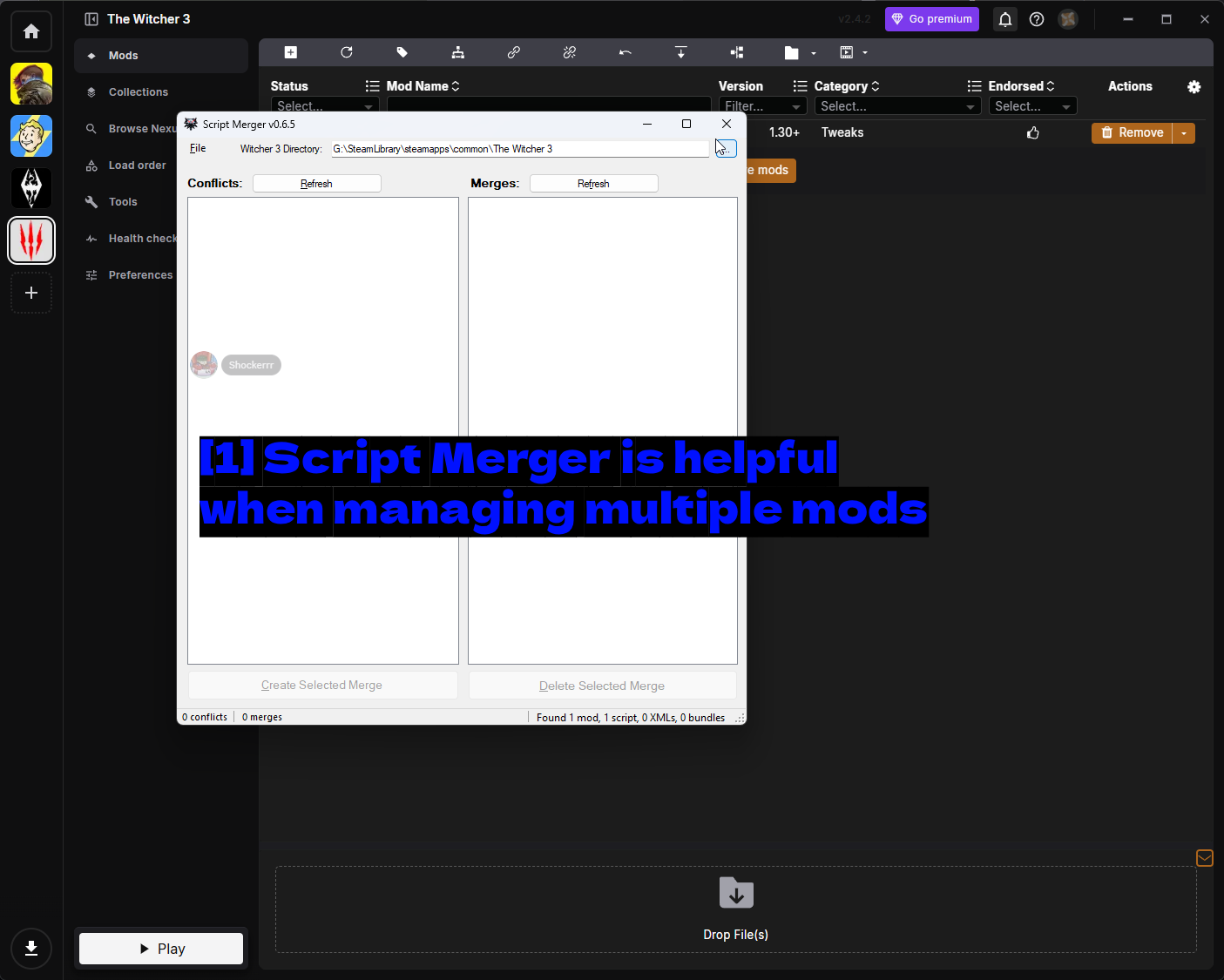
- Script Merger is helpful when managing multiple mods: The Witcher 3 Directory field at the top should point at your game folder. Conflicts on the left lists mods fighting over the same files, Merges on the right lists merges you've already created, and the status bar at the bottom summarises what it found - here
0 conflicts, 0 mergesandFound 1 mod, 1 script, 0 XMLs, 0 bundles, which is exactly what you'd expect with a single mod installed.
NOTE - If conflicts aren't resolved, your game may crash at startup.
TIP - Re-run Script Merger every time you add, remove, or update a mod. Merges are built against the specific mod versions you had at the time, so an update can quietly invalidate them.
REDkit
REDkit is CD Projekt Red's official modding toolkit for The Witcher 3, released in May 2024. It's free on Steam and it's what you'd use to actually create mods rather than install them.
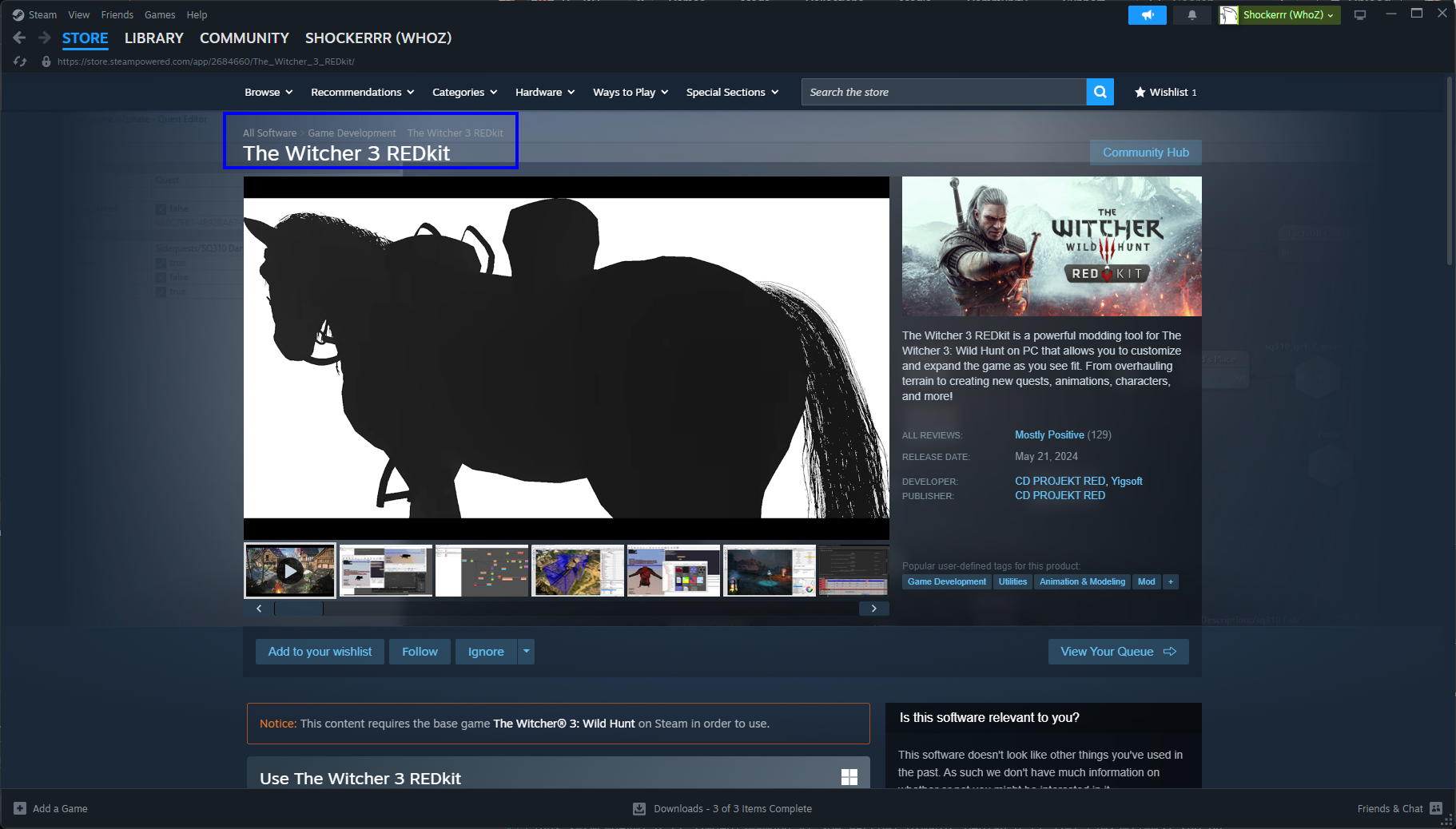
- The Witcher 3 REDkit: Listed under Game Development on Steam rather than as a game.
It lets you overhaul terrain, build new quests, and edit animations, characters, and more - essentially the tools CDPR used internally. It requires the base game on Steam to use, and it's aimed squarely at mod authors, so you don't need it just to install other people's work.
Notes
REDLauncher
If you launch The Witcher 3 through CD Projekt Red's own launcher, there's a mods toggle you need to know about.
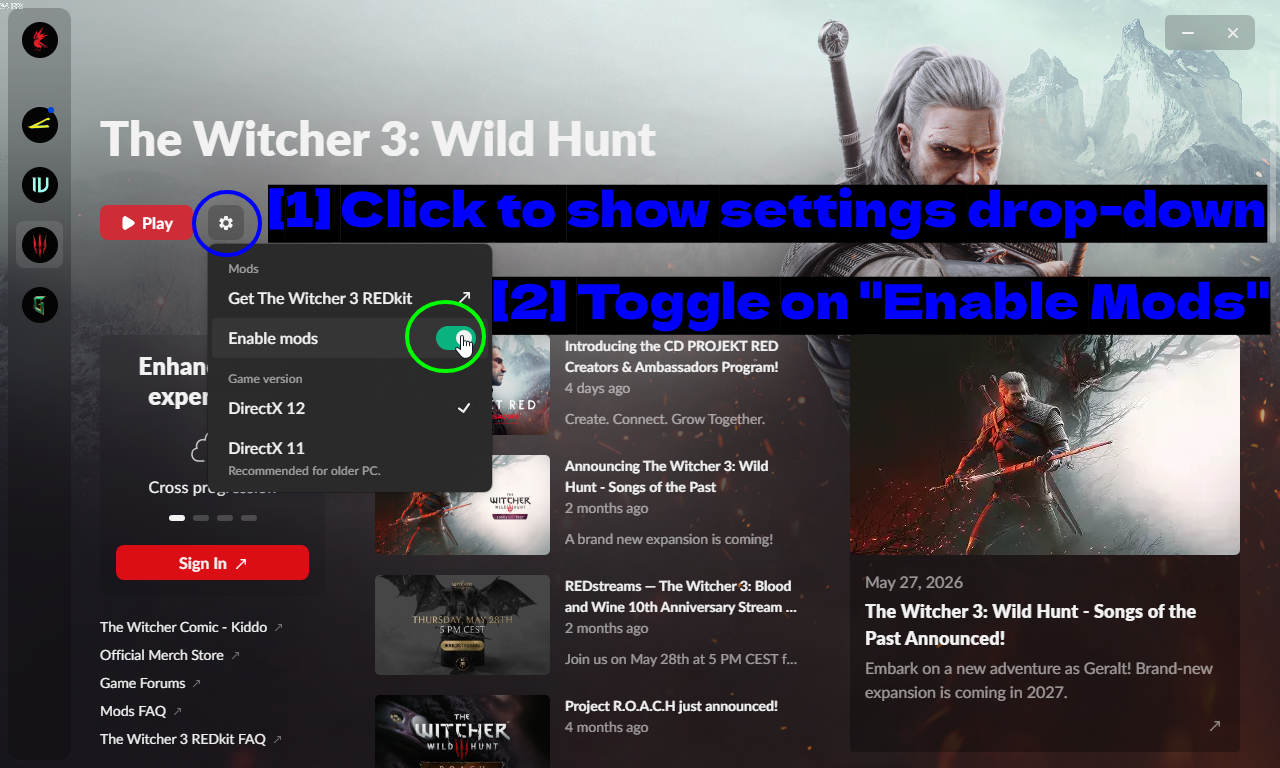
- Click to show settings drop-down: The gear icon next to the Play button.
- Toggle on "Enable Mods": Make sure Enable mods is switched on.
The same menu is also where you switch between DirectX 12 and DirectX 11, and where you'll find a Get The Witcher 3 REDkit link. DX11 is recommended for older PCs, and as mentioned earlier, some mods only behave properly on one renderer.
Mod Limit Fix (Optional)
The Witcher 3 has a hard limit on how many mods can be loaded by default.
Fortunately, you can install a mod called Mod Limit Fix to remove this limitation entirely!
- Download it from here.
- Follow the instructions provided to patch
witcher3.exe.
We highly recommend this individual mod if you plan to use many mods (50+).
NOTE - The patch applies to witcher3.exe itself, which means a game update will overwrite it. If your heavily modded setup suddenly stops loading mods after a patch, reapply the fix.
Conclusion
That's it! You should now know how to install and manage Witcher 3 mods using Vortex and manual methods. Tools like Script Merger and Mod Limit Fix may be essential to some mod-heavy setups.
The short version - use Vortex unless you have a reason not to, let it install Script Merger and actually run it whenever your mod list changes, keep an eye on whether a mod supports Next-Gen, and remember mod folders have to start with mod.
Modding The Witcher 3 can dramatically enhance graphics, gameplay mechanics, and immersion. Or just add fun random chaos to your next playthrough!
See Also
- Nexus Mods - The Witcher 3
- Script Merger
- Mod Limit Fix
- The Witcher 3 REDkit
- No Fall Damage
- How to Use Vortex & The Basics
- How to Download & Install Vortex
- ProtonDB - Witcher 3 (for Linux users)
- The Witcher 3 Modding Subreddit
This guide will be updated over time. Found an error or have feedback? Let us know!
Happy modding!