

A guide on how to download and install mods in Sons Of The Forest on PC. We cover all of the common routes: Thunderstore with the Thunderstore Mod Manager, Vortex with Nexus Mods, and installing mods by hand.
This guide is focused on Windows, but Linux users running Sons Of The Forest through Steam Proton should be able to follow the manual sections with Proton paths.
Sons Of The Forest has a slightly awkward modding scene, and the reason is worth understanding before you start: there are two competing mod loaders, and a mod written for one will not load under the other.
- BepInEx is the general-purpose Unity mod loader. Most Sons Of The Forest mods use it, it's on Thunderstore, and the Thunderstore Mod Manager handles it for you.
- RedLoader is a Sons Of The Forest specific loader with its own extra features. It's what sotf-mods.com and a chunk of the Nexus Mods catalogue use.
They can coexist in the same game folder, but each mod only loads under the one it was built for. Check which a mod needs before you install it, and most of the confusion in this game disappears.
For our examples we'll install BepInExPack IL2CPP plus SOTF ModMenu from Thunderstore, and Axel's Mod Menu from Nexus Mods, which uses RedLoader instead.
Requirements
- A PC copy of Sons Of The Forest on Steam.
- 7-Zip or any other archive extraction software.
- A free Nexus Mods account (only for Nexus mods).
- A basic understanding of copying folders around on Windows.
Two Mod Loaders, And Why It Matters
This is the single most useful thing to know about modding this game, so here it is properly.
- BepInEx is the standard Unity mod loader, and Sons Of The Forest uses the IL2CPP variant. Mods are
.dllfiles that go inBepInEx\plugins. This is the larger ecosystem and it's what Thunderstore is built around. - RedLoader is a Sons Of The Forest specific loader by ToniMacaroni with its own mod API, in-game UI and asset system. Mods go in
_RedLoader\Mods. It's what sotf-mods.com uses.
A mod page will say which it needs, usually in the requirements list or the first line of the description. If you install a BepInEx mod and only have RedLoader, nothing happens and there's no error - which is exactly why people end up reinstalling things three times.
NOTE - Having both loaders installed at once is fine. They hook the game differently and don't fight each other. Plenty of people run both so they can use mods from either ecosystem.
Game Version Notes
Sons Of The Forest still gets patches, and every patch has a decent chance of breaking mods. IL2CPP games are particularly sensitive to this because BepInEx has to regenerate its assemblies against the new build.
- Check a mod's last updated date before installing. Anything untouched for a year or more is a coin flip.
- When a patch lands, give the mod authors a few days rather than assuming your install is broken.
- RedLoader itself hasn't had a release since early 2025, so a few RedLoader mods have quietly stopped working. BepInEx is the safer bet for anything new.
Multiplayer
Don't take mods into public multiplayer unless the mod explicitly supports it. At best it desyncs, at worst it drops you out of the session. Mods that change items, the world or physics need every player to have them.
Single-player and private sessions with friends who have the same mods are the safe places to use this stuff.
Back Up Your Game Files!
Mod loaders write into your game folder, so back it up before you start.
C:\Program Files (x86)\Steam\steamapps\common\Sons Of The Forest
Your saves are somewhere else.
C:\Users\<user>\AppData\LocalLow\Endnight\SonsOfTheForest\Saves
TIP - If you only use the Thunderstore Mod Manager, you can mostly skip this. It keeps each profile's mods in its own folder under AppData and injects them at launch, so your actual game folder stays close to clean.
How The Game Folder Is Laid Out
Once you've installed a loader or two, the game folder tells you a lot.
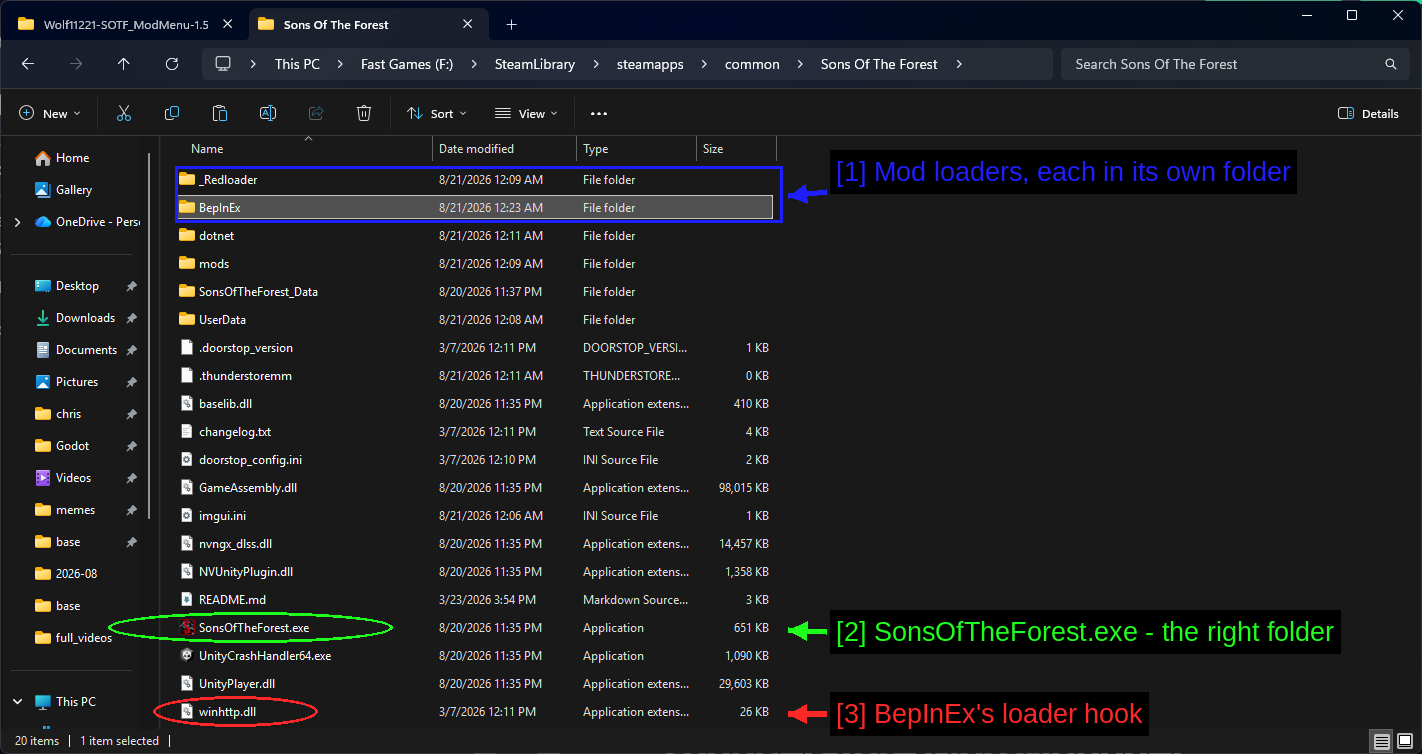
- Mod loaders, each in its own folder:
_RedloaderandBepInEx, sitting side by side. This install has both. - SonsOfTheForest.exe - the right folder: If you can see this, you're in the right place.
- BepInEx's loader hook:
winhttp.dll. This is how BepInEx gets itself loaded into the game process, along withdoorstop_config.iniand.doorstop_versionnext to it. Deletewinhttp.dlland BepInEx stops loading, which is a quick way to test whether it's the cause of a problem.
The mods folder is RedLoader's, dotnet is the .NET runtime BepInEx ships, and UserData holds configuration.
Where To Download Mods
Three places, in rough order of how much you'll use them.
- Thunderstore - the biggest catalogue and the best tooling. BepInEx mods, with automatic dependency handling.
- Nexus Mods - around 226 mods. A mix of BepInEx and RedLoader.
- sotf-mods.com - the RedLoader community's own site, with its own installer integration.
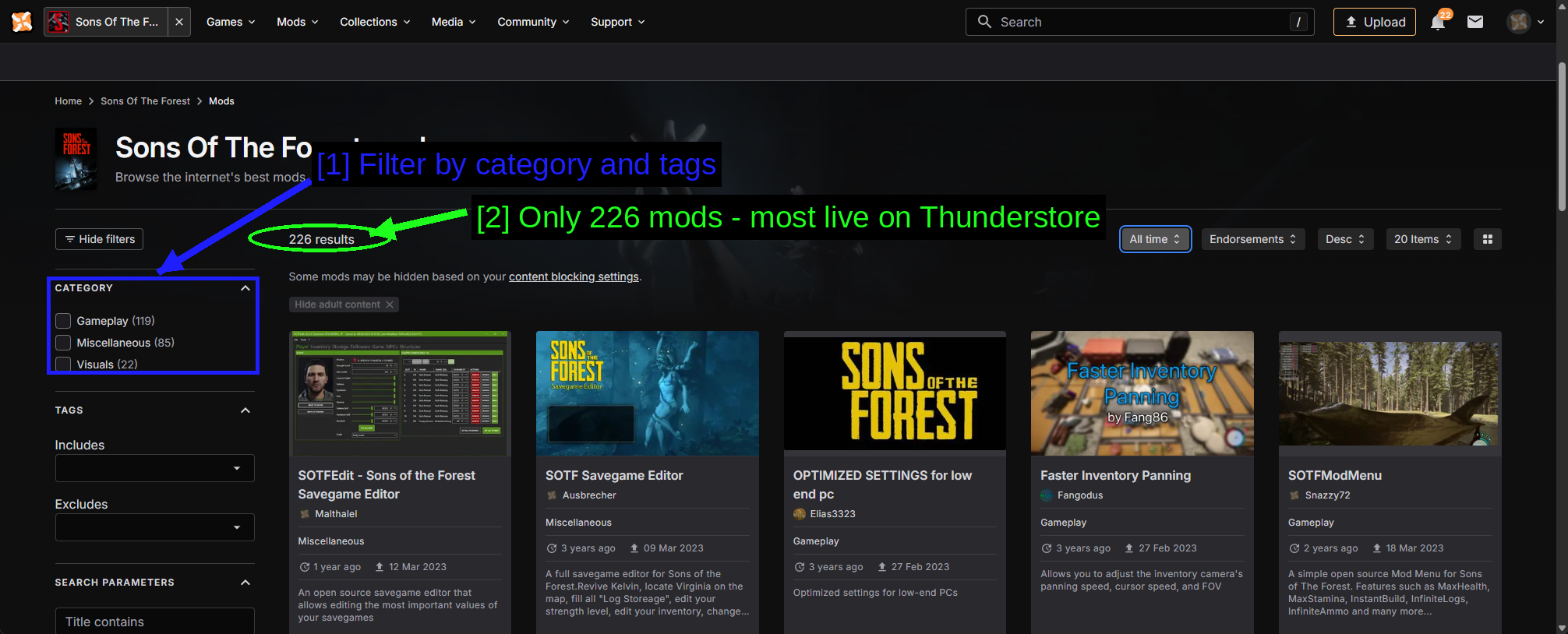
- Filter by category and tags: Gameplay, Miscellaneous and Visuals are the three categories here.
- Only 226 mods - most live on Thunderstore: Worth knowing before you conclude the game barely has mods. Thunderstore has several times this.
TIP - Read the mod's requirements before anything else. For this game that's not a formality, it's how you find out which loader you need.
Installing Mods Through The Thunderstore Mod Manager
This is the route we'd recommend. The Thunderstore Mod Manager downloads mods, resolves dependencies, keeps separate profiles, and launches the game with your mods injected - without permanently modifying your install.
Grab it from thunderstore.io using the Get Manager button. (r2modman is the older open-source version of the same tool and works identically if you prefer it.)
Picking The Game
On first launch you pick which game you're modding.
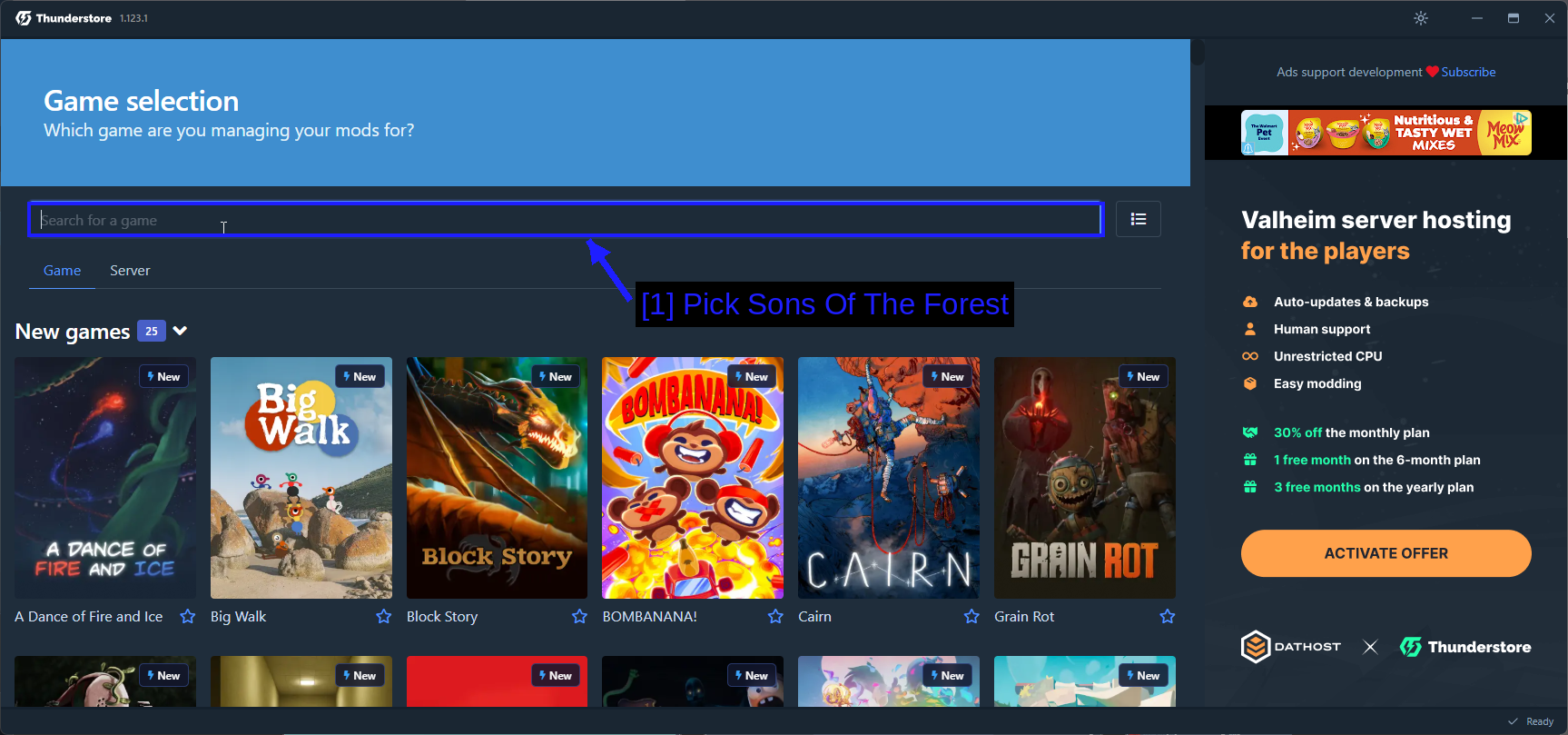
- Pick Sons Of The Forest: Type it into the search box. The manager supports hundreds of games, so the search is quicker than scrolling.
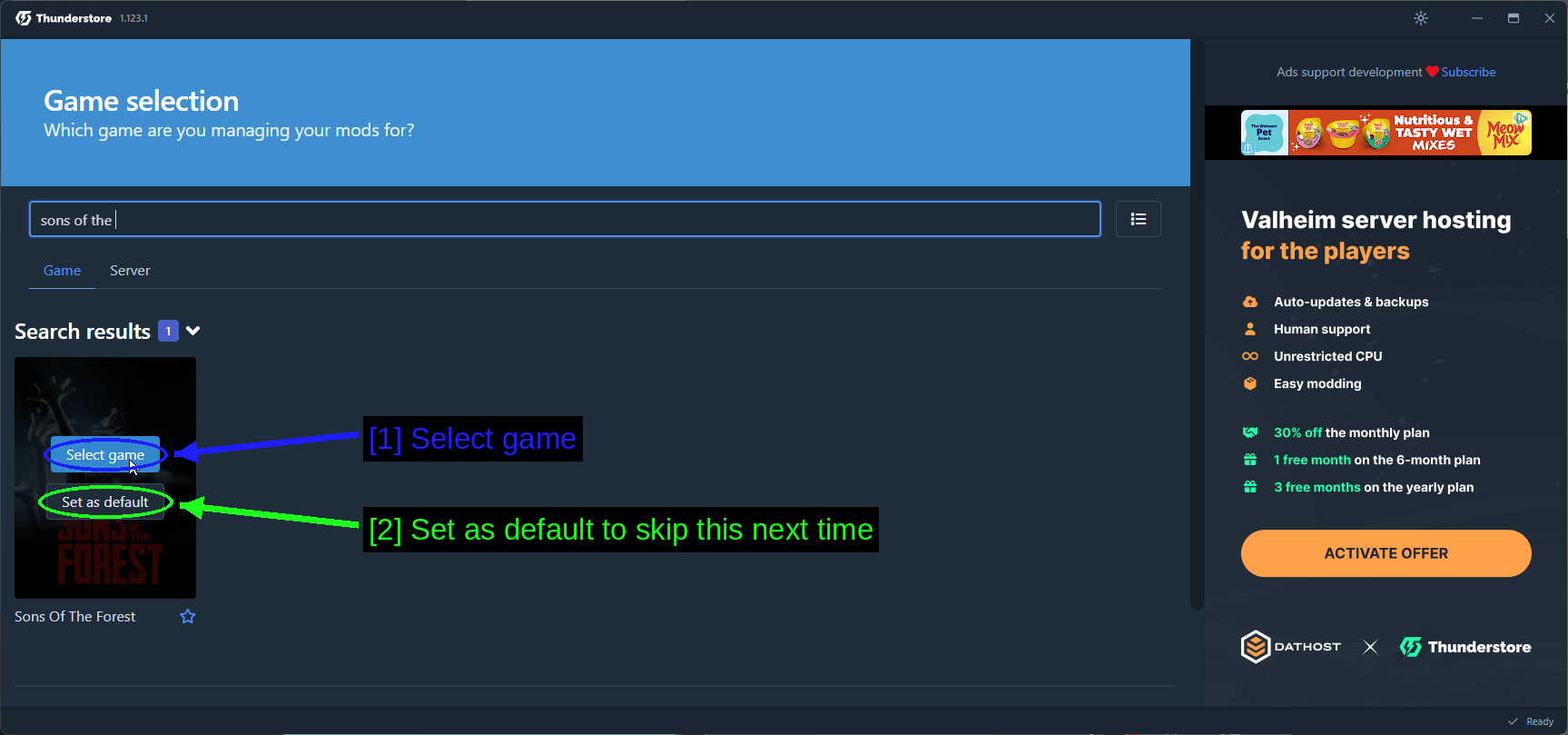
- Select game: Hover the tile and click.
- Set as default to skip this next time: Worth doing if Sons Of The Forest is the only game you mod this way.
Profiles
Profiles are the best feature of this tool. Each one holds a completely separate set of mods.
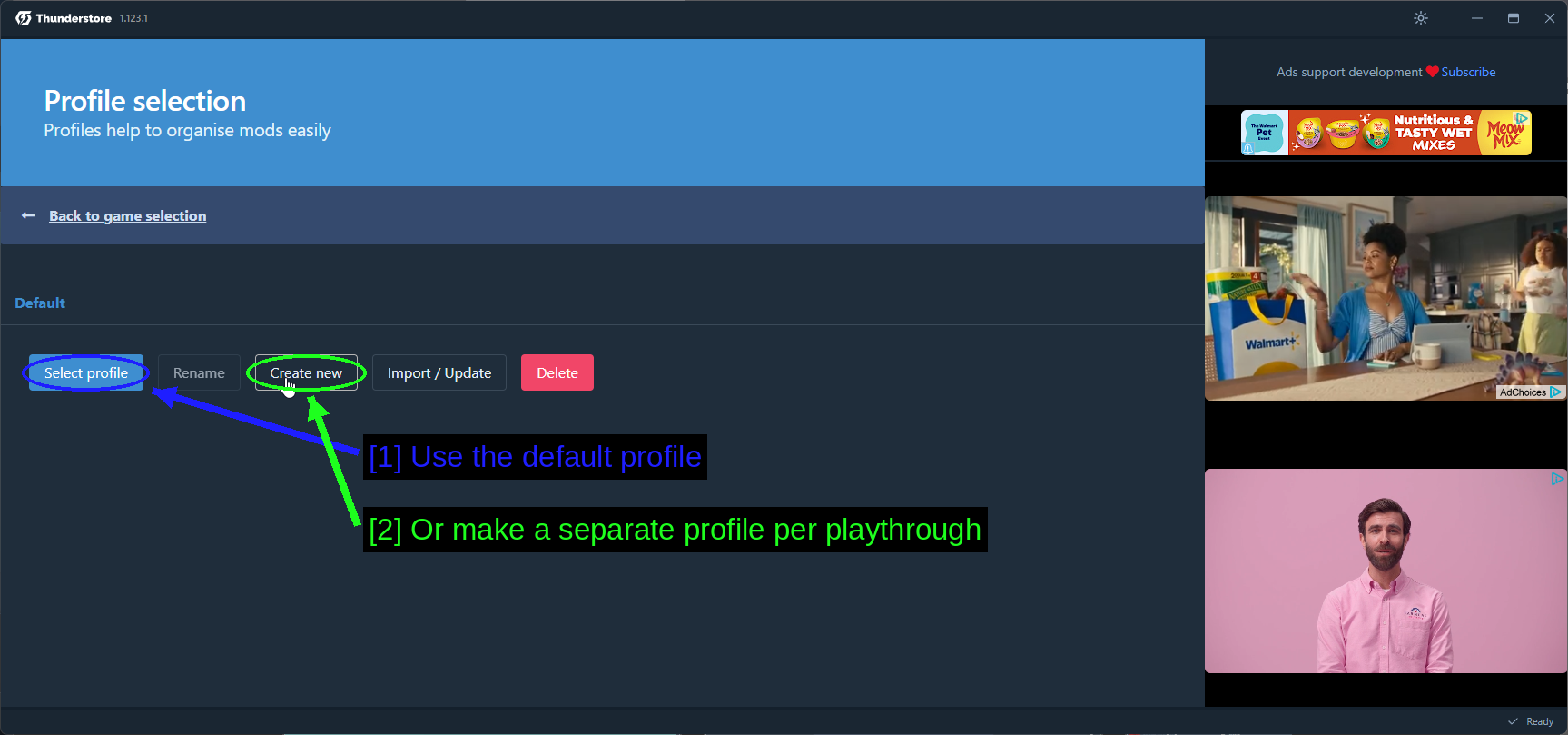
- Use the default profile: Fine if you just want one mod list.
- Or make a separate profile per playthrough: Create new. You can also Import / Update from a profile code somebody shared with you, which is how modpacks get passed around.
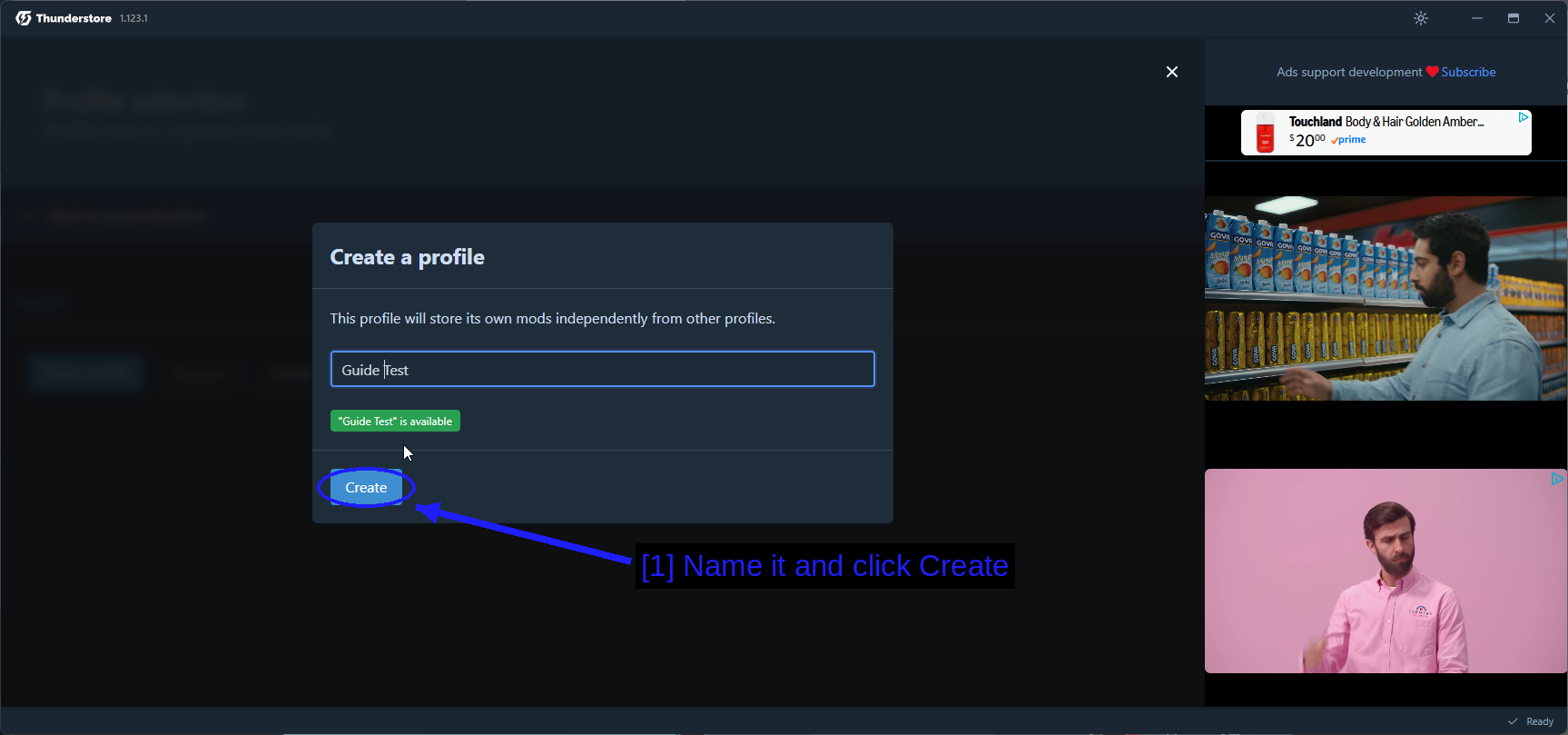
- Name it and click Create: The manager tells you whether the name is available as you type.
Having a vanilla profile with nothing in it is a genuinely useful habit. When something breaks you can switch to it in two clicks and find out whether the game or your mods are at fault.
Finding And Installing Mods
Get mods in the sidebar is the whole Thunderstore catalogue, searchable in the app.
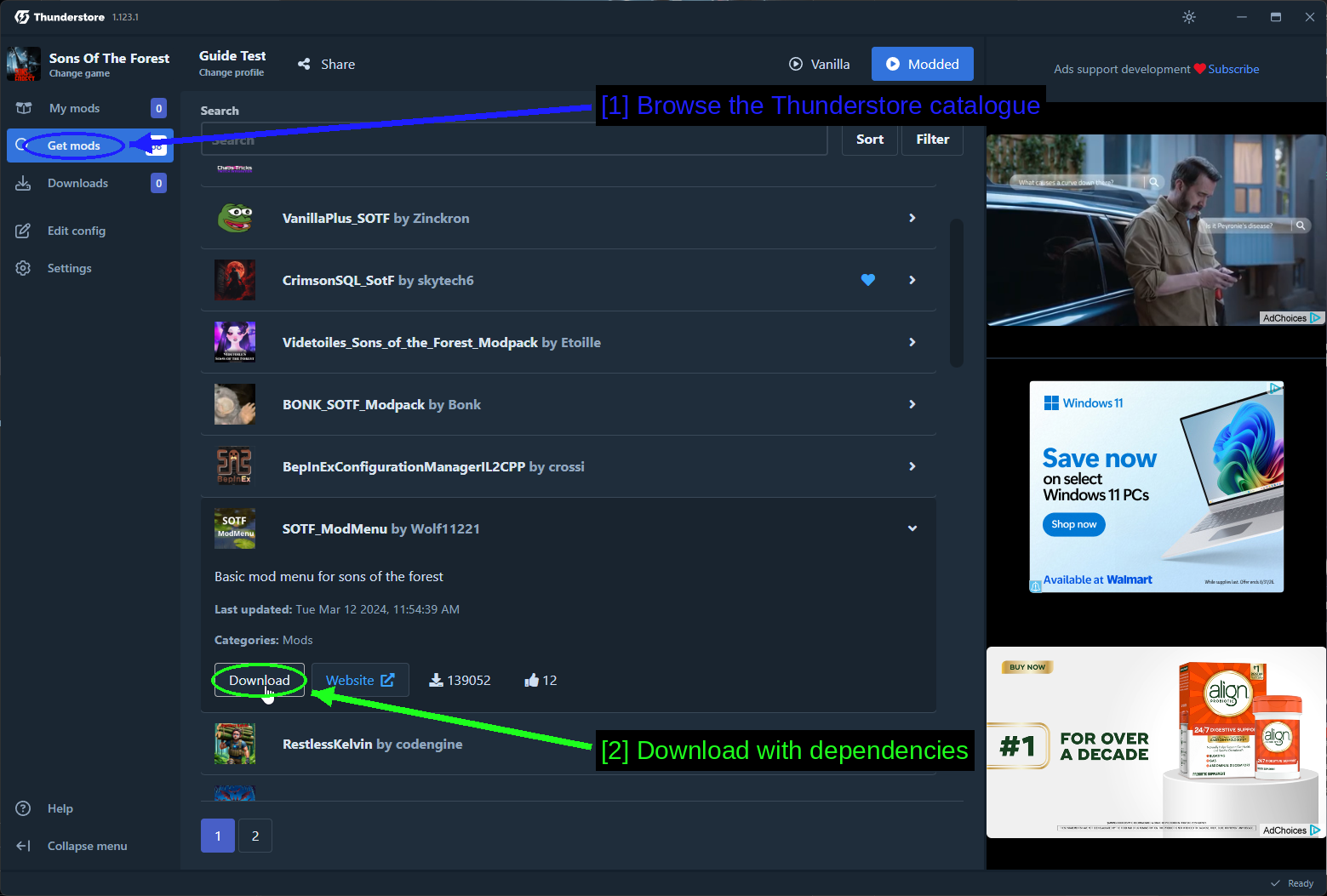
- Browse the Thunderstore catalogue: 68 mods at the time of writing, with the mod's description, last updated date and download count inline.
- Download with dependencies: Expand a mod and click Download.
You'll get a version picker.
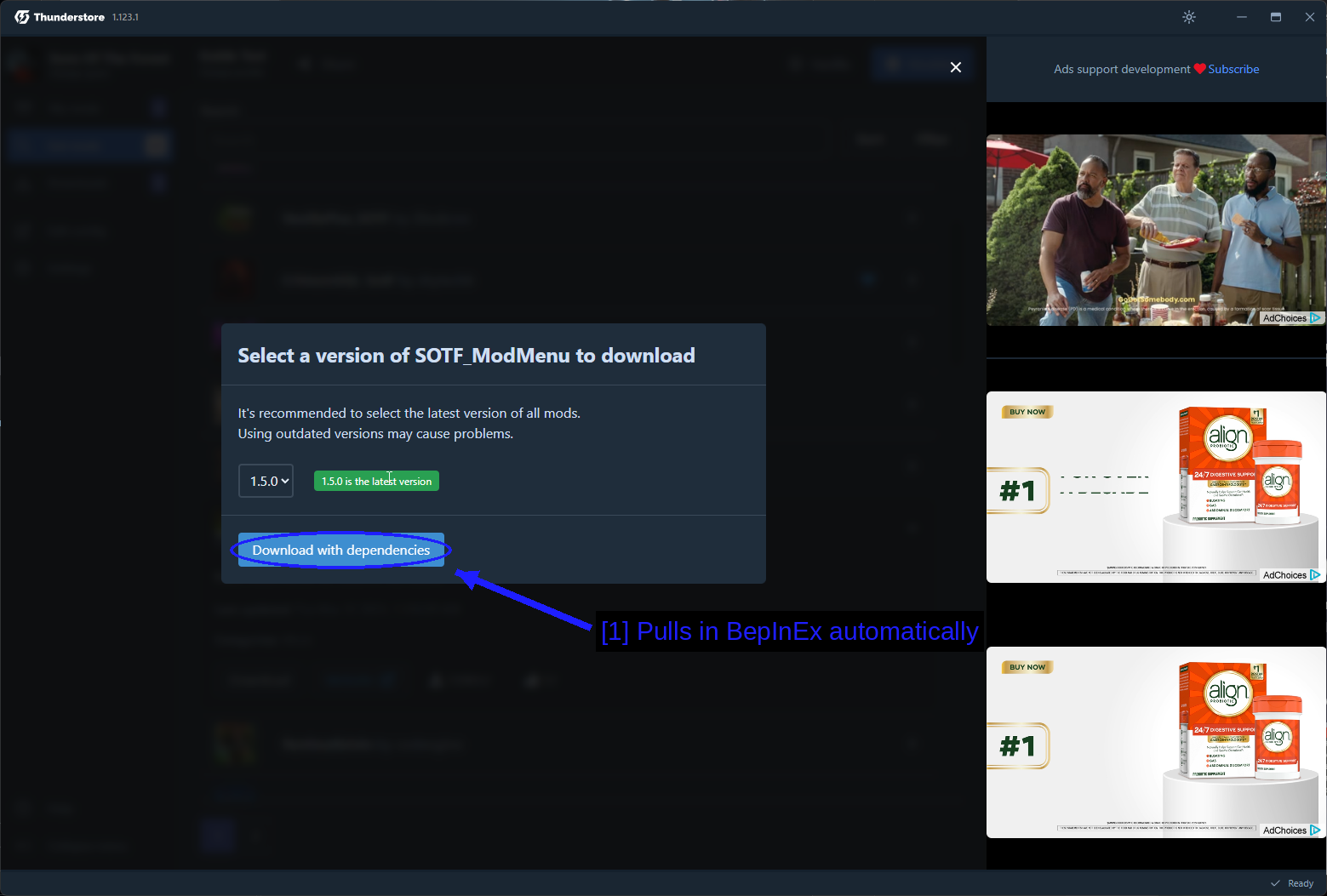
- Pulls in BepInEx automatically: Download with dependencies. This is the bit that makes the tool worth using - SOTF ModMenu needs BepInEx, and you don't have to know that or go and get it separately.
Take the latest version unless a mod page tells you otherwise. The app flags which one is current.
Launching Modded
My mods shows what's installed in the current profile.
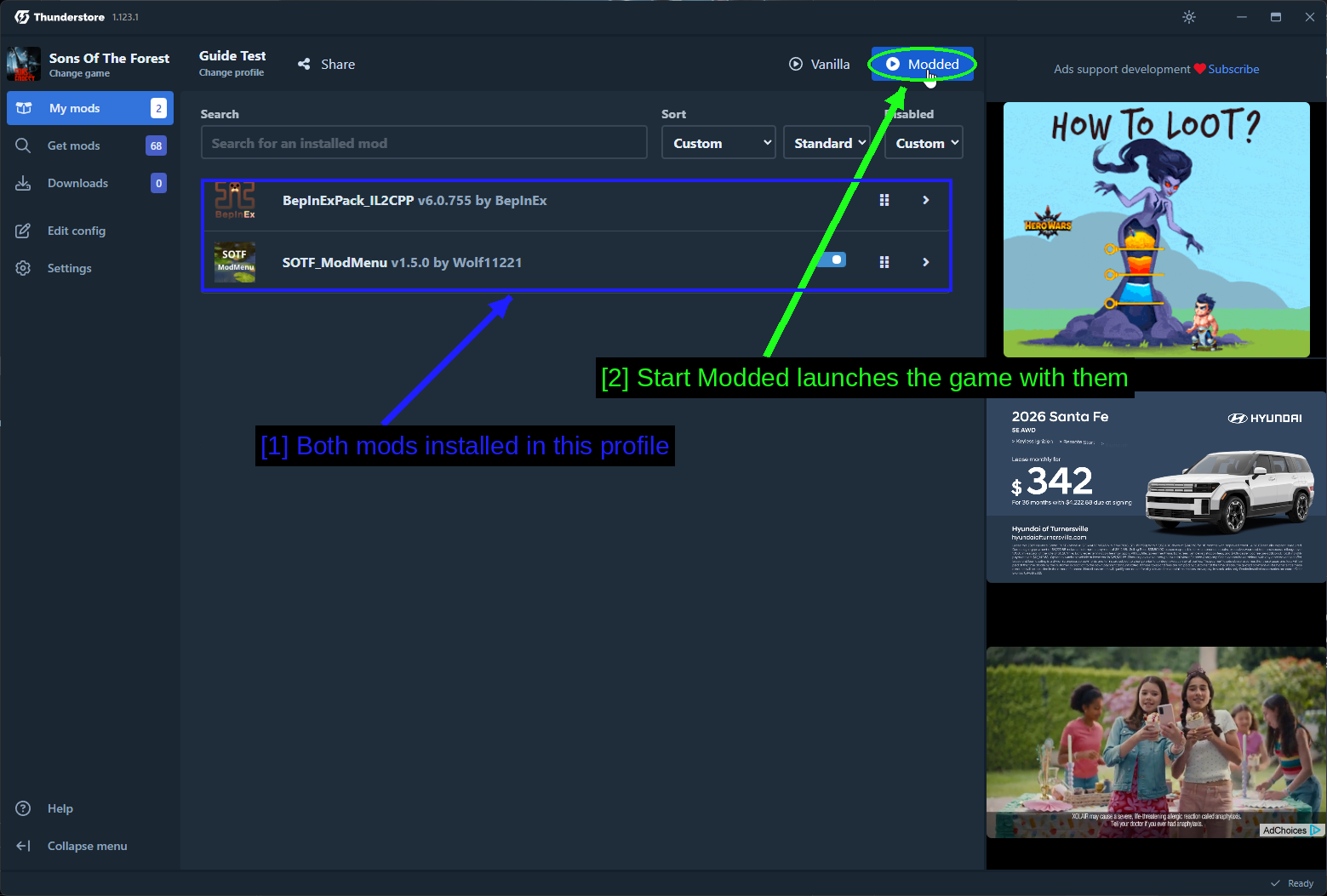
- Both mods installed in this profile: BepInExPack_IL2CPP and SOTF_ModMenu, with a toggle on each to disable it without uninstalling.
- Start Modded launches the game with them: Modded at the top-right. Vanilla launches the game untouched.
WARNING - You have to launch with Modded. Starting the game from Steam runs it without the profile's mods, and every mod silently does nothing.
Here's the Thunderstore page for BepInEx itself, for reference.
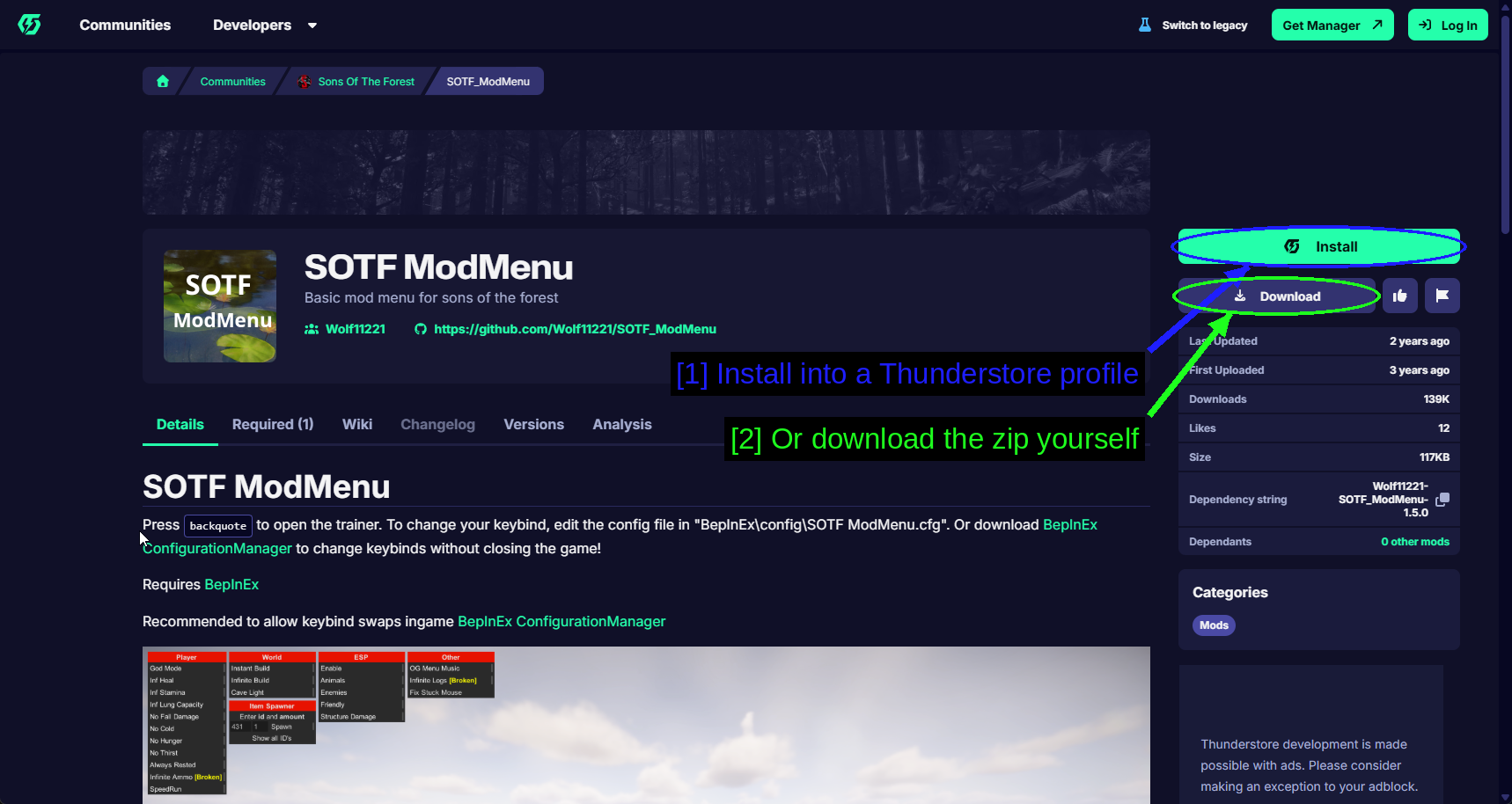
- Install into a Thunderstore profile: The green Install button hands the package to the manager.
- Or download the zip yourself: Download gives you the raw archive for a manual install.
And the mod we're installing on top of it.
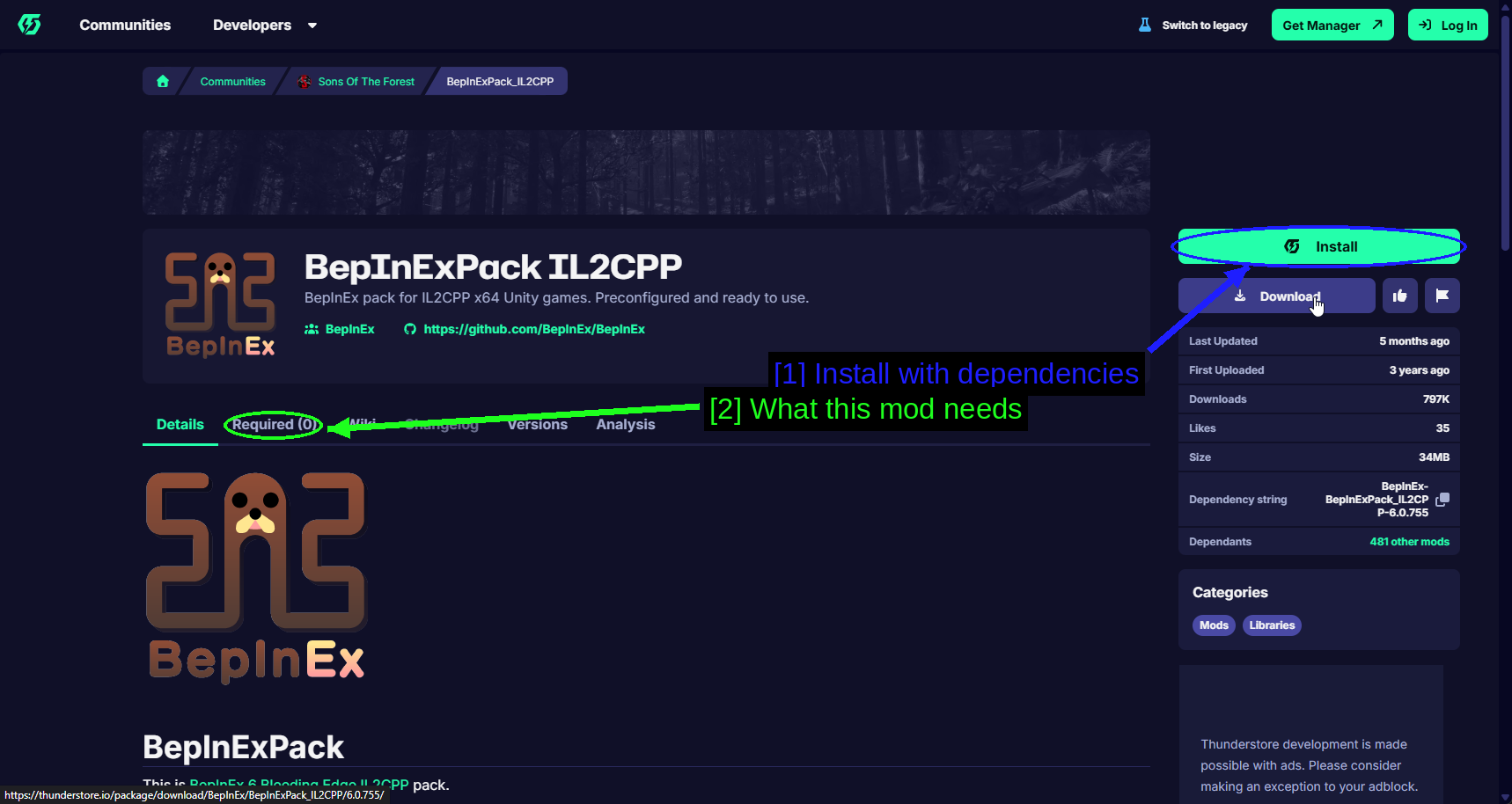
- Install with dependencies: Same green button.
- What this mod needs: The Required (1) tab lists its dependencies - here just BepInEx. The description also says "Requires BepInEx" in plain text further down.
Installing Mods Through Vortex
Vortex handles the Nexus Mods side. Support for Sons Of The Forest comes from a community extension rather than being built in, so Vortex may ask to download it the first time you manage the game.
For a full walkthrough of Vortex, see our dedicated How to Use Vortex & The Basics guide.
Managing Sons Of The Forest In Vortex
Vortex won't touch a game until you tell it to manage that game.
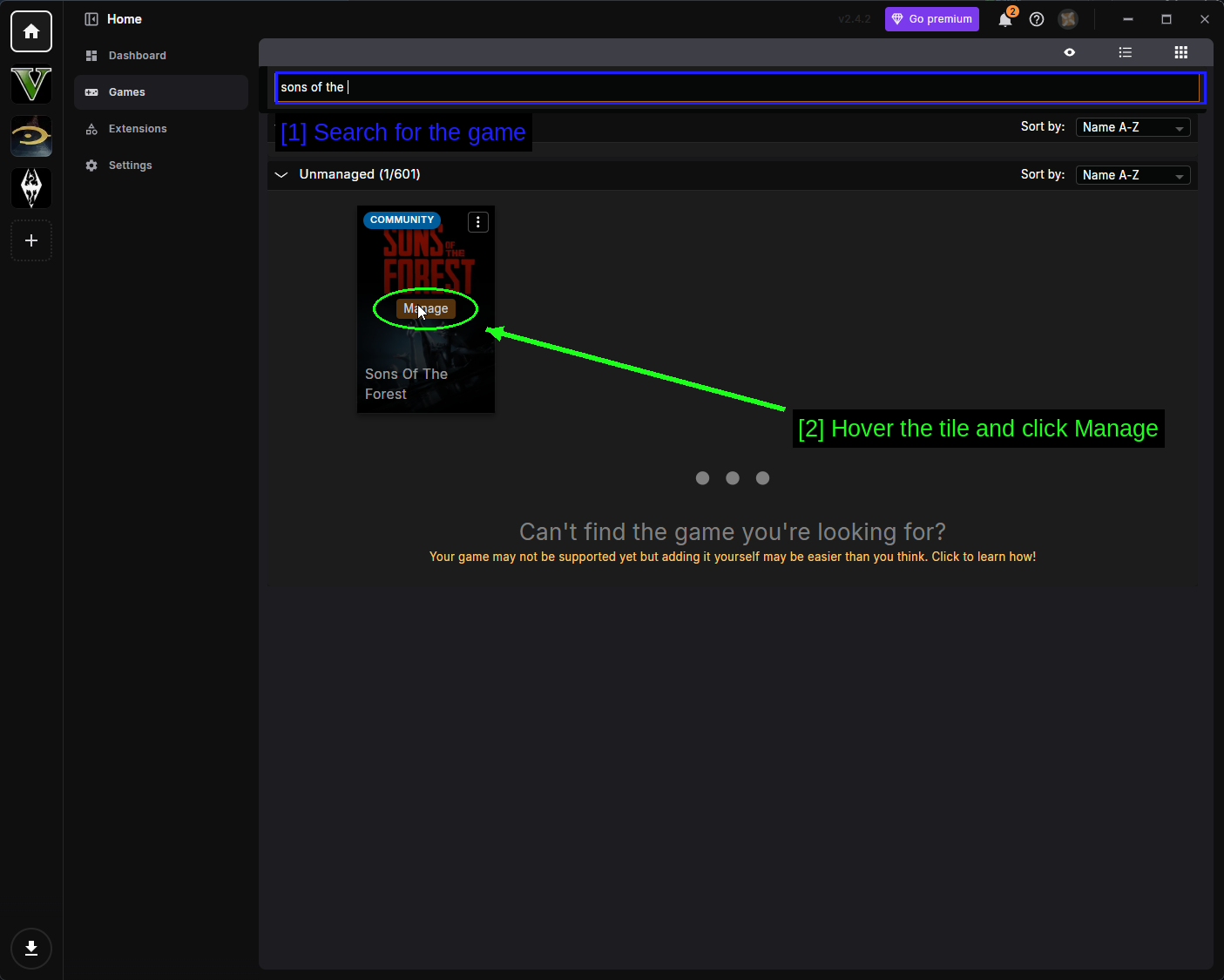
- Search for the game: Open Games in the left sidebar and type
sons of theinto the search bar. - Hover the tile and click Manage: The tile is marked COMMUNITY, meaning the extension is community-maintained. If Vortex offers to download the extension first, let it, then restart Vortex and click Manage again.
If Vortex can't find your install, click the three dots (⋮) in the corner of the tile, choose Manually Set Location, and point it at the folder containing SonsOfTheForest.exe.
Requirements Come First
Our Nexus example is Axel's Mod Menu, which is a RedLoader mod with two requirements of its own.
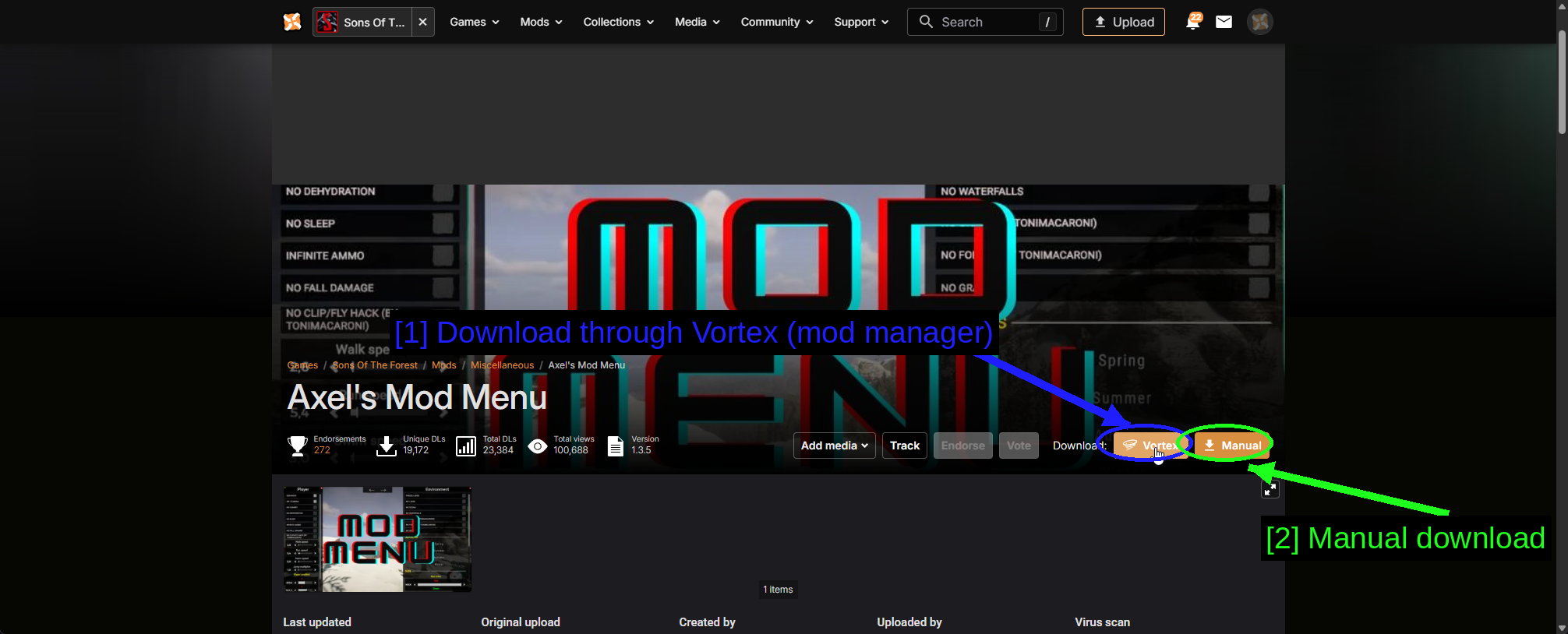
- Download through Vortex (mod manager): The orange Vortex button.
- Manual download: Manual downloads the archive through your browser instead.
Click Download and Nexus tells you what else you need.
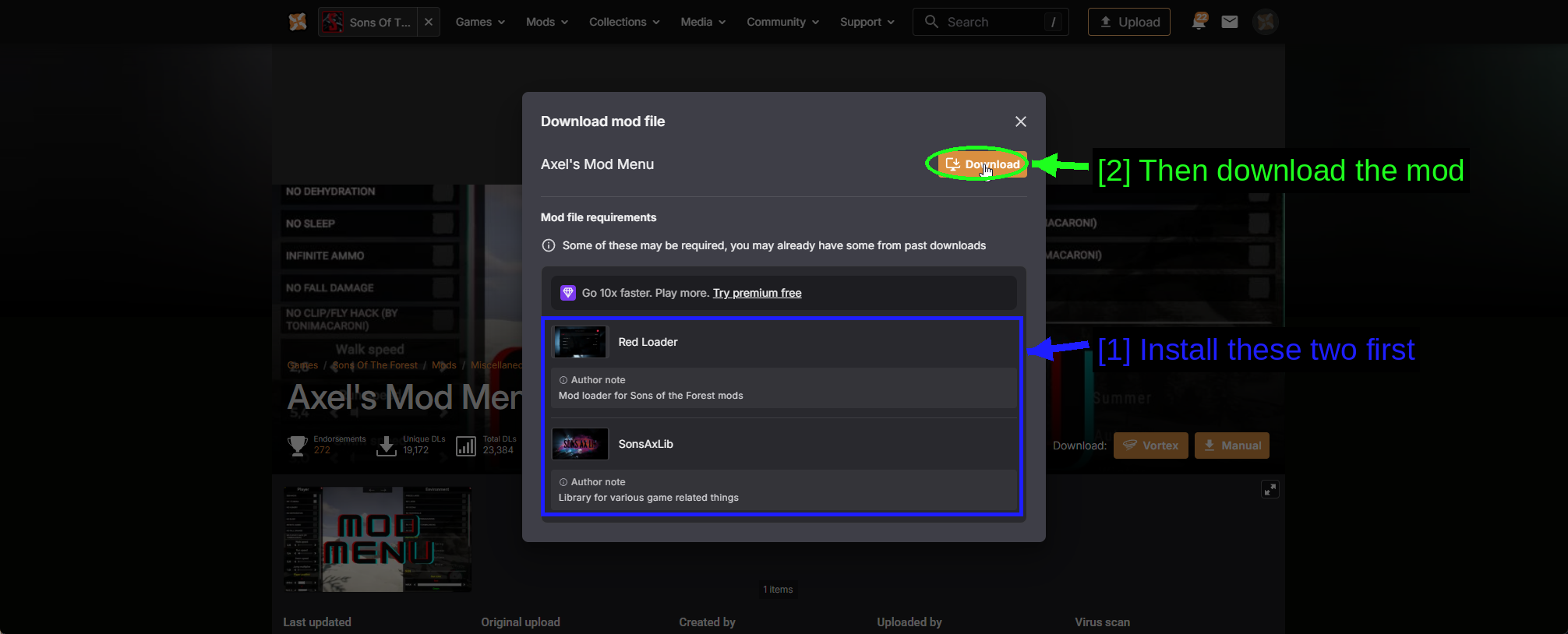
- Install these two first: Red Loader ("Mod loader for Sons of the Forest mods") and SonsAxLib ("Library for various game related things"). Both have their own download buttons right here.
- Then download the mod: Only once the requirements are in.
This is where the two-loader thing shows up in practice. Axel's Mod Menu wants Red Loader, not BepInEx, so having BepInEx installed does nothing for it.
SonsAxLib is an ordinary mod page like any other.
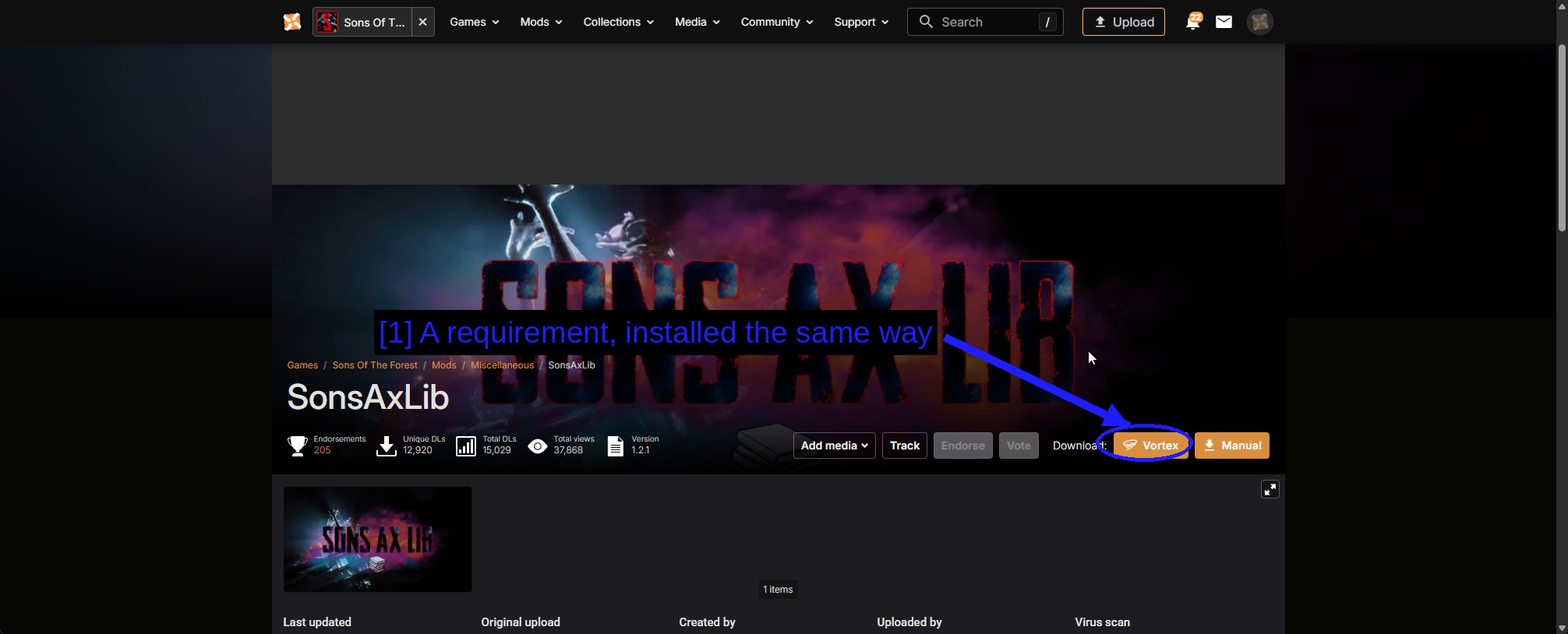
- A requirement, installed the same way: There's nothing special about a requirement - it's just a mod that something else expects to find.
The Mods Page
Once installed, mods appear on the Mods page.
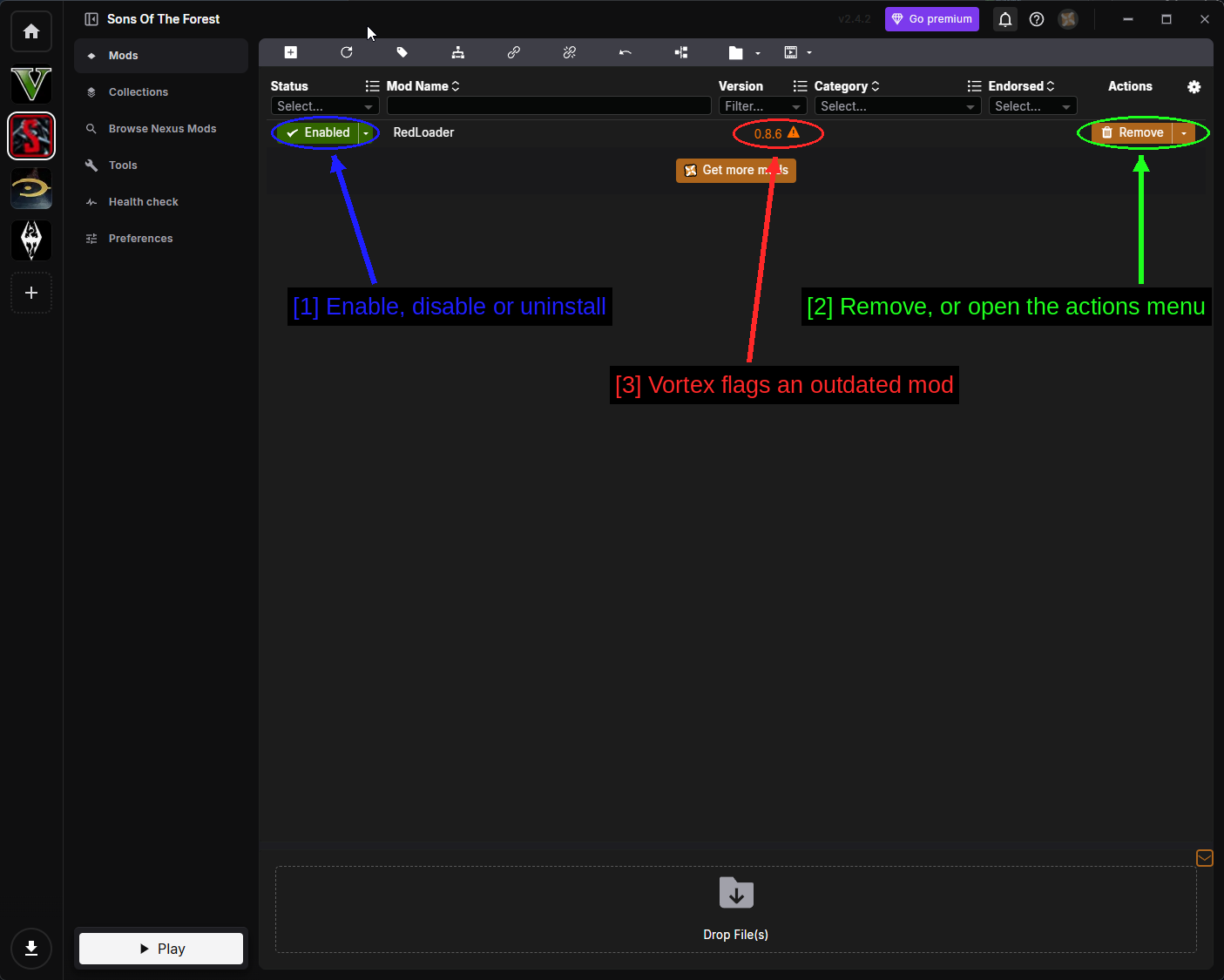
- Enable, disable or uninstall: The Status drop-down. Enabled deploys to your game folder, Disabled pulls the files back out, Uninstalled removes them but keeps the download.
- Remove, or open the actions menu: Remove uninstalls, and the arrow opens the full actions menu with Reinstall, Check for Updates, Manage File Conflicts, Open in File Manager and the rest.
- Vortex flags an outdated mod: The warning triangle next to the version number. RedLoader's last release was 0.8.6 in February 2025, so this particular warning is about the mod being old rather than your install being wrong.
NOTE - Vortex deploys by writing into your game folder, unlike the Thunderstore Mod Manager which keeps mods in a profile. If you use both tools on the same install, expect them to disagree about what should be there.
Installing Mods Manually (Advanced)
Both loaders install by hand without much trouble, and it's worth knowing how because it tells you what the managers are actually doing.
Installing BepInEx
Download the zip from the BepInExPack IL2CPP page using Download rather than Install, then extract it.
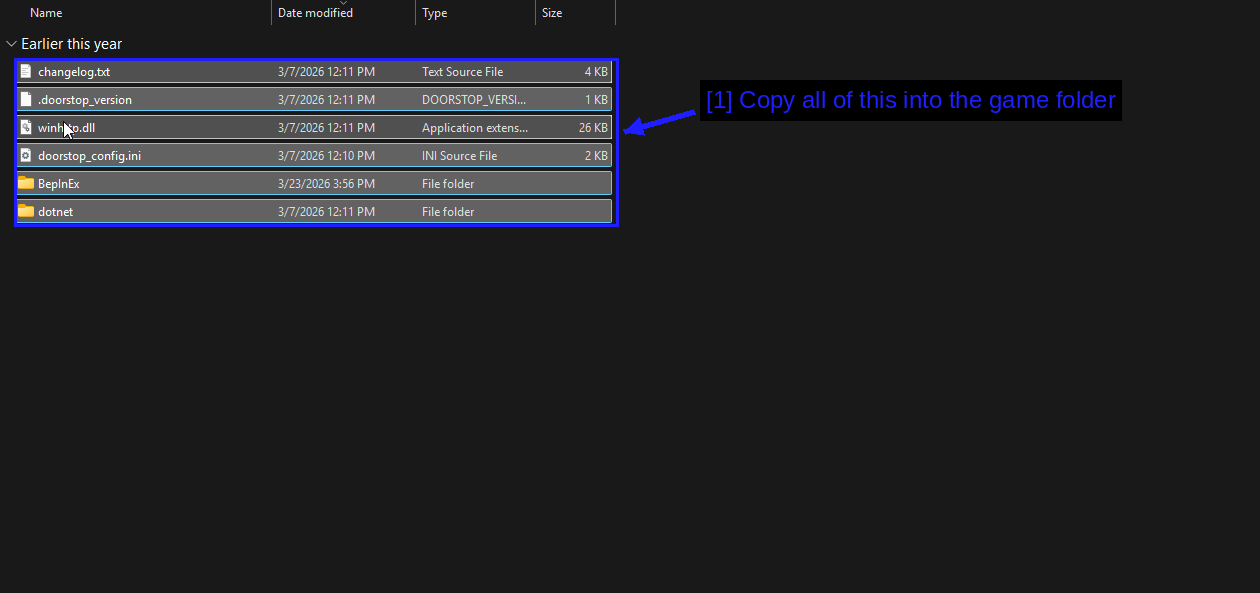
- Copy all of this into the game folder:
winhttp.dll,doorstop_config.ini,.doorstop_version,changelog.txt, and theBepInExanddotnetfolders. All of it goes in the root of your Sons Of The Forest install, next toSonsOfTheForest.exe.
Run the game once after installing BepInEx and before adding any mods. The first launch takes noticeably longer because BepInEx has to generate interop assemblies from the game's IL2CPP metadata. That's normal, it only happens once, and mods will not load until it's done.
Installing A BepInEx Mod
Thunderstore packages are zips with a bit of packaging metadata wrapped around the actual mod.
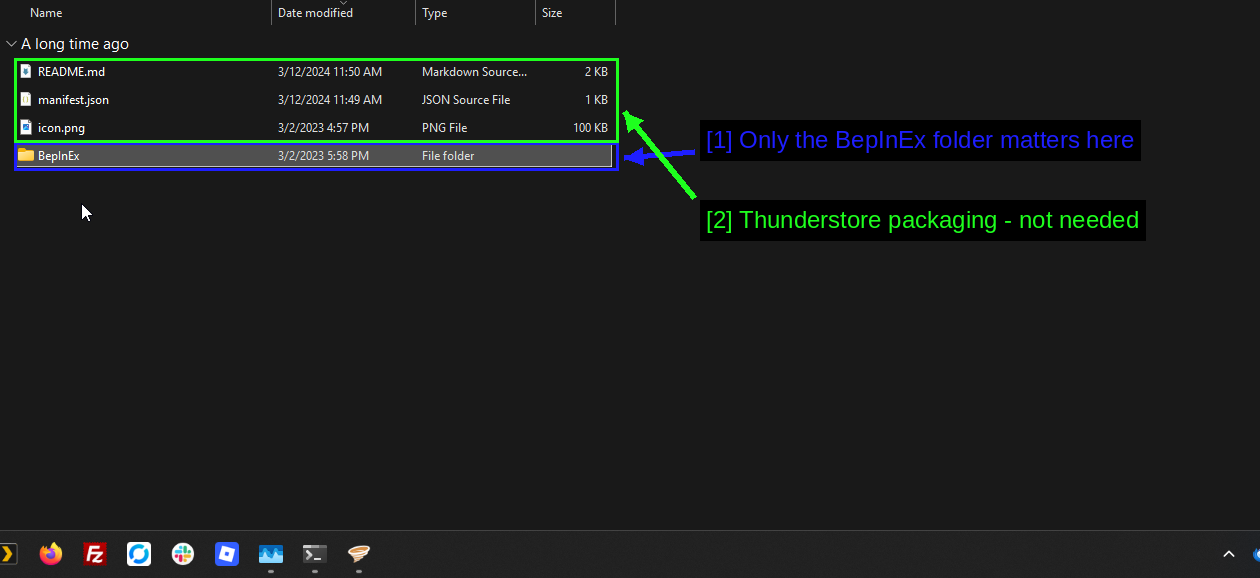
- Only the BepInEx folder matters here: Everything the game needs is inside it.
- Thunderstore packaging - not needed:
README.md,manifest.jsonandicon.pngare how Thunderstore describes the package. Don't copy them.
The BepInEx folder inside the package mirrors the one in your game folder, so merging it in puts the .dll exactly where it belongs.
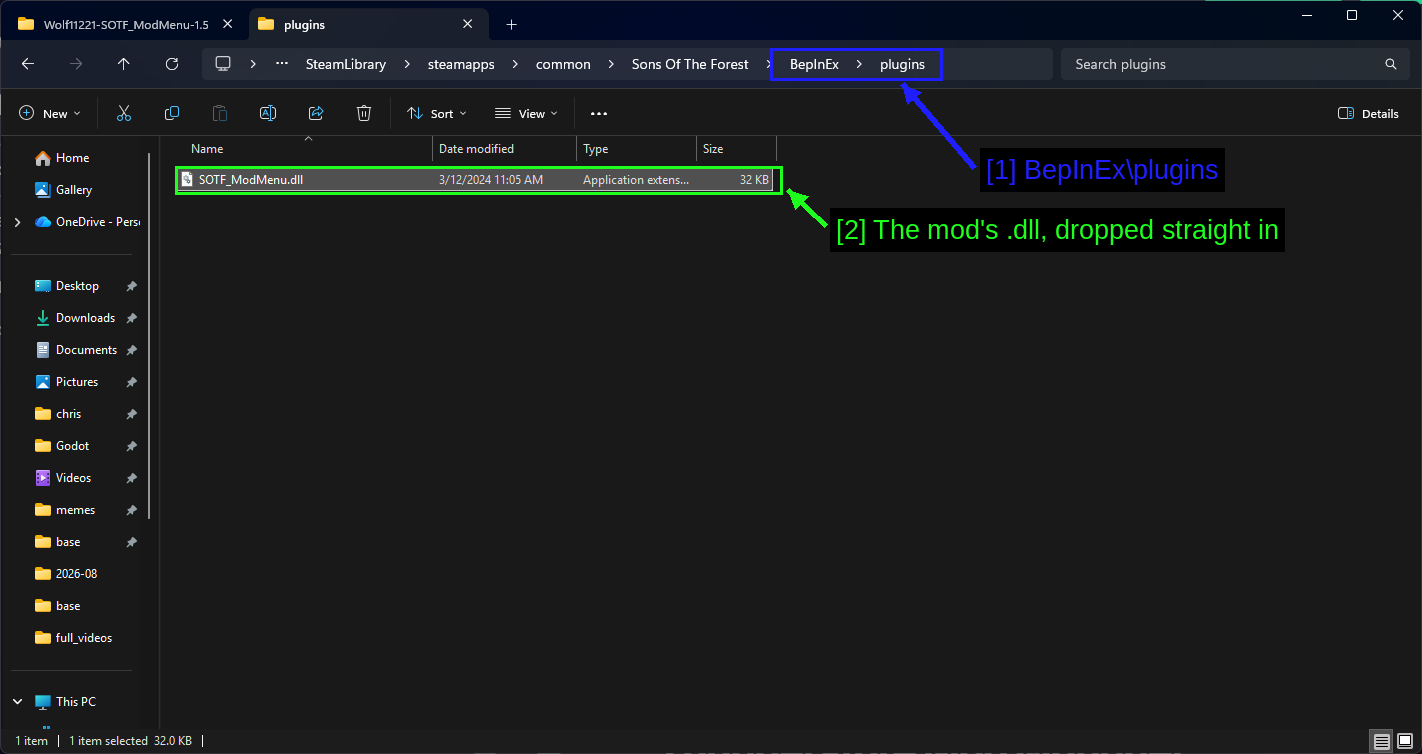
- BepInEx\plugins: Check the breadcrumb.
- The mod's .dll, dropped straight in:
SOTF_ModMenu.dll. That's the entire mod.
So the final path is this.
Sons Of The Forest\BepInEx\plugins\SOTF_ModMenu.dll
Most mod pages spell this out. Read them - they'll tell you if a mod wants a subfolder rather than the root of plugins.
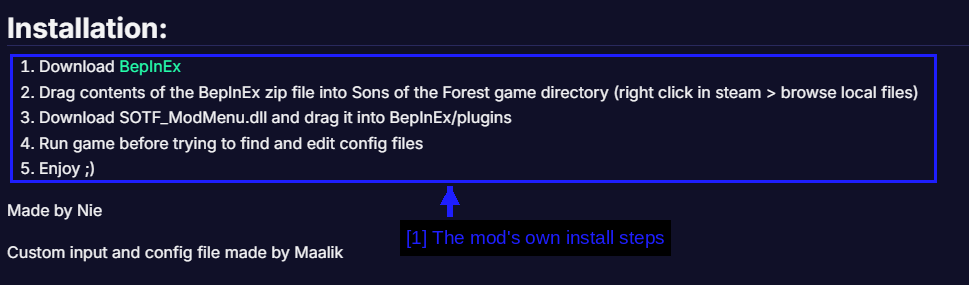
- The mod's own install steps: "Drag contents of the BepInEx zip file into Sons of the Forest game directory... Download SOTF_ModMenu.dll and drag it into BepInEx/plugins... Run game before trying to find and edit config files."
That last step matters - config files don't exist until the mod has run once.
Installing RedLoader
RedLoader works the same way, just with different folders.
- Download the latest release from GitHub.
- Extract it.
- Copy the contents into your game folder, so that
_RedLoaderends up next toSonsOfTheForest.exe. - RedLoader mods then go in
_RedLoader\Mods.
Mods from sotf-mods.com have an Install with Red Manager button on their pages that does this for you, assuming RedLoader is already installed.
Checking If Your Mods Loaded
Launch the game (through Modded if you're using the Thunderstore Mod Manager) and watch the console window BepInEx opens alongside it.
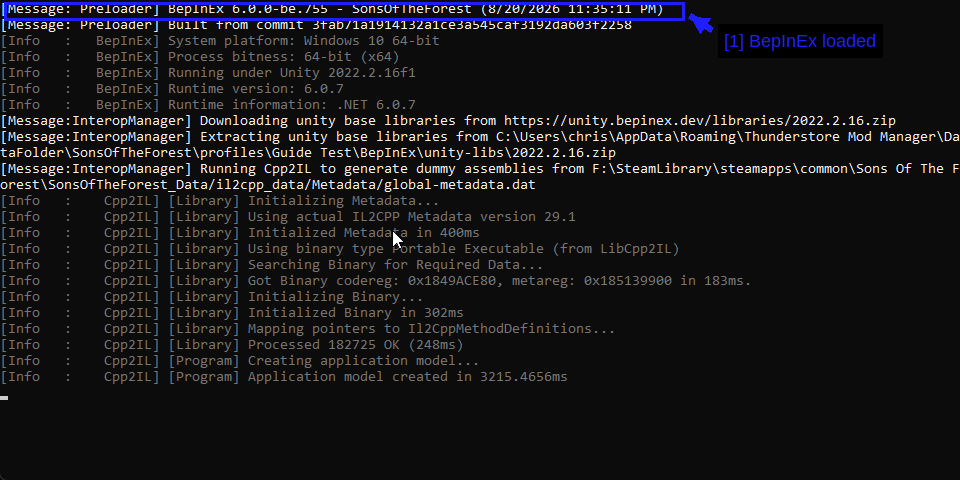
- BepInEx loaded: The version banner at the top. Below it you'll see it downloading Unity base libraries and running Cpp2IL to generate assemblies, which is the slow first-launch step.
Your mods are listed further down that log once the assembly generation finishes. If a mod isn't there, it didn't load.
Then check in-game. SOTF ModMenu opens with the backquote key (`, above Tab).
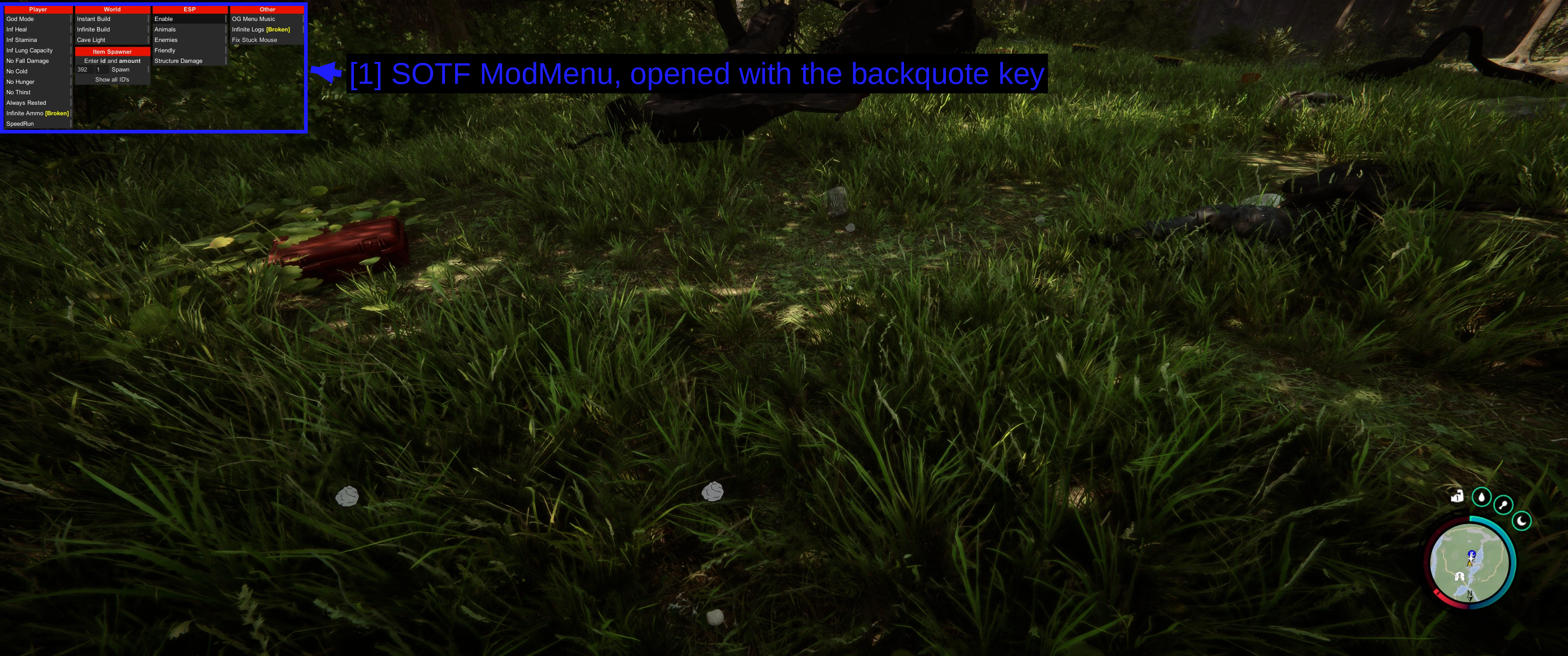
- SOTF ModMenu, opened with the backquote key: A compact trainer panel with Player, World, ESP and Other columns.
Axel's Mod Menu is the RedLoader equivalent and looks rather different.
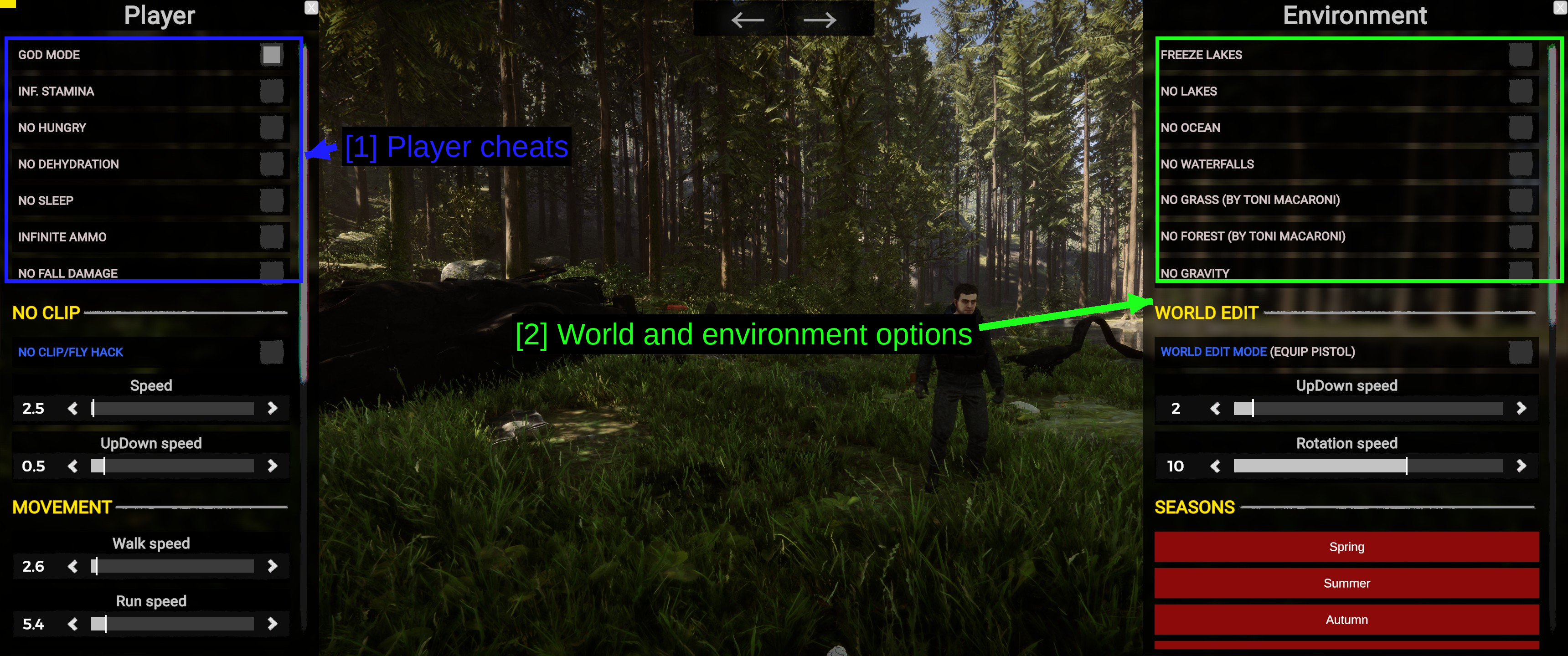
- Player cheats: God mode, infinite stamina, no hunger, no clip, movement speed sliders.
- World and environment options: Freeze lakes, remove grass or forest, a world edit mode, and season switching.
If nothing appeared, work through the following.
- Did you launch with Start Modded, or through Steam?
- Does the mod need BepInEx or RedLoader, and is that one installed?
- Did you run the game once after installing BepInEx to let it generate assemblies?
- Is the
.dlldirectly inBepInEx\plugins(or_RedLoader\Modsfor RedLoader)? - Does the mod still support the current game version? Check its last updated date.
- Are you pressing the right key? Mods use different defaults and some of them clash.
Uninstalling Mods
- Thunderstore Mod Manager - untick the mod in My mods to disable it, or use the menu on its row to uninstall. Deleting the whole profile removes everything in one go.
- Vortex - set the mod's status to Uninstalled, or click Remove.
- Manual - delete the
.dllfromBepInEx\plugins(or_RedLoader\Mods). To remove BepInEx entirely, deletewinhttp.dll,doorstop_config.ini,.doorstop_version, and theBepInExanddotnetfolders. - Back to vanilla - right-click the game in Steam, go to Installed Files, and Verify integrity of game files. Steam restores anything you overwrote.
NOTE - Mods that added items or structures to a save can leave that save unable to load once removed. If a mod's page has uninstall instructions, follow them.
Troubleshooting
- Nothing loads at all. You probably launched through Steam instead of Start Modded, or the mod needs the loader you don't have.
- The game takes forever to start the first time. That's BepInEx generating interop assemblies. Let it finish - it's a one-time cost per game update.
- A mod worked and now doesn't. The game patched. Check the mod's page for an update, and give it a few days if there isn't one.
- The console window shows errors about missing types. BepInEx's generated assemblies are stale. Delete
BepInEx\interopand launch again to regenerate them. - No console window appears. BepInEx isn't loading. Check
winhttp.dllis in the game root, and that you launched through the mod manager. - A RedLoader mod does nothing. RedLoader hasn't been updated since early 2025. Check the mod's own page for reports on the current game version.
- My config file doesn't exist. Run the game once with the mod installed. Configs are generated on first run.
- Multiplayer keeps desyncing. Everyone needs the same mods, or nobody does.
Notes
Mod Configuration
BepInEx mods write their settings to .cfg files here.
Sons Of The Forest\BepInEx\config\
You can edit those in Notepad, but BepInEx ConfigurationManager gives you an in-game settings screen instead, which saves restarting the game every time you want to change a keybind. Several mod pages recommend it directly.
The Thunderstore Mod Manager also has an Edit config page in its sidebar that edits the same files without you having to find them.
Common Mod Types
- Mod menus and trainers - god mode, item spawning, no clip. Easily the most popular category here.
- Quality of life - inventory tweaks, build helpers, faster crafting.
- Visual - graphics presets, ReShade setups, optimisation configs for low-end machines.
- Save editors - SOTFEdit and similar, which edit the save file directly rather than loading into the game.
- Modpacks - curated bundles on Thunderstore that install a whole set at once.
See Also!
- Thunderstore - Sons Of The Forest
- BepInExPack IL2CPP
- SOTF ModMenu
- Nexus Mods - Sons Of The Forest
- Axel's Mod Menu
- RedLoader
- sotf-mods.com
- r2modman
- How to Use Vortex & The Basics
- Steam Community Discussions
Conclusion
That's it! You should now be able to install Sons Of The Forest mods through the Thunderstore Mod Manager, through Vortex, or by hand.
The short version - work out whether a mod needs BepInEx or RedLoader before you download it, use the Thunderstore Mod Manager for BepInEx mods because it handles dependencies and profiles for you, always launch with Start Modded, run the game once after installing BepInEx to let it generate its assemblies, and keep mods out of public multiplayer.
Guides we create are always open to edits and improvements, so if you have any suggestions or notice any issues, feel free to contribute by creating a pull request on our GitHub repository!
Please join our Discord server if you have any questions or need help with anything related to modding or our guides!