

PCでThe Elder Scrolls V: SkyrimにMODを導入する方法を解説するガイドです。一般的な3つの方法すべてを取り上げます。Vortex(Nexus ModsのMODマネージャー)、Steam Workshop、そして手動でのMOD導入(マニュアルインストール)です。
このガイドはWindowsユーザーを対象としていますが、Steam ProtonやWineなどのツールを使えば、多くの概念をLinuxにも応用できます!
Skyrimは史上最もMOD化されたゲームの一つであり、他とは比較にならないほどです。より良いグラフィックが欲しい、新しいクエストが欲しい、戦闘システムを作り直したい、あるいはコントローラー向けに設計されていないUIを変えたいなど、どんな要望にもMODがあります。実践的に進めるため、このガイドではすべての方法で**Skyrim Script Extender (SKSE)**と、SkyUIというMODを導入していきます。それぞれの方法が実際どのようなものかを見てもらえるようにするためです。
必要なもの
- PC版のSkyrim(このガイドではSteam版を使用します)。
- 7-Zip、またはその他のアーカイブ解凍ソフト。
- 無料のNexus Modsアカウント(必須ではありませんが、あった方が良いです)。
- Windowsでファイルをコピー・移動する基本的な操作の理解。
あなたが使っているSkyrimはどのバージョンですか?
これは思っている以上に重要なので、何かをダウンロードする前に整理しておく価値があります。PC版には4つのリリースが存在し、MODは互換性がありません。
- Skyrim(Legendary Edition、Classic、LEとも呼ばれる)- 2011年発売のオリジナル版。
steamapps\common\Skyrimにインストールされます。 - Skyrim Special Edition(SE)- 2016年に再発売された版。
steamapps\common\Skyrim Special Editionにインストールされます。 - Skyrim Anniversary Edition(AE)- 別のインストールではなく、SEがCreation Clubコンテンツを含むゲームバージョン
1.6.xに更新されたものです。 - Skyrim VR - 独自のインストールと独自のMOD群を持ちます。
このガイドのスクリーンショットはクラシックSkyrimで撮影されているため、Special/Anniversary Editionを使っている場合はパスがSkyrimではなくSkyrim Special Editionになります。それ以外はすべて同じように動作します。
注意 - Steam WorkshopはクラシックSkyrimにのみ存在します。Special EditionとAnniversary EditionにはWorkshopタブ自体がないため、SE/AEを使っている場合はVortexまたは手動インストールを使用することになります。
注意 - Windows Store / Game Pass版やEpic Games版のSkyrimでは、基本的にMODは動作しません。SKSEはこれらを全くサポートしていません。
ゲームファイルをバックアップしよう!
何かを触る前に、ゲームをバックアップしてください。MODはセーブデータを破損させることがあり、80時間分のプレイが入ったセーブが壊れるのは悲惨な午後になります。
以下の手順で行うことができます。
- Skyrimフォルダ全体(
SkyrimまたはSkyrim Special Edition)をドライブ内の別の場所にコピーする。 - 以下のいずれかのパスにあるセーブファイルをコピーする。
C:\Users\<user>\Documents\My Games\Skyrim\SavesC:\Users\<user>\Documents\My Games\Skyrim Special Edition\Saves
MODがインストールを台無しにしてしまった場合、バックアップを戻せばそのまま続行できます。
ヒント - 既存のプレイスルーに新しいMODを追加する前に、手動セーブを新しく作る習慣をつけましょう。セーブの途中でMODを取り除くことが、「ゲームが読み込めなくなった」という投稿の大半の原因です。
MODのダウンロード先
- Nexus Mods - 圧倒的に最大のソースであり、基本的にすべての有名なMODがここにあります。
- Steam Workshop - 便利でワンクリックでインストールできますが、選択肢は少なくクラシック版限定です。
- TMC - 私たちです!まだ新しいですが、成長中です。
多くの人にとって最も簡単なルートは、少数ながらあるMODについてはSteam Workshopを使い、それ以外はNexus ModsとVortexを使うことだと感じています。Workshopは動作する時は本当に便利ですが、すぐにMODが尽きてしまいますし、Workshop版のSKSEには頼れません(詳細は以下で説明します)。
ヒント - インストール前には必ずMODの説明文全体を読み、コメント/投稿タブにも目を通しましょう。多くのMODには要件、パッチ、または特定のインストール順序があり、説明文に明記されています。
Skyrim Script Extender (SKSE)のインストール
SkyUIを含む多くのSkyrim MODは、Skyrim Script Extenderなしでは動作しません。これはBethesdaが公開していなかった追加のスクリプト機能を有効にしてゲームを起動するランチャーであり、MODを導入した後に「何も起きない」という最も一般的な原因です。
公式SKSEウェブサイトから入手できます。
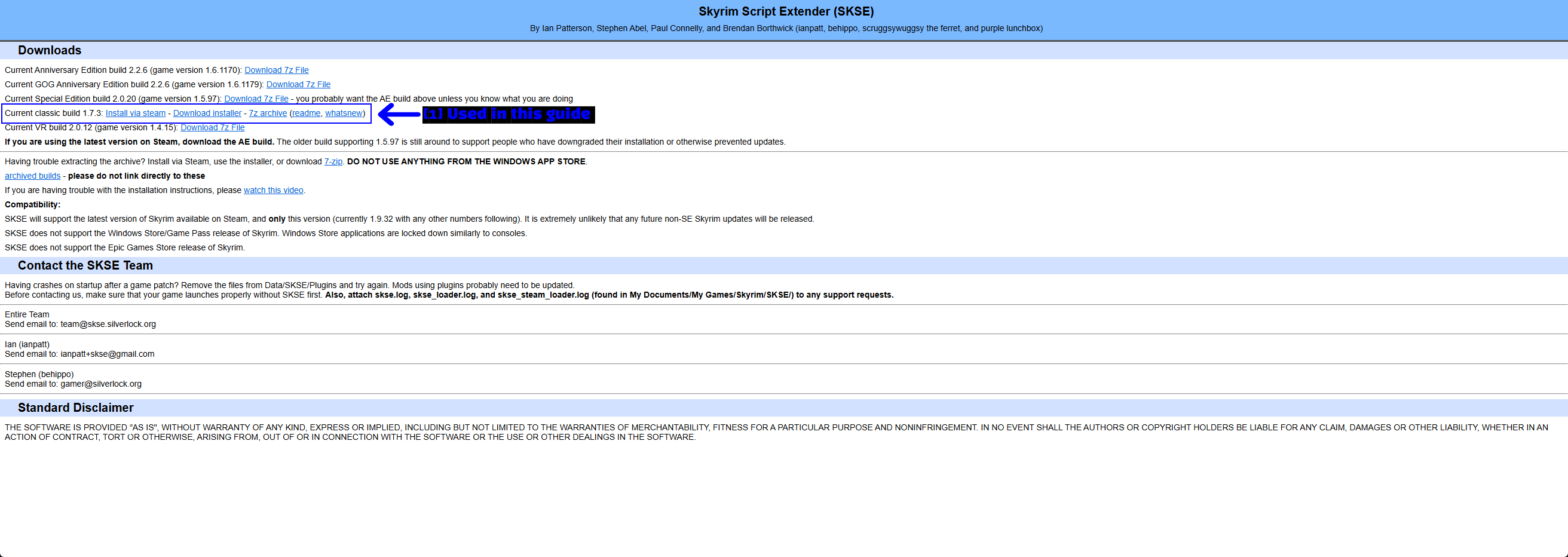
どのビルドが必要か?
ページ上で最新のものではなく、あなたのゲームに一致するビルドを選んでください。
| あなたのゲーム | SKSEビルド | 起動するローダー |
|---|---|---|
| Skyrim (classic/LE) | 現行のクラシックビルド (1.7.3) |
skse64_loader.exe |
Skyrim Special Edition (1.5.97) |
現行のSpecial Editionビルド | skse64_loader.exe |
Skyrim Anniversary Edition (1.6.x) |
現行のAnniversary Editionビルド | skse64_loader.exe |
| Skyrim VR | 現行のVRビルド | sksevr_loader.exe |
このガイドではスクリーンショットの撮影に使用したクラシックビルド1.7.3を使用します。
注意 - Steamを使っていて更新をブロックしていない場合、ほぼ確実に最新バージョン、つまりAnniversary Editionビルドを使用していることになります。SKSEのサイトのダウンロードページにもその旨が明記されています。
Steam経由でのSKSEインストール
SKSEチームは、クラシックビルドをSteam上でSkyrim Script Extender (SKSE)という無料の「ゲーム」として公開しています。クラシックSkyrimを所有していれば、ストアページからそのままインストールできます。
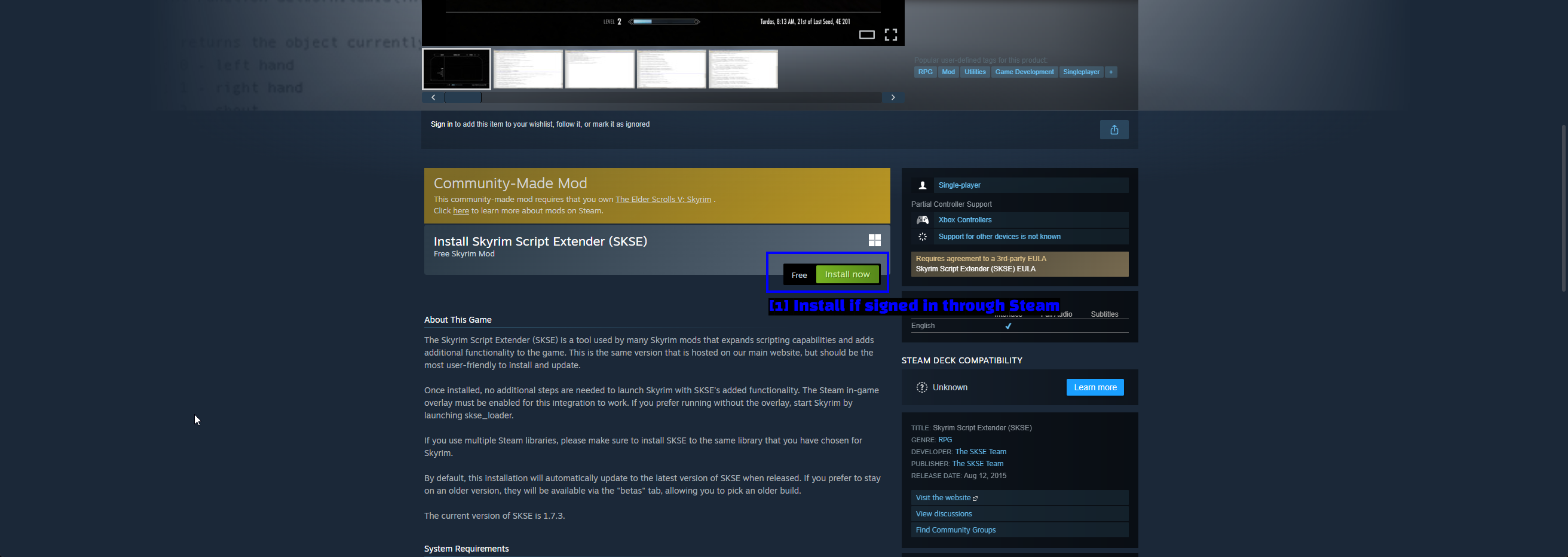
- Steamにサインインしている状態でインストール: ストアページのInstall nowボタンをクリックします。
すると、Steamがいつものインストールプロンプトを表示します。
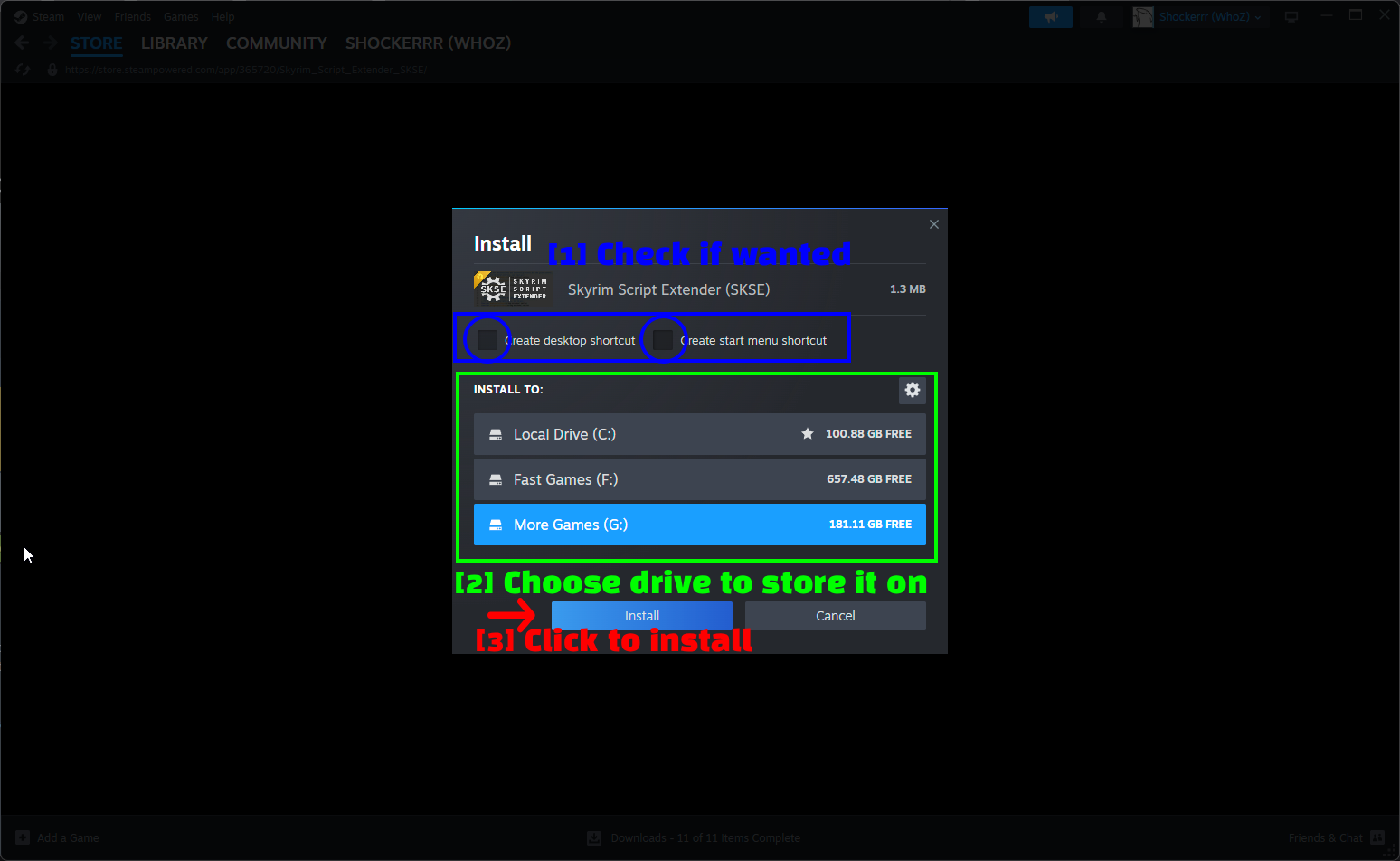
- 必要なら確認: 必要に応じてデスクトップやスタートメニューにショートカットを作成します。
- 保存先のドライブを選択: ドライブを選びます。Skyrim本体が入っている同じSteamライブラリにインストールしてください。
- インストールをクリック: Installをクリックします。
SteamはSKSEをSkyrim本体のフォルダではなく、独自のフォルダにインストールします。私の環境ではsteamapps\common\skyrim 365720でした。
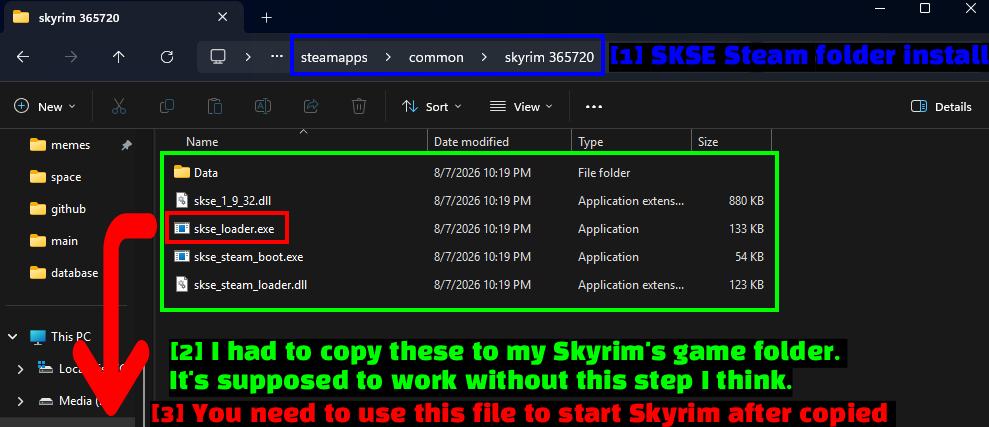
- SKSE Steamフォルダのインストール: Steamがここにファイルを置きます。
- これらをSkyrimのゲームフォルダにコピー: 理論上、Steam版はSteamオーバーレイを通じてSKSE付きでSkyrimを起動できるはずです。しかし私の環境では動作させられなかったので、結局このフォルダの内容(
skse_1_9_32.dll、skse_loader.exe、skse_steam_boot.exe、skse_steam_loader.dll、そしてDataフォルダ)をSkyrimのインストールフォルダにコピーしました。 - このファイルでSkyrimを起動: コピーが終わったら、
skse_loader.exeでゲームを起動します。
すべてコピーした後のSkyrimフォルダはこのようになります。
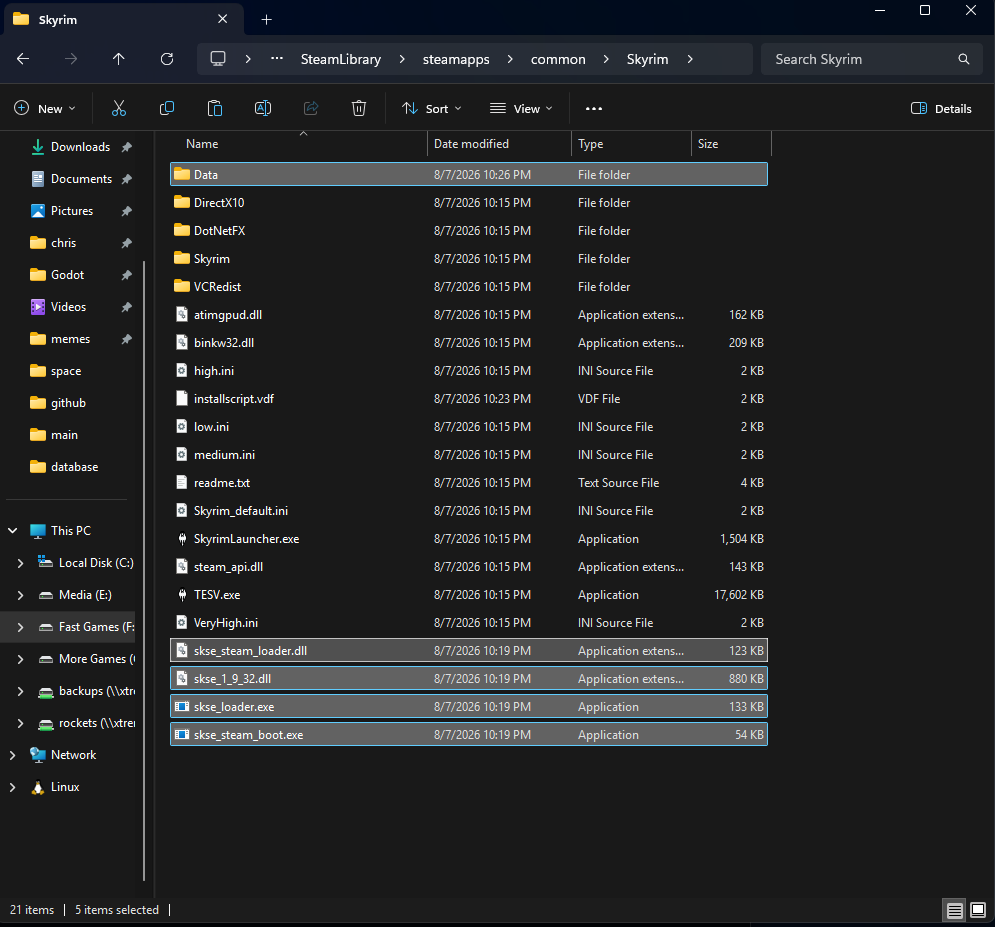
NOTE - Steam版のSKSEは私の環境では常に動作が不安定でした。うまくいかない場合は、下記の手順で手動インストールしてください。1分ほどで済み、動作もずっと安定します。
SKSEを手動でインストールする
これが多くの人におすすめする方法です。
- SKSEの公式サイトにアクセスし、自分のゲームに合ったビルド(インストーラーまたは7zアーカイブ)をダウンロードします。
- アーカイブをダウンロードした場合は、7-Zipで展開します。
- 展開したフォルダの内容を、Skyrimのインストールフォルダ(
SkyrimSE.exe、クラシック版ならTESV.exeが入っているフォルダ)にコピーします。 - 通常のランチャーの代わりにSKSEローダーでゲームを起動します。
IMPORTANT - ここではローダーのファイル名に注意してください。Special EditionやAnniversary Edition(最近ではほとんどの人がこれに該当します)用にSKSEを手動でダウンロードした場合、アーカイブにはskse64_loader.exeが入っており、これを起動する必要があります。Steam版はクラシックビルドなので、skse_loader.exeのみが含まれています。間違った方を起動したり、うっかりSkyrimSE.exeを起動してしまうと、SKSEなしでゲームが起動し、スクリプトベースのMODは何も動作しません。
SKSE経由でゲームを起動する
Skyrimは必ず毎回SKSEローダー経由で起動する必要があります。Steamライブラリ内でSkyrimをダブルクリックすると、バニラの実行ファイルが起動し、SKSEは完全にスキップされます。
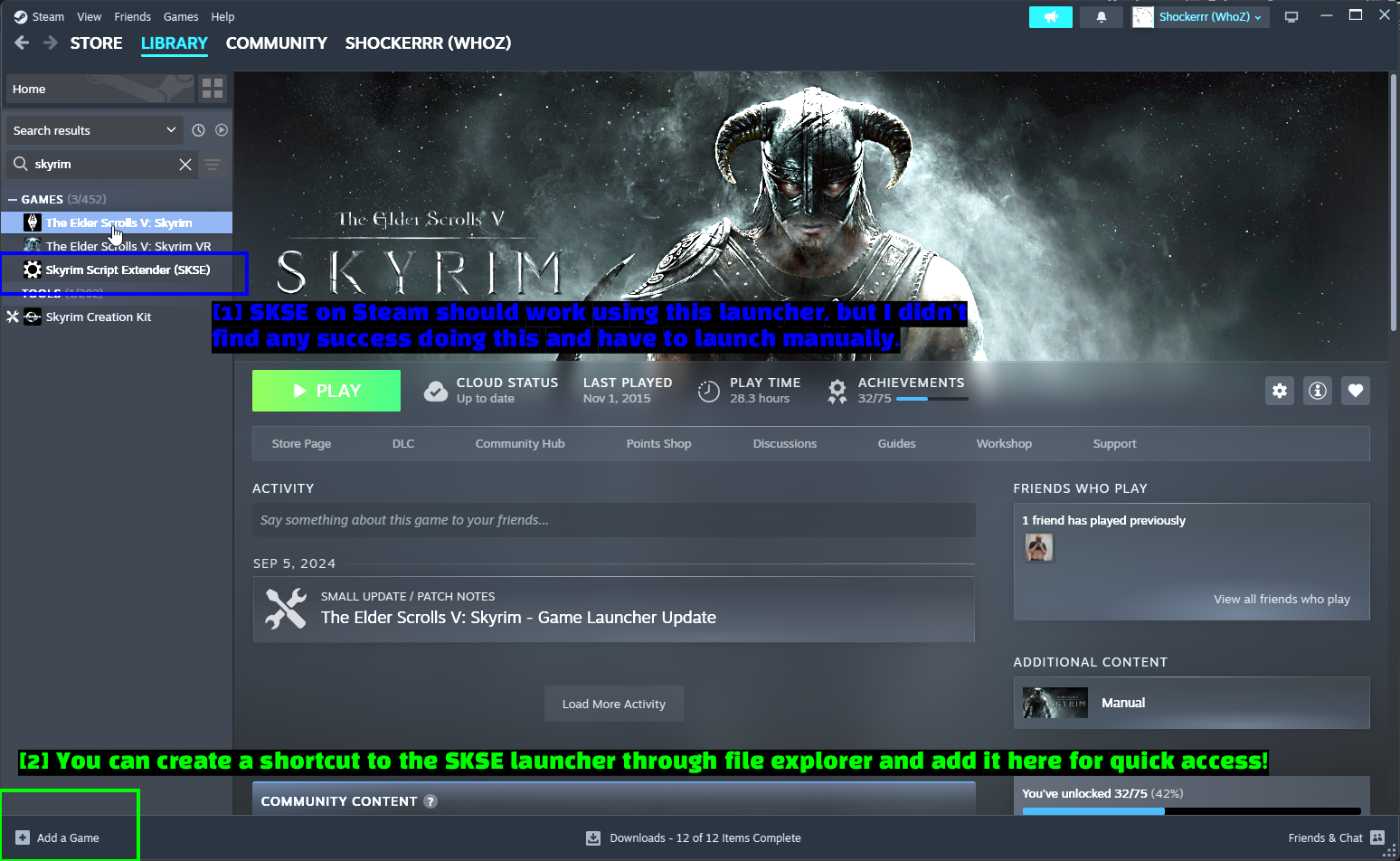
- ライブラリ内のSKSE: SteamでSKSEをインストールした場合、ライブラリに独自のエントリとして表示されます。ここからSKSE付きでSkyrimを起動できるはずですが、前述の通り私はうまくいかず、ローダーを手動で起動する必要がありました。
- ショートカットを追加: Skyrimフォルダ内の
skse_loader.exe(またはskse64_loader.exe)を右クリックしてショートカットを作成し、そのショートカットをAdd a Game -> Add a Non-Steam GameからSteamに追加すれば、すぐにアクセスできます。
TIP - Steamに追加した場合は、後で誤って間違った方を起動しないように、ショートカットをSkyrim (SKSE)のような名前に変更しておきましょう。また、VortexのDashboardからローダーをツールとして追加し、そこから起動することもできます。
SKSEが読み込まれているか確認する
ローダー経由でゲームを起動し、Systemメニュー(ポーズメニュー)を開いて左下隅を確認してください。
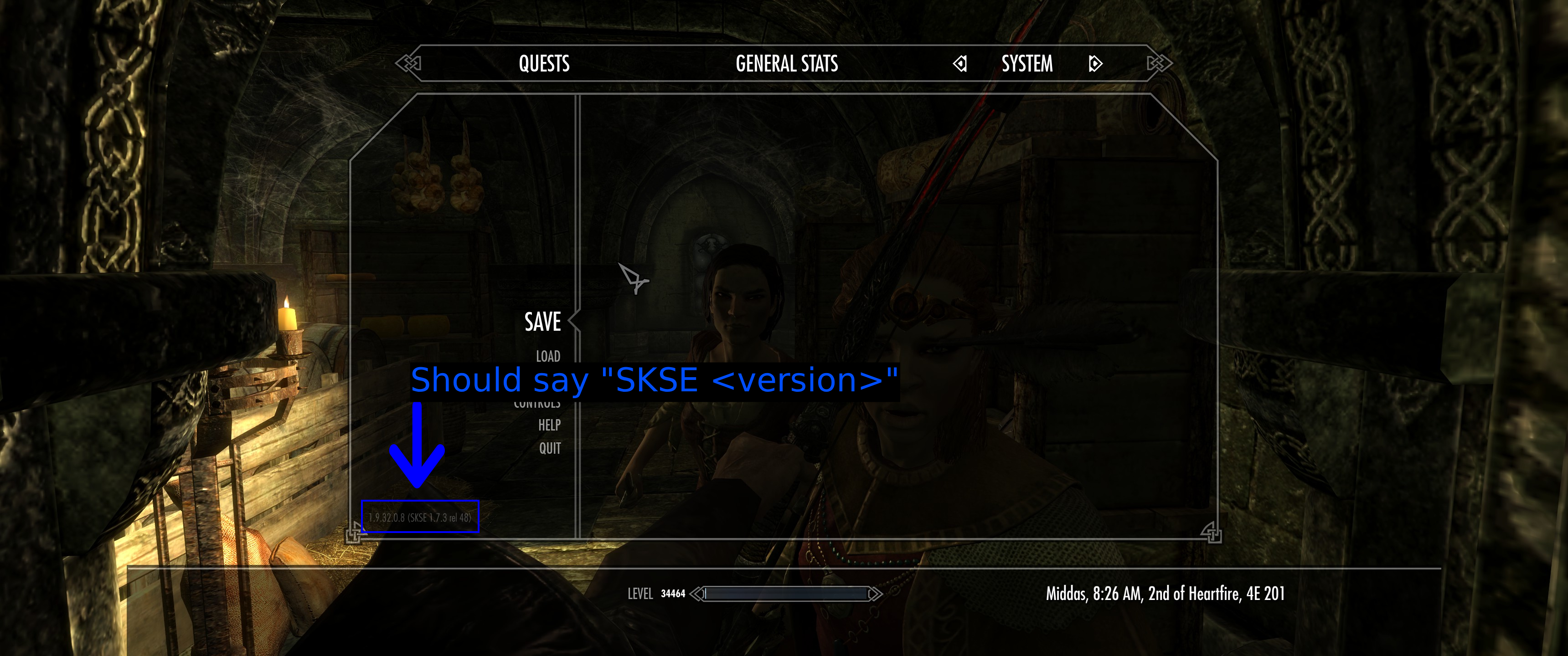
SKSEが動作していれば、バージョン文字列の末尾にSKSE <version>が追加されます(私の場合は1.9.32.0.8 (SKSE 1.7.3 rel 48)と表示されます)。ゲームバージョンのみが表示されSKSEについて何も書かれていない場合は、SKSEが読み込まれておらず、間違った実行ファイルを起動しています。
例として使うMOD: SkyUI
SkyUIはこのガイドの残りの部分でインストールするMODです。Skyrimのコンソール向けメニューをPC向けの本格的なものに置き換えるもので、提供されるMCM(Mod Configuration Menu)のおかげで他の多くのMODの前提条件にもなっています。
何かをインストールする前に、MODページを下にスクロールして作者のインストール手順を読んでください。Nexus ModsのほぼすべてのMODにはこのようなセクションがあり、必要なものが正確に書かれています。
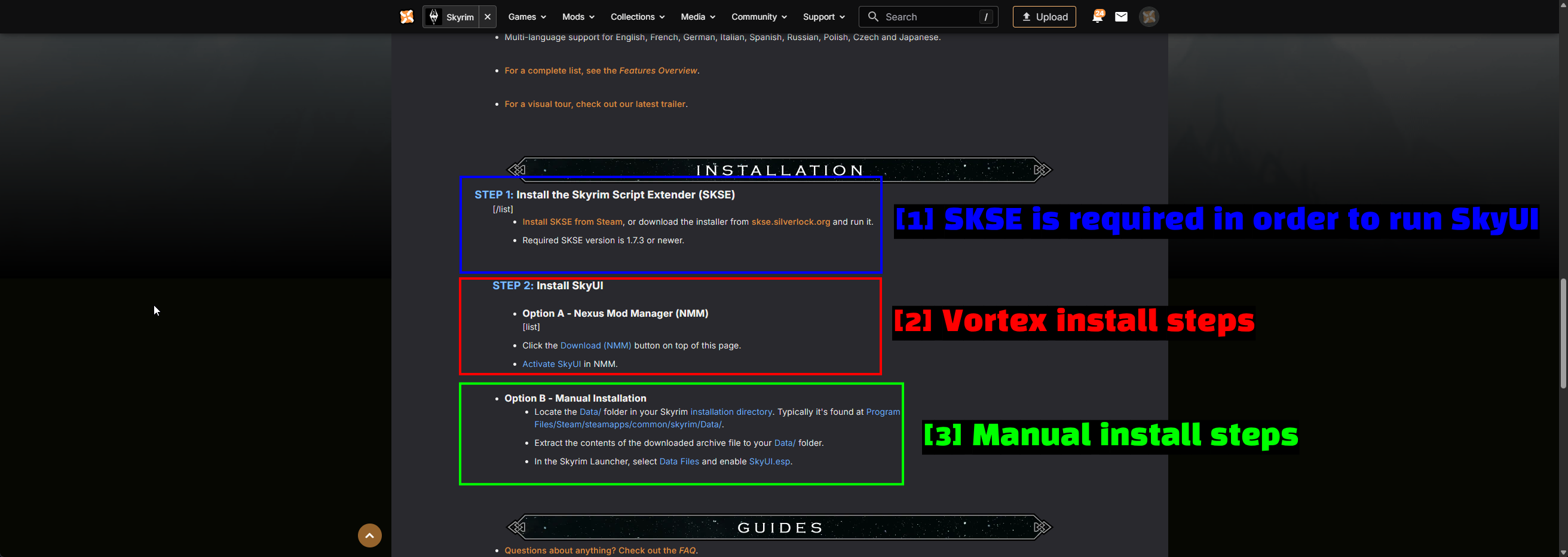
- 必要条件: SkyUIにはSKSE
1.7.3以降が必要です。これが最初にSKSEをインストールした理由です。 - MODマネージャー用の手順: MODマネージャー経由でインストールする際の作者の手順です。SkyUIは2015年以降更新されていないため、ページには今でもNMM(Nexus Mod Manager)と書かれていますが、手順はそのままVortexにも当てはまります。
- 手動インストール手順: 手作業でインストールする際の作者の手順で、このガイドの後半で従います。
Vortex経由でMODをインストールする
VortexはNexus Modsの公式MODマネージャーで、2つ以上のMODをインストールする人には一番おすすめしたい方法です。デプロイ、ロードオーダー、コンフリクトの管理を行い、MODを削除せずに無効化することもできます。
Vortexについては既に2つの別ガイドを書いているので、ここではセットアップの説明は繰り返しません。
VortexでSkyrimを管理する
Vortexが何かをインストールする前に、Skyrimを管理するよう設定する必要があります。
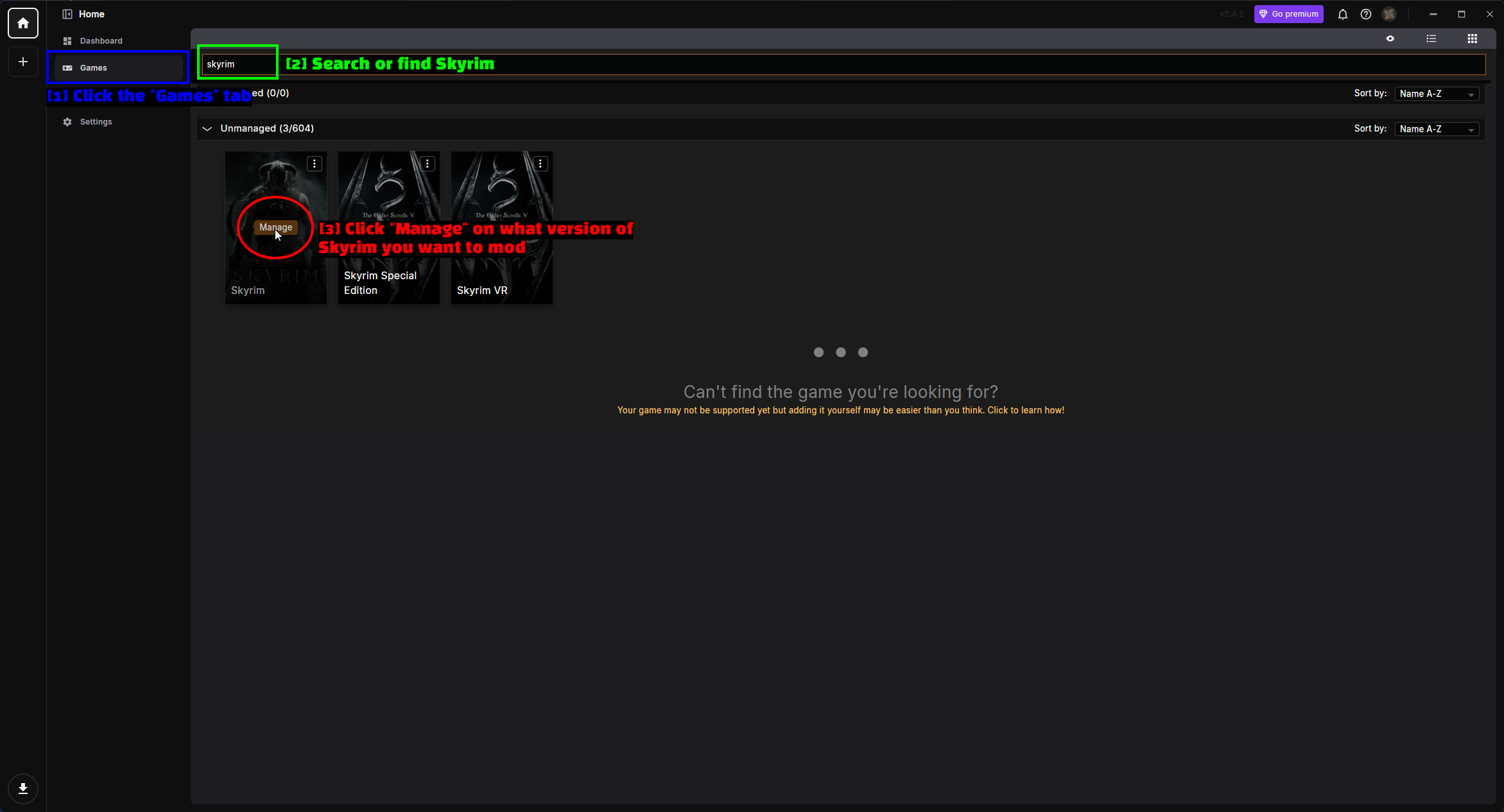
- 「Games」タブをクリック: サイドバーからGamesページを開きます。
- Skyrimを検索または探す: 上部の検索バーに
skyrimと入力します。 - 「Manage」をクリック: MODを入れたいバージョンのSkyrimのタイルにカーソルを合わせ、Manageをクリックします。Skyrim、Skyrim Special Edition、Skyrim VRはそれぞれ別のエントリーとして扱われ、MODリストも別々になる点に注意してください。
多くの場合、Vortexは自動的にインストール先を検出します。検出できない場合は、ゲームのタイルにある**三点リーダー(⋮)**をクリックし、Manually Set LocationでSkyrimフォルダを指定してください。
Vortex内のSkyrimページ
Skyrimが管理対象になると、左サイドバーに表示されるようになり、Skyrim専用の各種ページが使えるようになります。
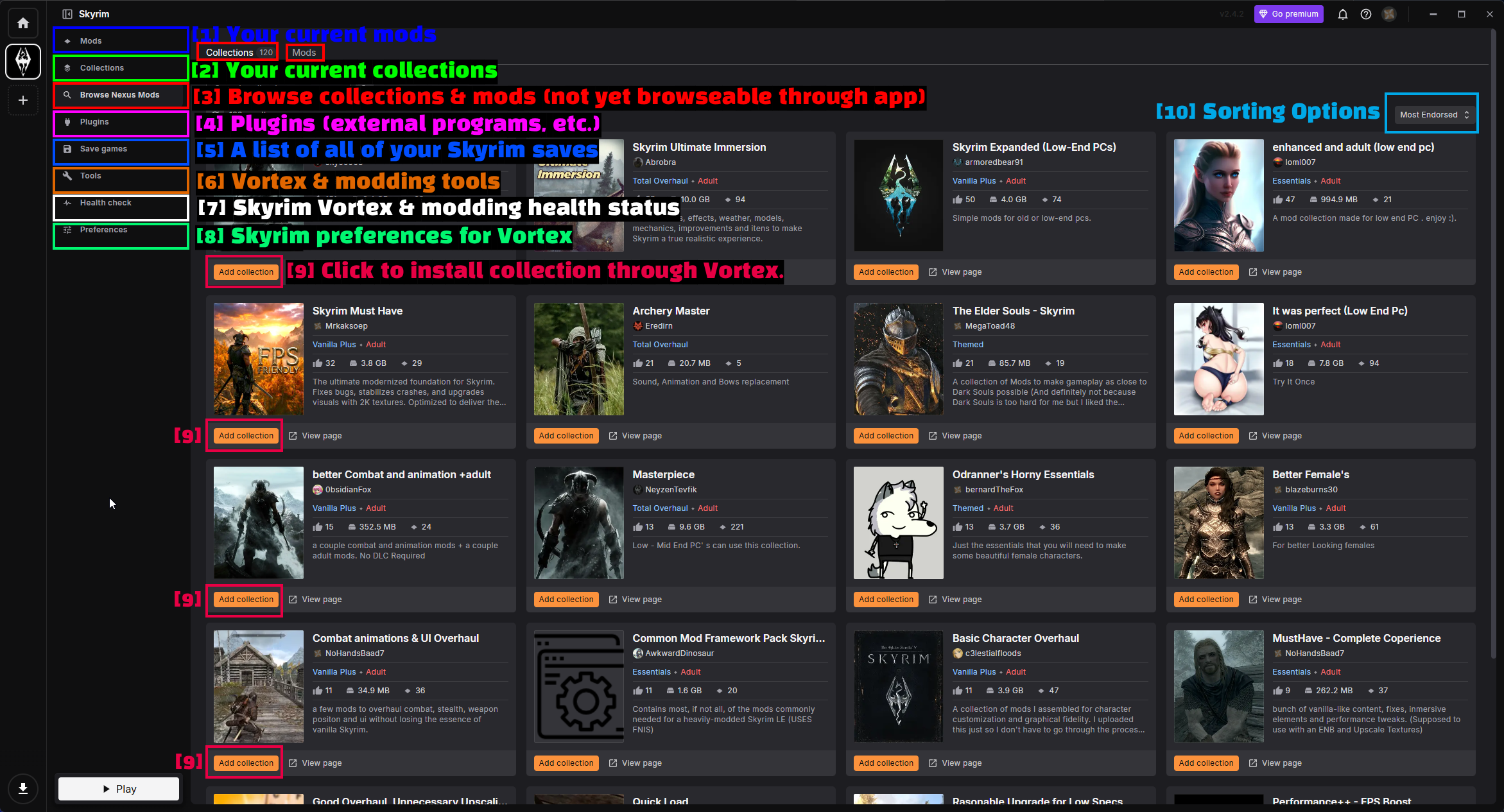
- Mods: 現在インストールされているSkyrim用のMOD一覧です。ここで最も多くの時間を過ごすことになるでしょう。
- Collections: インストール済みのコレクション。コレクションとは、他のユーザーがまとめて作成したMODのセットです。
- Browse Nexus Mods: コレクションやMODを閲覧します。アプリ内でのMOD閲覧機能はまだ利用できないため、現状では個別のMODについてはウェブサイトへ移動します。
- Plugins:
.esp/.esmプラグインの一覧とロードオーダーです。 - Save games: Skyrimのセーブデータ一覧です。
- Tools: 追加したVortexおよびMOD関連ツール(ここにSKSEローダーを追加します)。
- Health check: Skyrimのセットアップに関するVortexのステータスチェックです。
- Preferences: Vortexに関するSkyrim固有の設定です。
- Add collection: そのコレクション全体をVortex経由でインストールします。
- Sorting options: 表示されているコレクションの並び順(Most Endorsedなど)を変更します。
VortexでSkyUIをダウンロードする
Skyrimの管理設定が完了したら、ブラウザでSkyUI mod pageにアクセスしてください。
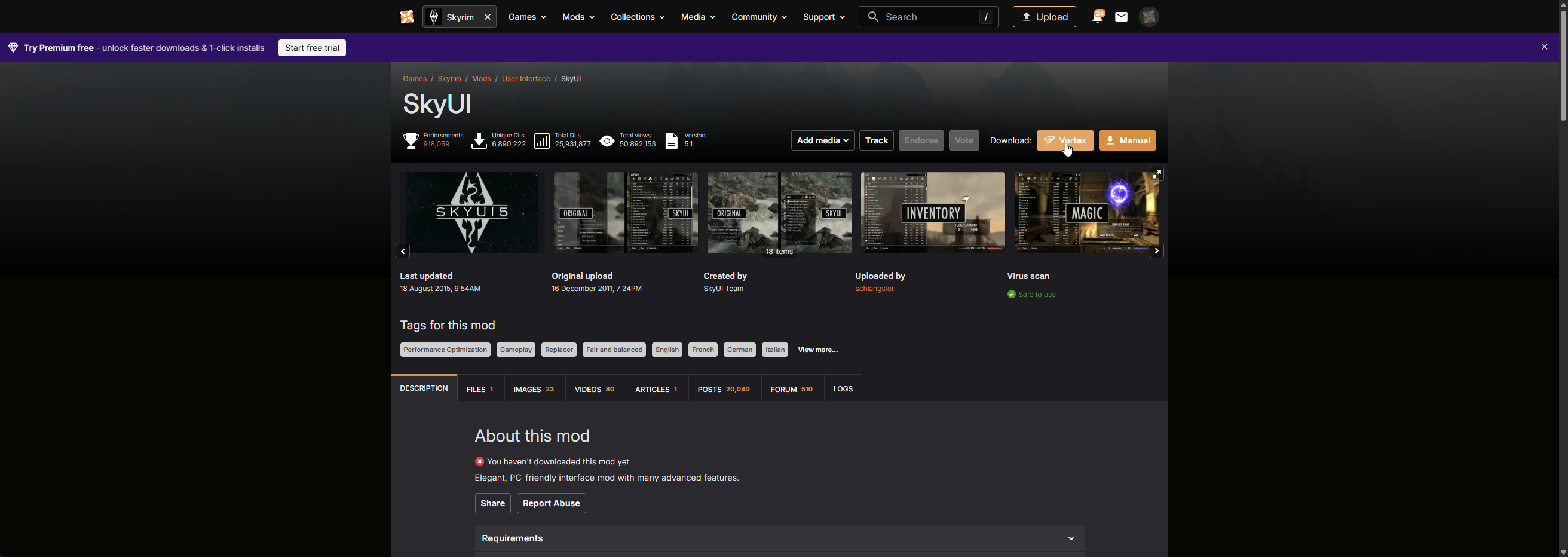
ページ上部のDownloadの隣にあるオレンジ色のVortexボタンをクリックします。これは「Mod Manager Download」ボタンで、MODページにこれが無い場合は手動でインストールする必要があります。
その後、ブラウザがダウンロードをVortexに引き渡す許可を求めてきます。
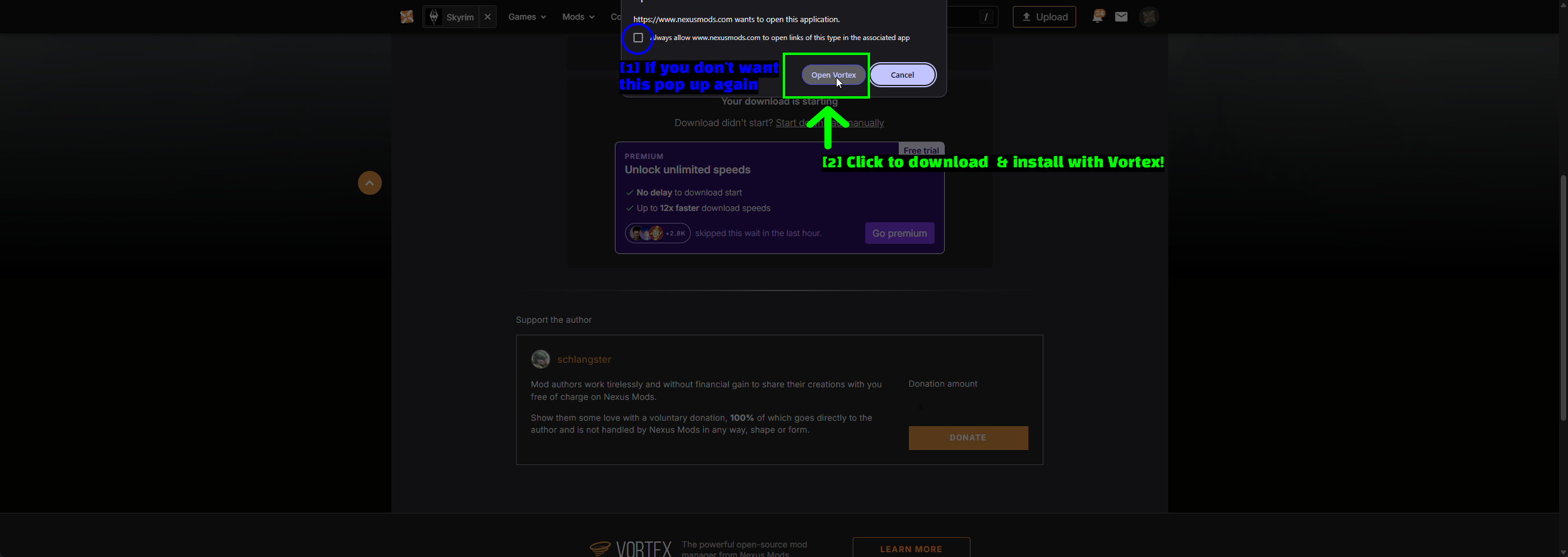
- このポップアップを二度と表示したくない場合: Always allowのチェックボックスにチェックを入れておくと、ブラウザが毎回確認を求めてこなくなります。
- Vortexでダウンロード&インストールする: Open Vortexをクリックします。
Vortexがそのままダウンロードを開始し、インストールに進みます。SkyUIの場合、以下のような警告が表示されます。
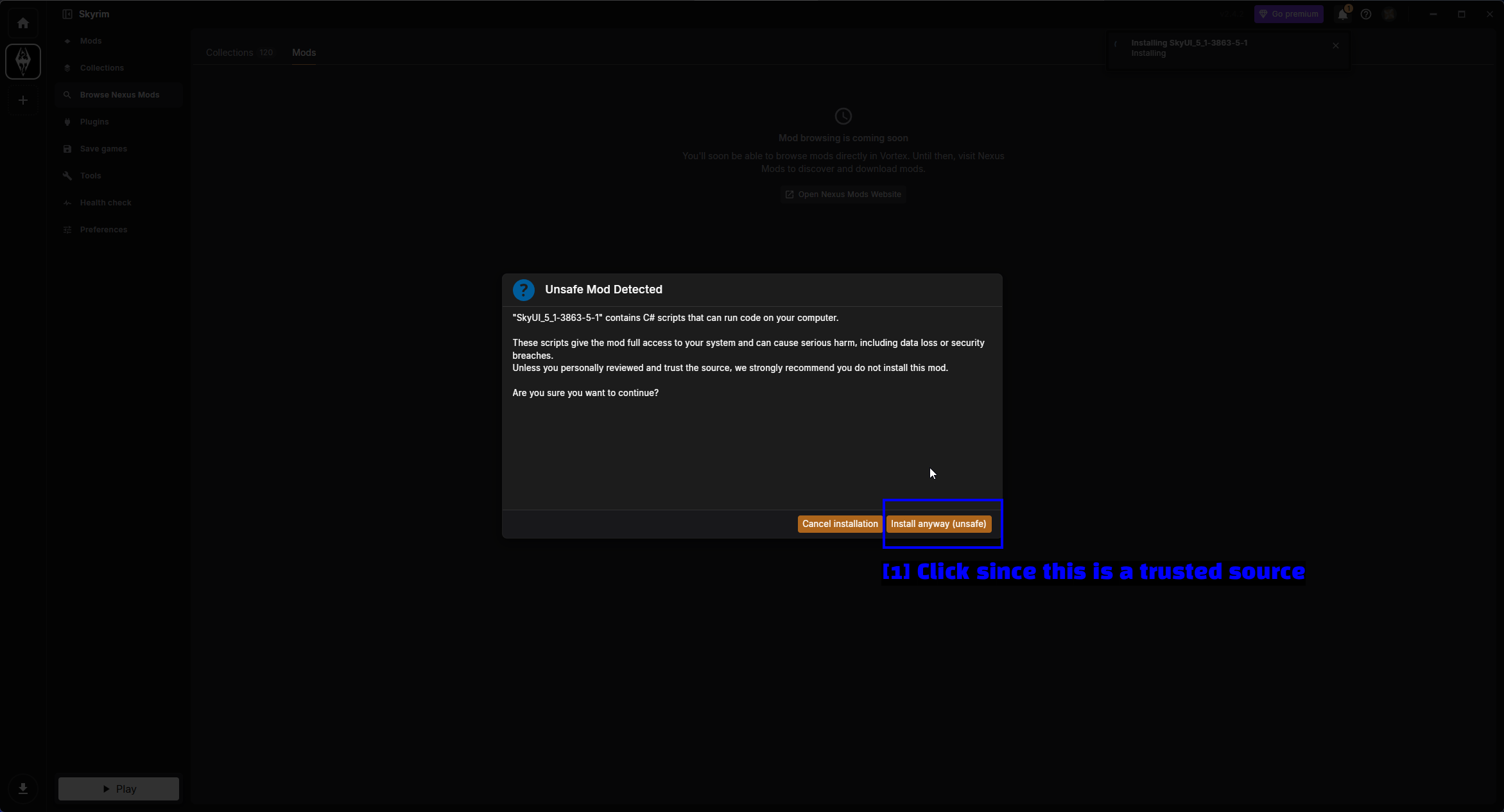
- Install anyway (unsafe): SkyUIはC#スクリプトを含むFOMODインストーラーを使用しており、スクリプトは任意のコードを実行できるためVortexが警告を表示します。SkyUIはSkyrim史上最もダウンロードされたMODの一つであり、Nexus Modsから直接取得しているため、ここで続行しても問題ありません。
NOTE - この警告を単なる雑音として無視しないでください。見覚えのないMODをクリックして進める前に、そのMODのページ、支持率(endorsement)、ウイルススキャンの結果を確認する価値は十分にあります。
インストールしたMODを管理する
インストールが完了すると、SkyUIはModsページに表示されます。
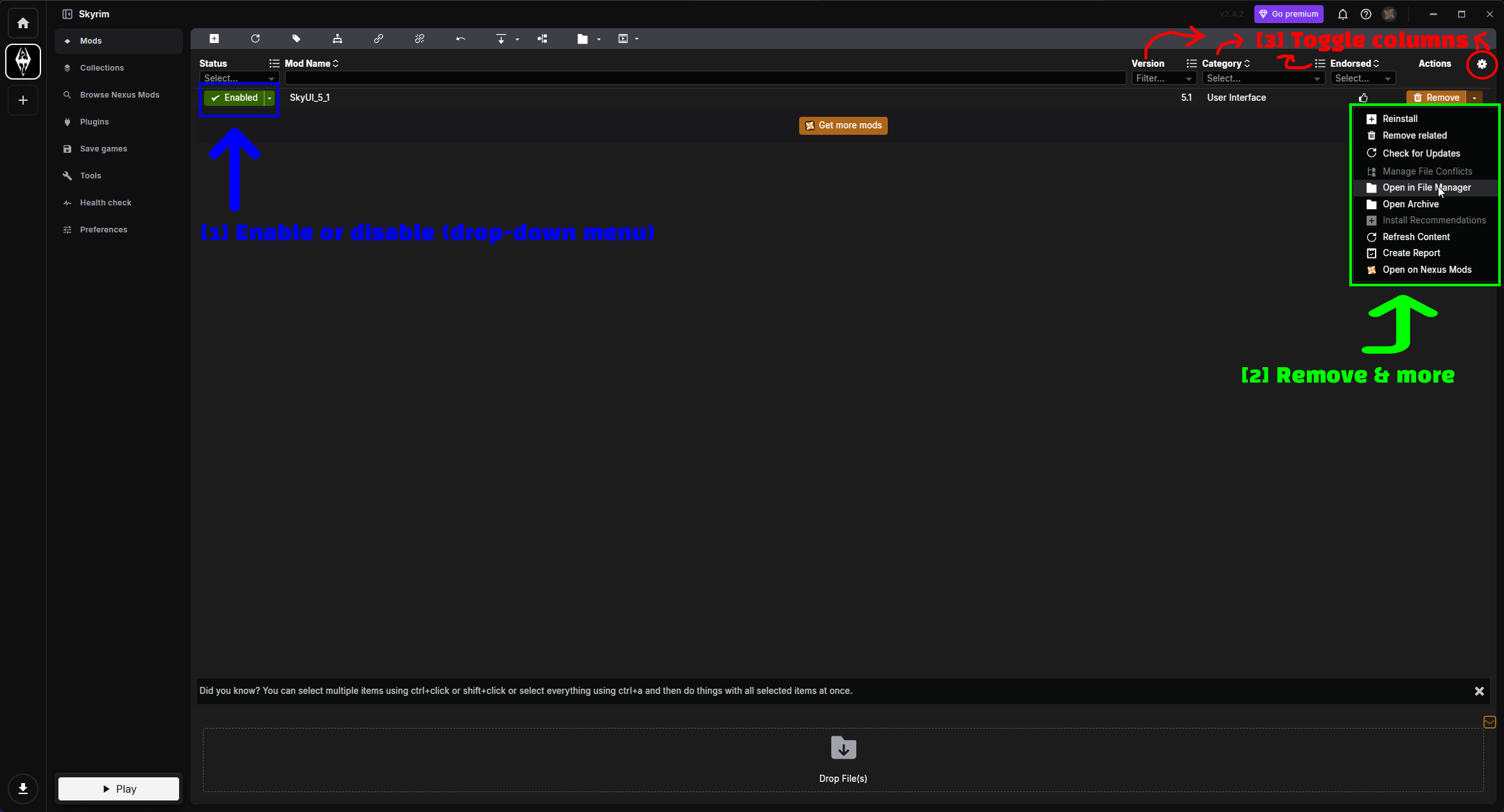
- 有効化・無効化(ドロップダウンメニュー): Status列です。MODがゲーム内で実際に反映されるには、Enabledにした上でデプロイする必要があります。
- 削除、その他: Removeの隣の矢印から、各種アクションメニュー(下記で詳述)が開けます。
- 列の表示切替: 歯車アイコンから、一覧に表示する列を選択できます。
Statusのドロップダウンには3つの状態があります。
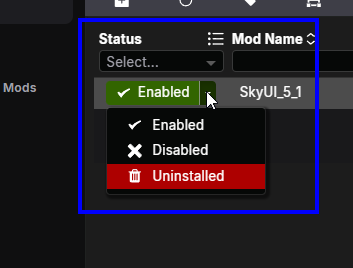
- Enabled - MODが有効になっており、ゲームにデプロイされます。
- Disabled - MODはVortex上ではインストールされたままですが、デプロイはされません。あるMODがクラッシュの原因かどうかをテストするのに最適です。
- Uninstalled - インストールされたファイルを削除しますが、ダウンロードしたアーカイブは残します。
Removeの隣にあるアクションメニューでは、MODに対してその他のあらゆる操作が行えます。
- Reinstall - インストーラーを再実行します(変更したいFOMODオプションがあるMODに便利です)。
- Remove related - そのMODと、それに関連付けられたものを併せて削除します。
- Check for Updates - Nexus Modsに新しいバージョンがないか問い合わせます。
- Manage File Conflicts - 2つのMODが同じファイルを扱っている場合の競合を解決します。
- Open in File Manager - そのMODのステージングフォルダを開きます。
- Open Archive - ダウンロードしたアーカイブを開きます。
- Refresh Content - そのMODのファイルを再読み込みします。
- Create Report - そのMODに関するレポートを生成します。ヘルプを求める際に便利です。
- Open on Nexus Mods - ブラウザでそのMODページを開きます。
最後に、歯車アイコンから一覧に列を追加できます。
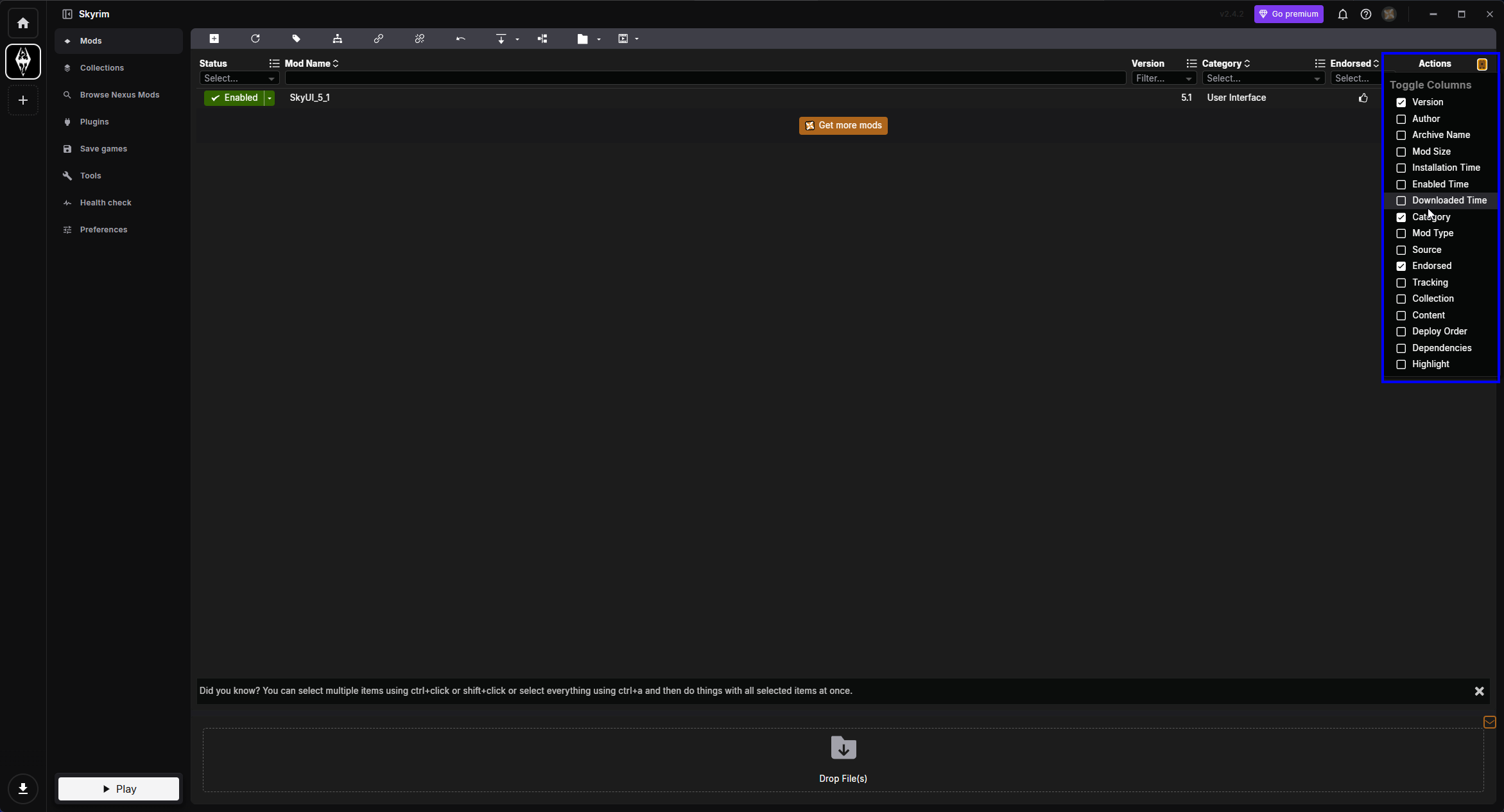
Version、Author、Archive Name、Mod Size、Installation Time、Enabled Time、Downloaded Time、Category、Mod Type、Source、Endorsed、Tracking、Collection、Content、Deploy Order、Dependencies、Highlightを切り替えられます。リストが増えてきたら、真っ先に追加をお勧めするのはAuthorとMod Sizeの2つです。
NOTE - MODを有効化した後にVortexがDeploy Modsの通知を表示したら、それをクリックしてください。MODがデプロイされるまでは、ゲームフォルダには何も反映されません。
Steam Workshopを使ってMODをインストールする
Steam Workshopは断トツで最も簡単な方法です。SubscribeをクリックすればあとはSteamがやってくれます。ただし、これはクラシック版のSkyrimのみで使え、Nexus Modsと比べるとMODの数は少ないという難点があります。
MODを探す
ゲームのコミュニティハブからSkyrim Workshopを開きます。
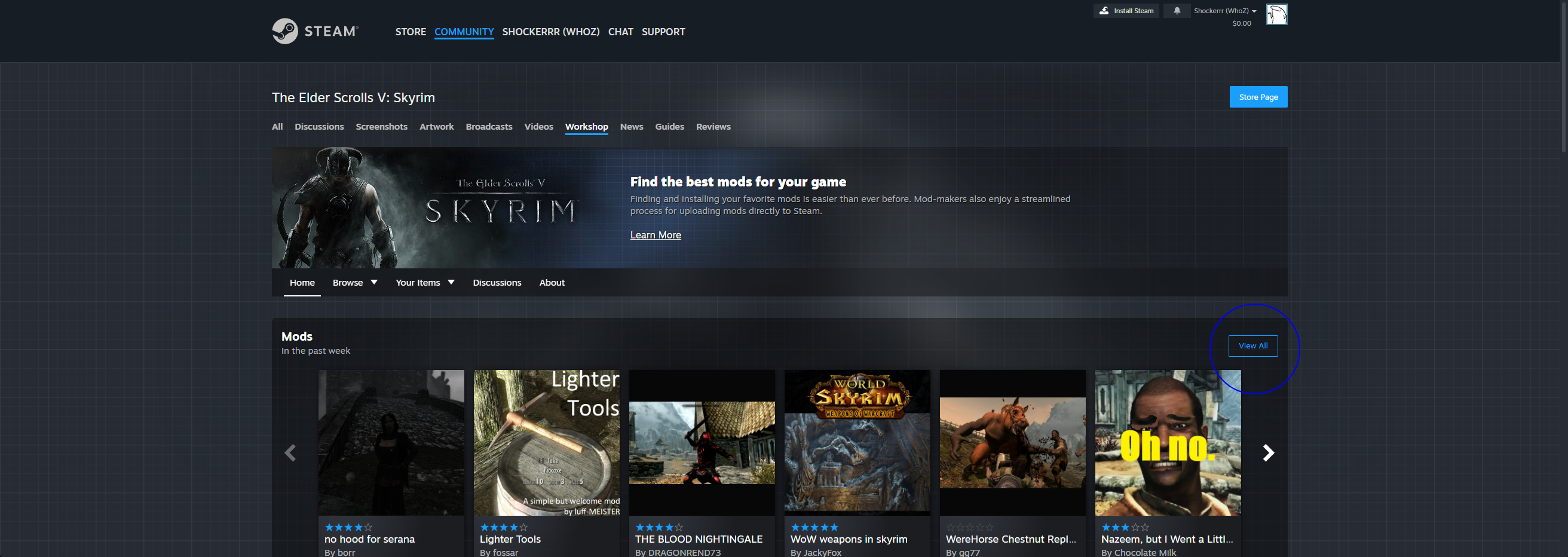
ここから今週の人気MODを見ることができますし、BrowseをクリックすればすべてのMODを検索できます。
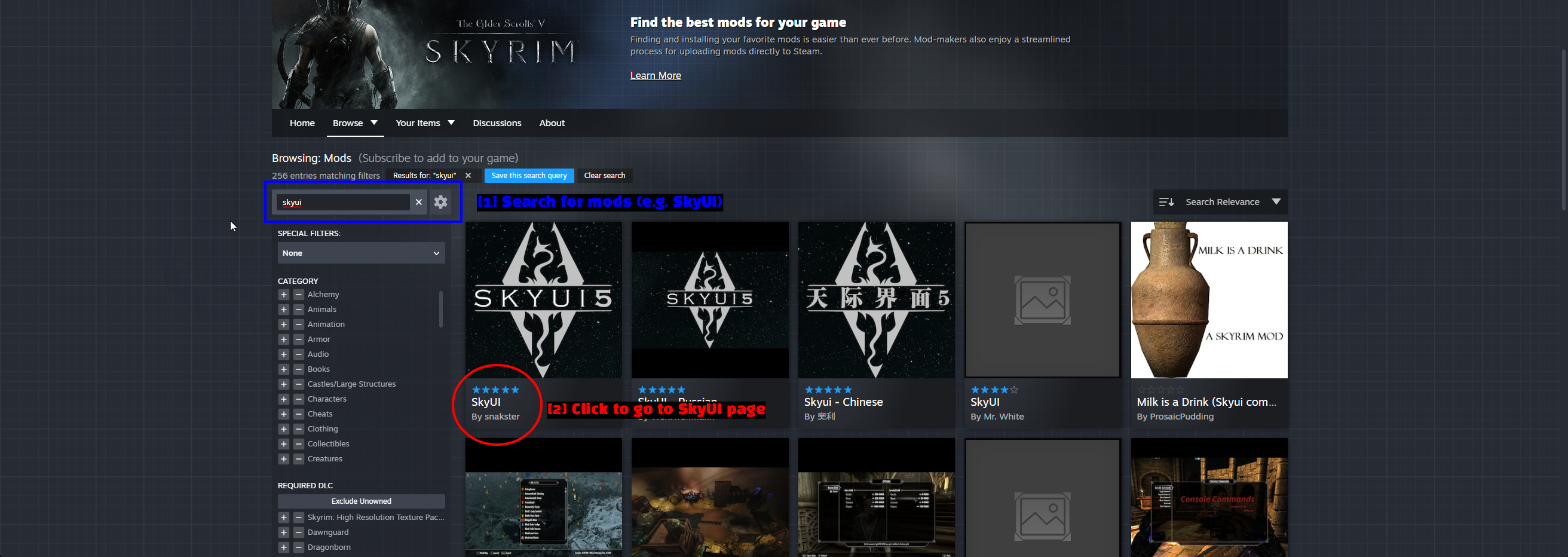
- MODを検索する: 検索ボックスにMOD名を入力します(今回は
skyui)。 - SkyUIのページへ移動する: 目的の検索結果をクリックします。ここでは作者名に注意してください。ほぼ同じサムネイルの翻訳版や紛い物が存在します。
MODを購読する
MODのページにSubscribeボタンが表示されます。
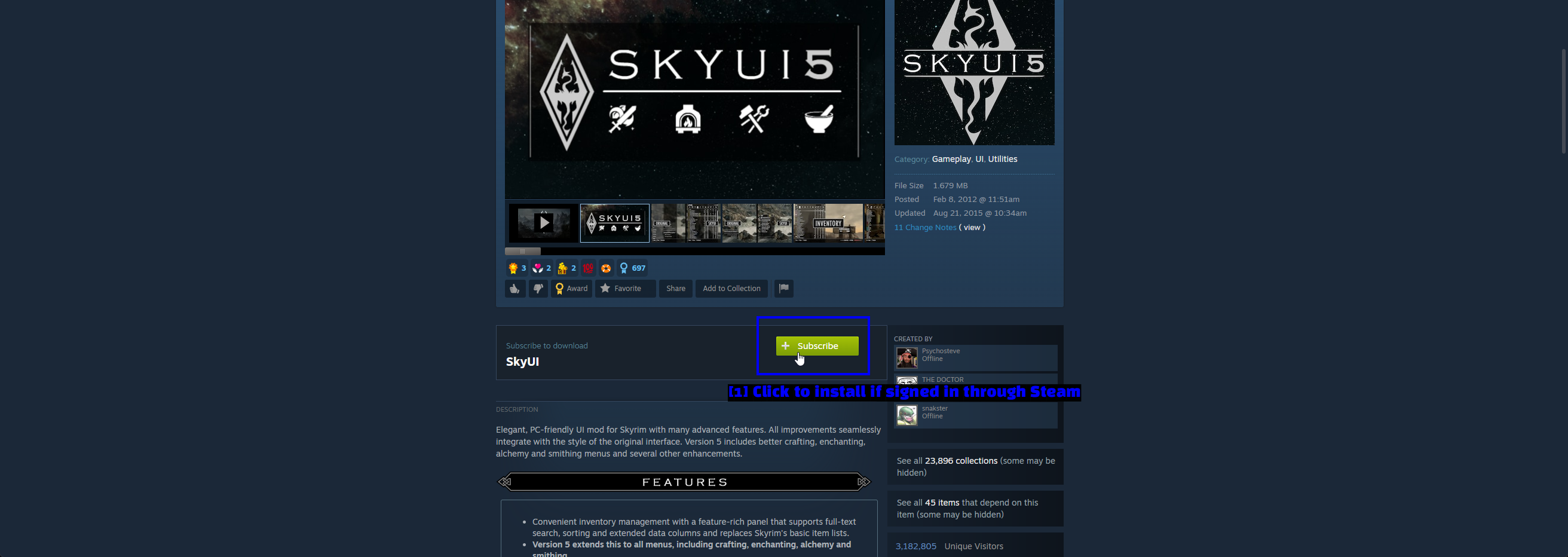
- Steamでサインインしている場合はここでインストールする: Subscribeをクリックします。Steamは次回の同期時にMODをダウンロードし、次回ゲームを起動したときに自動的に有効化されます。
NOTE - Workshop経由のMODでも必要条件を満たす必要があります。Workshop版のSkyUIも、SKSEがインストールされていなければ何も機能しません。これはNexus Mods版とまったく同じです。
Workshop MODの管理
WorkshopのMODはSteamのSkyrimのプロパティから管理します。
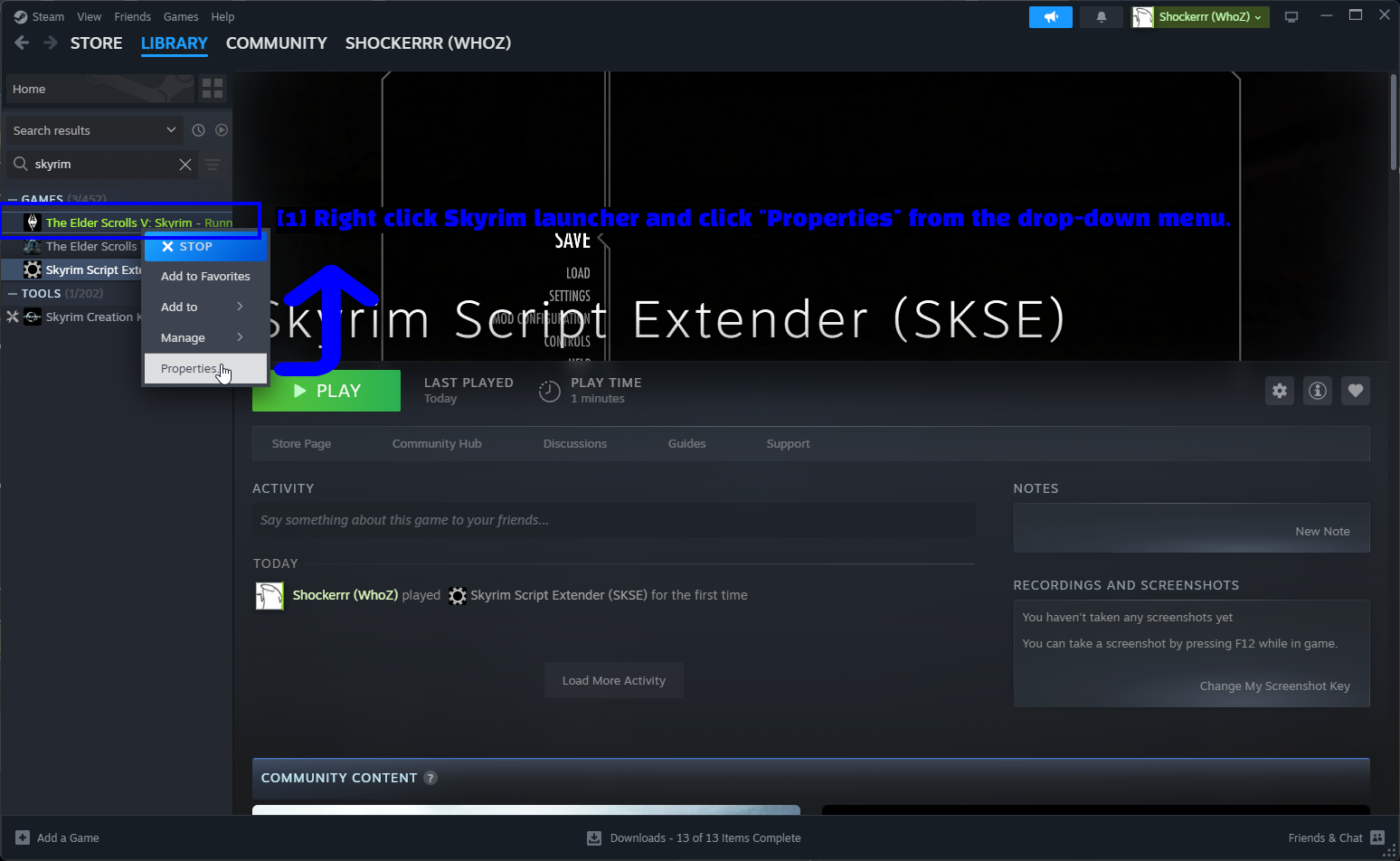
- Skyrimを右クリックして「プロパティ」をクリック: ライブラリでThe Elder Scrolls V: Skyrimを見つけ、右クリックしてメニューからプロパティを選択します。
次にWorkshopタブを開きます。
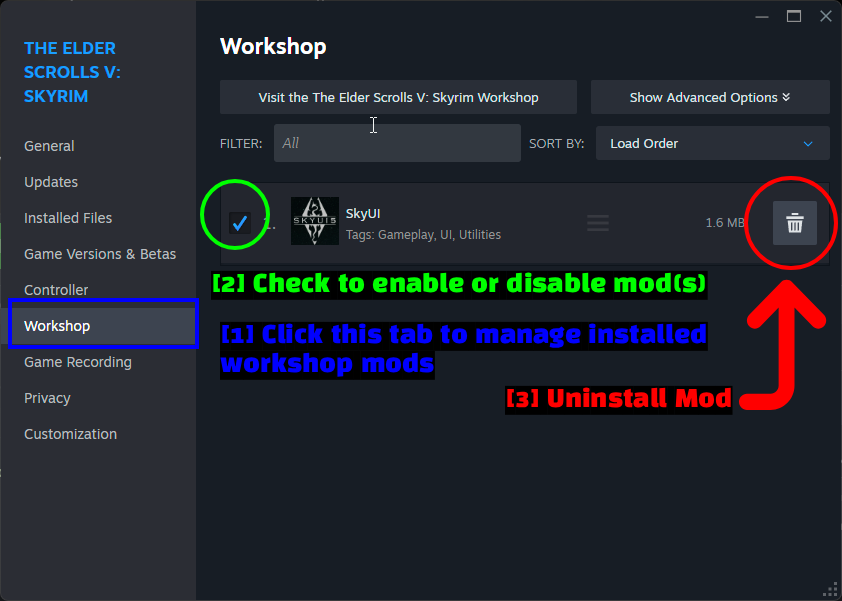
- このタブでインストール済みのWorkshop MODを管理する: Workshopタブには購読中のすべてのMODが一覧表示されます。
- チェックでMODを有効/無効にする: チェックを入れたり外したりしてMODを有効化または無効化し、右側のハンドルをドラッグしてロードオーダーを変更できます。
- MODをアンインストール: ゴミ箱アイコンで購読を解除し、MODを削除します。
MODを手動でインストールする(上級者向け)
Vortexを使っている場合でも、手動インストールについて知っておく価値はあります。いずれMODマネージャー用にパッケージ化されていないMODに出くわすことがあるからです。また、MODが実際にはDataフォルダに入る一握りのファイルにすぎない、ということを理解するのにも役立ちます。
MODをダウンロードする
SkyUIのMODページに戻り、今回はVortex用ではなくManualボタンを使います。
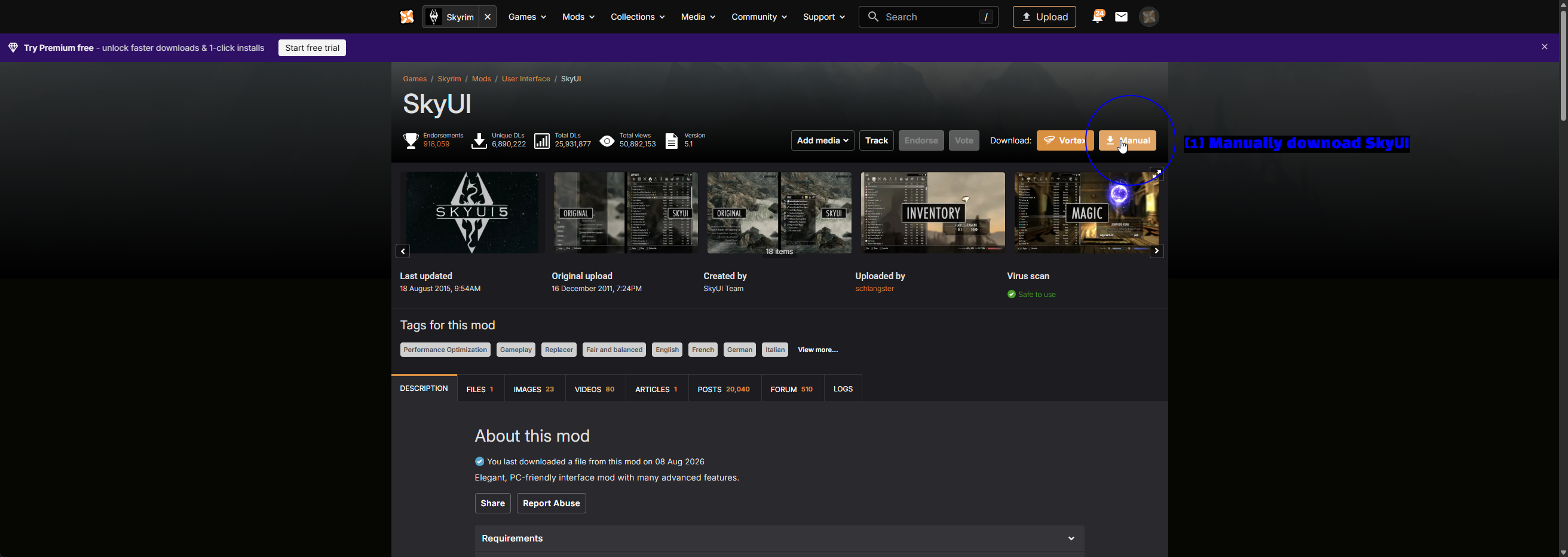
- SkyUIを手動でダウンロードする: Downloadの横にあるManualをクリックします。
ファイルを確認するウィンドウがポップアップします。
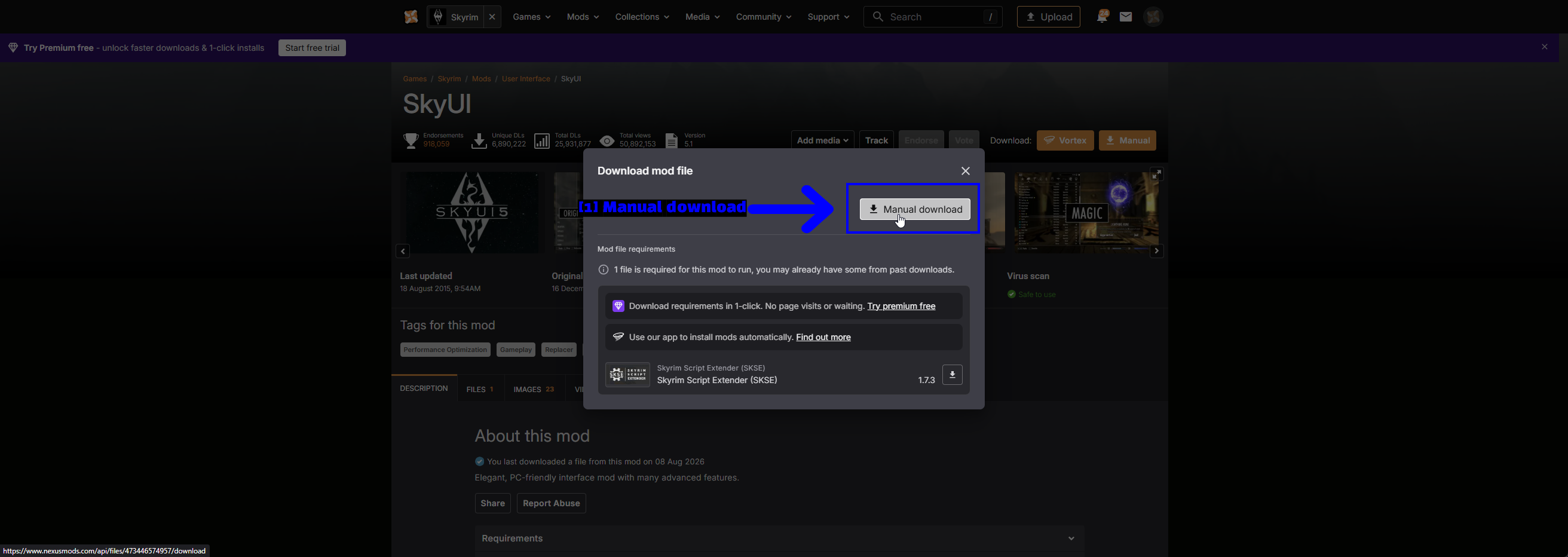
- Manual download: Manual downloadをクリックすると、ブラウザ経由でアーカイブがダウンロードされます。下部に必要条件が記載されている点にも注目してください - こちらもSKSE
1.7.3です。
NOTE - 無料のNexus Modsアカウントでは、ダウンロード開始前に少し待たされ、ダウンロード速度にも上限が設けられます。これは正常な仕様で、何か問題が起きているわけではありません。
ファイルをコピーする
7-Zipでダウンロードしたアーカイブを展開し、中身を確認します。
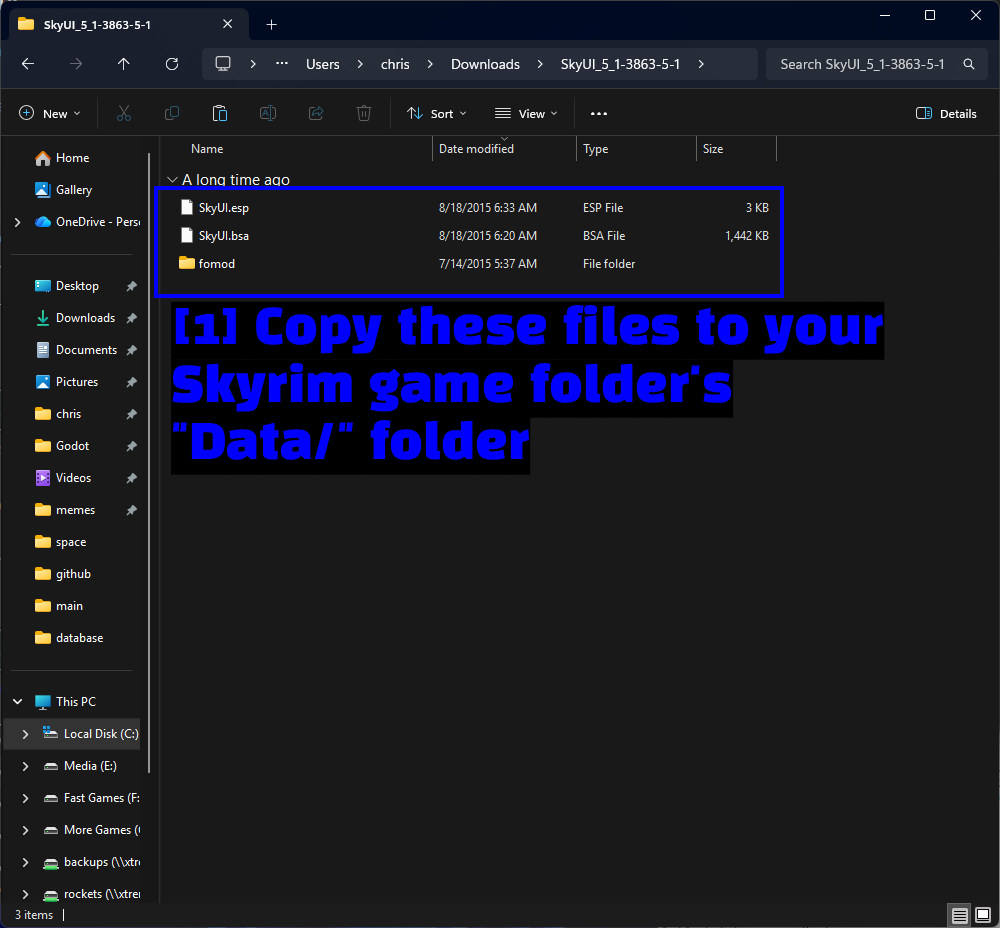
- これらのファイルをSkyrimのゲームフォルダの「Data/」フォルダにコピーする: SkyUIの場合、それは
SkyUI.esp、SkyUI.bsa、そしてfomodフォルダです。
次にSkyrimのDataフォルダを開き、そこに貼り付けます。クラシック版Skyrimならsteamapps\common\Skyrim\Data、Special Editionならsteamapps\common\Skyrim Special Edition\Dataです。
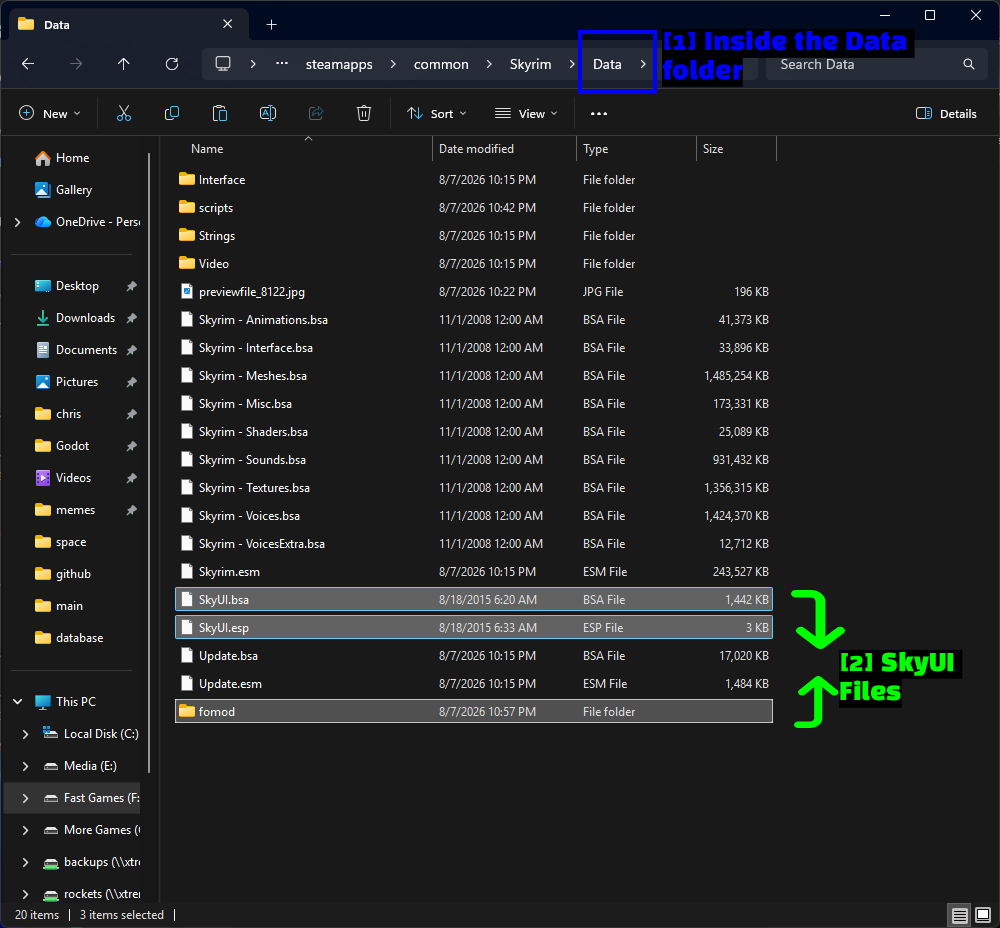
- Dataフォルダの中: Skyrimのルートフォルダではなく、必ず
Dataフォルダの中にいることを確認してください。DataフォルダはSkyrim.esmとすべてのSkyrim - *.bsaファイルが入っているフォルダです。 - SkyUIのファイル: 先ほどコピーした3つの項目が、バニラのゲームファイルと並んで置かれています。
TIP - 大半のアーカイブは、その内容がそのままDataフォルダに入るように圧縮されています。ただし、そうでないものもあります。MODを展開して中にDataという名前のフォルダが見つかった場合、必要なのはそのフォルダの内容であり、フォルダ自体ではありません。Data\Data\という状態になってしまうと、そのMODは読み込まれません。
NOTE - fomodフォルダはMODマネージャー用のインストーラーメタデータでしかありません。手動インストールではコピーしても何の効果もないので、省いても問題ありません。
プラグインを有効化する
プラグイン(.espまたは.esm)を持つMODでは、ファイルをコピーするだけでは不十分です。ランチャーを通してゲームにそれを読み込むよう指示する必要もあります。

- 「Data Files」をクリック: Skyrimランチャーを開き、Data Filesをクリックします。
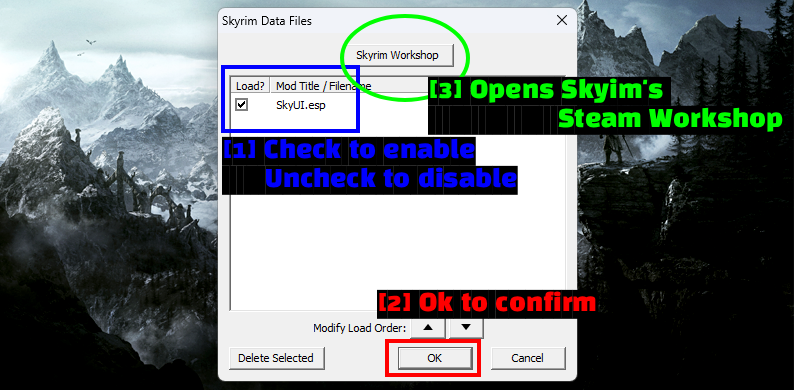
- チェックで有効化、外すと無効化:
SkyUI.espの横のチェックボックスにチェックを入れます。下部のModify Load Orderの矢印でロードオーダーを変更することもできます。 - OKで確定: OKをクリックして保存します。
- Skyrim Workshop: このボタンはSkyrimのSteam Workshopを開きます。複数の方法を併用している場合に便利です。
NOTE - ランチャーで Data Files がグレーアウトしている場合は、Documents\My Games\Skyrim\SkyrimPrefs.ini を開き、[Launcher] セクションの下に bEnableFileSelection=1 を追加してください。
プラグインを有効化したら、ランチャーを閉じて Play ではなく SKSE loader からゲームを起動してください。
Mod が読み込まれたか確認する
セーブをロードするか(または新規ゲームを開始し)、インベントリまたは魔法メニューを開いてください。SkyUI が動作していれば、メニューはバニラとは全く違う見た目になっているはずです。
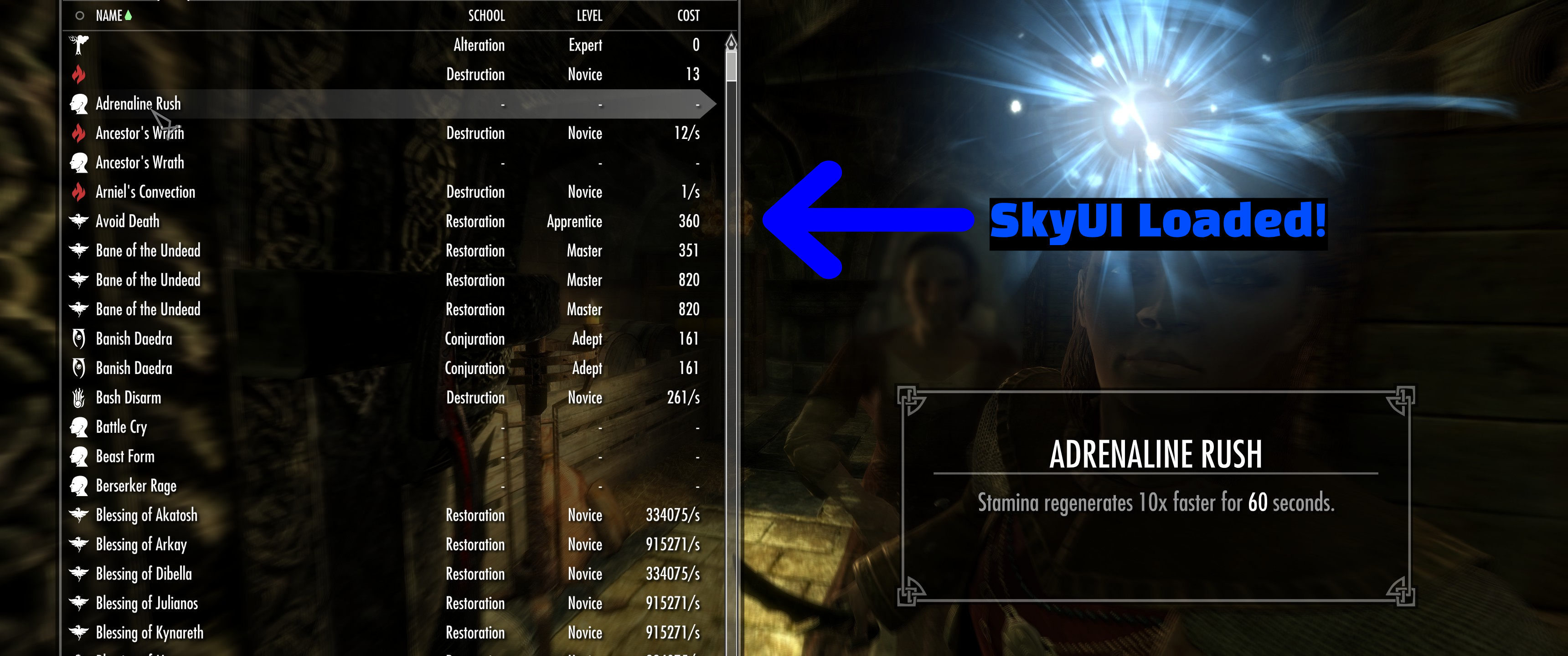
バニラのリスト表示ではなく、列付きでソート・検索可能なテーブルが表示されます。メニューがまだバニラのままの場合は、以下のリストを順に確認してください。
- SKSE loader からゲームを起動しましたか?(上の SKSEの項目 を確認してください)
- プラグインは Data Files、あるいは Vortex の Plugins ページで実際に有効化されていますか?
- Vortex を使用している場合、mod は deploy(デプロイ) されましたか?
- お使いの Skyrim のバージョンに合った mod をダウンロードしましたか?
その他の便利なツール
LOOT - Load Order Optimization Tool
mod がひと握りの数を超えると、ロードオーダーがゲームが動作するかどうかを左右する要素になります。LOOT はプラグインリストを読み込み、コミュニティが管理するマスターリストに基づいてソートしてくれます。
LOOT を使用するには、以下の手順を行ってください。
- こちらから LOOT をダウンロードしてインストールします。
- 起動して、Skyrim のインストールを自動検出させます。
- Sort Plugins をクリックします。
- 提案された変更内容を確認し、適用します。
NOTE - LOOT は Vortex に直接統合できるので、アプリを離れずにロードオーダーをソートすることも可能です。
Wrye Bash & xEdit
modlist を深く追求するようになったら、知っておく価値のあるツールがもう2つあります。
- Wrye Bash - 複数の mod 間で競合するレコードをマージした「bashed patch」を作成します。
- xEdit (TES5Edit/SSEEdit) - プラグインを検査・クリーンし、競合を手動で診断できます。
mod を楽しむのにどちらも必須というわけではありませんが、「とにかく入れればいい」では済まなくなったときの定番の答えです。
トラブルシューティング
- mod を追加した後、起動時にゲームがクラッシュする。 最近追加した mod を無効化し、1つずつ再度追加していきましょう。Vortex の Disabled ステータスを使えば手早く行えます。
- Skyrim のアップデート後にゲームがクラッシュする。 SKSE は特定のゲームバージョンに紐づいています。対応するビルドを再ダウンロードし、SKSE 依存の mod も更新されているか確認してください。
- mod がゲーム内で何も機能しない。 十中八九、SKSE が読み込まれていないか、プラグインが有効化されていないかのどちらかです。
- Vortex がダウンロードリンクを認識しない。 Vortex で Settings -> Download を開き、Handle Mod Manager Download buttons on nexusmods.com (nxm:// links) が有効になっているか確認してください。
- 助けを求める必要がある場合。 まずログを取得してください。SKSE は
Documents\My Games\Skyrim\SKSE\にログを出力し、Vortex には question mark (?) アイコンの下にログビューアがあります。
Notes
- 私たちは Nexus Mods、Bethesda、SKSE チームのいずれとも一切関係がありません。このガイドは Skyrim のモッディングを始める人を助けるために独自に作成されたものです。
- 本記事の内容は執筆時点で正確なものです。Skyrim、Vortex、SKSE はすべて更新され続けるため、スクリーンショットが古くなる場合もあります。
- mod は自己責任で導入してください。セーブをバックアップし、mod は少しずつ追加していけば、ほとんどの問題は避けられます。
あわせて見る!
- Nexus Mods - Skyrim
- Nexus Mods - Skyrim Special Edition
- Skyrim Script Extender (SKSE)
- SkyUI on Nexus Mods
- LOOT - Load Order Optimization Tool
- How To Download & Install Vortex
- How To Use Vortex & The Basics
- Skyrim Modding Subreddit
まとめ
以上で完了です!これで SKSE が動作し、好みの方法で SkyUI がインストールされ、3つのアプローチがそれぞれどう違うのかもだいたい把握できたはずです。
手短に言えば - mod をいくつか入れたいだけで、クラシック版 Skyrim を使っているなら Steam Workshop を、本格的に取り組むなら Vortex を使い、そしてそれが必要な mod のために manual install(手動インストール) も引き出しに入れておきましょう。
私たちが作成するガイドは常に編集や改善を歓迎しています。提案や問題点にお気づきの場合は、GitHub リポジトリで pull request を作成して、ぜひ貢献してください!
モッディングや私たちのガイドに関して質問やお困りのことがあれば、Discord server にぜひご参加ください!