

Un guide pour installer des mods et du contenu personnalisé (CC) dans The Sims 4 sur PC. Nous couvrons l'installation manuelle des mods, l'installation via la CurseForge App, ainsi que le téléchargement et la configuration du Sims 4 Mod Manager (S4MM) pour garder le tout bien organisé.
Ce guide s'adresse avant tout aux utilisateurs Windows, mais les chemins de dossiers et les concepts s'appliquent également à macOS et aux configurations Linux qui font tourner le jeu via Proton ou Lutris !
The Sims 4 possède l'une des plus grandes scènes de modding tous jeux confondus, et c'est aussi l'une des plus accessibles. Aucun script extender à installer, aucun load order à gérer - les mods sont simplement des fichiers que l'on dépose dans un dossier. Ce qui pose vraiment problème, ce sont les règles de profondeur de dossiers, savoir si un mod a bien été chargé, et garder un dossier de CC organisé une fois qu'il contient plusieurs milliers de fichiers. Nous allons tout passer en revue.
Prérequis
- The Sims 4 installé sur votre PC (EA App, Steam ou l'ancienne version Origin).
- 7-Zip ou tout autre logiciel d'extraction d'archives.
- Un compte gratuit ModTheSims ou CurseForge (facultatif, mais pratique).
- Des notions de base pour copier et déplacer des fichiers sous Windows.
NOTE - The Sims 4 est le même jeu sur EA App, Steam et Origin, les mods fonctionnent donc de manière identique sur les trois. Les mods ne sont pas du tout pris en charge sur les versions PlayStation ou Xbox.
Comment fonctionnent les mods de Sims 4
Il n'y a aucun framework à installer ici - The Sims 4 charge les mods directement depuis un dossier situé dans vos Documents. Tout ce que vous téléchargerez sera de l'un des deux types de fichiers suivants.
Fichiers .package
C'est le format utilisé par la plupart des mods et par la quasi-totalité du CC - vêtements, cheveux, maquillage, mobilier, éléments de construction, ajustements de gameplay, etc. Ce sont des fichiers de données que le jeu lit au démarrage.
Fichiers .ts4script
Ce sont des script mods. Ils contiennent du véritable code Python et peuvent faire des choses impossibles pour les fichiers .package, ce qui explique pourquoi des mods comme MC Command Center ou les refontes d'interface les utilisent. Ils nécessitent aussi l'activation d'une option dédiée en jeu, et ce sont eux qui cassent après les patchs du jeu.
NOTE - N'installez des script mods que de créateurs en qui vous avez réellement confiance. Ils exécutent du vrai code sur votre machine.
La règle de profondeur des dossiers
Vos mods se trouvent dans le dossier ci-dessous.
Documents\Electronic Arts\The Sims 4\Mods
Le jeu n'analyse pas ce dossier à une profondeur infinie, et c'est de là que viennent la plupart des problèmes du type « mon mod n'apparaît pas ».
- Les fichiers
.packagepeuvent se trouver directement dans le dossierModsou à quelques sous-dossiers de profondeur. - Les fichiers
.ts4scriptdoivent se trouver directement dans le dossierModsou à un sous-dossier de profondeur. Pas plus.
La bonne habitude est de tout garder à un sous-dossier maximum - donc Mods\Hair\, et non Mods\CC\Hair\Female\. Triez par catégorie au premier niveau et vous n'atteindrez jamais la limite.
ASTUCE - Un fichier nommé Resource.cfg se trouve dans votre dossier Mods et contrôle cette analyse. Ne le supprimez pas. S'il disparaît, le jeu cesse complètement de charger les mods, et il faudrait le restaurer (ou laisser le jeu le régénérer) avant que quoi que ce soit refonctionne.
Sauvegardez vos fichiers de jeu !
Avant d'installer quoi que ce soit, sauvegardez vos données de Sims 4. Un CC défectueux peut empêcher le chargement d'une partie, et les sauvegardes de Sims 4 ne sont pas le genre de chose que l'on veut perdre.
Rendez-vous dans le dossier ci-dessous.
Documents\Electronic Arts\The Sims 4
Copiez les dossiers suivants dans un endroit sûr.
Mods- vos mods et votre CC.saves- vos fichiers de sauvegarde.Tray- vos Sims, foyers, terrains et pièces sauvegardés.
ASTUCE - Si votre jeu commence à mal se comporter, la première étape classique consiste à renommer tout votre dossier The Sims 4 en quelque chose comme The Sims 4 - old et à laisser le jeu en générer un nouveau. Si le problème disparaît, c'était quelque chose dans votre ancien dossier - et vous avez toujours tout sous la main pour le recopier morceau par morceau.
Où télécharger des mods
- ModTheSims - ancien, gratuit et modéré. Tout est hébergé directement sur le site.
- CurseForge - la seule source disposant d'un véritable gestionnaire de mods en un clic pour The Sims 4, et gratuit.
- The Sims Resource - une immense bibliothèque de CC. Les téléchargements sont gratuits, mais leur fonction d'installation en un clic CC Manager nécessite un abonnement payant. Vous pouvez toujours tout télécharger manuellement et l'installer vous-même en suivant les étapes de ce guide.
- Lumpinou - d'excellents mods de gameplay et de narration (relations, événements de vie, etc.).
- Sims 4 Studio - des forums et l'outil qu'utilisent réellement la plupart des créateurs de CC.
- TMC - nous, mais tout neuf !
ASTUCE - Lisez la description du mod et vérifiez la date de dernière mise à jour avant de télécharger. The Sims 4 est patché fréquemment et les script mods en particulier deviennent obsolètes rapidement. Un mod qui n'a plus été touché depuis deux ans est un pari risqué.
AVERTISSEMENT - Tenez-vous-en aux sites ci-dessus. La scène CC des Sims souffre d'un problème persistant de sites de réupload qui enferment du contenu gratuit derrière des murs de publicités, des raccourcisseurs de liens et parfois pire. Si un « téléchargement » vous fait passer par trois redirections, fermez l'onglet.
Nos mods d'exemple
Nous allons utiliser deux mods pour la démonstration, un pour chaque méthode d'installation.
- PersonalityPlease! par PolarBearSims sur ModTheSims - un mod de gameplay qui fait agir les Sims selon leurs traits. Nous l'installerons manuellement.
- Aurum - maxis match shorts par AuSims sur CurseForge - un simple élément de CC. Nous l'installerons via la CurseForge App.
Installer des mods manuellement
C'est la méthode qui fonctionne partout, pour chaque mod, depuis n'importe quel site. Elle vaut aussi la peine d'être apprise en premier, car les gestionnaires de mods ne font en réalité que cela à votre place.
Télécharger le mod
Rendez-vous sur la page du mod et trouvez sa section de téléchargement. Sur ModTheSims, il s'agit de l'onglet Download.
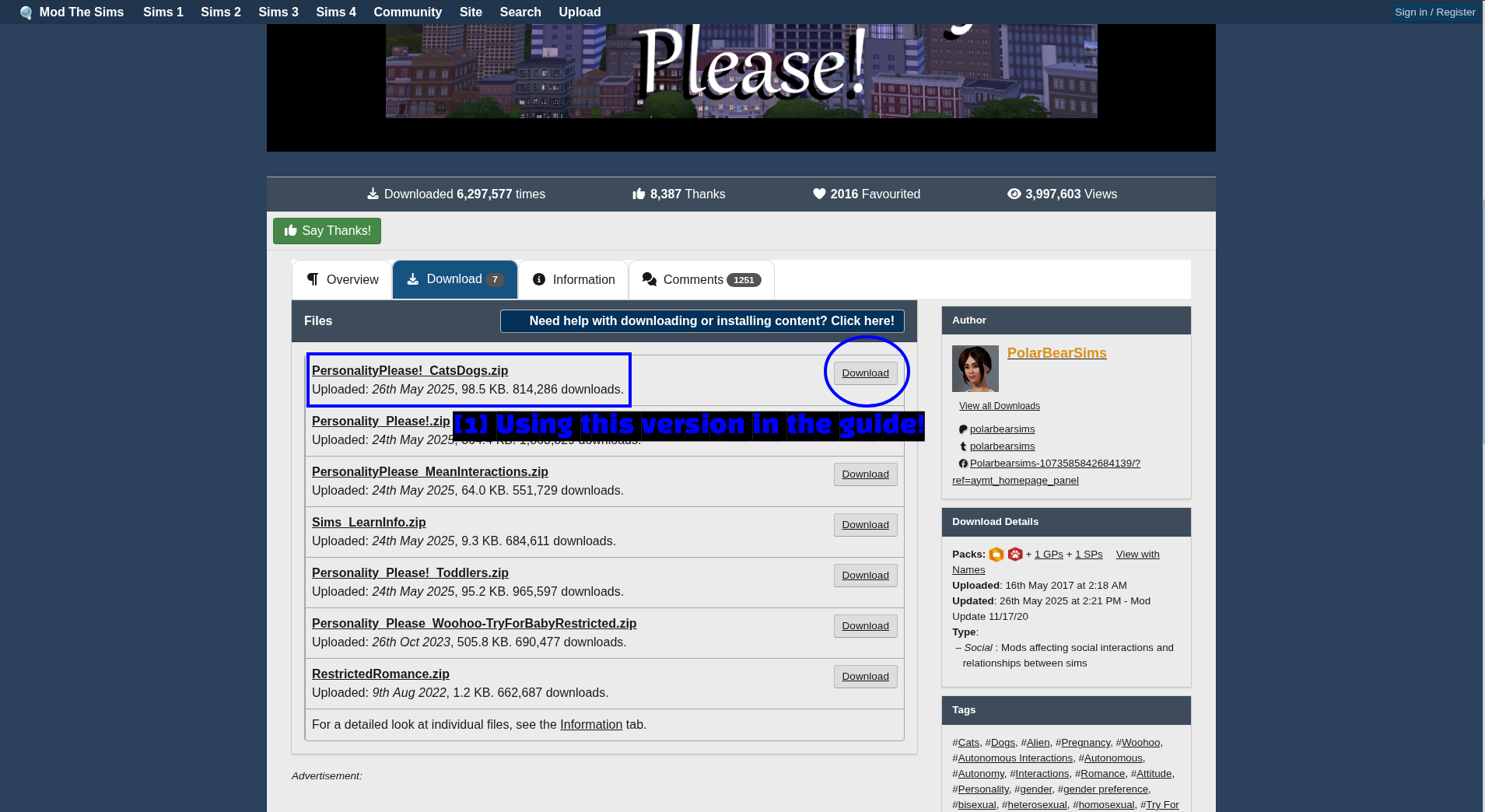
- Using this version in the guide : Les mods sont souvent répartis en plusieurs fichiers optionnels. Ici, PersonalityPlease! propose des téléchargements séparés pour le mod de base, la prise en charge de Chiens & Chats, les interactions méchantes, les bambins, etc. Nous récupérons le fichier
PersonalityPlease!_CatsDogs.zip.
Lisez les descriptions avant de cliquer sur Download un peu partout ! Certains de ces fichiers sont des alternatives entre eux plutôt que des ajouts, et installer deux versions incompatibles est le meilleur moyen de casser le mod.
Copier les fichiers
Extrayez l'archive avec 7-Zip et regardez ce qu'elle contient.
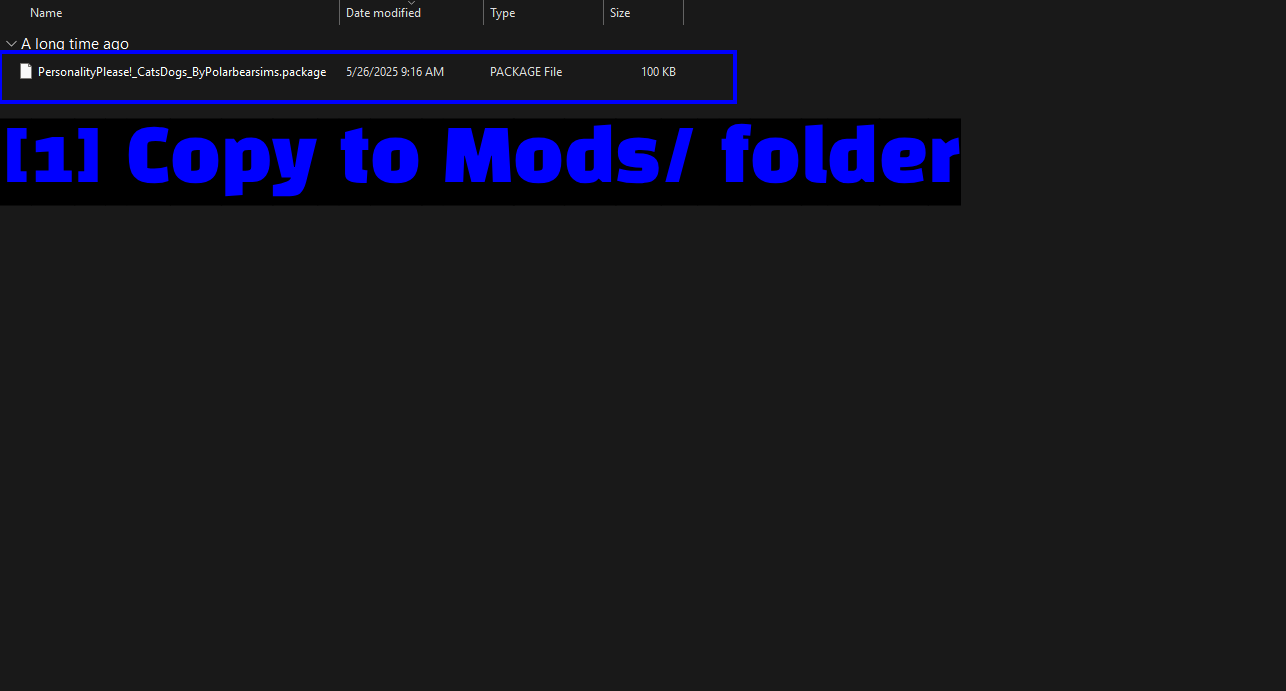
- Copy to Mods/ folder : Dans ce cas, il s'agit d'un seul fichier
.package. La plupart des mods sont exactement aussi simples.
Ouvrez maintenant votre dossier Mods et collez-le dedans.
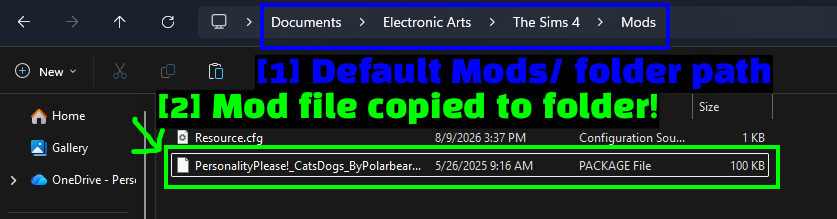
- Default Mods/ folder path :
Documents\Electronic Arts\The Sims 4\Mods. - Mod file copied to folder! : Le fichier
.packageplacé à côté deResource.cfg.
C'est tout pour l'installation manuelle - le mod se charge au prochain démarrage du jeu. Passez directement à Vérifier si vos mods sont chargés si vous voulez confirmer que tout a fonctionné.
NOTE - Certains téléchargements arrivent au format .rar ou .7z plutôt que .zip, et certains créateurs de CC ajoutent un readme ou des images d'aperçu à côté du mod lui-même. Seuls les fichiers .package et .ts4script doivent aller dans Mods - tout le reste peut être ignoré.
Installer des mods avec l'application CurseForge
CurseForge prend en charge The Sims 4 dans son application, ce qui en fait ce qui se rapproche le plus d'un véritable mod manager pour le jeu. Elle télécharge, installe et met à jour les mods à votre place, et c'est gratuit.
Nous avons deux guides dédiés à l'application si vous ne l'avez jamais utilisée.
- Comment télécharger et installer l'application CurseForge
- Comment utiliser l'application CurseForge et les bases
Ajouter The Sims 4 à CurseForge
Ouvrez l'application et ajoutez le jeu depuis la barre latérale.
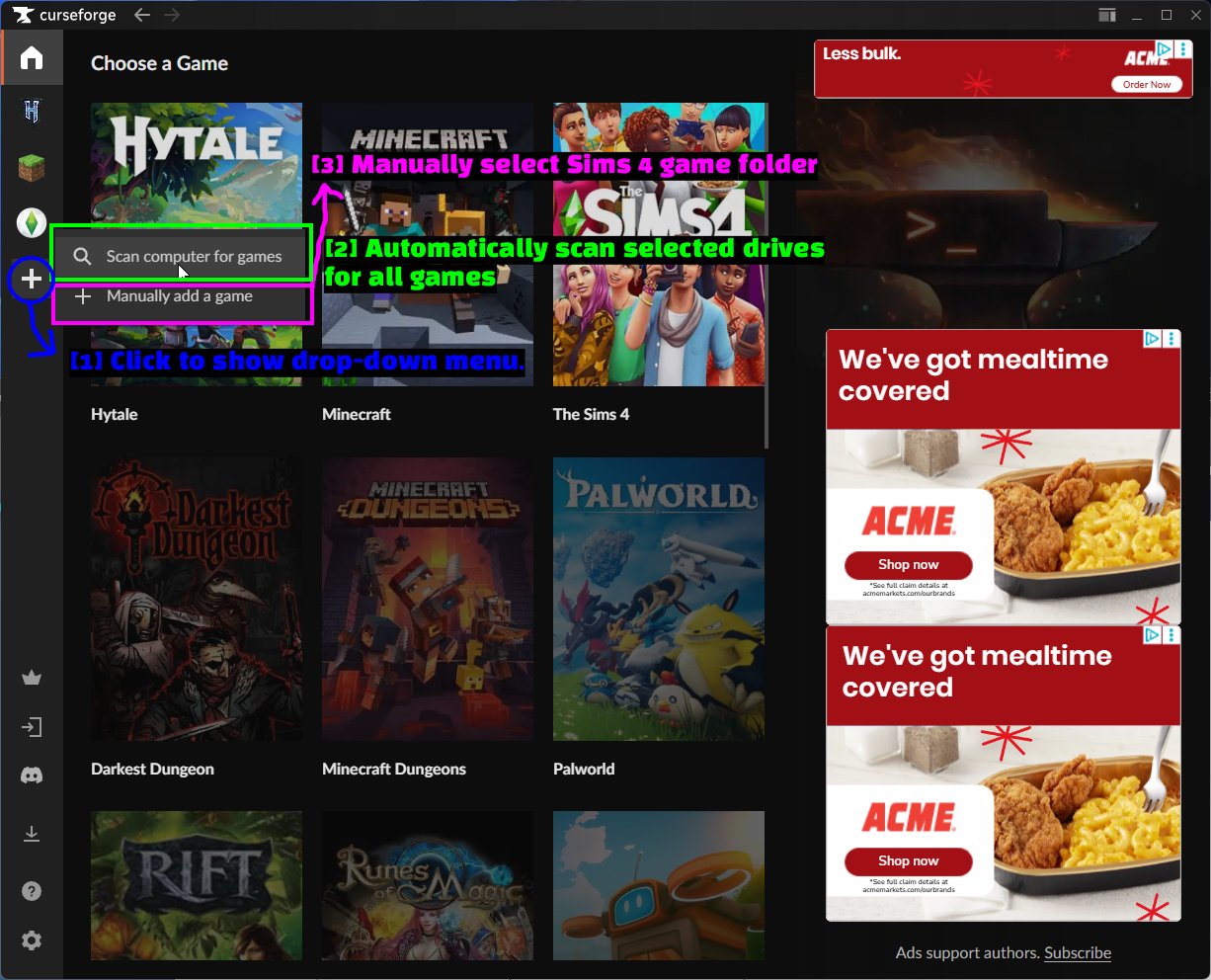
- Click to show drop-down menu : Cliquez sur le bouton + dans la barre latérale de gauche.
- Automatically scan selected drives for all games : Scan computer for games analyse vos disques et trouve The Sims 4 tout seul. C'est l'option la plus simple et elle fonctionne pour la plupart des gens.
- Manually select Sims 4 game folder : Manually add a game vous permet d'indiquer vous-même l'installation à CurseForge si l'analyse n'a rien donné.
Une fois ajouté, The Sims 4 apparaît sous forme d'icône dans la barre latérale.
La page The Sims 4 dans CurseForge
Cliquez sur l'icône Sims 4 et vous arriverez sur la page dédiée au jeu.
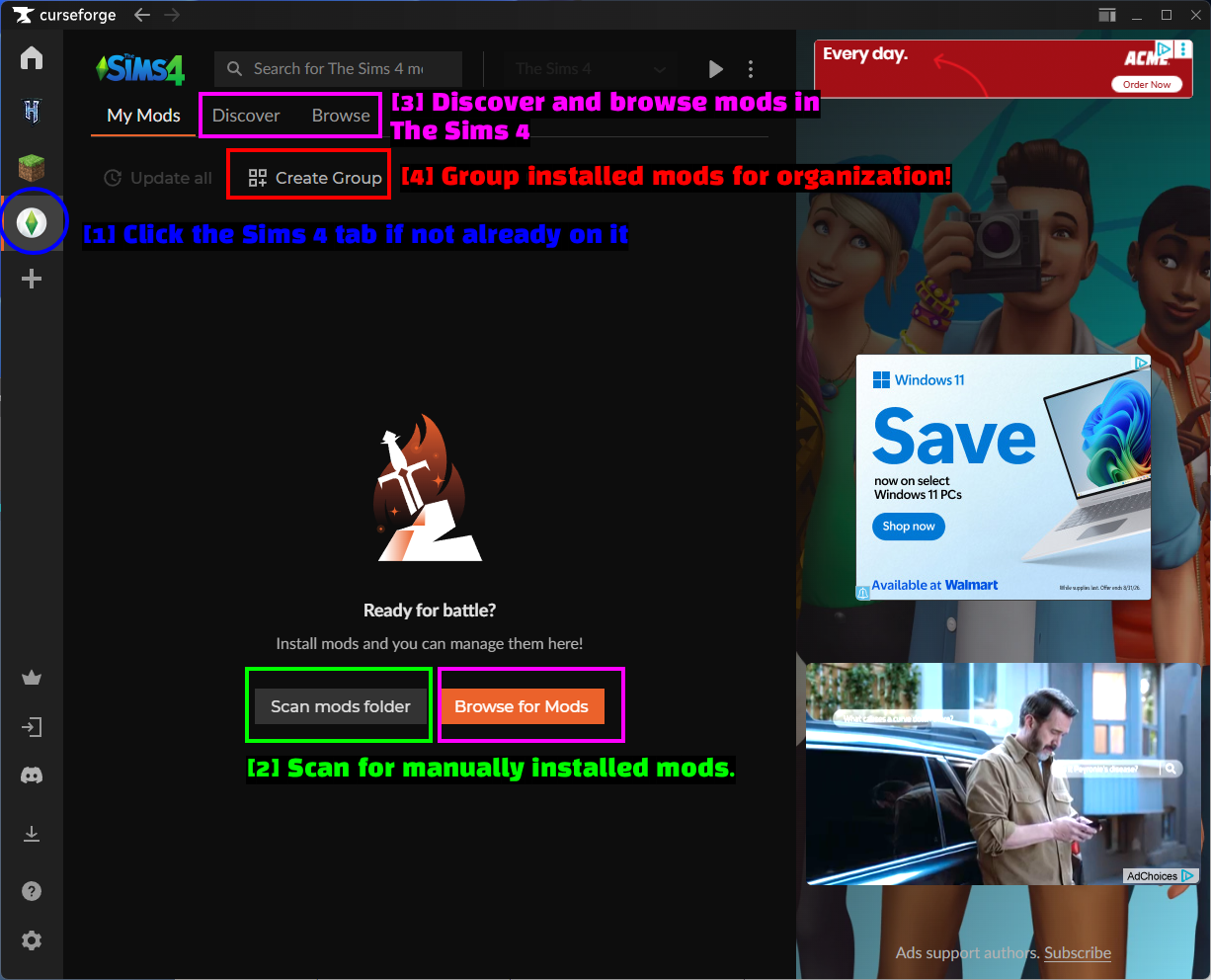
- Click the Sims 4 tab if not already on it : L'icône du jeu dans la barre latérale.
- Scan for manually installed mods : Scan mods folder détecte les mods que vous avez installés à la main afin que CurseForge puisse aussi les gérer. Plus de détails ci-dessous.
- Discover and browse mods in The Sims 4 : Les onglets Discover et Browse sont l'endroit où vous trouverez de nouveaux mods.
- Group installed mods for organization! : Create Group vous permet de regrouper les mods installés - vraiment utile dès que vous utilisez beaucoup de CC.
Parcourir et installer des mods
Rendez-vous dans l'onglet Browse.
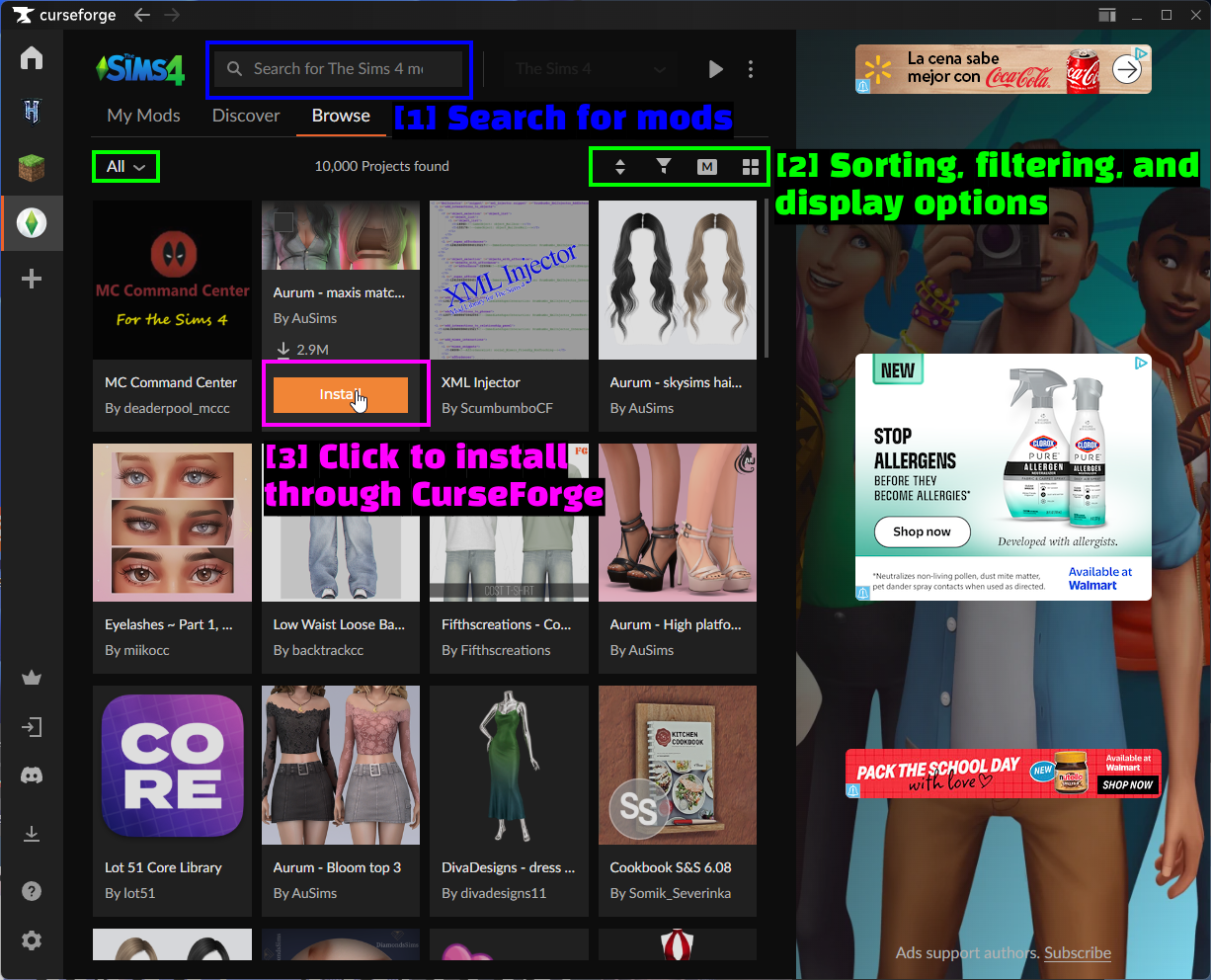
- Search for mods : La barre de recherche en haut filtre les mods The Sims 4.
- Sorting, filtering, and display options : Ordre de tri, filtres par catégorie et bascule entre affichage en grille et en liste. Le filtre par catégorie est celui que vous utiliserez le plus - le CC pour Sims 4 est massivement composé de vêtements et de coiffures, donc filtrer par catégorie est le seul moyen de trouver des mods de gameplay.
- Click to install through CurseForge : Survolez n'importe quelle vignette de mod et cliquez sur Install. C'est tout.
Une fois terminé, le mod apparaît dans My Mods.
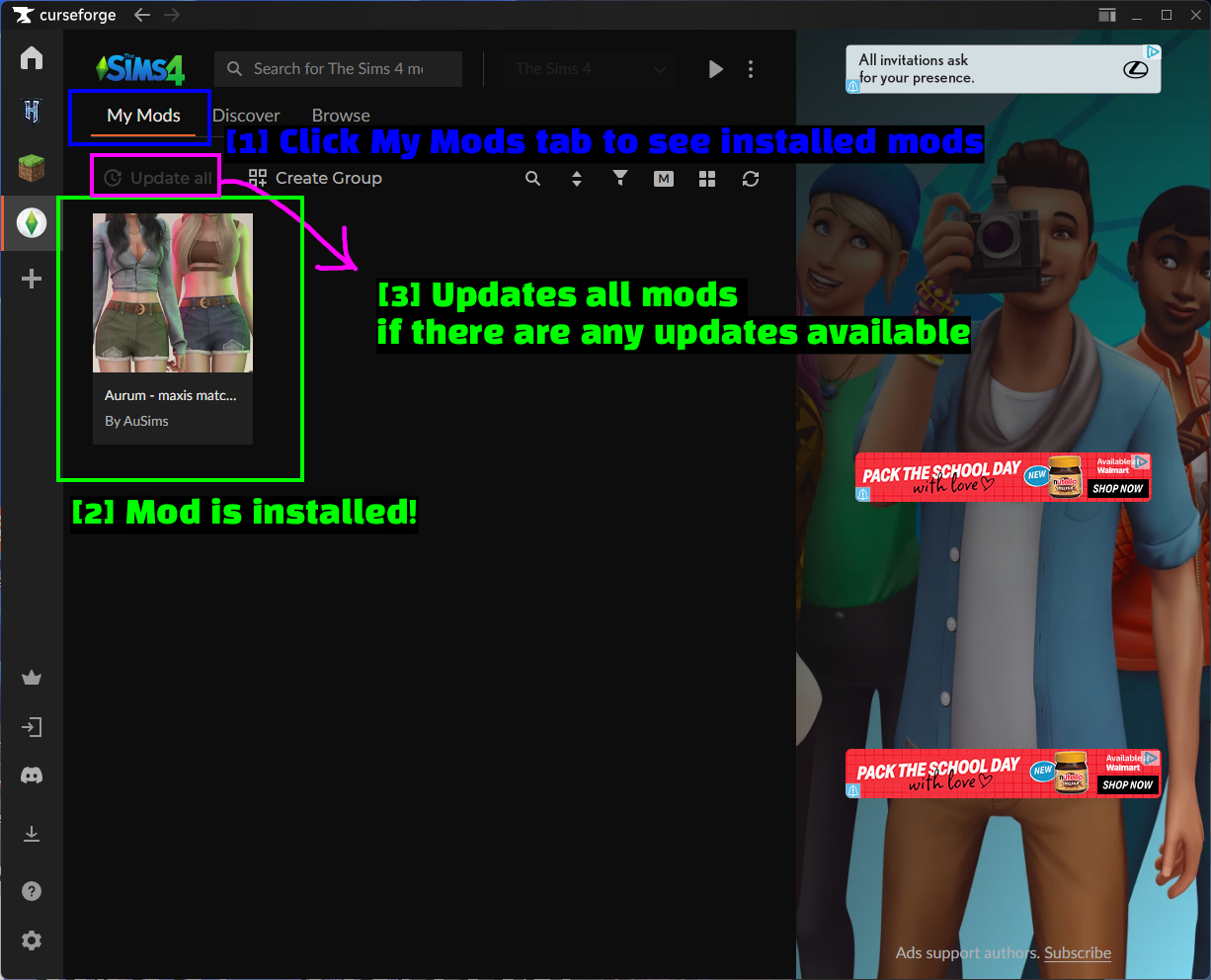
- Click My Mods tab to see installed mods : Tout ce que CurseForge gère pour vous.
- Mod is installed! : Notre CC apparaît dans la liste.
- Updates all mods if there are any updates available : Update all récupère la dernière version de tout d'un seul coup. Après un patch de Sims 4, ce bouton est votre meilleur ami.
Où CurseForge place vos mods
Aucune magie ici - CurseForge dépose les fichiers exactement dans le même dossier que celui utilisé en manuel.
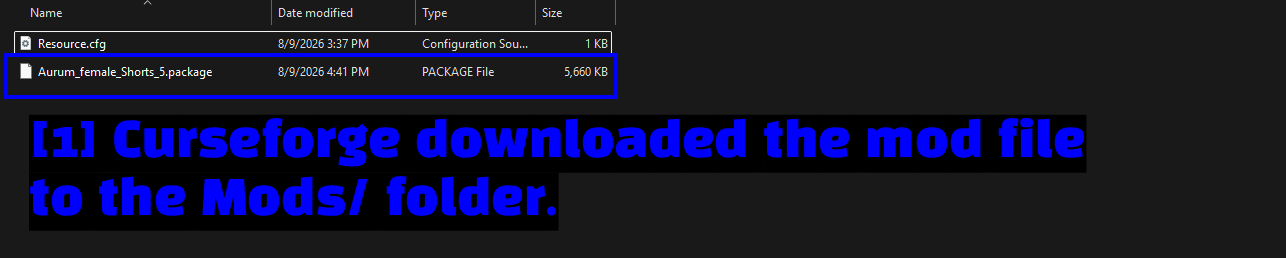
- Curseforge downloaded the mod file to the Mods/ folder :
Aurum_female_Shorts_5.package, placé juste à côté deResource.cfgdansDocuments\Electronic Arts\The Sims 4\Mods.
C'est bon à savoir, car cela signifie que les deux méthodes se mélangent sans problème. Vous pouvez installer certains mods via CurseForge et d'autres à la main, le jeu les traite de façon identique.
NOTE - Comme ils partagent le même dossier, ne supprimez pas manuellement un fichier installé par CurseForge. Désinstallez-le plutôt via l'application, sinon CurseForge continuera de croire qu'il est toujours présent.
Rechercher les mods installés manuellement
Le bouton Scan mods folder est la fonctionnalité qui relie les deux méthodes. Cliquez dessus et CurseForge parcourt votre dossier Mods puis récupère ce qu'il y trouve.
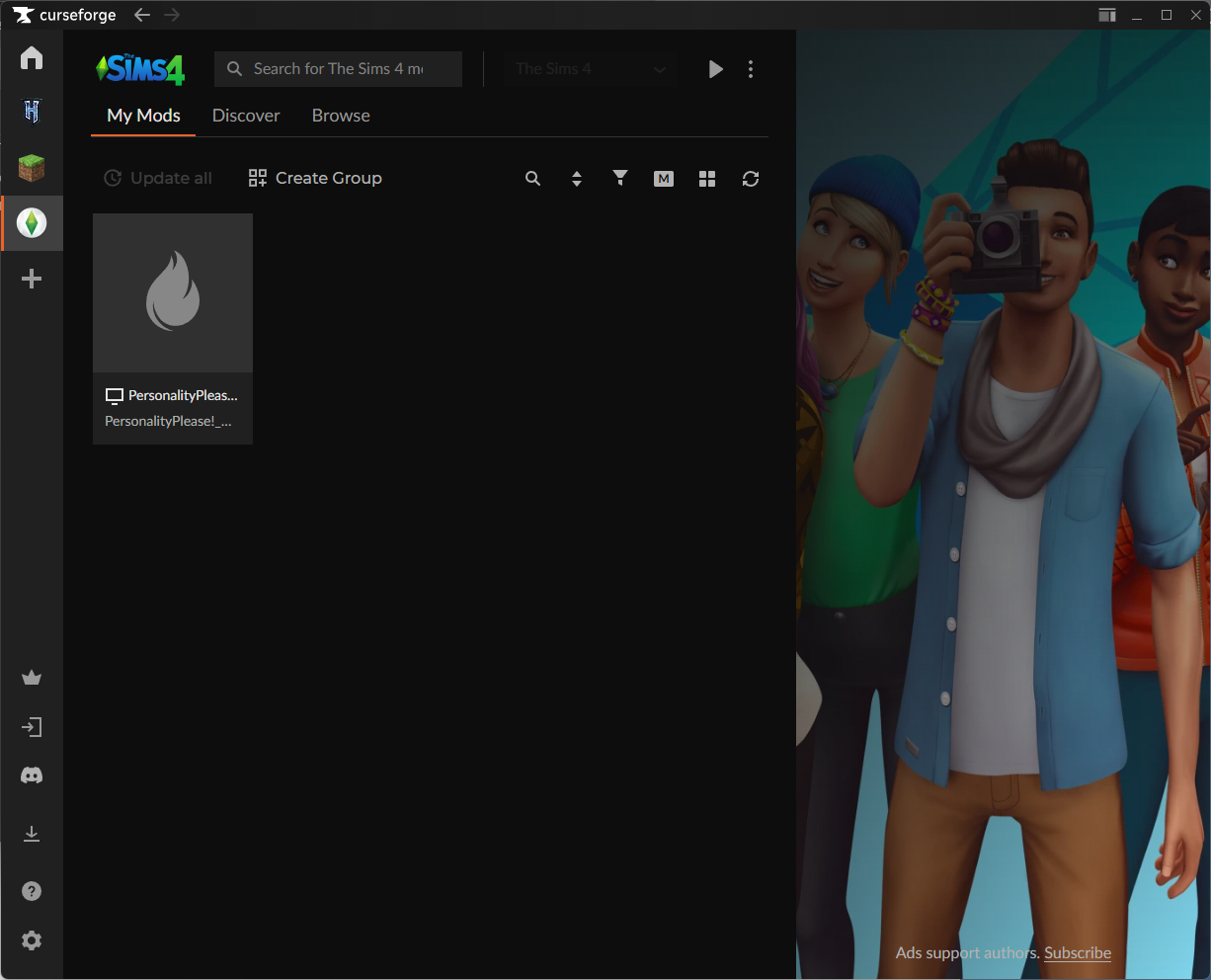
Ici, vous pouvez voir le mod PersonalityPlease! que nous avons installé à la main apparaître dans My Mods. Il affiche une icône de flamme générique plutôt qu'une véritable vignette, car CurseForge n'a pas pu le faire correspondre à un mod de son site - ce mod vient de ModTheSims, il n'y a donc rien à quoi le rattacher.
Les mods détectés de cette façon peuvent être activés et désactivés depuis l'application, mais CurseForge ne peut pas les mettre à jour pour vous puisqu'il ignore leur provenance. C'est déjà mieux que rien.
Sims 4 Mod Manager (S4MM)
Sims 4 Mod Manager est un outil à part qui fait quelque chose que CurseForge ne fait pas - il trie et organise les mods que vous possédez déjà. Il lit votre dossier Mods, détermine ce qu'est réellement chaque fichier (cheveux, vêtements, objets de construction, script mods, etc.) et vous permet de tout classer par catégories.
Ce n'est pas un remplaçant de CurseForge ni de l'installation manuelle. C'est l'outil vers lequel vous vous tournez quand votre dossier Mods contient 3 000 fichiers .package sans étiquette et que vous devez trouver celui qui pose problème.
Télécharger S4MM
Rendez-vous sur le site de S4MM.
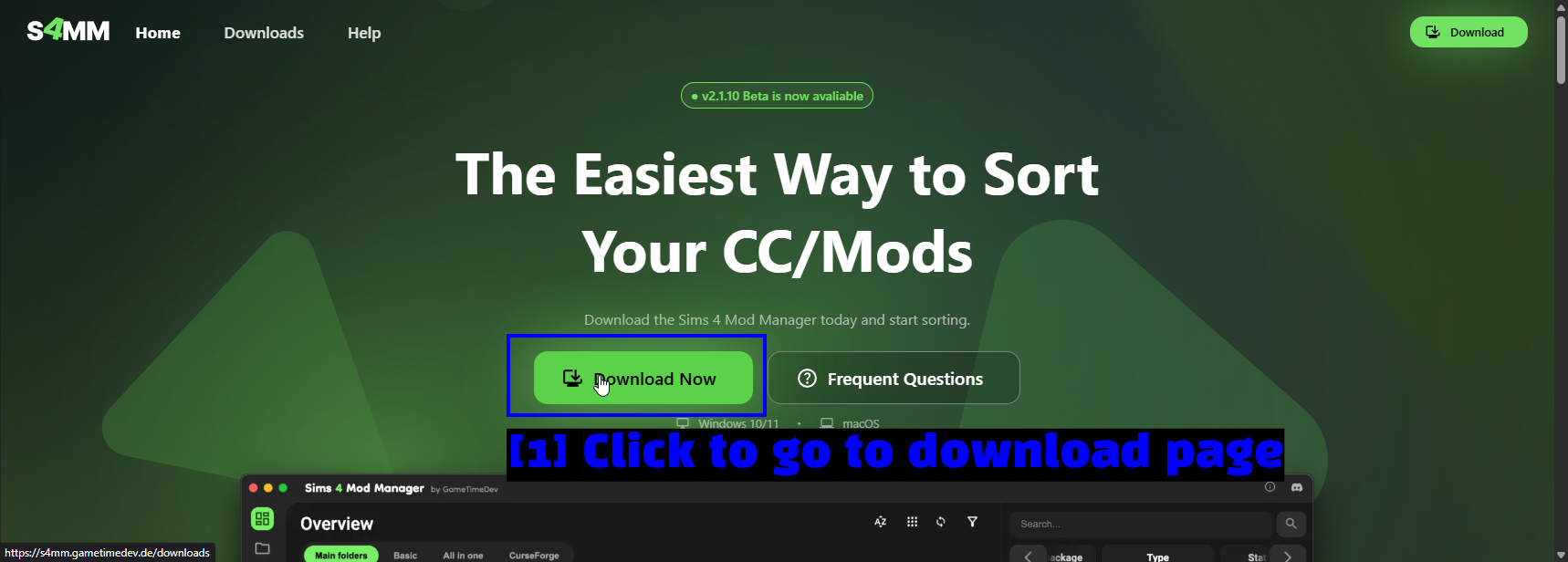
- Cliquez pour accéder à la page de téléchargement : Cliquez sur Download Now.
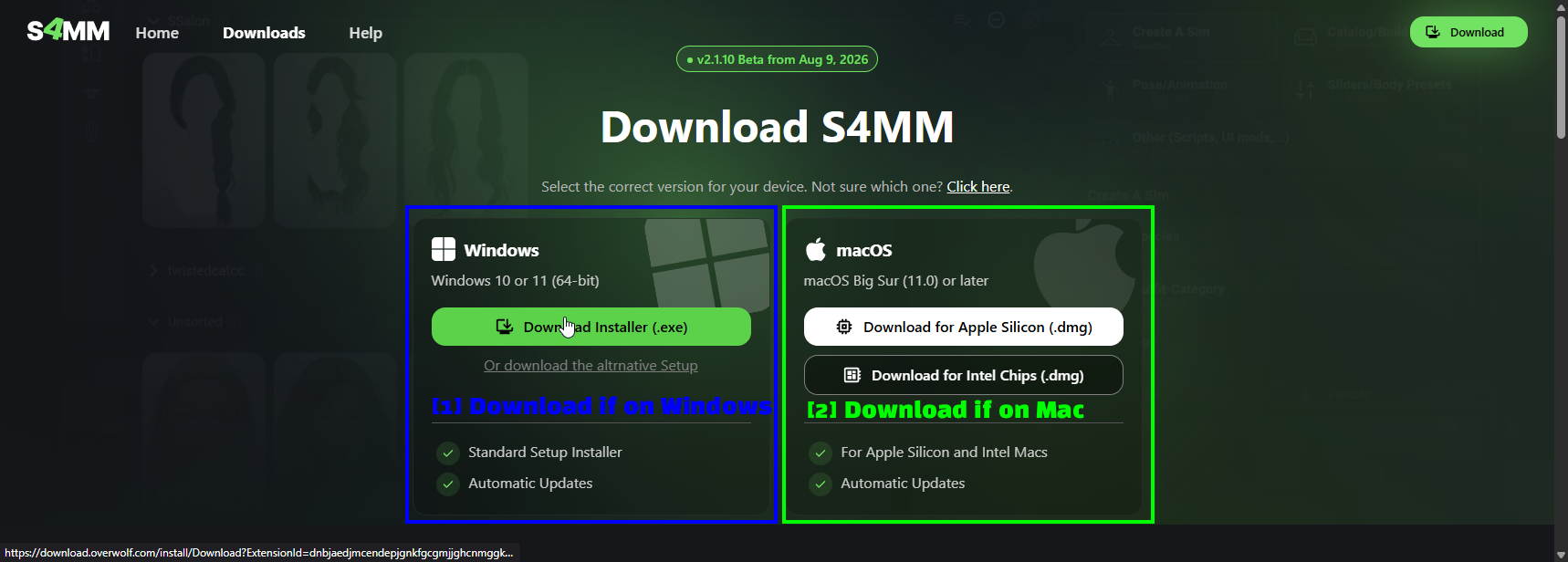
- À télécharger sous Windows : Download Installer (.exe) pour Windows 10 ou 11 (64 bits). Une installation alternative est proposée juste en dessous si l'installeur standard vous pose problème.
- À télécharger sur Mac : macOS Big Sur (11.0) ou plus récent, avec des versions distinctes pour les puces Apple Silicon et Intel.
Les deux versions gèrent elles-mêmes leurs mises à jour automatiques une fois installées.
Installer S4MM
Lancez l'installeur que vous venez de télécharger.
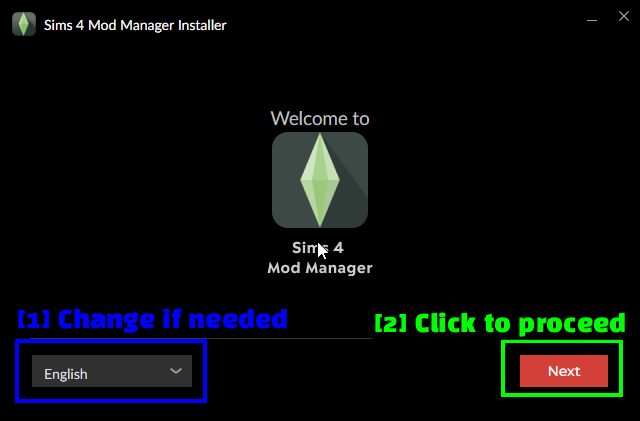
- Modifiez si nécessaire : Choisissez votre langue dans le menu déroulant.
- Cliquez pour continuer : Cliquez sur Next.
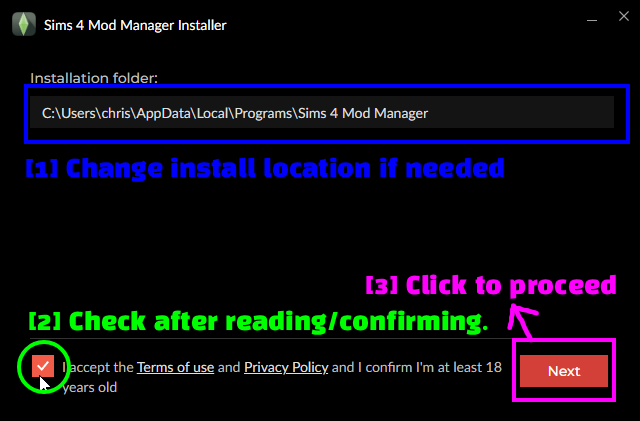
- Changez l'emplacement d'installation si nécessaire : Par défaut, c'est
C:\Users\<user>\AppData\Local\Programs\Sims 4 Mod Manager, ce qui convient à la plupart des gens. - Cochez après lecture/confirmation : Cochez la case pour accepter les conditions d'utilisation et la politique de confidentialité.
- Cliquez pour continuer : Cliquez sur Next et laissez l'installation se faire.
Premier lancement
Au premier démarrage, S4MM redemande une langue, cette fois pour l'application elle-même.
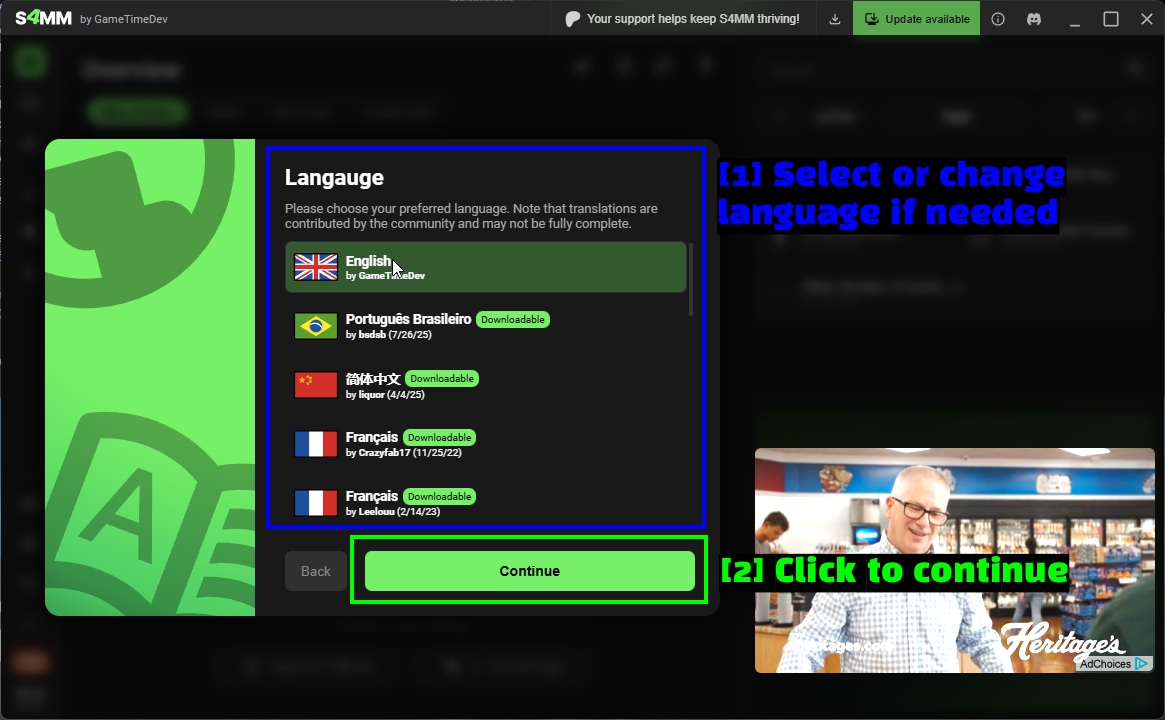
- Sélectionnez ou changez la langue si nécessaire : L'anglais est intégré. Les autres langues sont des traductions communautaires et, comme la fenêtre le précise elle-même, peuvent être incomplètes.
- Cliquez pour continuer : Cliquez sur Continue.
Vous verrez ensuite probablement apparaître un message Incomplete settings.
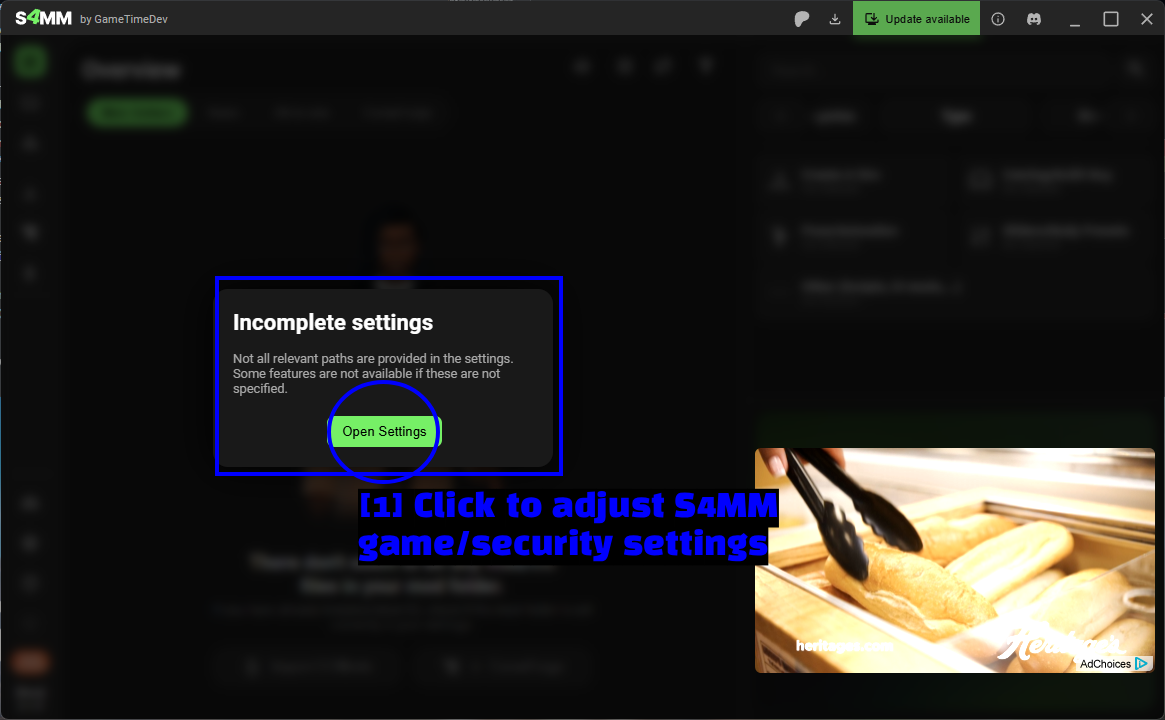
- Cliquez pour ajuster les paramètres de jeu/sécurité de S4MM : Cliquez sur Open Settings. S4MM a besoin de savoir où se trouvent votre jeu et votre dossier
Modsavant que la plupart de ses fonctionnalités ne servent à quelque chose, alors ne sautez pas cette étape.
La fenêtre des paramètres de jeu des Sims 4
Voilà la partie vraiment utile. S4MM vérifie la configuration réelle de vos Sims 4 et vous indique si elle est mal réglée pour le modding.
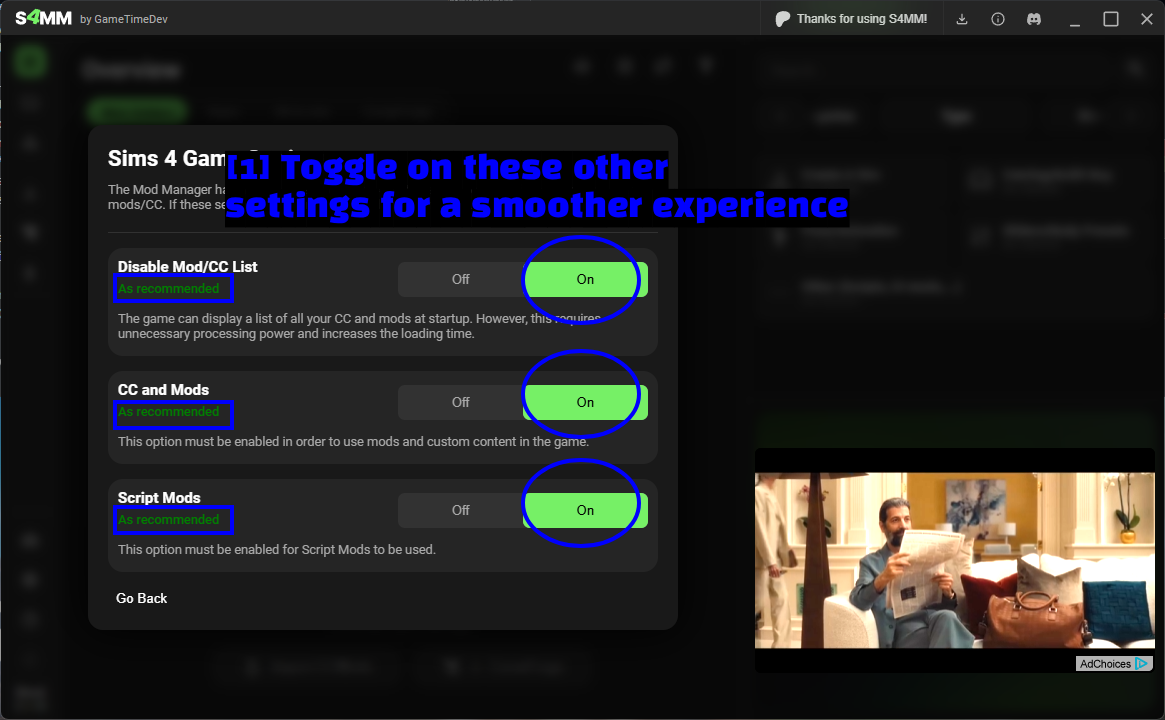
- Activez ces autres paramètres pour une expérience plus fluide : Passez les trois sur On. Chacun est étiqueté soit As recommended en vert, soit Possibly bad/unintended en rouge, ce qui vous permet de voir d'un coup d'œil ce qui doit être modifié.
Voici ce que fait chaque option.
- Disable Mod/CC List - empêche le jeu d'afficher la liste complète de vos mods et CC à chaque démarrage. C'est purement un gain de temps de chargement et de traitement, et il devient notable dès que vous avez beaucoup de CC.
- CC and Mods - l'interrupteur principal. Il doit être activé, sinon rien ne se charge du tout. C'est le même paramètre que Activer le contenu personnalisé et les mods dans le jeu.
- Script Mods - nécessaire pour que le moindre mod
.ts4scriptfonctionne. Équivalent à Mods de script autorisés dans le jeu.
Les deux derniers correspondent exactement aux options en jeu détaillées plus bas - S4MM se contente de les lire et de les basculer depuis l'extérieur du jeu, ce qui vous évite un détour par les menus.
NOTE - Si vous jouez délibérément avec les script mods désactivés, vous pouvez fermer cette fenêtre. L'outil signale ce qui est inhabituel, pas ce qui est incorrect.
Vérifier que vos mods se sont bien chargés
Vous n'avez pas besoin d'activer vos mods un par un - une fois les fichiers dans votre dossier Mods, le jeu les détecte au lancement suivant. Le menu en jeu sert à confirmer que c'est bien le cas, et c'est le moyen le plus rapide de distinguer « le mod ne fonctionne pas » de « le mod ne s'est jamais chargé ».
Lancez Les Sims 4 et ouvrez le menu depuis l'écran principal.
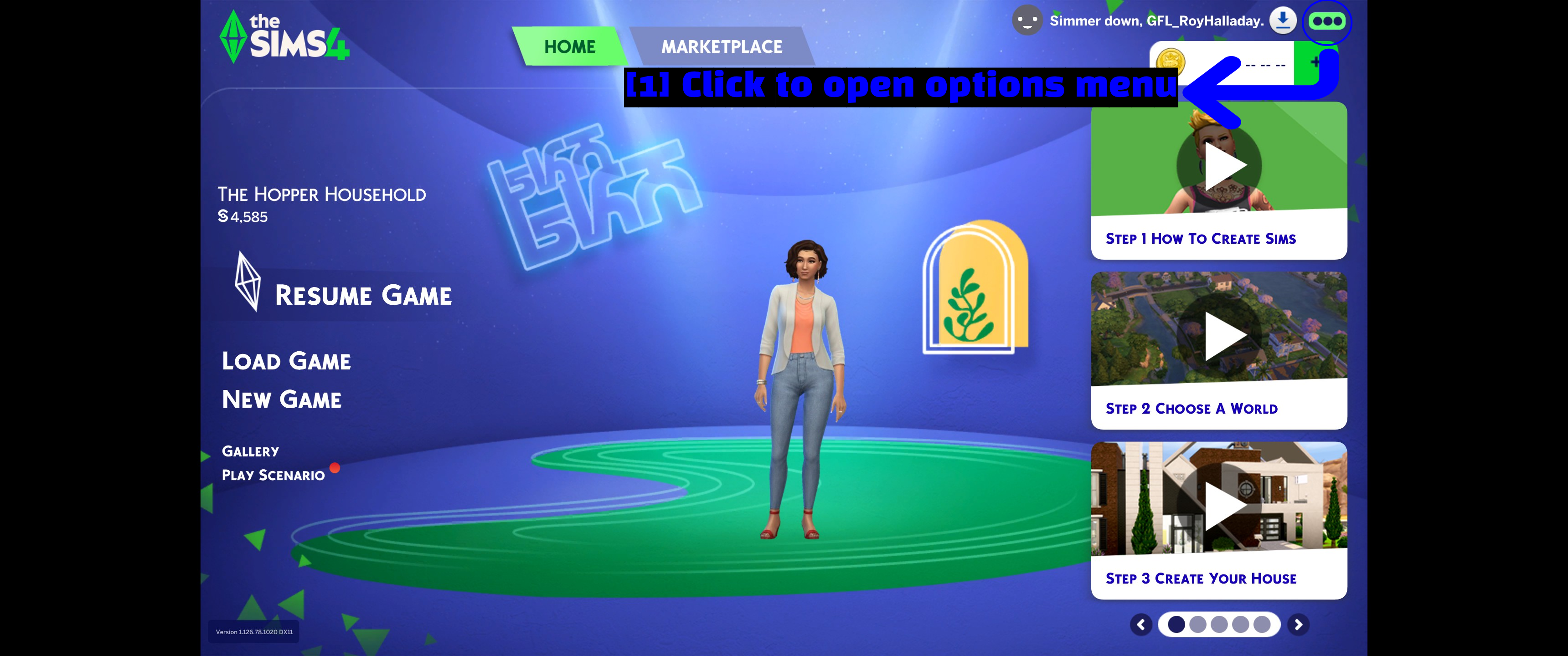
- Cliquez pour ouvrir le menu d'options : Les trois points (...) dans le coin supérieur droit.
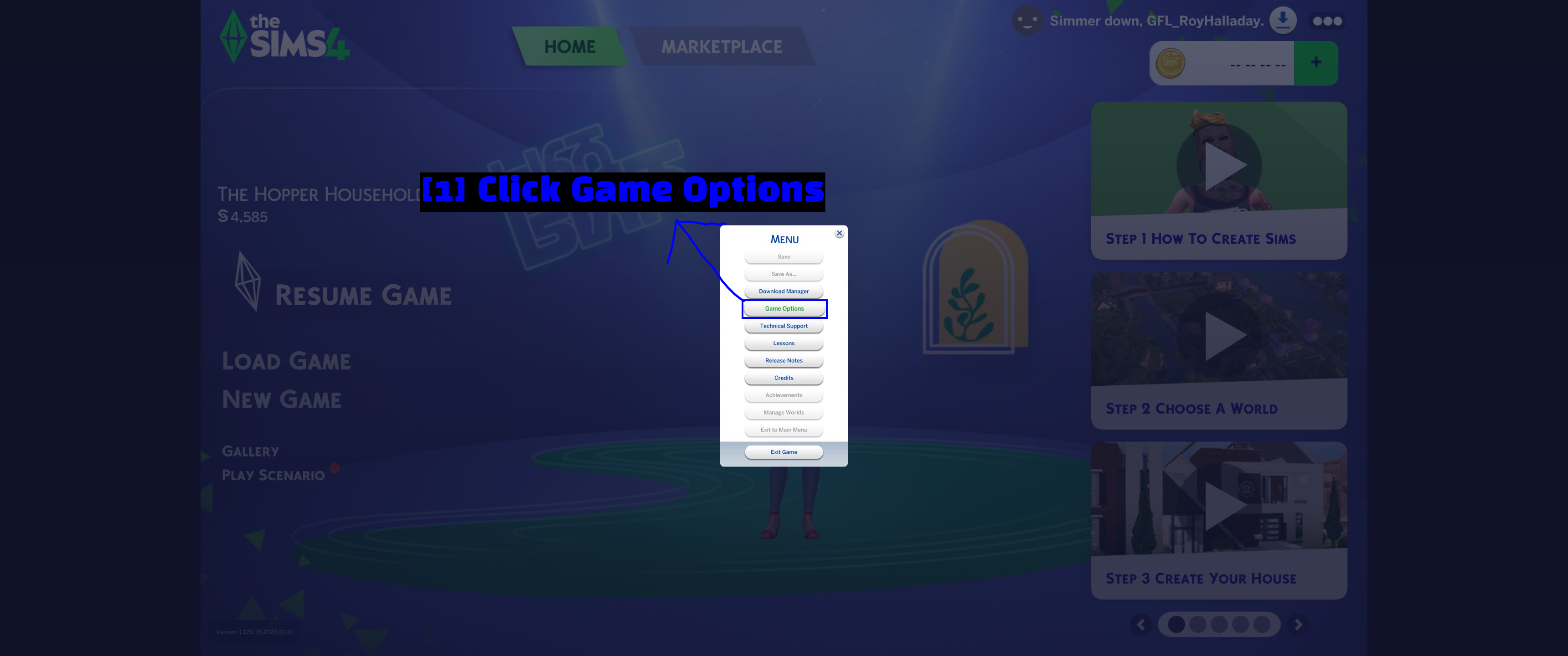
- Cliquez sur Options de jeu : Choisissez Options de jeu dans le menu.
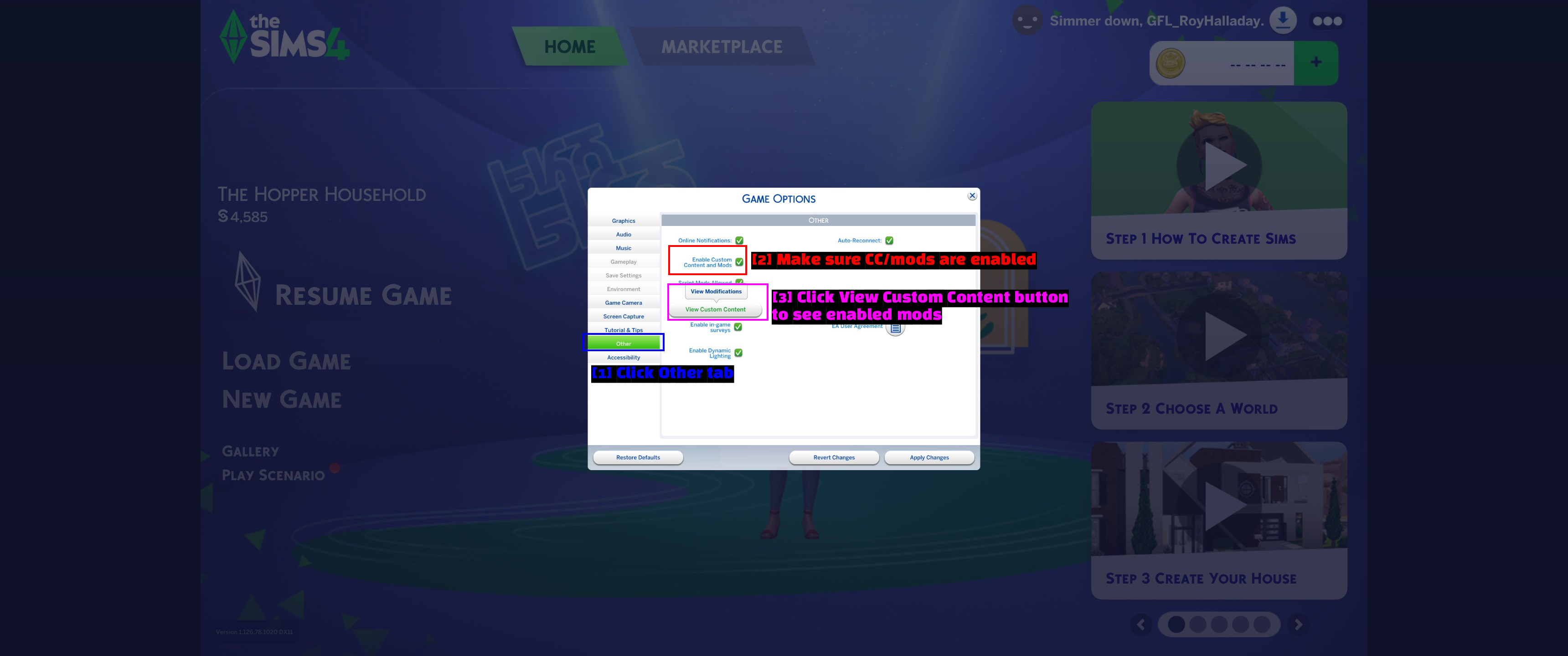
- Cliquez sur l'onglet Autres : sélectionnez Autres dans la liste de gauche.
- Vérifiez que le CC et les mods sont activés : Activer le contenu personnalisé et les mods devrait déjà être coché, c'est activé par défaut. Autoriser les mods de script se trouve juste en dessous et doit également être coché si vous utilisez des script mods.
- Cliquez sur le bouton Voir le contenu personnalisé pour afficher les mods activés : Voir le contenu personnalisé liste tout ce que le jeu a réellement chargé.
NOTE - Si vous avez dû modifier l'une de ces cases, cliquez sur Appliquer les changements et redémarrez le jeu avant de vérifier quoi que ce soit d'autre.
Cliquez maintenant sur Voir le contenu personnalisé.
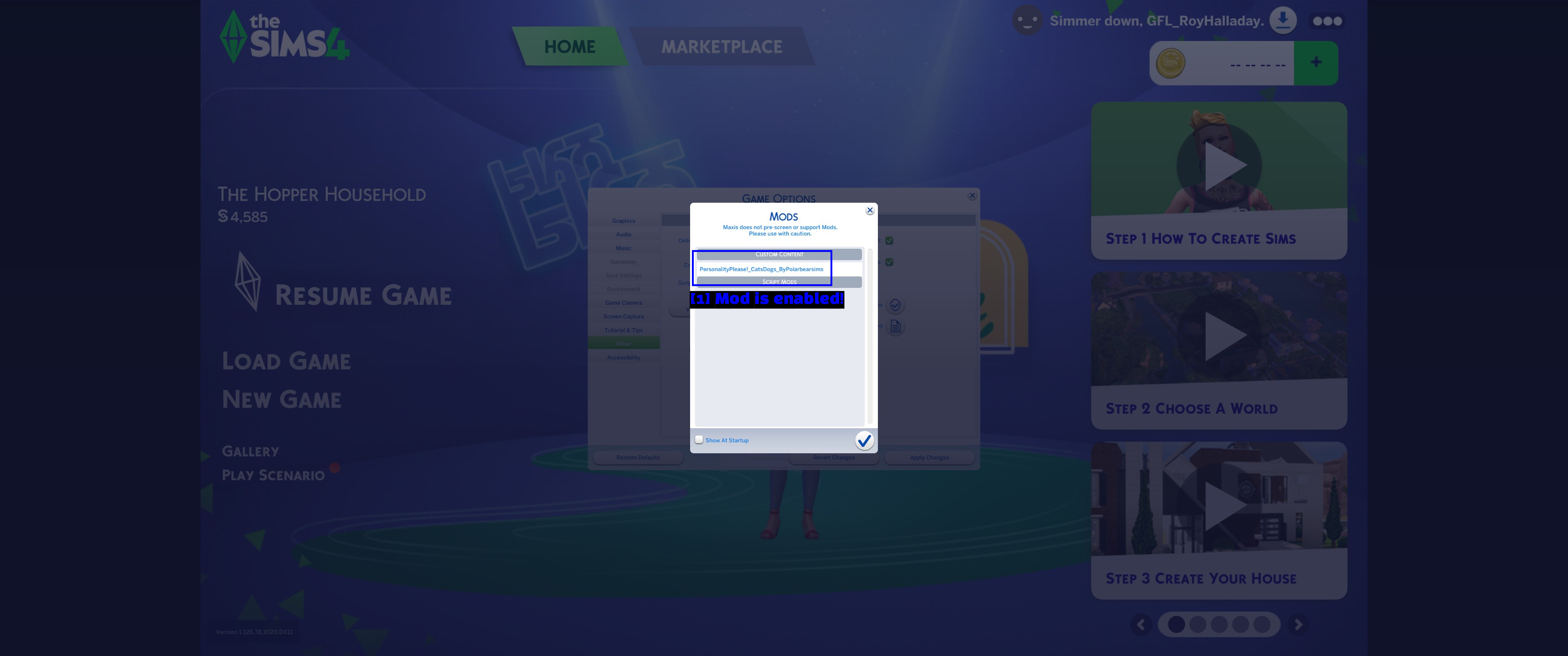
- Le mod est activé ! :
PersonalityPlease!_CatsDogs_ByPolarbearsimsapparaît sous CONTENU PERSONNALISÉ, ce qui signifie que le jeu l'a trouvé et chargé.
Les script mods apparaissent sous la rubrique distincte MODS DE SCRIPT dans la même fenêtre. Rien n'a besoin d'être activé ici : si un mod est listé, c'est qu'il est chargé. Si un mod que vous avez installé n'apparaît pas dans l'une des deux listes, le jeu ne l'a jamais détecté ; passez alors en revue les vérifications ci-dessous.
NOTE - Après certains patchs, The Sims 4 remet discrètement l'option Autoriser les mods de script sur désactivé. Si vos script mods cessent soudainement de fonctionner après une mise à jour, vérifiez d'abord cette case avant de commencer à supprimer des fichiers.
Dépannage
- Un mod n'apparaît pas dans la liste. Vérifiez d'abord la profondeur des dossiers. Les script mods doivent se trouver dans
Modsou dans un seul sous-dossier, pas plus. Vérifiez ensuite que le fichier se termine bien par.packageou.ts4scriptet qu'il n'est pas encore à l'intérieur d'un.zip. - Rien ne se charge du tout. Assurez-vous que
Resource.cfgest toujours dans votre dossierModset que l'option Activer le contenu personnalisé et les mods n'a pas été décochée entre-temps. Si vous l'avez modifiée, appliquez le changement et redémarrez le jeu. - Les script mods ne fonctionnent plus après une mise à jour. Le jeu a peut-être désactivé Autoriser les mods de script. Réactivez-la, puis vérifiez si vos script mods ont reçu des mises à jour : les script mods cassent bien plus souvent avec les patchs que le CC.
- Le jeu plante ou une sauvegarde refuse de se charger. Déplacez tout votre dossier
Modssur le bureau et lancez le jeu. Si le problème disparaît, c'est un mod. Remettez la moitié du dossier, testez à nouveau, et continuez à diviser par deux jusqu'à trouver le coupable. - Le CC s'affiche mal ou des Sims ont des textures manquantes. C'est généralement dû à du CC et à des mods obsolètes. Cherchez une version à jour sur la page du créateur, ou supprimez-les.
- CurseForge indique qu'un mod est installé mais le jeu ne le voit pas. Vérifiez que CurseForge pointe vers le bon dossier de jeu et que le fichier a bien atterri dans
Documents\Electronic Arts\The Sims 4\Mods.
ASTUCE - Supprimez localthumbcache.package dans Documents\Electronic Arts\The Sims 4 après avoir ajouté ou retiré beaucoup de CC. Il s'agit d'un cache de vignettes, que le jeu reconstruit automatiquement, et un cache obsolète provoque pas mal de bugs visuels étranges dans le CAS et le mode Construction/Achat.
Notes
- Nous ne sommes affiliés ni à EA, ni à Maxis, ni à CurseForge, ni à ModTheSims, ni au développeur de S4MM. Ce guide a été rédigé de façon indépendante pour aider les gens à se lancer.
- Tout ce qui est indiqué ici était exact au moment de la rédaction. The Sims 4 reçoit des patchs régulièrement et les outils se mettent à jour en parallèle, certaines captures d'écran peuvent donc devenir obsolètes.
- Ajoutez les mods par petits lots plutôt que d'en déverser cent d'un coup. Quand quelque chose casse, vous saurez vraiment ce qui en est la cause.
À voir également !
- ModTheSims
- CurseForge - The Sims 4
- The Sims Resource
- Sims 4 Mod Manager (S4MM)
- Lumpinou Mods
- Sims 4 Studio
- Comment télécharger et installer l'application CurseForge
- Comment utiliser l'application CurseForge et les bases
- Le subreddit The Sims
Conclusion
Et voilà, c'est tout ! Vous devriez maintenant avoir des mods installés par la méthode qui vous convient, un moyen de confirmer que le jeu les charge réellement, et un moyen d'éviter que votre dossier Mods ne se transforme en un fouillis ingérable.
En résumé : utilisez l'application CurseForge pour tout ce qui y est hébergé, puisqu'elle gère les mises à jour pour vous, installez tout le reste manuellement (ça se fait en deux étapes), gardez vos fichiers à un sous-dossier de profondeur maximum, et utilisez Voir le contenu personnalisé en jeu chaque fois que vous devez vérifier si un mod a bien été chargé.
Les guides que nous créons sont toujours ouverts aux corrections et améliorations, donc si vous avez des suggestions ou remarquez un problème, n'hésitez pas à contribuer en créant une pull request sur notre dépôt GitHub !
Rejoignez notre serveur Discord si vous avez des questions ou besoin d'aide sur tout ce qui touche au modding ou à nos guides !